
Quick Answer
The best way to export invoice data to Excel is to start with a native accounting export, preserve an untouched raw file, and verify that line items are complete before any cleanup. In QuickBooks, direct invoice export may omit line details, so use the Sales by Customer Detail report when needed. Keep PDFs separate from data extracts, and use macros only on a working copy after validation.
Why Export Invoice Data to Excel#
Start with source fidelity, not convenience. If you need invoice data in Excel that accounting teams can actually reconcile, make the first decision simple. Use native accounting export where possible, treat invoice PDFs as a separate artifact, and use Excel automation only after you have preserved a raw file.
Before you start#
Step 1. Pull accounting data, not presentation files. A clean invoice PDF can be useful for sharing, but it is not the same thing as a report-ready dataset. Finance and operations often need invoice headers, line items, totals, statuses, and source references in Microsoft Excel so they can reconcile, review exceptions, and answer audit questions. If you start from document output instead of source data, you create ambiguity before month-end even begins.
Step 2. Prefer native export first, then check for line-item loss. If the accounting record lives in QuickBooks Online, start there. The catch is that a direct invoice export to Excel may not include line details. Support guidance notes that invoice exports may omit them and points to the Sales by Customer Detail report as a workaround that can provide invoice header information plus line-item details in Excel. That detail matters. A file can look complete at the header level and still fail reconciliation if the rows behind each invoice are missing.
Step 3. Use extraction and Excel automation for the right job. If native access is unavailable or incomplete, document extraction can be a fallback for stored files. Extraction can be practical, but you should capture provenance up front, including which folder, which file set, and which run produced the dataset.
Inside Excel, VBA and Excel Macros are useful for repetitive tasks, which is how Microsoft positions macros, but they are not a substitute for source-of-truth export. A macro can standardize columns or repeat formatting. It should not be the place where missing accounting detail gets invented or silently reshaped.
The target is narrower, and more useful, than simply "get invoices into Excel." You want a report-ready file with line-item fidelity, an untouched raw export tab, and written validation checks before anyone uses it for reporting or close. A practical first checkpoint is simple: confirm the exported file contains the expected header fields and that every invoice has at least one associated line-item row. If that check fails, stop there, rerun the native path, or switch to the report-based workaround before you transform anything.
Prepare your inputs before the first export#
Lock your export inputs before the first run so the Excel file is usable for reconciliation and downstream reporting.
| Input | What to define | Check |
|---|---|---|
| Export scope | Invoice headers, line items, tax fields, status fields, and source references required in Microsoft Excel and Power BI | Finalize one required-column list before exporting |
| Source path and owner | One primary path for each run: native accounting export, or OneDrive document extraction through Alphamoon; one accountable owner | Source-of-truth is clear before reconciliation starts |
| Compliance and tax flags | Only fields the workflow needs, such as VAT validation status, W-9, W-8 BEN, Form 1099-NEC, FBAR relevance, or FEIE flags | Keep labels explicit |
| Acceptance checks | Source row count vs export row count, required-column presence, and line-item completeness | If a header appears without at least one line row, stop and rerun before any transformation |
Step 1. Write the export scope. Define the dataset in business terms: invoice headers, line items, tax fields, status fields, and source references required in Microsoft Excel and Power BI. Because Excel is a common Power BI source, finalize one required-column list before exporting.
Step 2. Confirm one source path and one owner. Document a single primary path for each run: native accounting export, or OneDrive document extraction through Alphamoon when needed. Assign one accountable owner to that path so the source of truth is clear before reconciliation starts.
Step 3. Include compliance and tax flags only where applicable. Add only the fields your workflow actually needs, such as VAT validation status, W-9, W-8 BEN, Form 1099-NEC, FBAR relevance, or FEIE flags. Keep labels explicit: W-9 supports correct TIN reporting, W-8 BEN is submitted when requested by the payer/withholding agent, VIES supports EU cross-border VAT registration checks, and FBAR relevance starts when aggregate foreign financial accounts exceed $10,000 during the year.
Step 4. Set acceptance checks before you run anything. Agree on the checks in advance: source row count vs export row count, required-column presence, and line-item completeness. If an invoice header appears without at least one line row, stop and rerun before any transformation.
For the broader mismatch-risk context, read Common Reporting Standard (CRS) for Digital Nomads: Self-Certification and Data Mismatch Risk.
Choose the export method that matches your risk and volume#
If ledger reconciliation is critical, start with native accounting export and use extraction or Excel automation only as downstream support. That keeps your source-of-truth data defensible before you optimize for speed.
| Path | Best fit | What it gives you | Main tradeoff | Verification point |
|---|---|---|---|---|
Native accounting export (QuickBooks) | Reconciliation, close, audit support, posted transaction review | QuickBooks Online exports reports, lists, and other data to Excel, including posting transactions that affect balances (such as invoices, receipts, and bills) | More setup effort, especially when you need a custom view | Open the exported .zip files and confirm report/list names, required columns, and invoice/line-item counts before edits |
Generic export guidance (Microsoft Support patterns) | Repeatable cleanup, formatting, reshaping, workbook checks | Macro Recorder automates repetitive tasks in Excel and stores the steps as VBA code | Strong control inside Excel, but not a replacement for source-of-truth accounting export; macro security must be managed | Compare raw-tab row counts and totals against macro output each run, and review macro security before enabling files |
Extraction automation (Alphamoon + OneDrive) | Native source access is unavailable, incomplete, or document-driven | Alphamoon positions OneDrive-to-Excel invoice export as automation that reduces manual entry and related error risk | Faster extraction, but less direct control over accounting-field fidelity and more complex failure recovery | Log the OneDrive folder, input file batch, and run timestamp so failed outputs can be traced and rerun |
Step 1. Use native accounting export first when you need defensible ledger output. QuickBooks Online is the primary path when exported data must stand up to reconciliation. It supports exporting reports, lists, and other data to Excel, including posting transactions that affect balances. If you use QuickBooks Online Advanced, Custom Report Builder is the path for tighter report shaping. The tradeoff is setup time, but reruns are cleaner because you are pulling from the accounting source.
Step 2. Use extraction when native access is unavailable or incomplete. The Alphamoon OneDrive workflow is a fallback for document-driven inputs where manual entry is the bottleneck. It can reduce manual-entry error risk through automated synchronization. Treat it as a recovery path, not a default convenience path, and capture provenance from run one - folder, file set, timestamp - so exceptions can be isolated quickly.
Step 3. Keep VBA and macros downstream of the source export. Use Excel macros to automate repetitive workbook tasks such as formatting, mapping, and checks. Keep one untouched raw tab, run macros on a copy, and compare totals after each run. Microsoft also notes macro security risk, so only enable macros under controlled handling. Macros improve repeatability; they do not replace source-of-truth export.
We covered this in more detail in Accounting Automation for Platforms That Removes Manual Journals and Speeds Close.
Export invoice and line-item data in a controlled sequence#
Use a fixed sequence: set report scope first in QuickBooks, export to Excel, preserve a raw tab, then validate line items before any transformation.
| Stage | Action | Checkpoint |
|---|---|---|
| Report filter | Select the QuickBooks report, customize scope, and apply Filter > Transaction Type > Equals > Invoice | If line-level invoice detail is needed, use the Sales by Customer Detail workaround when direct invoice export omits line details |
| Raw export | Use Export/Print > Export to Excel, duplicate the sheet, and keep one untouched raw tab | Run sorting, mapping, formulas, or VBA only on a working copy |
| Document separation | Keep invoice PDF outputs and Excel data extracts in separate folders and workflows | Keep document handling separate from reconciliation data |
| Provenance and detail check | If using Alphamoon with OneDrive, log the folder, selected file set or full collection, and recorded run timestamp | Verify each invoice has at least one line item and the expected header fields before proceeding |
- Filter the correct QuickBooks report before export.
Go to Reports > Standard reports and select the report you intend to export. If you need line-level invoice detail, do not rely on direct invoice export alone, because it may omit line details; use the Sales by Customer Detail workaround path when needed. Customize scope first, then apply Filter > Transaction Type > Equals > Invoice before export.
Confirm the filtered report already matches your approved invoice population. If scope is wrong here, fix it in QuickBooks instead of patching it later in Excel.
- Export to Excel and freeze the raw tab immediately.
From the report, use Export/Print > Export to Excel. As soon as the workbook opens, duplicate the sheet and keep one untouched raw tab as your evidence baseline.
Do not edit the raw tab. Run sorting, mapping, formulas, or VBA only on a working copy.
- Keep document output separate from accounting-data output.
Invoice PDF saving follows a separate sales-form download path and serves a different purpose than structured accounting-data export. Keep PDF outputs and Excel data extracts in separate folders and workflows so document handling does not contaminate reconciliation data.
- Record extraction provenance and run a line-item checkpoint.
If you use Alphamoon with OneDrive, log the folder, the selected file set or full collection, and the run timestamp you recorded. That makes reruns and exception tracing practical when extraction quality is questioned.
Before you proceed, verify that each invoice has at least one line item and the expected header fields for your scope. If headers appear without detail rows, stop and rerun from the accounting source.
For a deeper dive, read EDI for Platforms: How Electronic Data Interchange Automates Invoice Exchange with Large Buyers.
Standardize Excel structure so reporting stays stable#
Lock the workbook structure before cleanup starts so your reporting tab stays consistent and Power BI behavior stays predictable.
- Define a fixed column schema on a separate working tab.
Use one standardized tab with stable columns across runs: invoice ID, line-item ID, amount, tax, currency, status, and source-system reference. Treat this as your internal schema, keep column order consistent, and avoid renaming during a cycle. Check that each required field maps once from raw to standardized data before adding formulas.
- Protect key fields and restrict inputs with Data Validation.
Protect the standardized worksheet, then unlock only the ranges people should edit. Apply Data Validation to controlled fields such as status and tax classification. Check imported values against the same allowed-value list during reconciliation; an input rule alone does not prove that the export is correct.
- Run macros or VBA only on a working copy.
Use macros for repeatable tasks, not for changing source evidence. Run automation on the standardized tab after the raw export is preserved, and keep macros off the raw sheet. After each run, verify core checks such as row counts and key totals so transformations do not drift.
- Prepare one reporting-ready tab for Power BI with explicit types.
Build a final output tab with clear names and explicit types for identifiers, dates, currencies, and amounts. In Power Query, check the types before loading the data and building measures. Keep invoice IDs as text if they contain leading zeros. At line level, invoice IDs repeat: use the invoice ID plus line ID as the row key, and avoid summing an invoice-header total once for every line.
For a step-by-step walkthrough, see How to Automate Client Reporting with Google Data Studio and Supermetrics.
Validate totals statuses and compliance fields before reconciliation#
Do not treat the export as final until value movement, operational statuses, and in-scope tax fields are all traceable. A clean sheet is not enough if balances do not tie or required fields are missing.
Reconcile value movement in a practical sequence#
Start with invoice-level math, then move to settlement batch checks, then confirm subledger-to-GL alignment before close. Subledger-to-GL matching is an explicit control, and SAP guidance says to run that report before you close an accounting period.
If your processor provides payout-level reporting, use it. Stripe describes its payout reconciliation report as optimized for reconciling transactions included in each payout as a settlement batch.
Work through a clear checkpoint list:
- confirm row count and summed line amounts separately by currency
- reconcile line amounts plus applicable invoice-level taxes, discounts, and charges to each invoice total
- bridge paid invoice allocations to settlement batches by currency, separating gross receipts, fees, refunds, disputes, FX differences, and unsettled amounts before comparing net payout
- confirm subledger balances match assigned G/L balances before period close
If you find differences, keep an exception list with invoice ID, settlement or payout reference, and owner. Resolve the exception instead of patching values directly in Excel.
Check status fields that can block payout or change treatment#
Before sign-off, confirm that status columns represent the checks that apply to your workflow. Bank customer-identification duties and the beneficial-ownership requirements for covered financial institutions are not blanket duties for every invoice exporter. Map each status to your actual policy and evidence rather than treating a label as proof of compliance.
For fields such as KYC, KYB, and AML, verify they map to actual review outcomes. Keep a small evidence pack with status snapshot, review date, reviewer or source, and record key. If KYB is your internal label, map it to the underlying customer-identification and beneficial-ownership checks your process performs.
For VAT Validation, keep VAT number and validation result as separate fields. The EU VIES tool is a search engine, not a database, so retain the check date or evidence when VAT status affects your invoicing or payout handling.
If you use Gruv modules like Merchant of Record (MoR) and Virtual Accounts, add a traceability check before final approval: the same invoice or settlement reference, entity, amount, and currency should be traceable across both record sets.
Confirm tax-reporting readiness before sign-off#
If tax workflows are in scope, confirm form presence and downstream usability before reconciliation is approved.
| Item | What to confirm in export/evidence pack | Why it matters |
|---|---|---|
| W-9 | form received status and TIN-linked record | Form W-9 provides the correct TIN to the party required to file an information return |
| W-8 BEN | form received status when requested by withholding agent or payer | IRS states Form W-8 BEN is submitted when requested by the withholding agent or payer |
| Form 1099-MISC | payment categories that may cross reporting thresholds | Reporting depends on the payment category, reporting year, applicable threshold, and exceptions; record those rules rather than applying one threshold to every payment. |
| FBAR | whether foreign financial accounts may exceed threshold and who owns filing check | For a U.S. person with financial interest in or signature authority over foreign accounts, assess the aggregate $10,000 threshold and applicable exceptions. The normal deadline is April 15 with an automatic extension to October 15. |
Keep the evidence together: source form, export status fields, and reconciliation worksheet. Audit evidence is the information used to support conclusions, so missing links here usually create last-minute manual work during close.
Related: A Guide to 'Bad Debt' Tax Deductions for Unpaid Freelance Invoices.
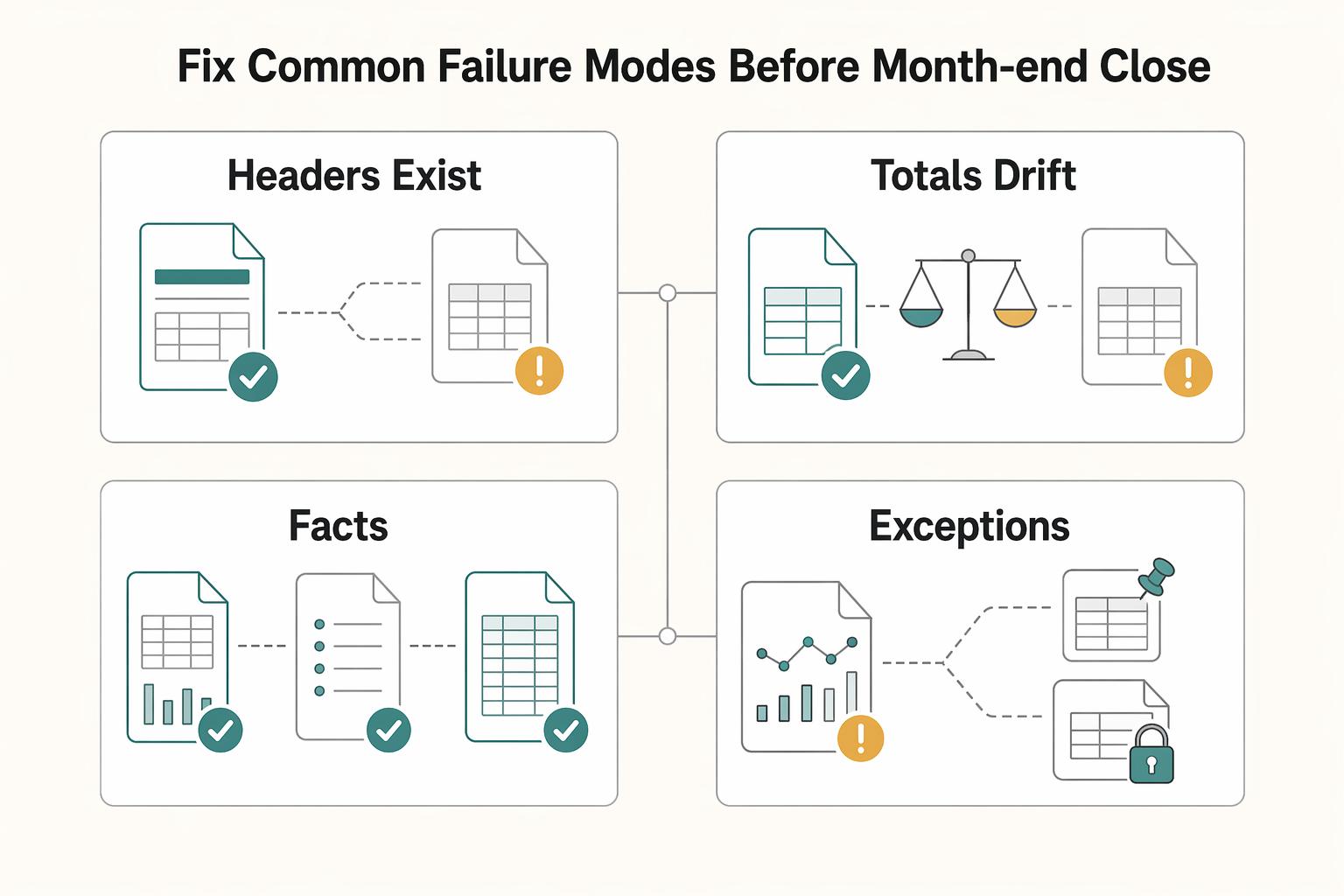
Fix common failure modes before month-end close#
Treat exceptions as a recovery workflow, not a debate: go back to the nearest source export, then rerun checks in the same validation order.
| Failure mode | Recovery action | Recheck |
|---|---|---|
| Headers exist but line items are missing | Re-run the native QuickBooks export-to-Excel path before relying on extracted output from Alphamoon | Check that every invoice ID in the header set maps to at least one line row after re-run |
| Totals drift after cleanup | Compare the frozen raw tab to the transformed tab and undo the latest VBA or macro step before reapplying changes | Reconfirm row count, invoice count, and summed amount on both tabs |
| PDF artifacts mixed with accounting datasets | Split PDF outputs from .xlsx/.csv data and rerun checks on the structured dataset | Keep Excel workbook, CSV, and PDF deliverables distinct |
| Unresolved close-critical exceptions | Block release per policy and publish an exception log | Capture exception ID or invoice/reference key, owner, business impact, workaround if any, and ETA |
Step 1: Re-run the native export if invoice headers exist but line items are missing. If headers are present and lines are missing, treat it as a source-capture issue first. Use the native QuickBooks export-to-Excel path before relying on extracted output from Alphamoon.
In some QuickBooks contexts, full detailed line-item export for an individual invoice is unavailable, so recovery may require exporting multiple reports and merging the Excel outputs. Check that every invoice ID in the header set maps to at least one line row after re-run.
Step 2: When totals drift after cleanup, compare raw vs transformed tabs and roll back the last transformation. Assume the transformation introduced the mismatch until proven otherwise. Compare the frozen raw Excel tab to the transformed tab, and undo the latest VBA or macro step before reapplying changes.
Spreadsheet Compare helps surface workbook differences, including VBA differences, so you can spot formula rewrites, dropped rows, or changed amount fields. Reconfirm row count, invoice count, and summed amount on both tabs.
Step 3: Separate PDF artifacts from accounting datasets before re-running reconciliation. Use PDFs as document evidence, not as a substitute for structured accounting extracts. If PDFs and .xlsx/.csv data were mixed into one reconciliation flow, split them and rerun checks on the structured dataset.
QuickBooks Desktop supports exporting reports as Excel workbooks, CSV, or PDF, so keep those deliverables distinct. A PDF can look correct while still hiding missing fields or data that never existed in the accounting export.
Step 4: Escalate unresolved exceptions before release under your close policy. If mismatches still affect close-critical totals, statuses, or line-item completeness after re-runs and rollback, block release per policy and publish an exception log.
At minimum, capture exception ID or invoice/reference key, owner, business impact, workaround if any, and ETA. If your reconciliation flow can generate a detailed error CSV, attach it so sign-off happens against a concrete exception list.
Package an audit-ready export bundle for handoff#
Treat handoff as an evidence package, not just a spreadsheet: the bundle should show what was done, what supports it, and the current approval state.
Step 1: Assemble one complete bundle. Package the raw export, standardized Excel workbook, reconciliation sheet, current exception log, and brief sign-off notes in one folder or one zipped deliverable. If you exported from QuickBooks Online, keep the native Excel export intact; it can batch reports and lists in one .zip, including invoices and related posting records. A reviewer should be able to trace every reported total back to a raw file without requesting missing attachments.
Step 2: Add traceability notes before handoff. Include a cover tab or readme with source path, extraction path, transform method, and validation result. Use concrete labels such as "QuickBooks Online report export" or "OneDrive folder X -> Alphamoon run timestamp Y -> Excel," and list any VBA or Excel Macros used. If macros changed amounts, statuses, or tax fields, note that macro execution is security-controlled and attach workbook change history when available. Excel Show Changes can capture who changed what, where, and when, but only for up to 60 days.
Step 3: Attach policy-gate evidence when gates affected the outcome. If KYC, KYB, AML, or VAT Validation changed reconciliation status or payout timing, attach the underlying evidence, not only a pass/fail note. For EU VAT checks, include the VIES result. For payout holds tied to missing tax or verification details, include the hold reason and submitted document, for example W-8 or W-9.
Step 4: Record approval states, not just names. Close with status lines for Finance, Operations, and Product when those teams are part of release. Use explicit states such as approved, approved with open exceptions, or blocked so reporting can proceed without reopening resolved field-level disputes.
Conclusion and copy-paste close checklist#
Start with the path that preserves source fidelity, then improve speed once you can prove the numbers survive reconciliation. For most teams, that means native accounting export first and document extraction only when you do not have reliable access to structured source data.
Step 1. Confirm the source path and preserve the raw file. Record whether the dataset came from a QuickBooks native export or from document extraction. In QuickBooks Online, reports and lists can be exported as Excel files in a single ZIP package, and that export can include invoices, receipts, or bills. Open the raw file in Excel, keep one untouched tab or copy, and do not start cleanup until you know what the source actually contains.
Do a quick format sanity check here. If someone hands you a customer statement in PDF, that is not the same as accounting data. QuickBooks Online exports statements as PDF, so treat those as supporting documents, not as the dataset you will reconcile field by field.
Step 2. Verify completeness before you transform anything. Check that invoice headers are present and that line items are not silently missing. If you narrowed the dataset in the product, note whether you used the Invoices view or a Custom Report Builder filter, because over-filtering can produce an Excel output that looks clean but incomplete.
If your process includes any import back into QuickBooks Desktop, stop and create a backup first. Intuit is explicit that you cannot undo an import, so a correction import without a backup is a close risk, not just a productivity issue.
Step 3. Reconcile totals and statuses before reporting publish. Compare raw totals to your transformed tab and confirm status values still mean the same thing after cleanup, formulas, or macros. If totals move after transformation, assume the transform is wrong until you can prove otherwise. A simple evidence check is to keep the raw export, the transformed file, and one reconciliation sheet that explains every variance or confirms there are none.
Step 4. Validate tax fields that apply to your flow. Confirm W-8, W-9, and Form 1099 related fields are present and current where applicable. For U.S. tax reporting, Form W-9 is used to provide the correct TIN, and Form W-8 BEN goes to the withholding agent or payer when requested. Also classify payment methods correctly: card and third-party network transactions belong on Form 1099-K, not Form 1099-MISC or 1099-NEC.
Step 5. Ship one audit-ready bundle. Send one package with the raw export, the standardized Excel file, the reconciliation sheet, an exception log, and named owners and approvals. If FBAR is in scope, keep the facts needed to assess the $10,000 aggregate foreign-account threshold and remember the filing timeline is April 15 with an automatic extension to October 15. That bundle is what turns invoice export from a file-transfer task into something finance can sign off without reopening the whole close.
Related reading: Document Management for Accounting Firms: Secure Intake, Retrieval, Retention, and Automation.
Frequently Asked Questions
What is the fastest reliable way to export invoice data with line items into Microsoft Excel?
In QuickBooks Online, use Sales by Customer Detail when a direct invoice export omits line items. Filter the report to the invoices in scope, export to Excel, and preserve the raw file before cleanup. Compare invoice counts and line counts with the source report so the workbook contains the full population you intended to export.
Is exporting invoice PDF files the same as exporting invoice accounting data?
No. QuickBooks Desktop treats transaction-data transfer in MS Excel or CSV as a separate category from invoice and form templates, which tells you documents and accounting datasets are not the same export. A common failure mode is mixing PDF artifacts into a reconciliation pack and then wondering why totals or statuses cannot be traced field by field.
When should I use QuickBooks native export instead of Alphamoon extraction from OneDrive?
Use QuickBooks native export when you need structured transaction data that can be reconciled. Use Alphamoon extraction from OneDrive when native access is unavailable or your starting point is stored documents rather than structured transaction records. If you take the document path, treat that output as a separate dataset and reconcile it back to accounting totals.
Why does my exported invoice file not match accounting reports after transformation?
A common cause is changes made after the raw export. Compare the untouched raw tab to the transformed tab and check for dropped rows, overwritten formulas, changed status mappings, or amount sign flips. If VBA or Excel Macros touched key fields, roll those steps back and rerun from the frozen source.
What should I validate before using exported invoice data in Power BI?
Check the row key at the dataset’s grain: invoice ID for a header table, or invoice ID plus line ID for a line table. Validate data types, amounts, status values, duplicate rows, and totals against the reconciliation sheet. Investigate an unexpected change in row count or value before using a refreshed dataset for reporting.
Can VBA and Excel Macros improve reliability without creating audit risk?
They can help with repetitive tasks and controlled transforms. Keep the raw sheet untouched and document which macro ran on the working copy. Use worksheet protection to control editable ranges and Data Validation to check allowed inputs, then reconcile the output to the raw file. These controls support review; none creates a complete audit trail by itself.
Which compliance and tax fields should be present before reconciliation and reporting sign-off?
Only require the fields that apply to your payee mix and reporting obligations, but be explicit. For U.S. information reporting, a Form W-9 should support the correct TIN; for foreign individuals, Form W-8BEN establishes foreign status and can support a treaty-rate or withholding exemption claim where applicable. If foreign financial account reporting is in scope, track the facts needed for FBAR on FinCEN Form 114 when aggregate foreign accounts exceed $10,000. It is due April 15 with an automatic extension to October 15. Also watch payment method classification, because some payment-card and third-party network payments belong on Form 1099-K rather than Form 1099-MISC or 1099-NEC.
Try a related tool
Researched and edited by the Gruv editorial team. Gruv builds cross-border billing, payouts, and finance-operations software for global businesses.
Sources
Includes 2 external sources outside the trusted-domain allowlist.
- docs.stripe.com/reports/payout-reconciliationtrusted
- ecfr.gov/current/title-31/subtitle-B/chapter-X/part-1...trusted
- europa.eu/youreurope/business/taxation/vat/check-vat-n...trusted
- irs.gov/businesses/small-businesses-self-employed/re...trusted
- irs.gov/forms-pubs/about-form-w-9trusted
- occ.treas.gov/topics/supervision-and-examination/bsa/index...trusted
- alphamoon.ai/blog/export-invoice-data-excelexternal
- fatf-gafi.org/content/dam/fatf-gafi/recommendations/FATF%2...external
Educational content only. Not legal, tax, or financial advice.
Related Posts
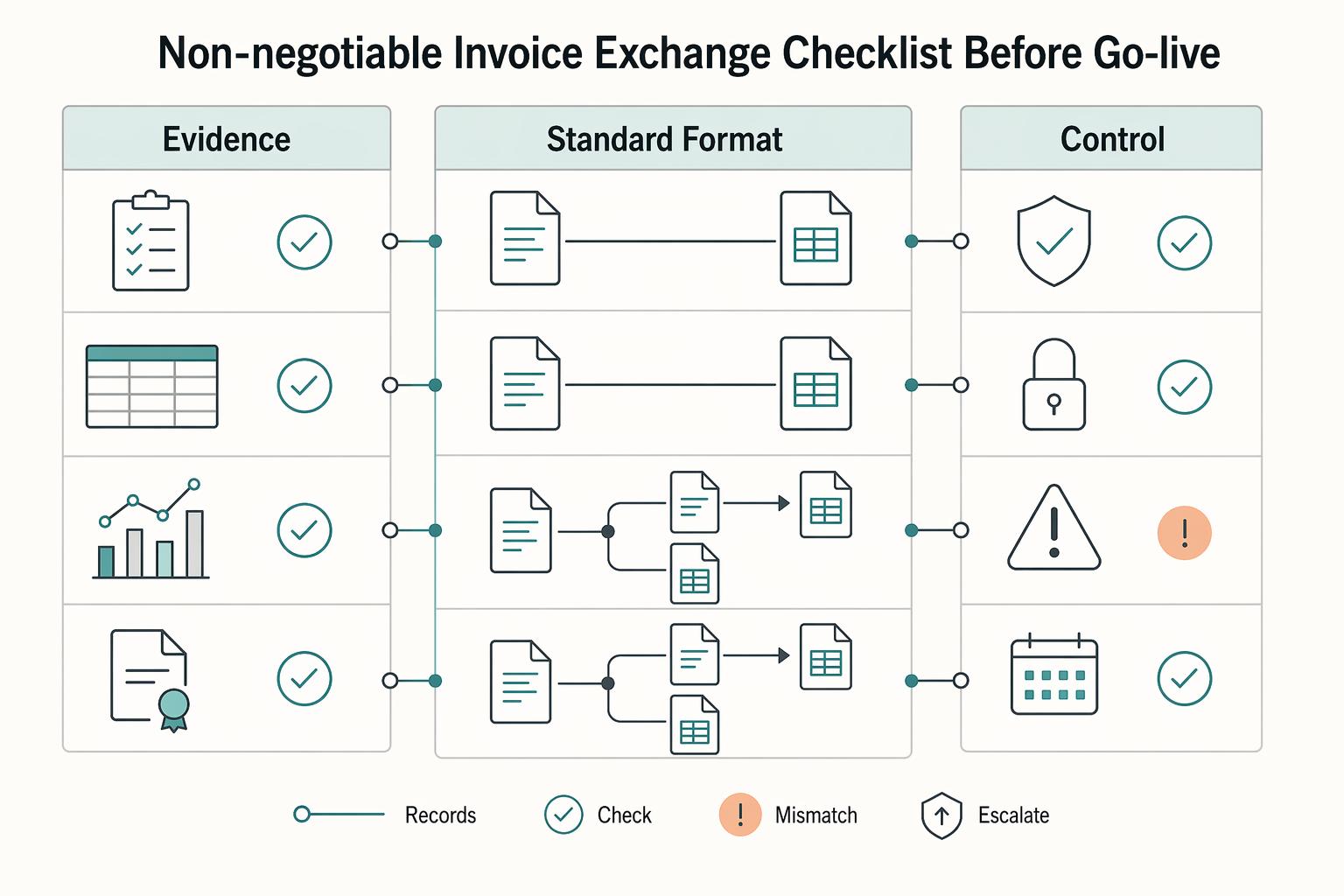
EDI for Platforms Automating Invoice Exchange With Large Buyers
If your platform needs to invoice enterprise buyers through EDI, the real decision is operational: which delivery model will let you exchange the required document set with the fewest surprises in production. Electronic Data Interchange (EDI) is a standards-based way to transmit business documents such as invoices and purchase orders between organizations, and it is primarily used in B2B exchange.
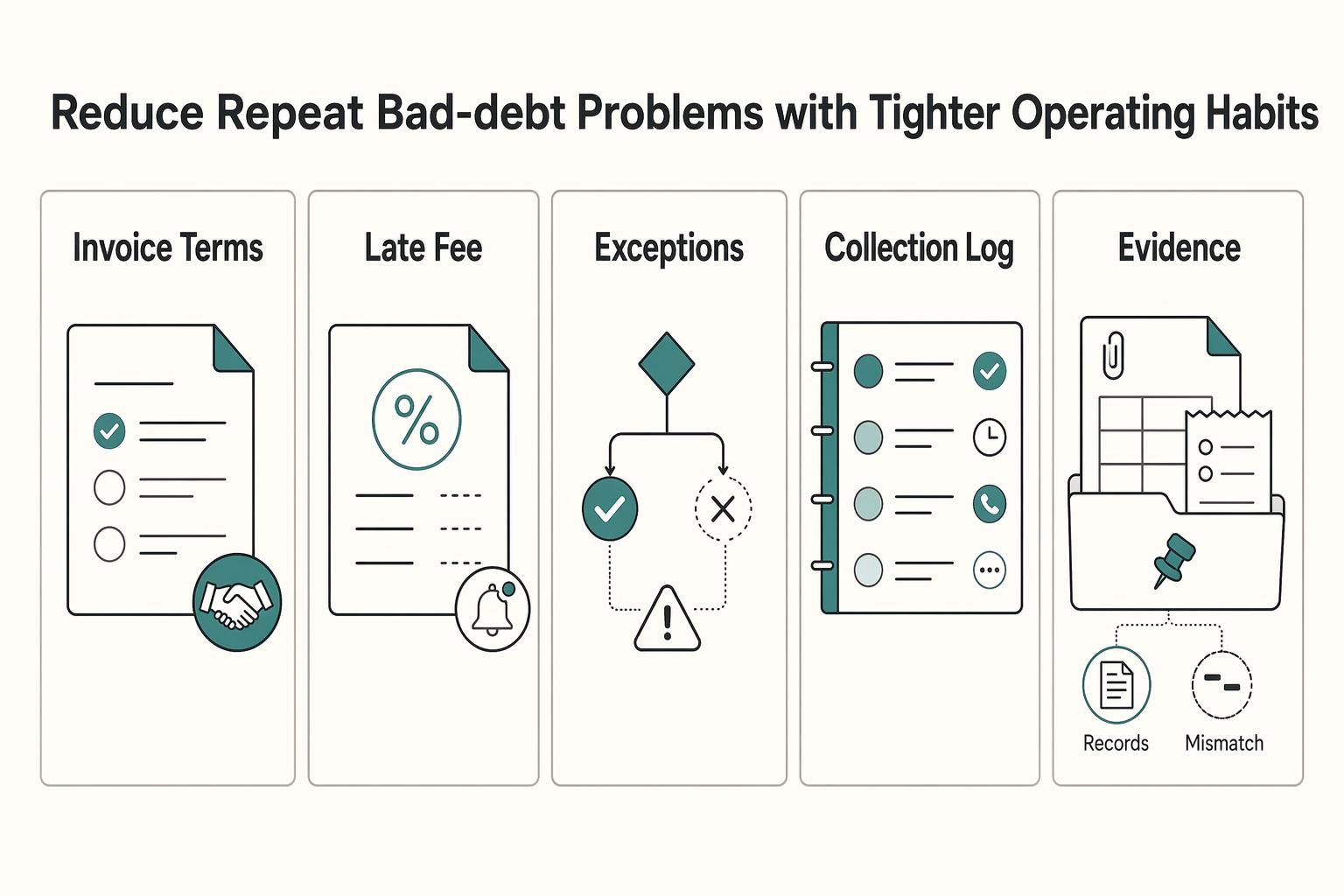
When Freelancers Can Claim Bad Debt Deductions on Unpaid Invoices
Start with one clear call: how your records and prior return treated this income. Do not start with "Can I deduct this?" until that part is clear. You may not need a complex strategy here. You need a consistent, documented position you can explain if questioned.
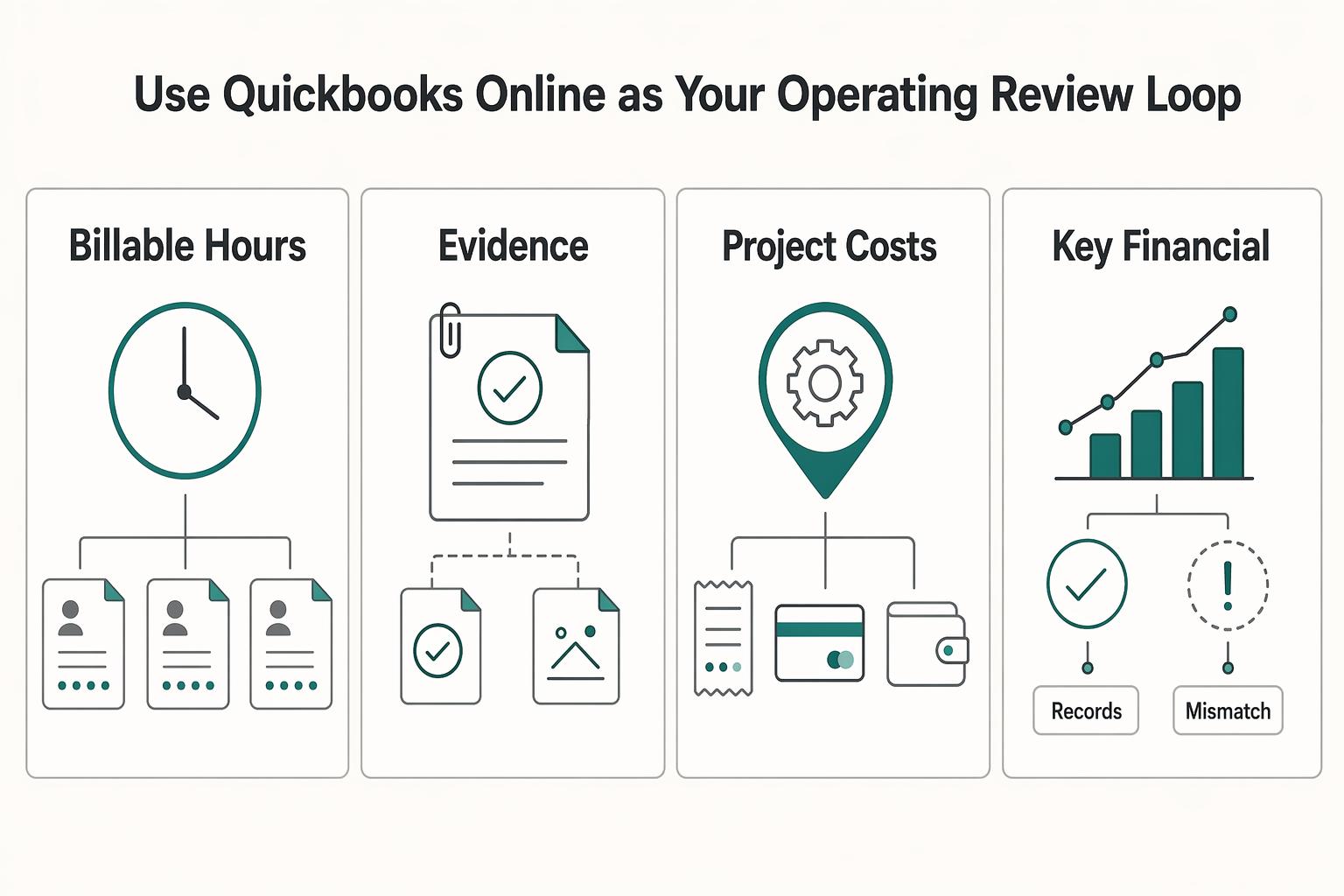
How to Invoice for Billable Hours vs Project Fees in QuickBooks
If scope is still fuzzy, do not force a project fee. Here, hourly billing is your risk-control model. It makes the work visible, catches scope drift early, and reduces the chance that effort slips into unpaid goodwill.