
Quick Answer
Start narrow: for receipt scanning ocr automate expense, launch with capture, extraction, reviewer confirmation, and then create or match an entry. Use the Microsoft Dynamics 365 Project Operations baseline fields first: merchant name, date, and total amount. Treat readable files and postable transactions as different checks, and keep low-confidence or conflicting items in exception queues. Before expanding automation, confirm you can trace one receipt from original file through edits to the final expense report record.
How Receipt OCR Supports Expense Entry Decisions#
Receipt OCR is best treated as an expense infrastructure choice, not a camera feature. Faster entry is the obvious benefit, but the real impact shows up later in reconciliation effort, exception volume, and how well you can defend each posted expense in an audit.
Microsoft describes optical character recognition, or OCR, for receipts as an enhancement to expense entry in Microsoft Dynamics 365 Project Operations. That is a useful framing because it keeps the scope honest. OCR can extract fields like merchant name, date, and total amount to improve the experience of creating an expense report, but extraction is only one step in the chain. It does not, by itself, prove that the receipt belongs to the right person, matches the right transaction, or should be posted without review.
That distinction matters early. A clean image can still produce a bad outcome if the receipt is duplicated, the values conflict with an imported card transaction, or the upload lands in the wrong queue. Some scanner products can also identify receipt data in attached PDF files, not just phone photos. That helps adoption, but it can also expand your intake surface and increase duplicate risk. If you do not decide how capture, extraction, matching, and review fit together, you are not reducing work. You are moving it from the employee to finance ops.
A practical v1 is narrower than most demos suggest. Start with capture, OCR, user confirmation, and then create or match an expense entry. Keep the first extracted field set small and defensible: merchant name, date, and total amount. Those fields have documented support and clear decision value. Leave line-level detail, tax inference, and aggressive auto-posting for later unless you already know who will review exceptions and what evidence you need to retain.
One checkpoint matters more than it sounds. After a receipt is uploaded, you should be able to verify which file was processed, which values were extracted, whether a user corrected them, and which expense report record they touched. If you cannot reconstruct that path quickly, your audit posture may be weak even if the OCR itself looks accurate. Some tools position receipt capture as part of an audit-proof digital archive, but that only holds if the image, extracted fields, and approval trail stay linked.
This guide is built around that broader decision. The goal is not to judge OCR accuracy in isolation. It is to help you choose scope, integration pattern, and controls so the scanner improves transaction quality now and still holds up as volume, matching complexity, and compliance evidence requirements grow.
Related reading: Freelancer Vehicle Expense Deductions: Standard Mileage vs. Actual Expenses.
Define the receipt OCR system boundary#
Set the boundary early: receipt OCR should handle extraction, while your product rules decide what becomes an expense transaction and what stays in review.
| Stage | Record to keep | Question answered |
|---|---|---|
| Capture | File processed | which file was processed |
| Extraction | Structured result | what structured result came back |
| Review | Reviewer changes | what a reviewer changed |
| Posting | Expense record | which expense record was created or updated |
For v1, keep the extracted fields explicit: merchant name, transaction date, and total amount. Some tools return structured JSON with many more fields, and one vendor claims 40+ fields from receipt images and PDFs. That breadth is optional, not required for launch, so map only the fields you can verify and use in posting decisions.
Treat capture success and posting success as separate checks. A file can be readable and still produce extraction output that is incomplete, inconsistent, or not ready to post to an expense report line. Keep an auditable trail for each step: which file was processed, what structured result came back, what a reviewer changed, and which expense record was created or updated.
A practical v1 boundary is:
- capture the file
- extract core fields
- require reviewer confirmation or correction
- then create or post the expense entry
If extraction returns missing or obviously wrong values, route it to manual entry instead of forcing automation through. A three-step flow and fast extraction can improve intake speed, but transaction quality depends on the review and posting controls after OCR.
Choose your architecture path before buying tools#
Choose the architecture before you choose the OCR vendor. The core decision is ownership: who owns extraction, review, matching, and posting when receipts are messy, transactions are missing, or finance needs a defensible audit trail later.
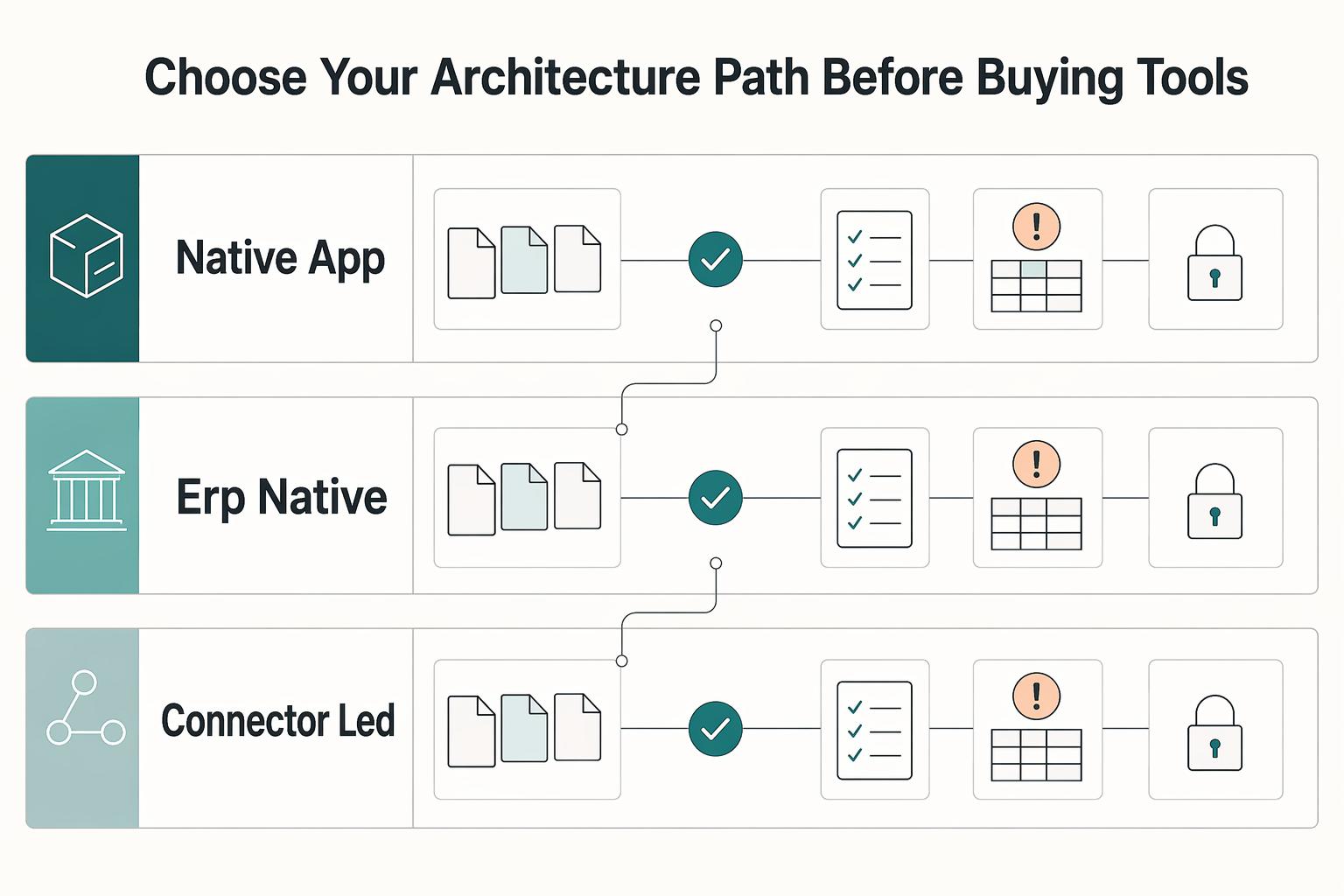
Receipt automation is often framed as several software categories based on receipt volume, technical resources, and accounting data-entry needs. In practice, most teams end up evaluating three paths: a native app flow (for example, Capture Expense), an ERP-native route (for example, Microsoft Dynamics 365 Project Operations), or connector-led orchestration (for example, Power Automate + Aquaforest PDF Connector).
| Path | Implementation ownership | Change velocity | Exception visibility | Lock-in risk | Audit export quality |
|---|---|---|---|---|---|
| Native app flow (for example, Capture Expense) | Product team + app vendor | Depends on app configuration and integration points | Usually clear inside the app; less clear if posting happens elsewhere | Workflow logic can concentrate in one vendor tool | Strong if one export can join file, extracted fields, reviewer edits, and posting result |
| ERP-native route (for example, Dynamics 365 Project Operations) | Finance systems + ERP admins, with engineering support | Depends on ERP governance and release process | Often strongest when review and posting stay close to expense records | Can increase when approvals, posting, and reporting are tightly ERP-bound | Strong when ledger-linked records and exports come from one system of record |
| Connector-led orchestration (for example, Power Automate + Aquaforest PDF Connector) | Ops/automation team, sometimes with light engineering | Often quickest to pilot and iterate | Fragmented unless you design a clear review queue and event log | Can grow if logic is spread across many connectors and steps | Varies based on whether you persist source file, OCR output, review actions, and final transaction ID together |
If your priority is the fastest rollout with limited engineering, start connector-led. If your priority is tighter control over ledger mapping and APIs, prioritize native integration or ERP-native patterns with direct API integration.
Keep the same required review states even if the tooling differs: attach, match, and create. Use the Expense management workspace behavior as a reference pattern for those states, not as a product requirement.
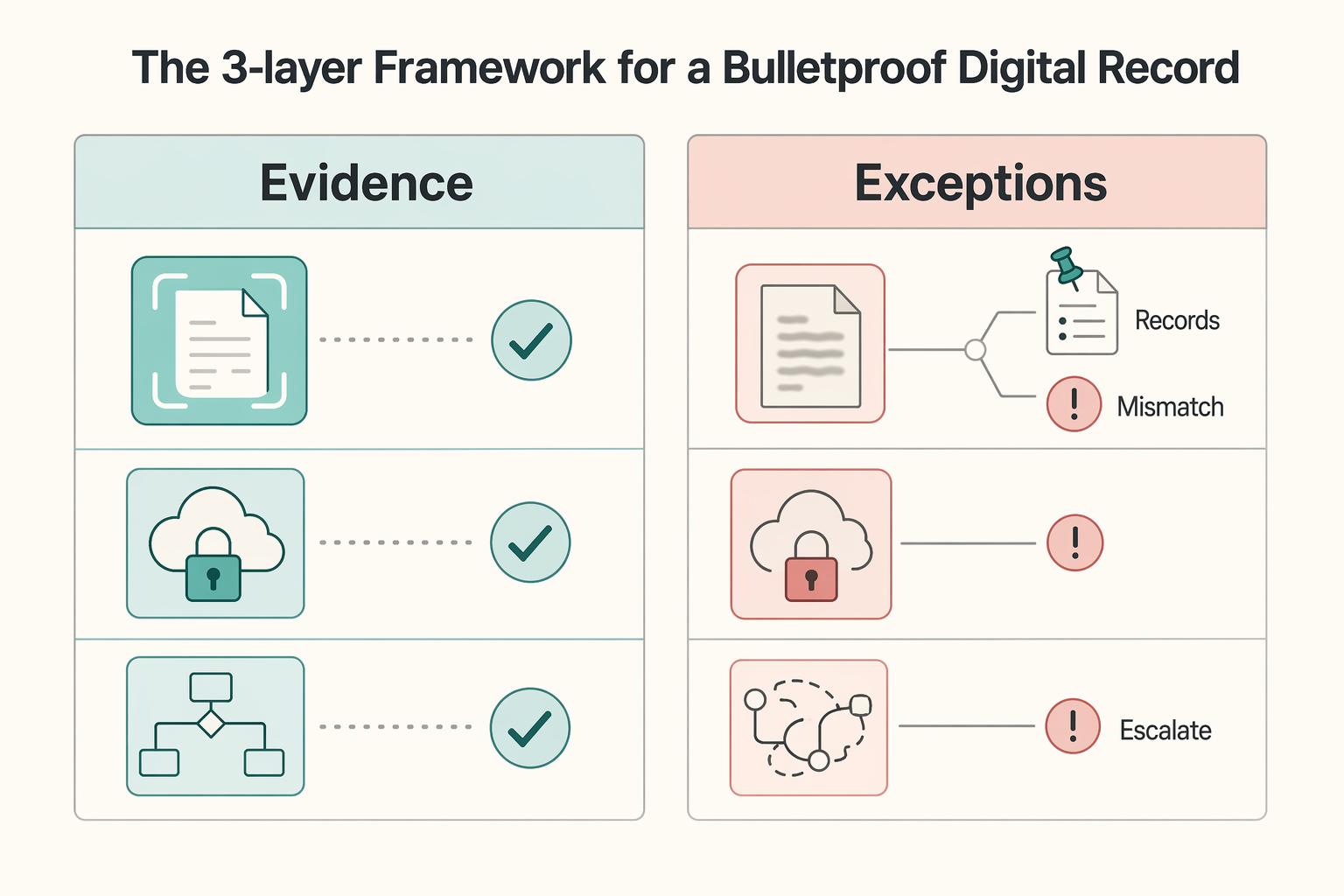
Treat human review and confidence scoring as required controls, not optional polish. OCR can extract data, but your control layer decides whether the receipt becomes a valid expense entry.
Before you commit to a path, verify the same evidence pack on one clean receipt and one bad receipt:
- original file processed
- extracted structured payload
- confidence/review flags
- user correction history
- final expense record or export row
If a demo shows clean extraction but no clear queue for unmatched or low-confidence items, expect hidden reconciliation work later.
Design the capture and intake layer for real-world receipt quality#
Design intake for messy reality, not perfect uploads. If your flow assumes only clean mobile photos, you will spend more time later fixing exceptions and tracing what actually entered the system.
OCR can convert scans, PDFs, photos, and attachments into usable data, so keep intake broad enough to accept mixed formats. You can still phase rollout, but plan for more than one channel so collection does not break when receipts arrive in different forms.
For connector-led automation, lock down sequencing in your Automated cloud flow: retrieve the actual file first with the Get file content action, then run OCR. That helps prevent extraction errors caused by placeholder records, partial uploads, or wrong attachment versions.
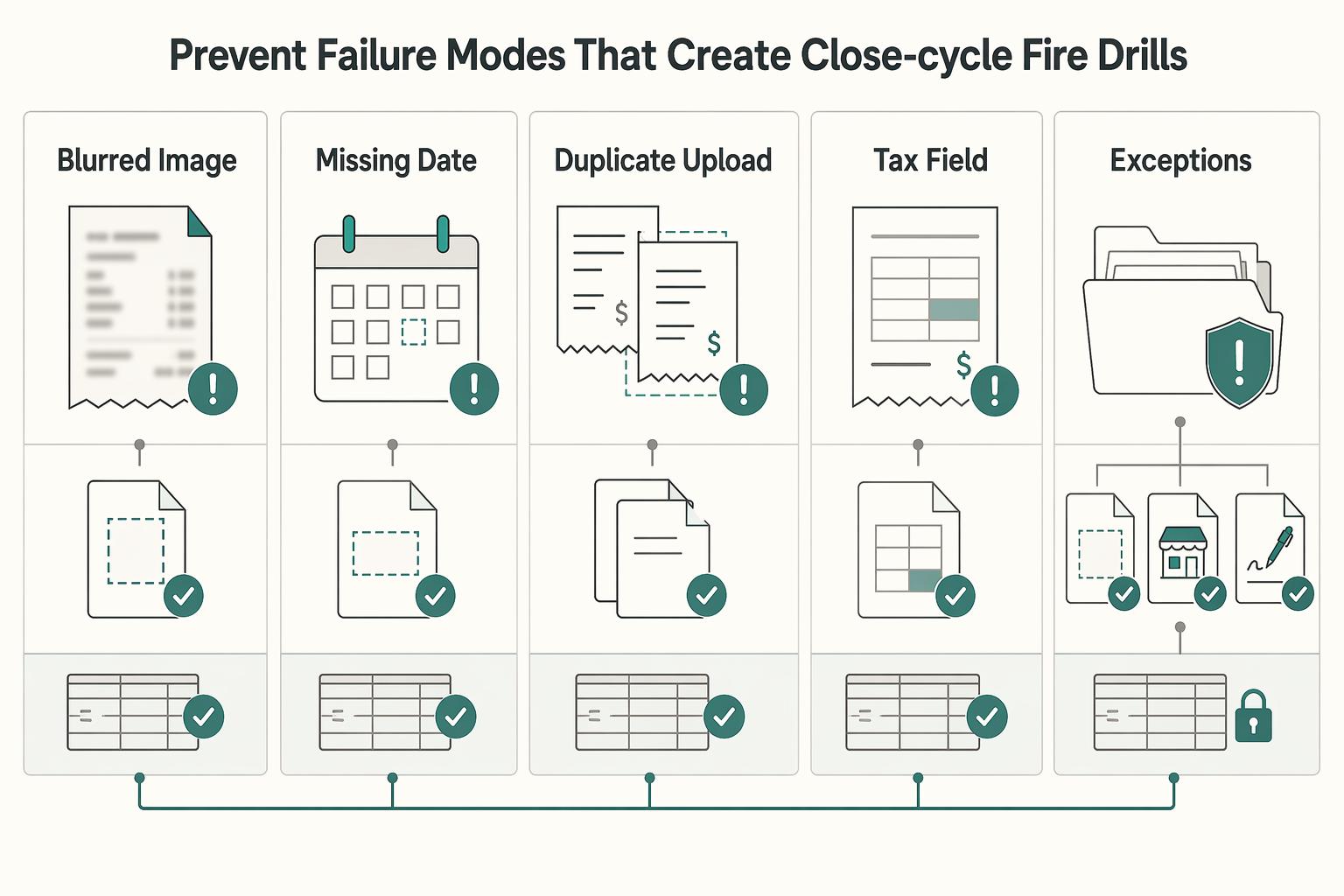
Treat failure handling as core behavior, not cleanup work:
- unreadable or low-quality images
- multi-page files that process incompletely
- duplicate uploads across channels
- files missing required submitter context
Make processing status visible to users and ops with clear states such as uploaded, OCR in progress, needs review, and posted. Manual validation and exception handling still exist in automated workflows. Without stage visibility, work slows down, error risk rises, and bottlenecks stay hidden.
Add duplicate detection before posting so likely matches go to review instead of creating another expense line. Missing receipt collection already creates audit pain, and invisible duplicate handling adds reconciliation pain on top.
Map OCR output to finance records without reconciliation drift#
Do not let OCR write directly into posted finance records until you have a deterministic match step. OCR can extract receipt text, but it does not identify which card swipe or imported line the receipt supports.
Define a clear contract between extracted fields and your internal expense transaction schema before you enable auto-post. At minimum, decide how merchant name and total amount are used: to populate a draft, find a candidate transaction, or confirm a match. Do not let those fields silently overwrite card-imported values or existing transactions.
Set the two allowed paths#
Keep posting logic explicit, with only two paths:
- Match to an existing imported or card transaction already in an expense report or pending expense queue.
- Create a new draft transaction for review when no reliable match exists.
This split helps prevent duplicate expenses and orphan card transactions. For each receipt file ID from intake, track one outcome: a matched transaction ID or a draft transaction ID.
| Match state | What it means | Required reviewer action |
|---|---|---|
| Exact match | Extracted receipt fields align with one existing expense transaction under your configured rules | Attach receipt, confirm, and allow posting if no other flags exist |
| Near match | A candidate transaction exists, but one key field is ambiguous or inconsistent | Review side by side and decide whether to attach, correct, or leave unmatched |
| Unmatched | No reliable existing transaction is found | Create or keep a draft transaction for review and classify why no match exists |
| Duplicate candidate | The receipt appears to relate to a transaction or receipt already linked elsewhere | Block auto-post and investigate before any second attachment or transaction creation |
Treat conflicts as exceptions, not updates#
If receipt data conflicts with transaction data, hold it for review instead of updating silently. This includes mismatched merchant name values and total amount differences between receipt and candidate transaction.
Give reviewers a complete decision view in one place: the original receipt file, extracted fields, candidate transaction details, match status, and a reason code for the final decision. That record supports auditability and makes reconciliation issues easier to resolve later.
Start auto-post with exact matches only. Keep near matches, conflicts, and duplicate candidates in review until your matching flow is consistently stable.
Set exception rules for low confidence and unmatched items#
Low-confidence or unmatched receipts should go to explicit exception queues with named owners, not a generic review bucket. Pair confidence scoring with human review, and keep posting blocked until the item is resolved.
| Queue owner | Route here when | Action before it moves |
|---|---|---|
| Employee correction | Required matching or posting fields are low confidence, missing, or unreadable | Correct or re-upload, confirm required fields, and resubmit |
| Manager approval | Data looks usable, but policy or business-purpose review is still needed | Approve, reject, or request clarification |
| Finance ops escalation | Duplicate signature is detected, no reliable match exists, or data conflicts with an existing transaction | Review evidence, decide attach vs draft vs reject, and record a reason code |
Use clear decision rules:
- If confidence is low on required fields, force manual entry for those fields.
- If required fields are missing, keep the item out of auto-post.
- If a duplicate signature is detected, block posting until a reviewer confirms what happened.
What the exception record needs#
Include the original file, extracted fields, confidence flags, duplicate flag, candidate transaction IDs, owner, reason code, and handoff timestamps. From the receipt file ID, reviewers should be able to see current status and next owner immediately.
Keep unresolved items visible until explicitly resolved, including unattached receipts and unattached expenses. Treat the queue as an operating signal by tracking top exception reasons and resolution time so you can tune intake, routing, and review ownership.
Related: Invoice Scanning and OCR for Platforms: How to Digitize Paper Invoices at Scale.
Build compliance and evidence handling into the flow#
Set one rule first: no payment, reimbursement, or reporting step should proceed unless the required evidence is attached to the expense report record. Keep the trail in one place so the receipt image, OCR fields, approvals, payout status, and decision evidence stay aligned.
| Item | Use in flow | Condition |
|---|---|---|
| KYC status | Connect payout readiness to existing status checks | Where your program supports payout controls |
| KYB status | Connect payout readiness to existing status checks | Where your program supports payout controls |
| AML status | Connect payout readiness to existing status checks | Where your program supports payout controls |
| W-8 / W-9 record status | Enforce at payout time | For cross-border contractor flows, based on your program policy |
| Form 1099 reporting flag or reporting linkage | Enforce at payout time | For cross-border contractor flows, based on your program policy |
| FBAR tracking | Track only where your program enables it | For cross-border contractor flows, based on your program policy |
Design the record so reviewers can verify decisions without exposing full sensitive data by default:
- Mask receipt-image views where possible.
- Keep extracted fields encrypted in storage and transit.
- Use permissions scoped to reviewer tasks, not broad raw-data access.
Where your program supports payout controls, connect payout readiness to existing KYC, KYB, and AML status checks. Keep policy checks configurable by market, entity, and program, because coverage and requirements vary.
For cross-border contractor flows, define the required tax/evidence pack in advance and enforce it at payout time based on your program policy:
- W-8 / W-9 record status
- Form 1099 reporting flag or reporting linkage
- FBAR tracking only where your program enables it
Launch plan with verification checkpoints in the first 90 days#
Treat the first 90 days as a pilot, not a finish line. A 4-12 week pilot gives you room to improve templates and routing rules before broader rollout.
| Phase | Scope | Guardrail |
|---|---|---|
| Phase 1 | capture, OCR, and review only | Keep a human reviewer in the loop before anything is posted |
| Phase 2 | selective auto-create | Auto-create only when items meet your documented confidence thresholds and validation rules |
| Phase 3 | selective auto-match with guardrails | Auto-match only for strong matches, with reviewer-visible match logic |
Use a phased rollout:
- Phase 1: capture, OCR, and review only. Keep a human reviewer in the loop before anything is posted.
- Phase 2: selective auto-create. Auto-create only when items meet your documented confidence thresholds and validation rules.
- Phase 3: selective auto-match with guardrails. Auto-match only for strong matches, with reviewer-visible match logic.
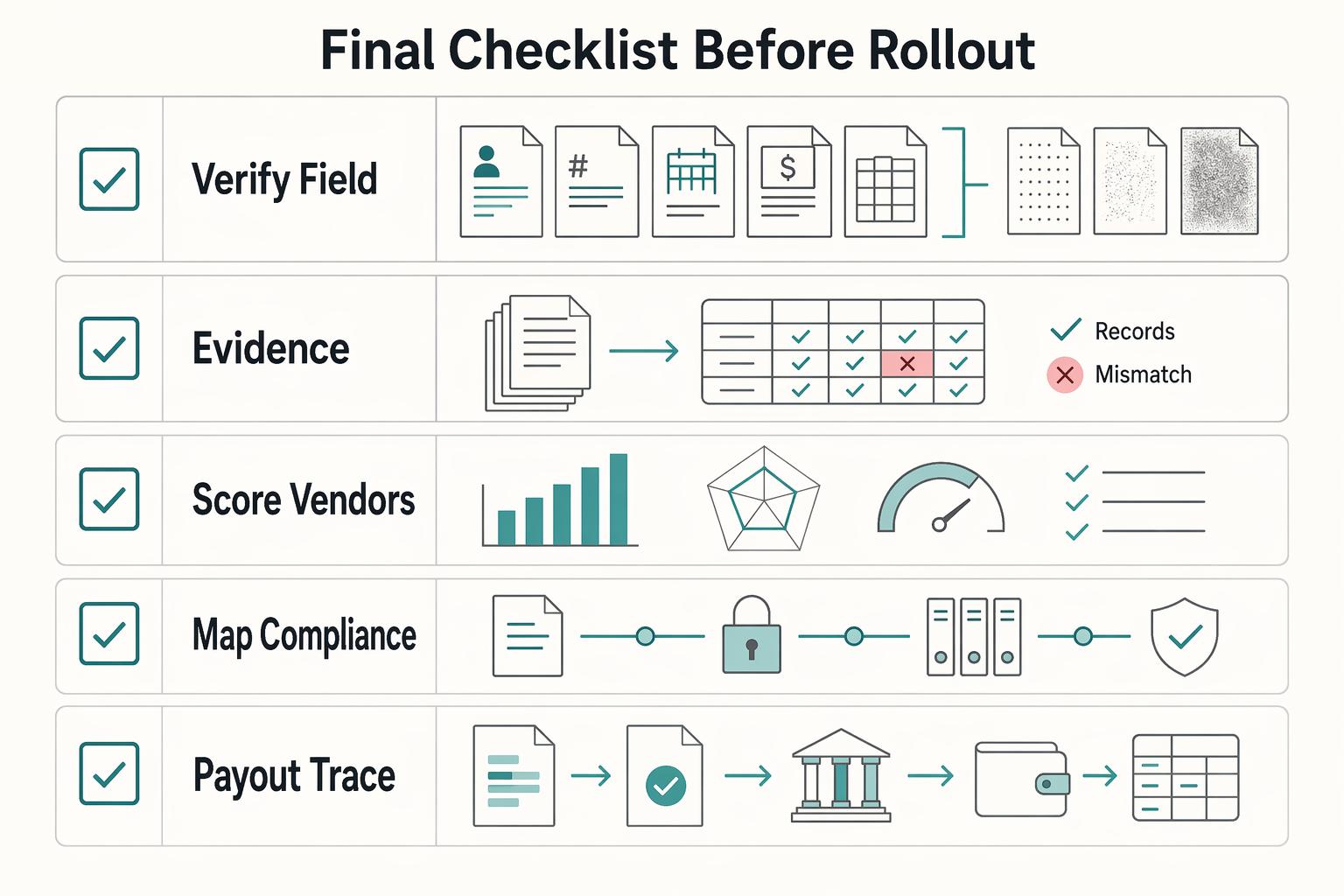
Before you expand automation, hold three verification checkpoints:
- Sample accuracy checks: review a fixed sample regularly and confirm extracted fields and downstream records still align.
- Reconciliation delta checks: compare intake volume, created drafts, matched items, posted expenses, and unresolved exceptions.
- Audit-trail completeness checks: from one expense report ID, retrieve the image, extracted fields, review actions, confidence outcome, and current status.
If exception backlog grows faster than team throughput, pause expansion. Fix intake quality and matching rules before widening eligibility.
Define a simple SLA matrix during the pilot so ownership and turnaround expectations are explicit.
If expenses can trigger money movement, connect that last. Tie payout-linked flows to Gruv Payouts and Gruv Virtual Accounts only after ledger and status traceability are stable end to end.
Conclusion#
The right call is to optimize for control, not for the cleanest demo. If you can clearly define what gets extracted, what gets reviewed, what gets matched, and what evidence follows the item into posting, you can automate later with much less operational risk.
That is the real lesson here. OCR is only one stage in a longer chain that is naturally exception-heavy and easy to break across handoffs. A readable image is not the finish line. The item still needs policy checks, a valid path through the expense workflow, and a traceable link into ERP or accounting posting with audit evidence attached.
For most teams, a good v1 is still deliberately narrow. Start with the fields Microsoft Dynamics 365 Project Operations explicitly documents for receipt OCR: merchant name, date, and total amount. Support practical intake paths such as mobile scan, email, and PDF upload, but force them into the same visible states and review rules. If a receipt meets policy, matches a transaction, and passes validation, that is where touchless processing starts to make sense. If it is ambiguous, route it to a finance queue for review.
A good final checkpoint is simple: pick one receipt at random and prove you can reconstruct it end to end. You should be able to show the source file, extracted fields, the policy or review outcome, and the posting record with audit evidence attached. If any one of those links is missing, you do not have reliable automation yet. You have partial automation plus manual cleanup that someone will eventually inherit.
A common failure is treating OCR accuracy as the finish line while exception handling stays underdefined. That is why explicit exception handling matters more than model confidence claims. High-risk or ambiguous cases should slow down automatically, not slip through because a tool looked accurate in a test set.
If you need a simple decision test before rollout, use this:
- If your capture channels are not normalized, fix intake before adding more automation.
- If your matching rules are not explicit, keep creation and matching in review-first mode.
- If your compliance and audit evidence cannot be retrieved with the receipt, do not let the expense trigger downstream posting.
Get those three decisions right up front, and you can automate aggressively without putting finance operations in a constant repair loop.
For a step-by-step walkthrough, see How to Automate Pass-Through Expense Tracking from Clients in QuickBooks.
Frequently Asked Questions
What fields should receipt OCR extract first for a usable v1?
Start with the three fields Microsoft Dynamics 365 Project Operations explicitly documents: merchant name, date, and total amount. If you process lodging receipts, check-in and check-out dates are a sensible next field only when they are actually present on the receipt.
Should we auto-create expense entries, auto-match existing transactions, or support both?
A conservative v1 is review-first OCR capture, then selective automation after you validate extraction quality in your own context, since reported gains vary by country, product, and field.
What should happen when OCR fails or confidence is too low?
When OCR output is incomplete or uncertain, route the item to human review instead of treating extraction as final. Reported OCR results include average accuracy gains of more than 20% across use cases, but improvements still vary by country, product, and field.
Which upload methods are mandatory at launch for high adoption?
There is no universal mandatory upload set in the material here, so avoid treating channel choice as a fixed rule. Choose channels based on where your users already submit receipts.
How do we prevent duplicate receipts from becoming duplicate expense transactions?
Treat duplicate prevention as a separate product-policy decision and validate that logic independently.
Can we use Power Automate and the OCR PDF or images action without losing auditability?
If auditability is required, define and verify your own end-to-end logging and traceability requirements.
Which compliance checks should gate expense-linked payouts in multi-country programs?
Do not assume a single set of compliance gating requirements (for example, KYC/KYB/AML or tax-form checks) applies. Set those gates separately by jurisdiction and program policy.
Try a related tool
Researched and edited by the Gruv editorial team. Gruv builds cross-border billing, payouts, and finance-operations software for global businesses.
Sources
- bsaefiling.fincen.gov/docs/XMLUserGuide_FinCENFBAR.pdftrusted
- coastalbend.edu/2025-2026-cbc-course-catalog-student-handboo...trusted
- files.simpler.grants.gov/opportunities/f23d9a75-dd5f-4b70-a35e-237029...trusted
- fincen.gov/reporting-maximum-account-valuetrusted
- fincen.gov/system/files/2025-12/FBAR-FBAR-Filing-Requir...trusted
- govinfo.gov/content/pkg/GOVPUB-C13-f7e6c95620472ca0ecbf1...trusted
- nsarchive.gwu.edu/media/27641/ocrtrusted
- nvlpubs.nist.gov/nistpubs/Legacy/SP/nbsspecialpublication500-...trusted
Educational content only. Not legal, tax, or financial advice.
Related Posts
The Best Receipt Scanner Apps for Freelancers
Treat every receipt as compliance evidence. If a record cannot support an income or deduction item on your return, you have a substantiation gap. That can weaken deduction support, break your audit trail, and leave you short on documentation you may need across jurisdictions.
Invoice Scanning OCR for Platforms to Digitize Paper Invoices at Scale
Judge invoice OCR by how it behaves in your actual AP flow, not how it looks in a polished demo. For platform teams, the real test is whether it keeps Accounts Payable moving under volume, limits exception work, and leaves a clear trail into approval, payout, and reconciliation when something is challenged later.
Mobile Expense Tracking Snap Receipts With Audit-Ready Controls
Use mobile receipt capture as your intake layer, not your posting authority. The photo is the easy part. The real work starts after capture, when that receipt has to survive review, post cleanly to your ledger, and still make sense during **Reconciliation**. That is the problem this guide is solving.