
Quick Answer
Choose the best wireframing tools by project stage, not by brand popularity. Use low-fidelity files first to lock a screen inventory, primary flow, and a dated approval baseline; then raise fidelity only after structure is accepted. For teams in Figma Starter, plan around one team, one project, three Design/Sites files, and 30-day version history so approvals do not drift. The winning setup is the one that keeps review decisions centralized and auditable from kickoff through handoff.
The right wireframing tool depends on the job in front of you. Use low-fidelity work to lock scope, higher-fidelity work to validate the experience, and reusable files to standardize what already worked.
The first phase of a project carries the most weight and the most risk. Get it right and you create clarity that protects the work for months. Get it wrong and you invite misaligned expectations, revision loops, and unpaid cleanup.
At this stage, your goal is not to impress anyone with polished design. It is to create a working baseline that removes ambiguity and gives you something concrete to scope against. That is where low-fidelity work stops being just a UX step and starts doing business work.
Stage 1: The "Scope & De-Risk" Framework#
If you want Stage 1 to protect scope, treat your low-fidelity file as an approval artifact, not a pile of rough sketches. Do not move into prototype work until four things exist in writing: a screen inventory, a flow map, one approved baseline, and a clear trigger for what counts as a scope change.
Four controls that help lock scope#
| Control | What it covers | Key rule |
|---|---|---|
| Screen inventory | Minimum screen set; user action and outcome for each screen; exclusions named early | If a request does not map to a named screen, it is not in scope yet |
| Flow map | Shortest usable path connecting the screens | The primary path should be followable without asking where the next step lives |
| Approval artifact | Approved wireframes and written alignment in one place; one named artifact with a dated link or export | Verbal approval disappears fast |
| Change-request trigger | The line that turns feedback into a scope conversation | Any new screen, new user path, or new content state after baseline approval becomes a change request |
- Screen inventory
Start by naming the minimum screen set you are actually agreeing to build. For each screen, write the user action and outcome beside it. "Dashboard" is too vague. "Dashboard showing open tasks, recent activity, and CTA to create task" is reviewable. The rule is straightforward: if a request does not map to a named screen, it is not in scope yet. Name exclusions early, especially admin panels, empty states, advanced filters, onboarding variants, and edge-case notifications if they are not part of this phase.
- Flow map
Next, connect those screens into the shortest usable path. A wireframe should help you sequence user flows and decide what content belongs on which screens before style debates start. Check whether someone else can follow the primary path without asking where the next step lives. If the answer is no, keep working. A common failure mode is approving individual screens that look fine on their own but break once login, error handling, or back-navigation enters the conversation.
- Approval artifact
Put the approved wireframes and written alignment in one place. That can be a file plus a short note stating what was reviewed, what was accepted, and what was deferred. The strongest version is one named artifact such as "v1 Scope Baseline" with a dated link or export. This matters because verbal approval disappears fast. If you use Balsamiq, a PDF export can serve as a clean baseline, and Balsamiq states those PDFs can preserve interaction links for review. If you use Whimsical, its docs can sit next to the wireframes and hold the written alignment record.
- Change-request trigger
Define the line that turns feedback into a scope conversation. A practical rule is simple: any request that adds a new screen, a new user path, or a new content state after baseline approval becomes a change request. That rule helps surface scope creep early. "Move this button higher" is revision. "We also need a manager approval path" is a scope change. Uncontrolled changes are a known project risk, so name the trigger before anyone needs it.
Tool fit for low-fi approval#
For Stage 1, pick the tool that makes these controls easiest to enforce. Flashy output matters less than a clear review trail.
| Tool | Speed to draft | Feedback centralization | Version freeze | Handoff readiness |
|---|---|---|---|---|
| Balsamiq | Strong if you want intentionally rough UI work and fast flow alignment | Comments can be collected from reviewers without edit permissions; public review can allow anyone to comment if you enable it | Export to PDF, PNG, or BMPR for a named baseline | Good for handing off an approved low-fi reference; interactive PDFs help stakeholder review |
| Figma | Strong if your team already works there and wants wireframes in the same environment as later design | Reviewers with at least Can view access can comment | Check plan limits carefully: Starter has 30 days of version history, one team, one project, and 3 total Design and Sites files | Strong if later handoff will stay in Figma; Dev Mode is positioned for design-to-code handoff |
| Whimsical | Strong for quick structure work when you want docs and diagrams close to the wireframes | In-context comments keep discussion inside the artifact | Version history depends on plan: Free 7 days, Pro 90 days, Business 1 year, Enterprise unlimited | Good for passing a low-fi baseline plus notes; verify later handoff needs separately |
If you are using Figma Starter, treat the version freeze seriously. A slow approval cycle can outlast the 30-day history window. The Starter cap of one project and 3 total Design and Sites files also makes file sprawl more painful. Export or label the approved baseline as soon as it is accepted.
Pass or fail before you leave Stage 1#
Use these as hard gates before you move up in fidelity. If any one fails, stay in Stage 1 and close the gap first.
| Gate | Pass only if |
|---|---|
| Screen inventory approved | Every included screen has a name, user action, and outcome, with explicit exclusions listed |
| Primary flow mapped | The main user path can be walked from start to finish with no unresolved navigation questions |
| Single review channel fixed | Comments and decisions live in one artifact or one linked thread, with no untracked approvals in email or chat |
| Baseline frozen | One named version or export exists, dated, and shared with stakeholders |
| Change trigger documented | The project note states that a new screen, new branch, or new state after approval requires re-scoping |
| Benchmark claim verified | Any benchmark claim is used only after the exact benchmark, source, and date are verified from internal records; otherwise, leave the claim out |
Once that baseline is locked, you can raise fidelity without reopening structure. For the next step, see The Best Tools for Mobile App Prototyping. If you want a deeper dive, read How to create 'Wireframes' for a mobile app.
Stage 2: The "Impress & Deliver" Framework#
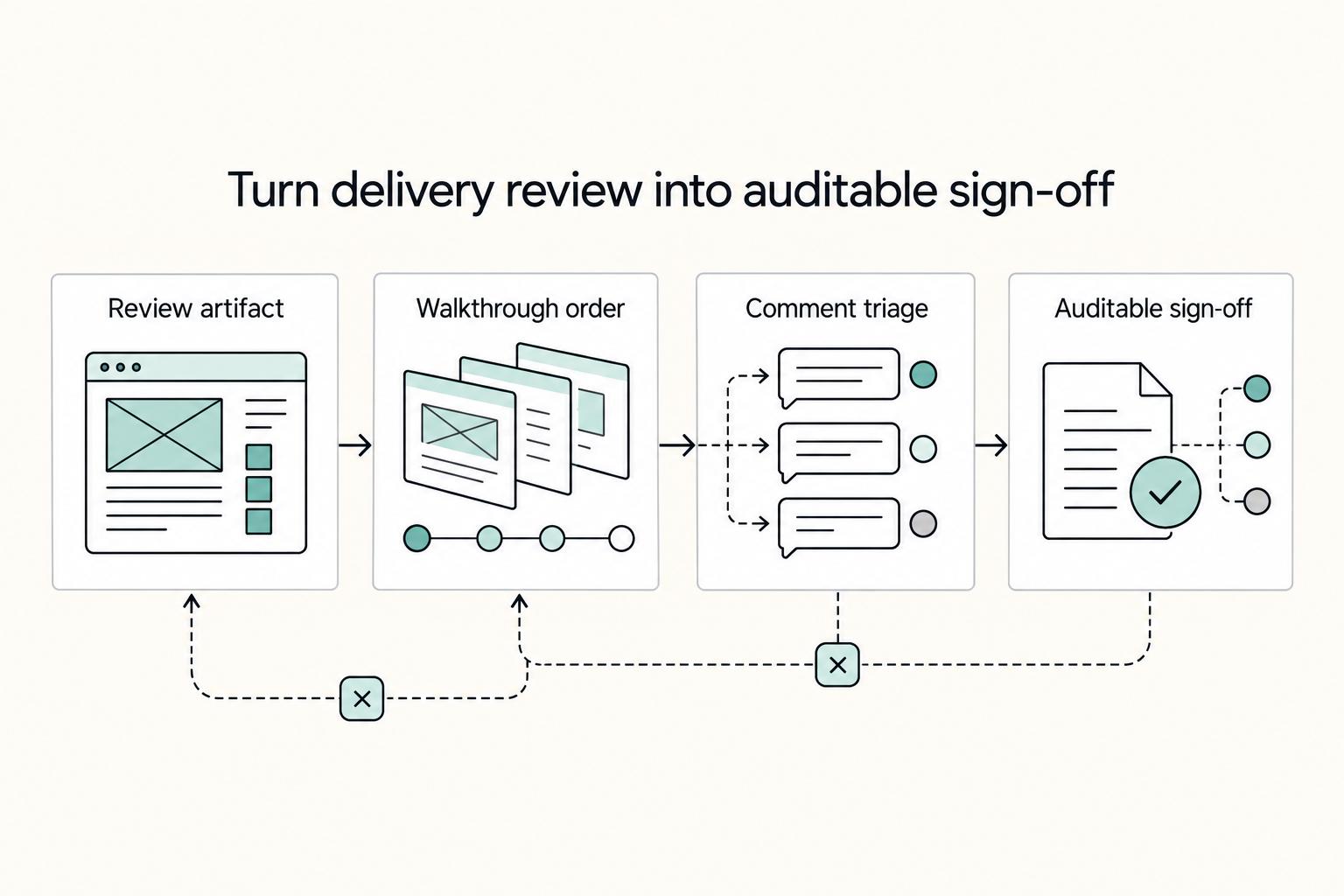
At this stage, your job is to make approval easy without reopening scope: keep one review artifact, one walkthrough sequence, one comment taxonomy, and one auditable sign-off.
| Review control | Required practice | Close-out rule |
|---|---|---|
| Build one review artifact | Put real copy, key states, and approval-critical interactions in one file or board; show modal, alert, and error states directly | Someone can click through the primary path and see the states that change approval decisions |
| Enforce a fixed walkthrough order | Run every review in this sequence: task completion, missing states, content accuracy, then visual refinements | If feedback jumps to color, spacing, or icon taste before the first three are closed, park it and continue |
| Triage comments and close each thread | Label each comment as decision, revision, question, or scope change; close every thread with owner / status / next action | If feedback adds a screen, flow branch, or new state beyond the approved baseline, log it as a scope change |
| Exit with auditable sign-off | All decision items are closed, one named approved version is frozen, and new screens or flows are split into formal change requests | Do not sign off on "looks good" |
- Build one review artifact
Put real copy, key states, and approval-critical interactions in one file or board. Show modal, alert, and error states directly so reviewers are not guessing from polished static screens. The pass check is simple: someone can click through the primary path and see the states that change approval decisions.
- Enforce a fixed walkthrough order
Run every review in this exact sequence: task completion, missing states, content accuracy, then visual refinements. If feedback jumps to color, spacing, or icon taste before the first three are closed, park it and keep going. This is the guardrail that keeps polish feedback from turning into untracked scope expansion.
- Triage comments and close each thread
Label each comment as decision, revision, question, or scope change. In the same workspace, close every thread with a mini log: owner / status / next action. Use resolved states where available. If feedback adds a screen, flow branch, or new state beyond the approved baseline, log it as a scope change.
- Exit with auditable sign-off
Do not sign off on "looks good." Exit only when all decision items are closed, one named approved version is frozen, and new screens or flows are split into formal change requests. Include performance outcomes only when the exact benchmark, source, and date are verified from internal records. For an optional implementation deep dive, see The Best Tools for Mobile App Prototyping.
| Tool | Realistic interaction coverage | Async review control | Version-freeze workflow | Client-friendly review access |
|---|---|---|---|---|
| Figma | Strong for clickable walkthroughs; prototype interactions use trigger + action, including navigation and external URLs | Comment threads can be resolved | Freeze quickly with a named version; checkpoints are recorded every 30 minutes, Starter history is limited to 30 days, and Starter teams are capped at 3 total Design and Sites files | Built to share files/prototypes with clients and stakeholders |
| Miro | Solid for static prototypes by default; advanced interactive preview features require the Miro Prototypes add-on | Resolved comments are marked directly | Boards back up every hour when changed, saved history is stored for 90 days, and restoring a version creates a separate board | Visitor access can be configured to view, comment, or edit based on settings and plan |
| Whimsical | Strong for low-fi review flows; overlays help represent modals and alerts | Viewer members are free and can view/comment; share links can be set to view/comment/edit by plan | Version history keeps a full record and supports forking from an earlier version; retention varies by plan | External review is straightforward; Free includes up to 10 guests with view/comment access |
For a related angle on client approval and scope control, see Best Mood Board Tools for Client Approval and Scope Control.
Stage 3: The "Systematize & Scale" Framework#
Treat this stage as an operating routine: you scale only when approved patterns are extracted, promoted through clear controls, and maintained in one visible system.
- Extract only approved patterns
Start from signed-off screens, not explorations. Pull reusable patterns (buttons, inputs, alerts, navigation, layout blocks) and leave one-off branding or edge-case fixes in the project file unless they are truly reusable.
Before anything moves forward, attach metadata: name, use case, source screen, owner, status. This is your governance layer, not a vendor requirement. If a candidate cannot be traced back to an approved source screen, keep it in staging.
- Promote through a path, not copy-paste
Use two states: staging and approved. Promotion is pass/fail: staged, reviewed, metadata complete, owner assigned, status marked approved.
In Figma, cross-file reuse requires publishing a library, so promotion discipline directly affects reuse. Branches let you test changes without disrupting the main file and keep a change trail. In low-fi workflows, Balsamiq components are reusable across boards, and comments can be gathered without edit permissions.
- Choose library home by control, visibility, and drift risk
Pick the setup that makes ownership and status obvious after delivery, not just during design.
| Setup | Governance overhead | Collaboration visibility | Traceability | Drift risk |
|---|---|---|---|---|
| Shared Figma library file | Higher upfront (promotion + publishing discipline) | High in a shared workspace | High with version history/branching | Lower when promotion ownership is clear |
| Personal drafts or private files | Low early, higher later (manual promotion) | Lower; Figma Starter draft collaborators are view-only, and Whimsical My files are private by default | Moderate | High if draft assets stay outside approved sets |
| Mixed design file + external notes | Moderate to high (sync required across systems) | Moderate | Lower as decisions split across tools | Highest when notes and assets diverge |
Keep free-plan details as a verification task at publish time. Current docs indicate Figma libraries are paid-only; Starter is 1 team and 1 project, 3 total Figma Design and Figma Sites files, unlimited drafts, and 30-day version history visibility for Starter members. Before using any plan comparison, verify the exact limits, seat rules, and effective dates against current vendor plan documentation. If you use Whimsical, remember members are workspace-wide, while guests are file/folder-scoped.
- Package reuse as a maintained service
Position this as scalable only when your controls are enforced. You should hand off a maintained asset set with clear ownership and change intake, not just a component dump. That supports faster onboarding, cleaner handoff, and fewer repeat decisions because defaults are visible and governed.
Launch only if all criteria pass:
- one named owner manages promotion, revisions, and retirement
- every approved asset includes name, use case, source screen, owner, status
- changes enter through a recorded intake step before library edits
- reusable assets live in one visible home
- version/branch/board history clearly shows what changed and by whom
If any item fails, call it a reusable kit, close the control gaps, and then scale. For a related read, see The Best Mockup Tools for Graphic Designers.
Your Design Process is Your Business Model#
Your tool choice is an operating decision: you are choosing how you will prove scope, govern review, and own reusable assets so delivery stays reliable across projects.
- Stage 1: Scope evidence. Start with low-fidelity wireframes and create one approval artifact you can retrieve quickly: a dated export or a clearly versioned file link. Use this as your pre-build checkpoint, since wireframes are for discussion before code and can serve as approval to start development. If you cannot find the exact approved artifact in under a minute, your scope control is weak.
- Stage 2: Review governance. Increase fidelity only after structure is approved, then keep feedback in the source file or prototype. In Figma, comment anchors move with frames, and project permissions let you separate edit access from view-only access. Keep one review channel and explicit edit/view boundaries so decisions are not split across chat, email, and calls.
- Stage 3: Reusable asset ownership. Promote only approved patterns into a library so teams reuse components, styles, and variables across files and projects. In Figma, each library publish creates a version-history checkpoint, which supports auditable change tracking. Reuse approved buttons, inputs, navigation, and layouts instead of rebuilding them from memory.
Before you shortlist tools, run this pass/fail check:
- Can you trace approval history quickly?
- Can you contain who can edit versus view?
- Can you publish and govern reusable assets?
- Can your plan and policy posture support the review model you need?
If you are evaluating Figma Starter, confirm fit against these constraints: single team and project, 3 total Figma Design and Figma Sites files, unlimited drafts, and 30 days of file version history. Verify current plan limits against vendor plan documentation before using them, and verify any benchmark date and result from internal records before including it.
Once process fit is confirmed, move to pricing and packaging decisions instead of more tool shopping. Start with Value-Based Pricing: A Freelancer's Guide. For a step-by-step walkthrough, see The Best Tools for Creative Collaboration with Remote Teams. Want to confirm what's supported for your specific situation? Talk to Gruv.
Frequently Asked Questions
What is the best wireframing tool for a solo consultant?
Pick by stage, not by brand. If you are still defining user journeys, menus, buttons, and content areas, choose the tool that keeps the work rough enough for scope decisions and fast revisions. Once structure is approved, move to higher fidelity only when your review process needs more detail. If the tool does not match your needed fidelity, budget, collaboration needs, and integration constraints, it is the wrong fit for that phase.
How do I use wireframes to prevent scope creep?
Create one approval artifact and name it so nobody can miss it: project, stage, version, and date. Get sign-off on that exact file or export. Then treat any request that changes layout, flow, or feature count as a change request with a new estimate and delivery impact. If you need proof later, you should be able to point to the approved version quickly. Without a saved process artifact, teams can lose control and drift into chaos.
Are free wireframing tools professional enough for corporate clients?
They can be, depending on whether they fit the fidelity, budget, collaboration, and integration needs for the engagement. Confirm the review path before work starts, and keep approvals tied to a dated file or export. If you plan to rely on free-tier limits or sharing rules, verify current plan constraints before you commit to a review setup.
When should I use Figma vs. Balsamiq for a client presentation?
Use the tool that matches the fidelity you need for that meeting. If the goal is to validate structure, information organization, and missing requirements, keep the artifact low fidelity. If the core screen set is already settled and you need a more detailed review artifact, move to higher fidelity. If the meeting starts drifting into visual taste before the flow is approved, pull it back to structural decisions first to reduce late rework.
What's the real difference between a wireframe and a prototype?
Treat a wireframe as a scope tool. You are checking whether the product works before you spend time refining visual design details. The approval question is, "Are these the right screens, flows, menus, buttons, and content areas?" A prototype is typically a later, higher-detail artifact once structure is agreed and you want to evaluate behavior or presentation quality. If stakeholders are debating motion, polish, or brand feel, confirm whether delivery scope has changed.
Try a related tool
Researched and edited by the Gruv editorial team. Gruv builds cross-border billing, payouts, and finance-operations software for global businesses.
Sources
Includes 6 external sources outside the trusted-domain allowlist.
- academia.edu/94910210/Making_Sense_of_Consent_with_Knowle...trusted
- handbook.planning.data.gov.uk/product-and-delivery/product-operating-modeltrusted
- atlassian.com/blog/inside-atlassian/4-how-tos-dealing-with...external
- balsamiq.com/support/docs/getting-started/what-is-balsamiqexternal
- balsamiq.com/support/docs/sharing/collaborating/commentingexternal
- connect.oeglobal.org/t/wireframing-tools-and-practices/2012external
- figma.com/resource-library/what-is-wireframingexternal
- help.figma.com/hc/en-us/articles/13838684089751-Starter-pla...external
Educational content only. Not legal, tax, or financial advice.
Related Posts
Value-Based Pricing for Freelancers Under Real Payment Risk
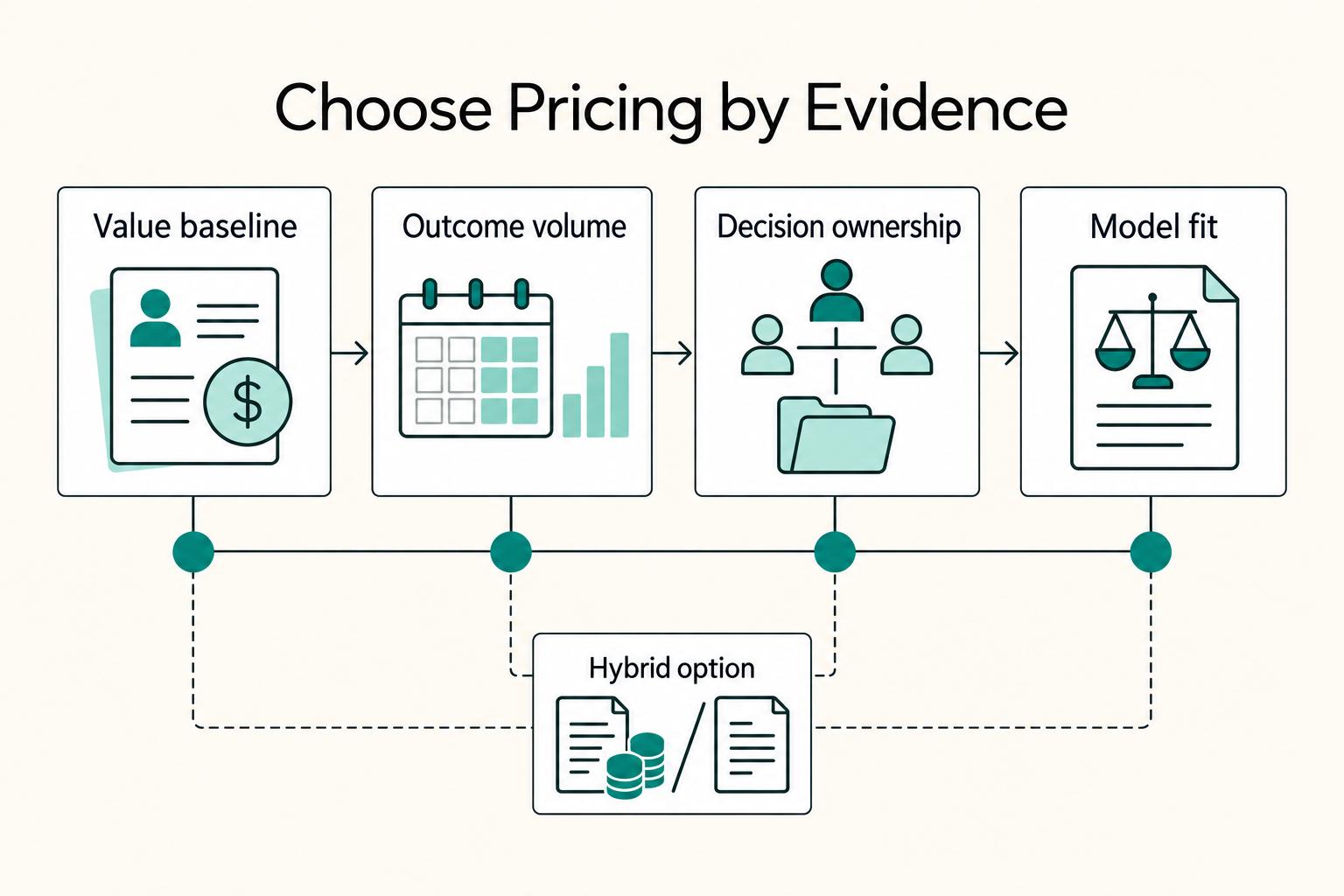
Value-based pricing works when you and the client can name the business result before kickoff and agree on how progress will be judged. If that link is weak, use a tighter model first. This is not about defending one pricing philosophy over another. It is about avoiding surprises by keeping pricing, scope, delivery, and payment aligned from day one.
Best Mobile App Prototyping Tools for Freelancers
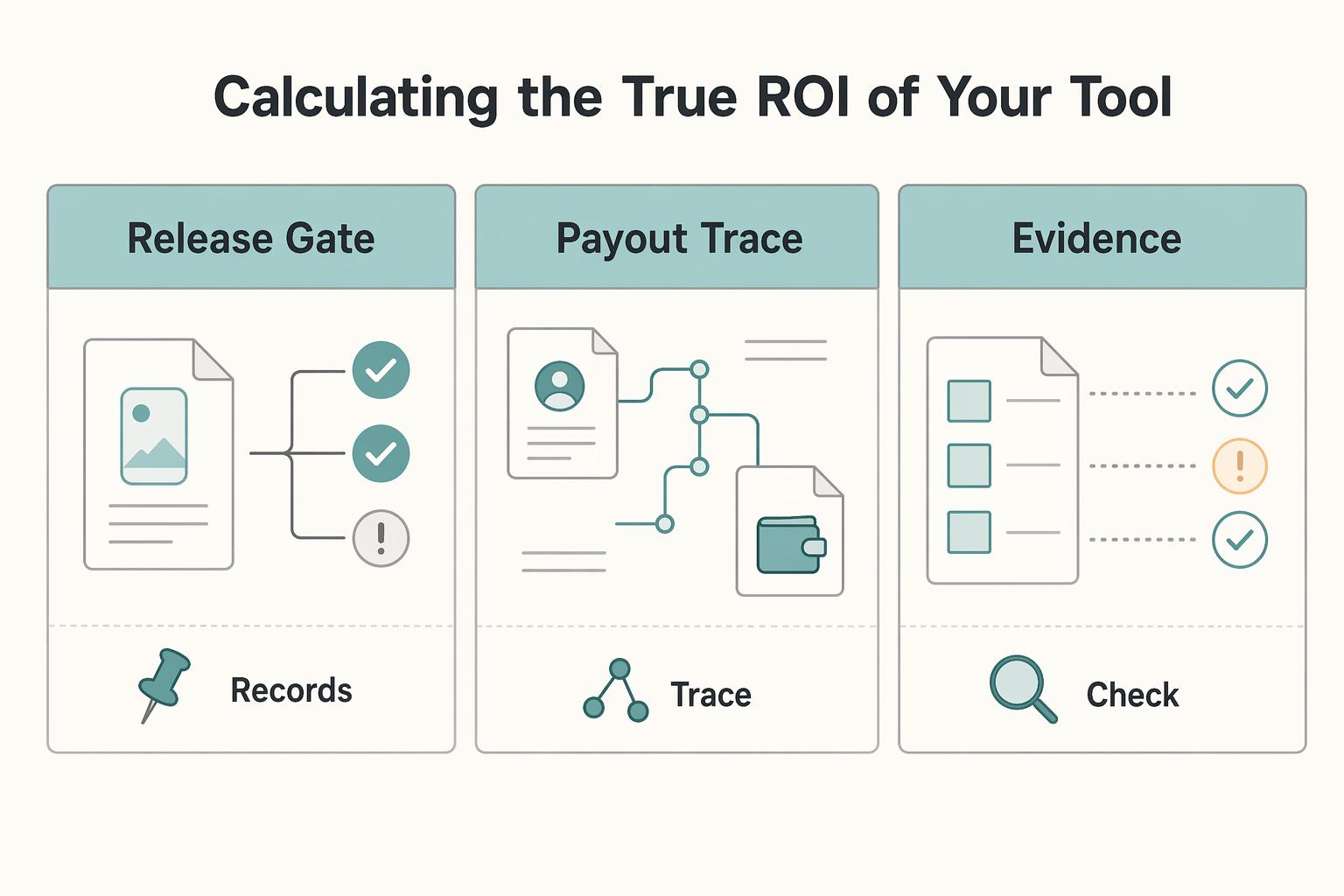
A prototyping tool is not the software line item to cut first. It is part of how you sell, scope, and deliver the work. The prototype shapes outcomes you can actually control: clearer scope decisions, faster client alignment, and a cleaner developer handoff. It is the first draft of the product, but it also affects how confidently you sell, how smoothly you deliver, and how much rework you absorb.
Create Wireframes for a Mobile App Without Rework
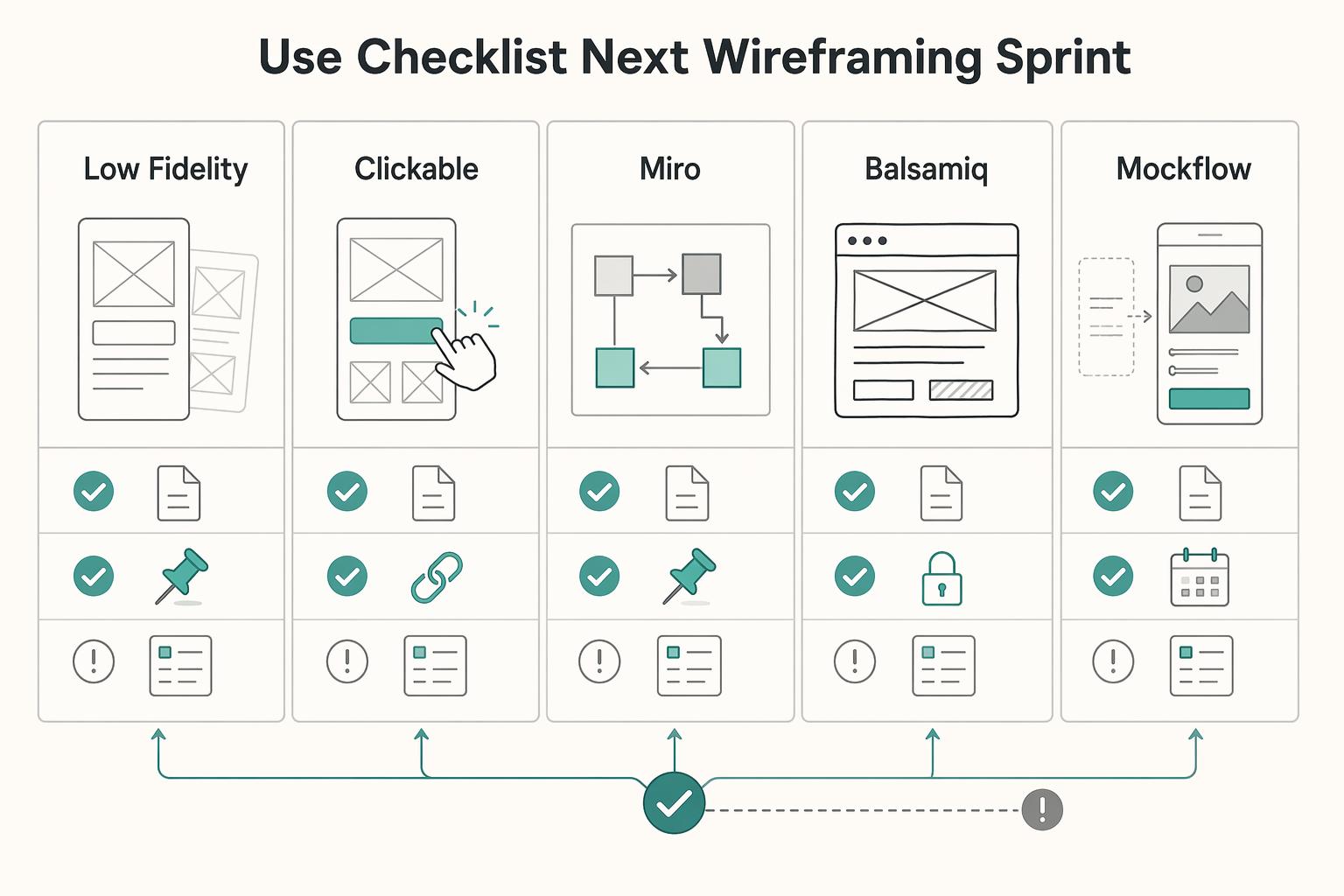
Start rough on purpose. Good mobile app wireframing work is not the set of screens that looks finished first. It is the set that lets another person follow the core task, understand each screen's job, and spot structural problems before visual detail starts hiding them.