
Quick Answer
Choose the app that passes your real workflow, not the one with the longest feature list. For most paid use, that means proving webcam-adjacent prompting during a live Zoom or Teams session, stable pace control (including voice-follow modes like VoiceTrack), and reliable script sync from edit to recording device. If any of those fail in a full read-through, keep testing instead of upgrading.
If you speak on camera for work, the right teleprompter app is the one that helps you keep eye contact, stay on message, and get through complex material without sounding stiff or distracted. The wrong one adds friction right where your delivery needs to feel easy.
That is why this choice is less about flashy features and more about fit. You need an app that matches the work you actually do, behaves cleanly in your setup, and earns its cost by reducing mistakes, delays, and awkward workarounds. This guide walks through that decision in three phases: define the mission, test the integration, then decide whether the paid tier is worth it.
Phase 1: Define the Mission - Matching the Tool to the High-Stakes Job#
Pick the one recording context that has to work every time. If you mix live-call criteria with studio-recording criteria, you will overvalue nice extras and miss the failure point that actually matters in your setup. Use this table to lock the mission. One row should feel clearly more important than the others.
| Mission | Required capabilities | Failure signals | Best-fit app class |
|---|---|---|---|
| Live delivery | Prompt text must sit close to your webcam through a transparent overlay or a pop-out teleprompter window you can resize and move. You also want hands-free pace control, such as voice-follow scrolling like VoiceTrack, which follows your speech and pauses when you pause. Run a real check with your meeting app open, and confirm scroll speed still feels usable because pace can vary with browser size. | Your eyes drop far below camera level, you need to touch the screen to keep up, or the prompt becomes awkward once the meeting app is active. On iPad, treat lack of iPadOS Slide Over support as a hard stop for side-by-side use when the meeting app depends on it. | Dedicated desktop teleprompter or live-capable prompt app built for overlay control |
| Pre-recorded production | Script intake and handoff matter more here. Verify the app can import the formats you actually receive, such as .txt, .docx, and .pdf, and check whether the prompt is captured in the final recording on your chosen platform. For example, Descript states that when recording from the desktop app, the teleprompter is never captured. | You are copying scripts by hand, formatting breaks on import, or your team assumes recordings and scripts sync the same way across devices. Do not assume they do: some tools sync scripts only, not videos. | Recording or editing tool with teleprompter support and clean script import |
| Mobile capture | Device-specific stability matters more here than desktop-style feature depth. Test whether the app can keep a floating prompt usable on your phone or tablet while you maintain eye contact, then do a full read on the exact device and OS you plan to use. | You assume a phone setup will behave like desktop, or you discover too late that multitasking, camera framing, or prompt placement feels cramped on your device. | Mobile-first teleprompter app with floating prompt behavior |
If batch content is your main path, this is also the moment to think about the channel you are feeding. A creator publishing on YouTube should care more about repeatable script import, recording behavior, and handoff clarity than live overlay tricks. If that is your lane, How to Create a YouTube Channel to Showcase Your Freelance Skills is the better next read after this phase. Related: Best Stock Video Sites for Creators Who Need Clear Licensing.
Lock the mission before you test#
Before you move to integration testing, make sure you can say yes to all four:
- I chose one primary job: live delivery, pre-recorded production, or mobile capture.
- I know the one capability that would kill this workflow if missing: near-camera overlay, hands-free pacing, script handoff, or device stability.
- I ran one immediate check in the real environment, not just on a feature page.
- I am not counting on cross-device video sync unless I personally verified it. Scripts may sync while recorded files do not.
Phase 2: Test for Integration - Passing the Professional Workflow Test#
Do not trust a teleprompter app for paid work until it passes one uninterrupted trial in your exact setup. Run the test with your real meeting app, camera framing, pacing controls, and script handoff flow.
| Item | Documented detail | Verify |
|---|---|---|
| Speakflow | Overlay mode can keep apps visible behind your script, but underlying apps are view-only; Overlay is desktop-only, and Mac setup requires browser Screen Recording permission | Test muting, admitting participants, or managing chat while reading; public docs conflict on current document-import availability |
| PromptSmart | VoiceTrack follows your speech and pauses when you pause; browser edits push to logged-in devices, and previous versions can be recovered up to 20 | Run a live-edit test instead of assuming sync works |
| BIGVU | On the iOS mobile app, a Bluetooth remote can pause, speed up, or slow down scrolling; Contributor is limited to assigned workspaces, and scripts can be duplicated across workspaces | Test remote control and role-based handoff in your workflow |
| Teleprompter.com | Supports .txt, .docx, and .pdf imports | Verify your exact handoff format before committing |
Integration scorecard (pass/fail)#
Score each app against the checks below during one full read-through.
| Check | What you test in your real setup | Pass looks like | Fail looks like | Who cannot compromise |
|---|---|---|---|---|
| Meeting overlay behavior | Keep your call window active, place the prompt near your webcam, and read a finished script | You can keep the meeting visible behind the script, text stays readable, and you avoid constant window switching | The prompt blocks the call, becomes awkward once live, or sits too far from camera level | Live presenters, webinar hosts, client-facing delivery |
| Remote pacing control | Pair your remote, second device, or speech-follow mode and change speed mid-read | You can pause or adjust pace without touching the main screen, and scroll stays stable | Controls lag, you lose your place, or you must touch the main device to recover | Solo presenters, standing delivery, mobile capture |
| Eye-line stability on playback | Record a short test in your final framing and review it | Your eyes stay close to lens level and delivery still feels direct | You look down or off-axis often enough to break trust | Sales, coaching, teaching, trust-sensitive content |
| Script sync and version control | Edit from browser or companion device during the test, then reopen on the recording device | Latest text appears on the recording screen, and version recovery is available where offered | Stale text appears, copy-paste is required, or the current version is unclear | Mixed-device workflows, repeat production |
| Collaborator handoff integrity | Assign teammate roles, duplicate or move scripts, and import your real file formats | Access stays within the right workspace and scripts remain usable after transfer or import | Permissions block the right person or overexpose access, or import formatting breaks | Teams using writers, VAs, or producers |
Do not stop at a feature badge. Speakflow says Overlay mode can keep apps visible behind your script, but it also says those underlying apps are view-only in Overlay mode. If you need to mute, admit participants, or manage chat while reading, test that directly. Speakflow also states Overlay is desktop-only (not mobile browsers), and Mac setup requires enabling browser Screen Recording permission.
Treat pacing and sync as separate failure points. PromptSmart says VoiceTrack follows your speech and pauses when you pause. BIGVU says its Bluetooth remote on the iOS mobile app can pause, speed up, or slow down scrolling. PromptSmart also says browser edits push to logged-in devices and previous versions can be recovered up to 20, so run a live-edit test instead of assuming sync works.
Collaboration can fail even if solo recording looks good. BIGVU documents role-based permissions, including a Contributor role limited to assigned workspaces, and supports duplicating scripts across workspaces. Teleprompter.com supports .txt, .docx, and .pdf imports, while Speakflow's public docs conflict on current document-import availability, so verify your exact handoff format before you commit.
Red-flag triage: keep testing vs reject now#
| Issue | Decision |
|---|---|
| One-time permission step | Keep testing |
| Remote pairing hiccup | Keep testing |
| Minor formatting cleanup you can standardize | Keep testing |
| Prompt cannot stay near camera level during active calls | Reject immediately |
| You must touch the main screen to keep pace | Reject immediately |
| Your workflow depends on mobile-browser overlay | Reject immediately |
| Collaborators keep getting stale script versions | Reject immediately |
- Keep testing when the issue is a one-time permission step, a remote pairing hiccup, or minor formatting cleanup you can standardize.
- Reject immediately when the prompt cannot stay near camera level during active calls, you must touch the main screen to keep pace, your workflow depends on mobile-browser overlay, or collaborators keep getting stale script versions.
Once an app clears the integration test, then compare broader production tools like The Best Video Editing Software for Freelancers. If you want a deeper systems read after this phase, see Best invoicing apps with Stripe for freelancers and small teams in 2026.
Phase 3: Calculate the True ROI - Choosing an Investment Over a "Free" Risk#
Choose your tier by operational risk, not feature count: if a lower plan still causes retakes, eye-line breaks, stale script control, or handoff confusion, it is already costing you more than it saves.
Use this quick model before you upgrade: ROI = risk avoided + time recovered + handoff reliability - subscription friction. Fill it in with your own placeholders: (retakes avoided per month) + (minutes recovered per recording) + (handoff errors prevented) - (monthly cost + setup friction).
| Tier context | Who this is for | Acceptable compromises | Too risky when | Upgrade trigger |
|---|---|---|---|---|
| Practice-only | You are rehearsing pacing, delivery, or public speaking with no client deadline | Watermark on rehearsal footage, shorter script caps, basic controls | You cannot complete a full read cleanly, or a free cap like 750 characters (about 1 minute) blocks your real script | You start charging for recordings, need longer scripts, or need clean deliverables |
| Client-facing | You deliver paid recordings, webinars, or live meetings where retakes are costly | Paying for reliability (for example, PromptSmart Starter at $9.99/month or Teleprompter.com Pro at $19.99/month) | You still need screen touches to keep pace, eye-line drifts off camera, or output keeps a watermark | You need no-watermark output, steadier pacing control, and meeting-safe prompting |
| Multi-person production | A writer, VA, producer, or reviewer handles script updates before publish | Higher seat cost in exchange for cleaner approvals and fewer version mistakes | Wrong-draft edits, unclear permissions, or one Control Room session cannot support your workflow | You need shared workspace, multiple editors, or multiple browser-based Control Room sessions |
Before you buy, keep your Phase 2 proof: one 60 to 90 second playback, one live sync edit, and one handoff test. If the lower tier already shows a watermark, script-length limits, or single-session control bottlenecks, treat that as an operating limit, not a temporary inconvenience.
That settles the teleprompter pricing decision. Once prompting is reliable, compare the rest of your stack in The Best Video Editing Software for Freelancers. You might also find this useful: Best To-Do List Apps for Freelancers Who Need Operational Control.
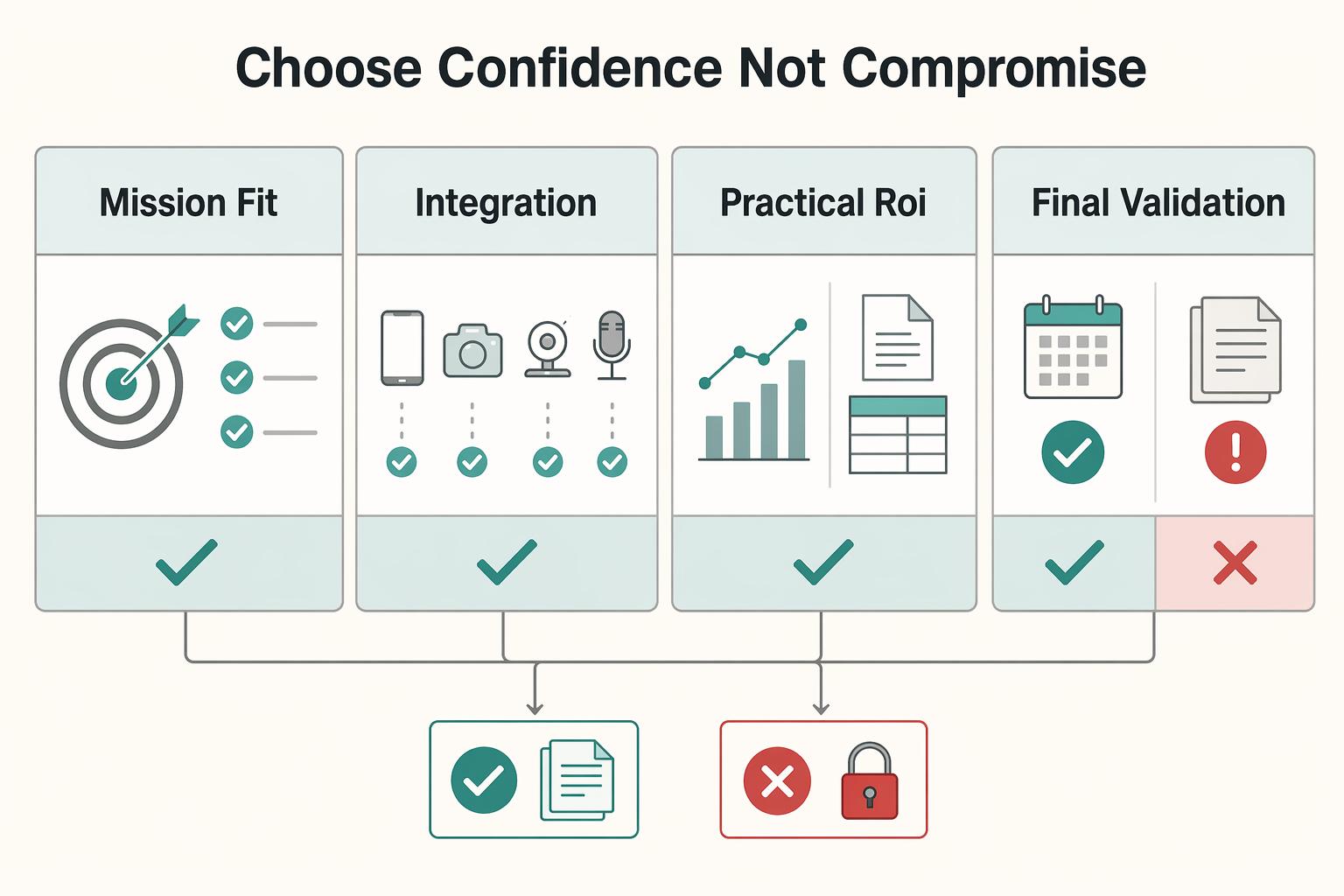
Your Final Decision: Choose Confidence, Not Compromise#
Use a strict go/no-go rule: buy only if one option clears all three gates in your real setup, then passes one full rehearsal without a blocker.
| Gate | Accept when | Disqualify when |
|---|---|---|
| Mission fit (Phase 1) | The app clearly supports your primary job in production, not just on a feature page | The required workflow is blocked in practice, including short free limits that prevent a meaningful test, or live use needs awkward app switching instead of a workable on-screen prompt flow |
| Integration pass (Phase 2) | Imports match your file types (DOC, DOCX, TXT, RTF, PDF), pacing can be controlled from your speaking position, and cross-device edits stay in sync when that is part of your process | You lose control during delivery (pause/speed/resume friction) or script versions drift across devices |
| Practical ROI (Phase 3) | A paid tier removes a real delivery risk you have already seen in testing | You are paying for polish that does not change outcomes in your use case |
| Final validation run (commit step) | One uninterrupted rehearsal runs in real conditions with the same device, camera position, script version, and meeting or recording app | Any blocker would likely cause retakes under pressure |
- Mission fit (Phase 1)
Accept it if the app clearly supports your primary job in production, not just on a feature page. Disqualify it if the required workflow is blocked in practice, including short free limits that prevent a meaningful test (for example, a 750-character free cap), or if live use needs awkward app switching instead of a workable on-screen prompt flow.
- Integration pass (Phase 2)
Accept it if script handoff and control are reliable in your workflow: imports match your file types (DOC, DOCX, TXT, RTF, PDF), pacing can be controlled from your speaking position, and cross-device edits stay in sync when that is part of your process. Disqualify it if you lose control during delivery (pause/speed/resume friction) or script versions drift across devices.
- Practical ROI (Phase 3)
Accept a paid tier only when it removes a real delivery risk you have already seen in testing. Disqualify it if you are paying for polish that does not change outcomes in your use case. Keep pricing concrete while you decide: PromptSmart Starter is listed at $9.99/month or $99.99/year; PromptSmart Team at $19.99/month or $199.99/year; Teleprompter.com Pro shows $19.99 monthly with a yearly display of $7.5/month, plus 4K recording (no watermark).
- Final validation run (commit step)
Run one uninterrupted rehearsal in real conditions: same device, same camera position, same script version, same meeting or recording app. Log blockers in plain language: control lag, stale sync, import formatting breaks, watermark surprises, or offline behavior gaps. If any blocker would likely cause retakes under pressure, reject it and keep testing.
If you need help deciding whether an upgrade is financially justified, read Value-Based Pricing: A Freelancer's Guide. If your next move is tightening your recording workflow habits, see The Best Apps for Blocking Distracting Websites. If you want to evaluate adjacent tooling options, Browse Gruv tools. If you still have an unresolved edge case, Talk to Gruv.
Frequently Asked Questions
Is voice-activated scrolling reliable enough to trust?
Some apps offer voice-activated scrolling, but it should not be your only control method. If your delivery includes pauses, improvisation, or interruptions, test whether the prompt still keeps pace. To check it, do one full read with a deliberate pause, one stumble, and one off-script sentence, then decide whether manual control is the safer default.
What should you look for if you need it for live calls?
Look first at eye line. The script needs to stay close to your webcam so you can read naturally and still look direct on camera. If the setup forces awkward window switching, or the prompt risks showing up in a screen share, it is not ready for client use. To verify it, join a real test meeting on your exact device, place the prompt where you would actually use it, and record a short clip. Then check eye line and screen-share behavior after the fact.
What is the best way to control a teleprompter remotely?
Remote control works best when touching your phone, tablet, or laptop would break eye line or shake the shot. If you cannot speed up, slow down, and pause from your real speaking position without looking down, keep testing or change methods. Run that check twice from the spot where you actually stand or sit, especially if your setup needs on-the-fly speed adjustment, mirrored text, or hands-free delivery.
Should you choose a web tool or a native app?
A browser option is useful when you need fast access on a borrowed machine or want a low-friction first try. If the script is sensitive, or you need more confidence about offline use and local behavior, do not assume the web option is enough. A simple test is to see whether a new user can open it and start recording in under two minutes, then note whether a paywall blocks useful testing in the first 30 seconds.
Match the app type to the job
If you are stuck between categories, match the type to the job, not the longest feature list. Teleprompter tools are not all the same. Some are basic scrollers, and some put important controls behind a paywall. | App type | Best fit | Key limitation | Handoff check | | --- | --- | --- | --- | | Desktop overlay teleprompter | Live delivery where the script needs to sit near the webcam during calls or presentations | You have to prove the on-screen layout works in your exact meeting setup | Confirm you can still copy or export the latest script so a writer, VA, or producer is not editing a separate version | | Integrated script-to-video app | Repeat direct-to-camera recording where you want scripting and capture in one place | You may end up tied to that app's recording and finish-stage process | Check whether it helps you finish the video or just hands you a raw file to sort out elsewhere | | Browser-based teleprompter | Fast access across different machines, light rehearsal, or simple solo recording | Browser behavior, offline handling, and free-tier limits need proof before paid use | Keep a plain-text backup, and test whether revisions stay clearly labeled when you move between devices |
What should you verify before you pay?
Verify three things before you pay: that you can complete a real trial without friction, that you can adjust scroll control so the pace feels natural, and that the output quality fits your use instead of defaulting to 720p when you expected HD or 4K. If your first useful test is blocked by setup friction, a paywall, or weak output, the paid tier is already starting from a trust deficit. For a clean check, run one uninterrupted script from start to finish, save the playback, and note only three facts: how easy it was to start, whether the pace felt natural, and whether the output quality is usable.
How do you avoid script handoff surprises before a paid recording?
Treat the script as an asset, not as text that lives only inside one teleprompter app. If import, revision sync, or export is vague, assume you could end up with stale text or a last-minute formatting mess. Clean the source file first, keep one clearly named master copy, export or copy out a fallback plain-text version, and test one edit on a second device before the client session. If two options still pass, go back to the same decision rule. Match the tool to the job, prove it in your real setup, then decide whether the paid tier costs less than the failure risk.
Try a related tool
Researched and edited by the Gruv editorial team. Gruv builds cross-border billing, payouts, and finance-operations software for global businesses.
Sources
Includes 8 external sources outside the trusted-domain allowlist.
- apps.apple.com/us/app/teleprompter-for-video/id1139307843external
- apps.apple.com/us/app/bigvu-teleprompter-captions-ai/id1124...external
- bigvu.tv/blog/best-teleprompter-apps-481afexternal
- faq.bigvu.tv/en/article/bluetooth-teleprompter-remote-ios...external
- guide.teleprompterpro.com/guides/teleprompter-with-zoom-ipadexternal
- help.descript.com/hc/en-us/articles/35482375421581-Record-with...external
- opus.pro/blog/best-teleprompter-apps-for-creatorsexternal
- play.google.com/store/apps/detailsexternal
Educational content only. Not legal, tax, or financial advice.
Related Posts
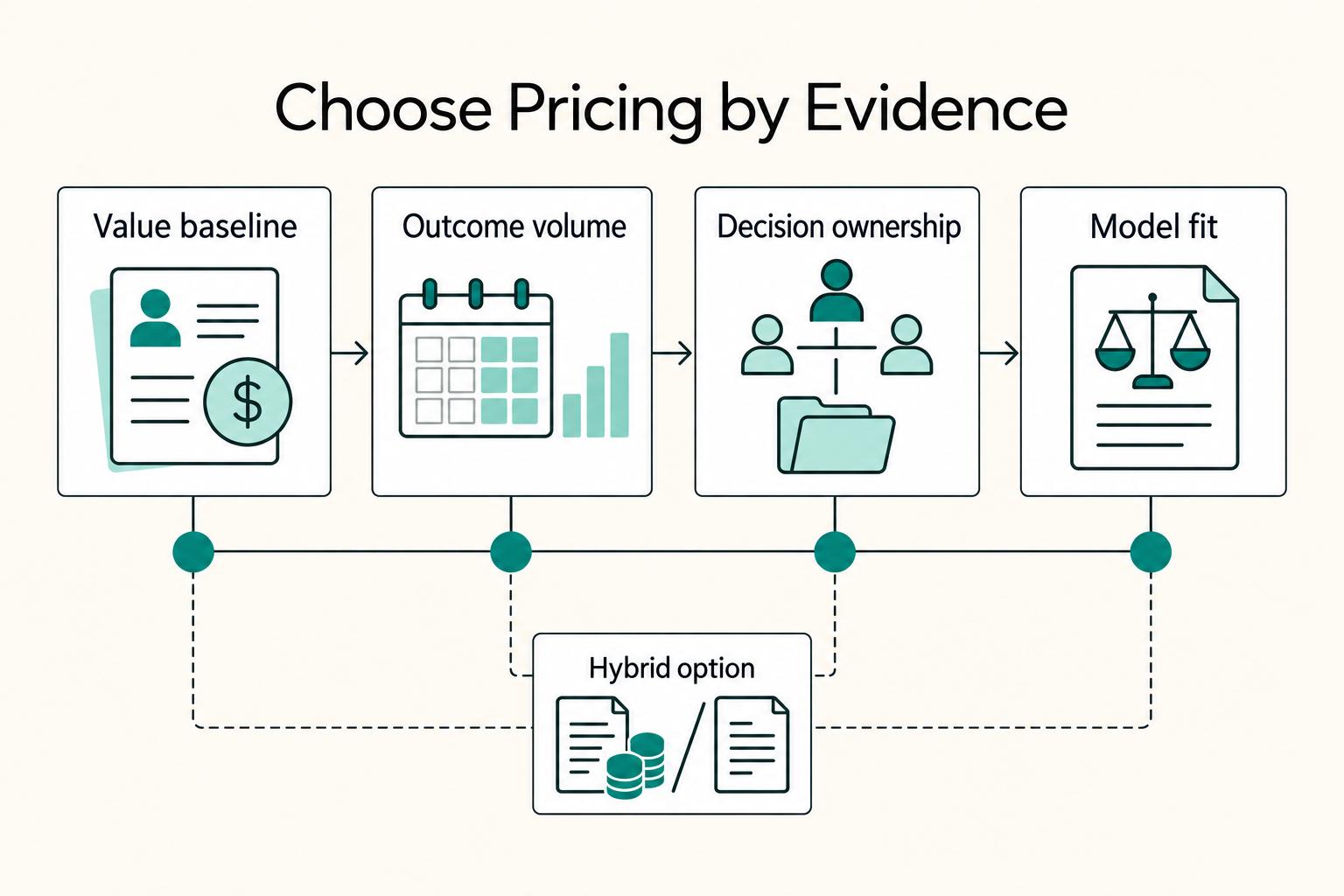
Value-Based Pricing for Freelancers Under Real Payment Risk
Value-based pricing works when you and the client can name the business result before kickoff and agree on how progress will be judged. If that link is weak, use a tighter model first. This is not about defending one pricing philosophy over another. It is about avoiding surprises by keeping pricing, scope, delivery, and payment aligned from day one.
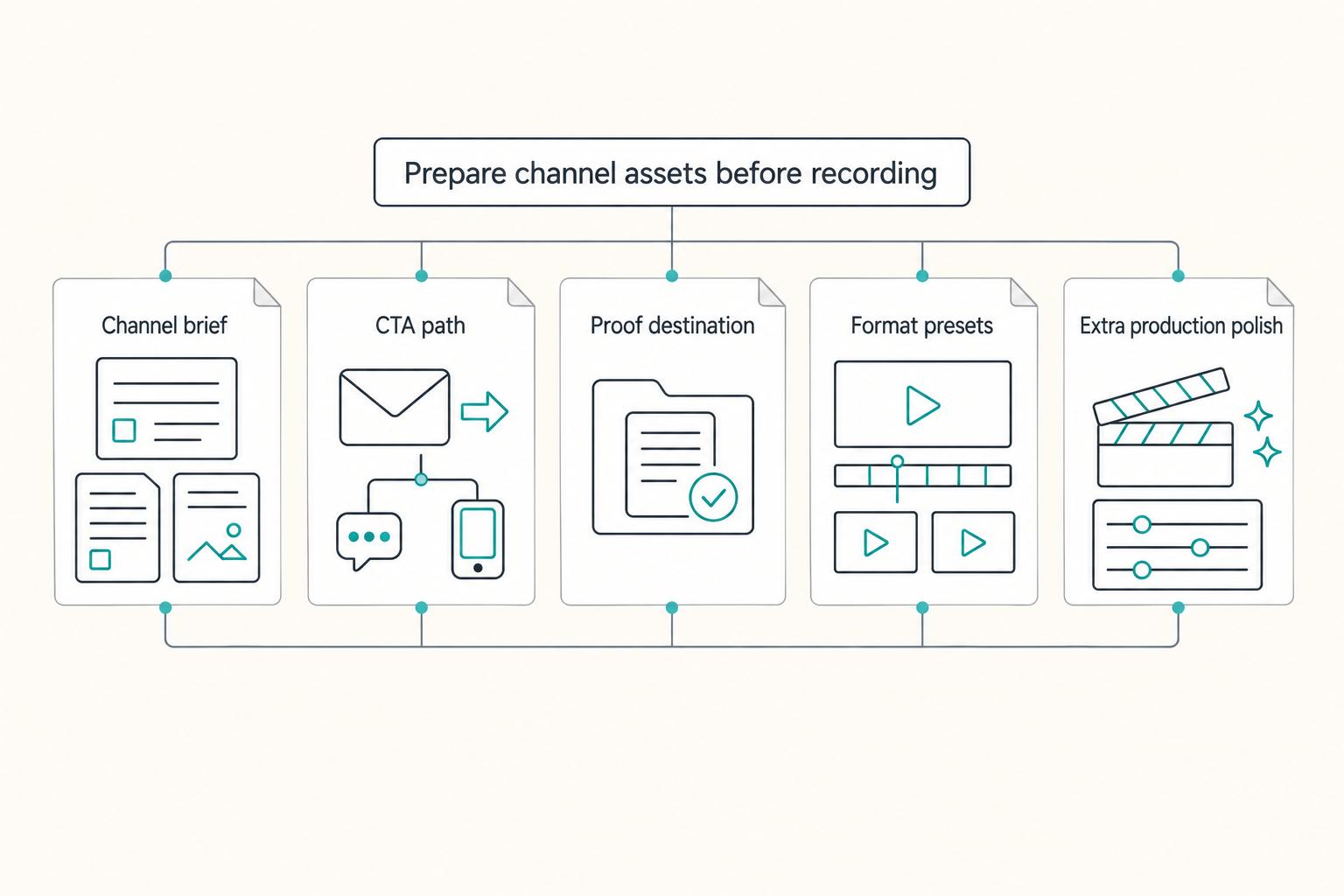
How to Create a YouTube Channel to Showcase Your Freelance Skills
Treat this like a business decision, not a creator identity project. Your goal is to publish videos that attract qualified inquiries instead of random attention.

The Best Video Editing Software for Freelancers
**Choose the best video editing software based on the workflow you can repeat under pressure, not the tool that looks most impressive on YouTube.** You are the CEO of a business-of-one, and your editor is part of your delivery infrastructure. When a client changes scope, sends a new batch of footage, or asks for "one more revision," your editor stops being a creative playground and becomes a system you either trust or fight.