
Quick Answer
Choose the best portable mice by using a risk screen before brand preference: connection fallback, power recovery, and long-session comfort. A model like the Logitech MX Anywhere 3S is a useful benchmark when you need dual connectivity, USB-C charging, and reliable tracking in mixed environments. Then validate your own setup by pairing every travel device, checking wake-and-switch behavior, and confirming you can recover quickly from a low-battery moment during live work.
Your Mouse is a Mission-Critical Tool: A Risk Mitigation Guide to the Best Portable Mice#
If your cursor starts stuttering in a crowded coworking space, or your mouse battery dies right before a client call, that is not a minor gadget problem. It is an availability problem. A core tool in your remote work setup is no longer usable when you need it.
| Screen | What to check | Why it matters |
|---|---|---|
| Connection reliability | See whether the mouse stays linked when wireless conditions get messy and whether there is a fallback if one connection method acts up | Redundancy matters more than vague claims about being stable |
| Power recovery | Check whether you can recharge easily with USB-C and get back to work without special batteries or accessories | Recovery speed can matter more than long battery life |
| Ergonomic sustainability | Judge whether you can use it comfortably for real work, not just whether it fits in your bag | Long sessions can turn a compact mouse into a strain problem |
This guide uses a simple screen to help you choose for uptime, not a pretty spec sheet. Judge any travel mouse by three things first: how it fails, how quickly you recover, and whether you can use it comfortably for real work.
- Connection reliability
Start here. Will the mouse stay linked when wireless conditions get messy, and do you have a fallback if one connection method acts up? One reviewed model explicitly offered both Bluetooth and 2.4G connectivity, and the package included a 2.4G dongle plus a USB-C cable. What matters is redundancy you can verify, not vague claims about being "stable."
- Power recovery
Long battery life sounds good, but recovery speed matters more when you are already low. The practical check is simple: can you recharge easily with USB-C, and is the charging method straightforward enough to get you back to work fast without hunting for special batteries or accessories? The differentiator is less downtime, not the biggest runtime number on the box.
- Ergonomic sustainability
A mouse that fits your bag can still become a problem after repeated long sessions. Ergonomic designs are built around the biomechanics of your hand, wrist, and forearm to reduce strain, and some use a vertical grip orientation that imitates a handshake posture. What matters is whether you can keep working comfortably, not whether the device looks compact.
From here, use an evidence-first standard. Small operator details matter, including red flags like fragile internal clips during disassembly or inconsistent pricing context on the same product page. We will start with connection risk, then move through power, comfort, and network fit so the tradeoffs stay clear. If you want a deeper dive, read Value-Based Pricing: A Freelancer's Guide.
Mitigating Connection Failure: Your Link to the World#
Connection reliability is your first uptime check. If a mouse gives you only one connection method, you are accepting a single failure path from the start.
Bluetooth is convenient, especially on laptops with limited ports, but convenience is not the same as resilience. In shared workspaces, airports, and client offices, your setup changes quickly, and re-pairing friction often shows up at the worst time. The common failure pattern is practical: cursor dropouts, stutter, or pairing prompts right before a live task.
Use a simple decision rule: prefer dual-connectivity, meaning Bluetooth plus a dedicated USB dongle path. If one path becomes unreliable that day, you still have a direct fallback.
| Model family | What it represents | Backup connection option to verify | Device-switching check | Practical risk for professional use |
|---|---|---|---|---|
| Logitech MX Anywhere | Baseline shortlist candidate | Confirm the exact variant supports both Bluetooth and a dedicated USB dongle path | Check whether switching between your primary and secondary device is a quick action or a re-pairing step | Lower risk only when both paths are available and the receiver is accessible in travel |
| Razer Pro Click Mini | Baseline shortlist candidate | Confirm the same dual-path setup on the exact unit, not just a generic listing | Test switching with your actual device mix, not just spec-sheet claims | Lower risk when the backup path is real and you will carry it |
| Microsoft Arc Mouse | Portability-first tradeoff case | Verify whether the exact unit includes any backup receiver path; if not, you depend on one wireless method | Check whether your workflow needs fast handoff across devices or mainly one device | Higher risk when compactness is prioritized over resilience |
Verify the exact variant, not just the product family name. Listings and bundles can blur what is included and how connection works in practice. Before buying, confirm the dedicated USB dongle path and decide where that receiver will live in your bag so it is there when you need it. Related: The Best Gear for a Portable Home Office.
Then validate multi-device behavior in your real setup. "Works with multiple devices" does not always mean fast handoff. If you switch between a personal laptop and a client machine, test that flow directly.
Use this short pre-flight check:
- Verify backup receiver access: confirm the dedicated USB dongle path and store the receiver in a fixed spot in your bag.
- Confirm multi-device pairing behavior: check whether switching is a quick action or a fresh pairing task.
- Test connection handoff in your actual setup: run the test at your normal desk, then in one busy environment you regularly use.
Mitigating Power Failure: A 60-Second Recovery Plan#
If your mouse dies 60 seconds before a client call, your real risk is not battery size, it is recovery speed. Choose a mouse and routine that gets you working again fast with the cables and devices you already carry.
| Check | What to verify | Why it matters |
|---|---|---|
| Recharge method | Prefer a setup that matches your travel kit; USB-C can share a cable with your laptop, phone, and other devices | Disposable batteries create a separate supply risk on every trip |
| Quick top-up behavior | Check what happens when you have a minute, not an hour, and verify any quick-charge claim on the official product page | The real risk is recovery speed when power is low |
| Battery-status visibility | Confirm whether status is clear in software, on-device indicator, or both, and test it in your normal setup | Low power is less likely to become a surprise interruption |
| Backup plan when charging is not possible | Check cable fit, charging posture, and whether the mouse remains usable while connected to power | A worn port, incompatible cable, or awkward charging workflow can cause downtime |
Use this four-point check:
- Recharge method
Prefer a recharge setup that matches your travel kit. USB-C is usually the practical option because it can share a cable with your laptop, phone, and other devices. If a mouse depends on disposable batteries, treat that as a separate supply risk you must manage on every trip.
- Quick top-up behavior
Check what happens when you have a minute, not an hour. The Logitech MX Anywhere line is a useful benchmark, but verify the current quick-charge runtime on the official product page before buying and record the verified value in your gear notes.
- Battery-status visibility
Your warning system is only useful if you see it early enough to act. Confirm whether status appears clearly (software, on-device indicator, or both), and test it in your normal setup so low power does not become a surprise interruption.
- Backup plan when charging is not possible
Plan for edge cases: cable not packed, loose port fit, or unstable charging posture. Confirm your cable seats cleanly and verify whether the mouse remains usable while connected to power, instead of assuming it does. Also remember that low-power behavior can look like connection trouble; one anecdotal report described stutter in both dongle and Bluetooth modes, with occasional recovery after a power cycle.
Power failure is often an operational problem, not just a battery problem. A worn port, incompatible cable, or awkward charging workflow can create the same downtime as an empty battery. We covered the packing side of this in detail in The Best Portable Keyboards for Travelers.
Before travel, run this check:
- Confirm your charging routine: when and where you top up.
- Pack one compatible USB-C cable that already works with your mouse.
- Test a rapid recovery scenario at your desk so you can keep working inside that 60-second window.
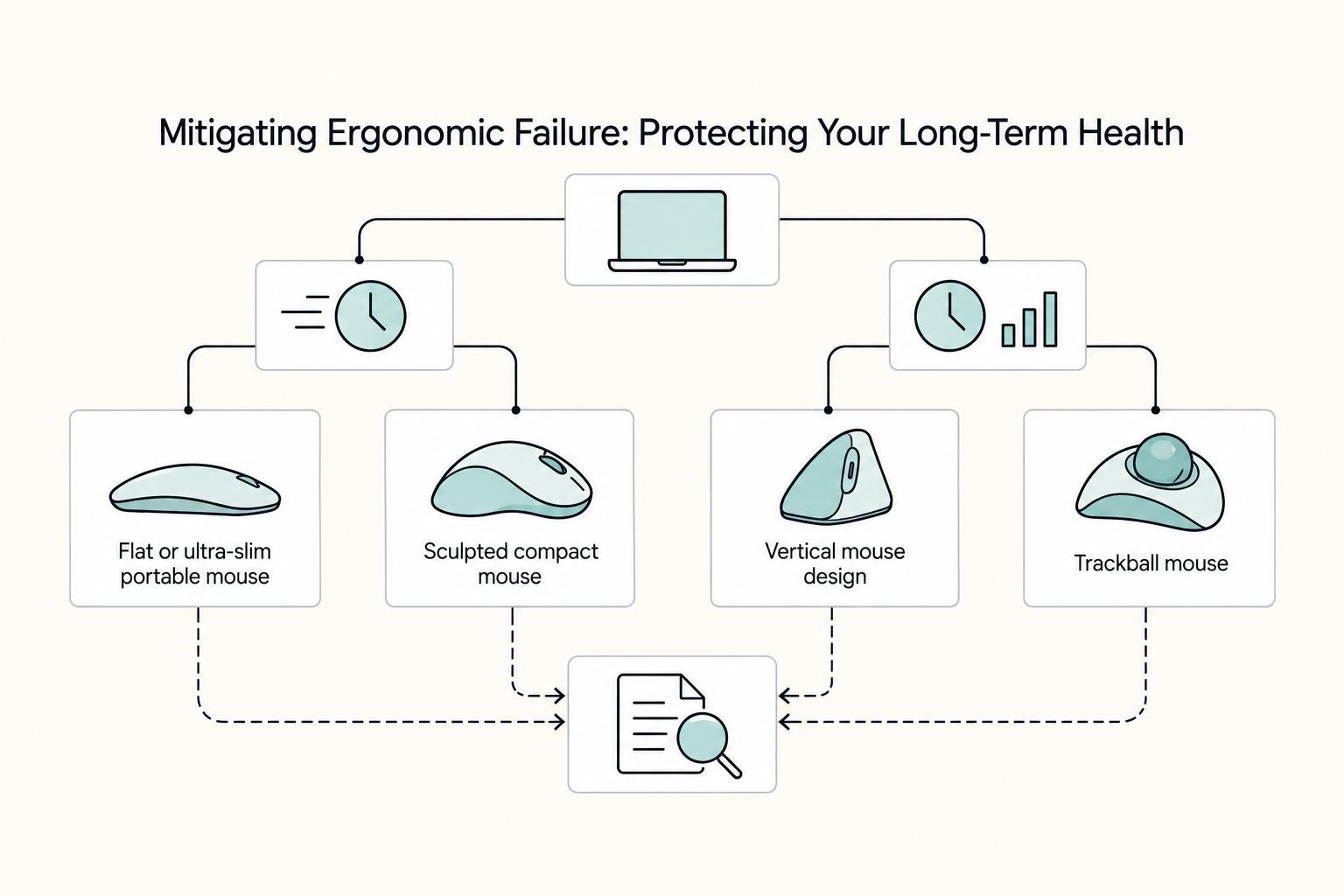
Mitigating Ergonomic Failure: Protecting Your Long-Term Health#
Treat ergonomics as a sustainability decision: choose for the way you actually work, not just what packs smallest. If most of your mousing happens in short, mobile bursts, a flatter travel mouse can be enough. If you depend on longer daily production blocks, more hand support usually matters more than maximum compactness.
The practical tradeoff is portability versus support, and there is no single "correct" posture or shape for everyone. In hands-on testing coverage updated June 17, 2025, TechGearLab still frames ergonomics as user-specific after testing 14 products.
| Mouse style | Grip shape | Hand support | Fatigue risk by session length | Best-fit workflow context |
|---|---|---|---|---|
| Flat or ultra-slim portable mouse | Low-profile, palm-down | Minimal palm support | Tends to rise sooner in longer blocks | Short mobile sessions, backup use, light travel days |
| Sculpted compact mouse | Curved body, fuller grip | Moderate support in a portable size | More stable for repeated daily use than flatter designs | Hybrid travel, regular client work, laptop-first setups |
| Vertical mouse design | More upright hand position | Higher forearm/hand support | Often better tolerated in longer sessions, with carry-size tradeoff | Desk-heavy days, editing, spreadsheet-heavy work |
| Trackball mouse | Hand stays planted; thumb/finger controls cursor | Varies by model shape | Can reduce movement demand for some users; adaptation period is common | Fixed desks, tighter spaces, users who prefer less arm movement |
Use software customization as an ergonomic lever, not a feature checklist. Map one or two high-frequency actions to mouse buttons, then test them in real work: call mute/unmute, browser back, task switch, or one repeated in-app action. Keep mappings only if they improve comfort without slowing you down.
Before you commit, run one real work block and keep the setup that still feels comfortable at the end.
- Work in your normal apps for a full block, not a quick demo.
- Adjust only pointer sensitivity and one or two button mappings, then retest.
- Keep the configuration that reduces strain without hurting delivery speed.
For a step-by-step walkthrough, see The Best Portable Monitors for Digital Nomads.
Beyond Pointing: Integrating Your Mouse into a Professional Ecosystem#
Once shape, battery, and connectivity are covered, your next decision is network fit: can this mouse work reliably across the devices and apps you actually use? You are not buying an isolated pointer; you are adding a control layer to your workflow.
Software compatibility is the core check. It affects device switching, shortcut consistency across macOS and Windows, and whether extras like clipboard or file handoff work at all. It also defines your failure mode when companion software is blocked, unavailable, or unsupported.
Check interoperability before extras#
Logitech Flow is one example here, not the whole decision. Features like cross-device cursor movement, clipboard sharing, and file handoff are useful only after you confirm clean switching across your real device mix and a workable fallback without the software layer.
| Network pattern | Software dependency | Cross-OS behavior | iPadOS usability | Failure risk if companion software is unavailable |
|---|---|---|---|---|
| Hardware-only device switching | Low | Usually the simplest mixed-device path because pairing does not depend on extra software | Often the most practical starting point for iPad use; verify current behavior on your model and OS | Lower: advanced features drop, but basic pointing and switching may still work |
| Companion-app cross-device control (for example, Logitech Flow) | High | Can be strong on supported desktop combinations; verify behavior on your exact OS mix | Current compatibility behavior pending vendor/source-record verification. | Higher: cursor transfer, clipboard, file handoff, or app controls may fail |
| iPad-first Bluetooth pairing | Low to medium | Can coexist with laptop use, but switching friction varies by setup | Basic pointer use may work; advanced remapping and cross-device extras need fresh verification | Medium: if pairing is unstable, you may need to fall back to touch or trackpad |
Use failure testing, not feature promises, as your checkpoint. User-reported experience includes successful pairing of one Bluetooth mouse across a MacBook Air, iPad, and Windows laptop, and also reports lag or connection drops with Bluetooth mice. Pair and switch repeatedly before trusting the setup in client-facing work.
If iPad is part of your setup, test the full accessory chain, not just the mouse. Older user discussion describes desktop-like iPad workflows (VPN, RDP, Teams) and notes hub-related friction for charging and display output at the same time. Current behavior can change by firmware and OS version, so verify iPadOS compatibility from vendor and source records before treating it as part of your work setup.
Map only high-repeat actions#
Build button mappings from repetition, not job titles. In one normal work block, list actions you repeat often enough to create friction, then keep only mappings that improve speed and reduce keyboard reach.
- Map actions that are discrete, frequent, and easy to verify.
- Test each shortcut in the real app during a focused work block.
- Keep only shortcuts that make you faster and feel reliable under pressure.
This keeps customization operational, not decorative. Save your final assignments in a note or settings doc, because remaps can disappear after reinstalls, resets, or app-profile issues.
Prove fallback before dependency#
If a feature depends on companion software, voice input, or AI behavior, treat it as conditional. A July 20, 2025 review that reported three weeks of AI-mouse integration included software compatibility as a formal evaluation area and noted voice performance worked best in quiet environments. Use the same standard for your setup: if a feature needs ideal conditions, it is a bonus, not your baseline.
| Readiness check | What to validate | Why |
|---|---|---|
| Multi-device switching | Confirm switching across your real device mix, not only your main laptop | Pair and switch repeatedly before trusting the setup in client-facing work |
| Shortcut profiles | Validate shortcut profiles inside your core work apps | Remaps can disappear after reinstalls, resets, or app-profile issues |
| Fallback path | Test hardware-only switching or plain pointer use | Work can continue if integration features fail |
Run this network-readiness check before you commit. This pairs well with The Best Portable Power Banks for Digital Nomads.
- Confirm multi-device switching across your real device mix, not only your main laptop.
- Validate shortcut profiles inside your core work apps.
- Test one fallback path (hardware-only switching or plain pointer use) so work continues if integration features fail.
The Final Verdict: Your Mouse as a Strategic Investment#
If uptime is your top priority, treat the Logitech MX Anywhere 3S as a strong benchmark, not an automatic winner. Your best choice is the mouse that passes the 3-Point Risk Mitigation Framework for your real travel setup: connection, power, and ergonomics.
- Connection: Verify dual-connectivity (Bluetooth and a dedicated USB dongle), then pair and wake every device you actually travel with, including any USB-C adapter chain.
- Power: Test recovery, not marketing claims. If the battery drops sixty seconds before a client call, confirm you can get back to usable control quickly with the power method you will actually carry.
- Ergonomics: Decide your non-negotiables (buttons, design type, form factor), then do a 60-90 minute trial. If tension builds, it is not a long-day tool for work that can run to ten hours a day.
| Framework check | Uptime-first benchmark profile | Alternative-fit profile |
|---|---|---|
| Connection | Clear fallback path via Bluetooth + dedicated dongle | Can still fit if your connection risk is lower and your setup stays stable in practice |
| Power | Fast, practical recovery workflow under pressure | Can still fit if your recovery method is reliable in your real routine |
| Ergonomics | Comfort holds through a full work block | Can still fit if shape, controls, and feel match your hand and workload better |
Use this same framework for your next gear purchase: check how it fails, how fast you recover, and whether your body can use it every day. You might also find this useful: The Best Calendly Alternatives for Freelancers.
Frequently Asked Questions
What is the most reliable portable mouse for presentations?
Pick by setup risk, not by brand loyalty. Reliability can change by room, device setup, and A/V conditions, so pre-test your exact workflow before high-stakes meetings. Best fit by work context is whichever option reconnects cleanly and predictably in your environment.
Logitech MX Anywhere 3S vs. Razer Pro Click Mini for multi-device work?
Do not force a winner from incomplete evidence. Your decision should come from a short hands-on check, not marketing copy. | Decision point | Logitech MX Anywhere 3S | Razer Pro Click Mini | What you should verify yourself | | --- | --- | --- | --- | | Reliability fallback | Verify before purchase | Verify before purchase | Test whether your setup can recover quickly if Bluetooth drops, especially through any USB-C adapter chain | | Cross-device workflow software | Verify before purchase | Verify before purchase | Check what still works across your macOS and Windows devices if the companion app is missing or blocked | | Portability and click-noise profile | Verify before purchase | Verify before purchase | Put the mouse in your actual bag, then click through a video call and decide whether size and sound are acceptable | | Battery and charging workflow | Verify before purchase | Verify before purchase | Decide whether you prefer charging cables or replaceable batteries, then time your recovery from low power before a workday | A practical checkpoint is simple: pair the mouse to every device you actually travel with, switch between them several times, and wake each one from sleep. If the process feels fragile at your desk, it will feel worse at a gate, in a hotel, or five minutes before a presentation.
Is a very flat mouse good enough for long work sessions?
It can be, but only if the fit stays comfortable over longer sessions. Posturite's guidance is useful here: an ergonomic mouse should encourage your hand into a comfortable, neutral position, and poor fit can lead to pain or fatigue in the hand, wrist, forearm, or shoulder. If you already notice grip tension during longer work blocks, keep that mouse for transit days and use a more supportive shape for full workdays.
Can you rely on a mouse over a laptop touchpad while traveling?
Yes, and for more than comfort. Posturite frames a laptop touchpad as acceptable mainly for short or intermittent periods, which is a good rule when you are working serious hours. If your paid work regularly stretches past quick check-ins, bring a separate mouse even if the touchpad feels fine at first.
What makes a mouse “professional-grade”?
Use a pass-fail checklist, not the label. A professional tool should give you comfort and ergonomics for long sessions, programmable controls for repeated tasks, and tracking/precision that stays usable across your real work surfaces. That lines up with the criteria TechGearLab used when it tested 10 wireless mice across nearly 100 hours, including comfort, ergonomics, tracking and precision, scroll behavior, and programmable controls, updated August 18, 2025.
How much does sensor quality matter on hotel desks, glass tables, and other unknown surfaces?
More than most people expect. TechGearLab specifically noted polished-glass tracking on the Logitech MX Master 3S, which suggests better sensors can help on difficult surfaces, but you should not assume every compact mouse will behave the same way. Your recovery plan is low-tech: carry a thin mouse pad or even use a paper notebook as a backup surface, and test the desk before your first call instead of during it.
Try a related tool
Researched and edited by the Gruv editorial team. Gruv builds cross-border billing, payouts, and finance-operations software for global businesses.
Sources
- cfo.asu.edu/cfo-pdf-site-maptrusted
- cisa.gov/sites/default/files/2022-11/Insider%20Threat...trusted
- cs.princeton.edu/courses/archive/spring18/cos226/assignments/...trusted
- faa.gov/documentlibrary/media/advisory_circular/150_...trusted
- ffiec.gov/sites/default/files/media/press-releases/201...trusted
- knowledge.uchicago.edu/record/15101/files/Dissertation_Zhuolin_Yang...trusted
- nvlpubs.nist.gov/nistpubs/SpecialPublications/NIST.SP.800-124...trusted
- setr.stanford.edu/sites/default/files/2026-01/SETR2026_web-260...trusted
Educational content only. Not legal, tax, or financial advice.
Related Posts
Value-Based Pricing for Freelancers Under Real Payment Risk
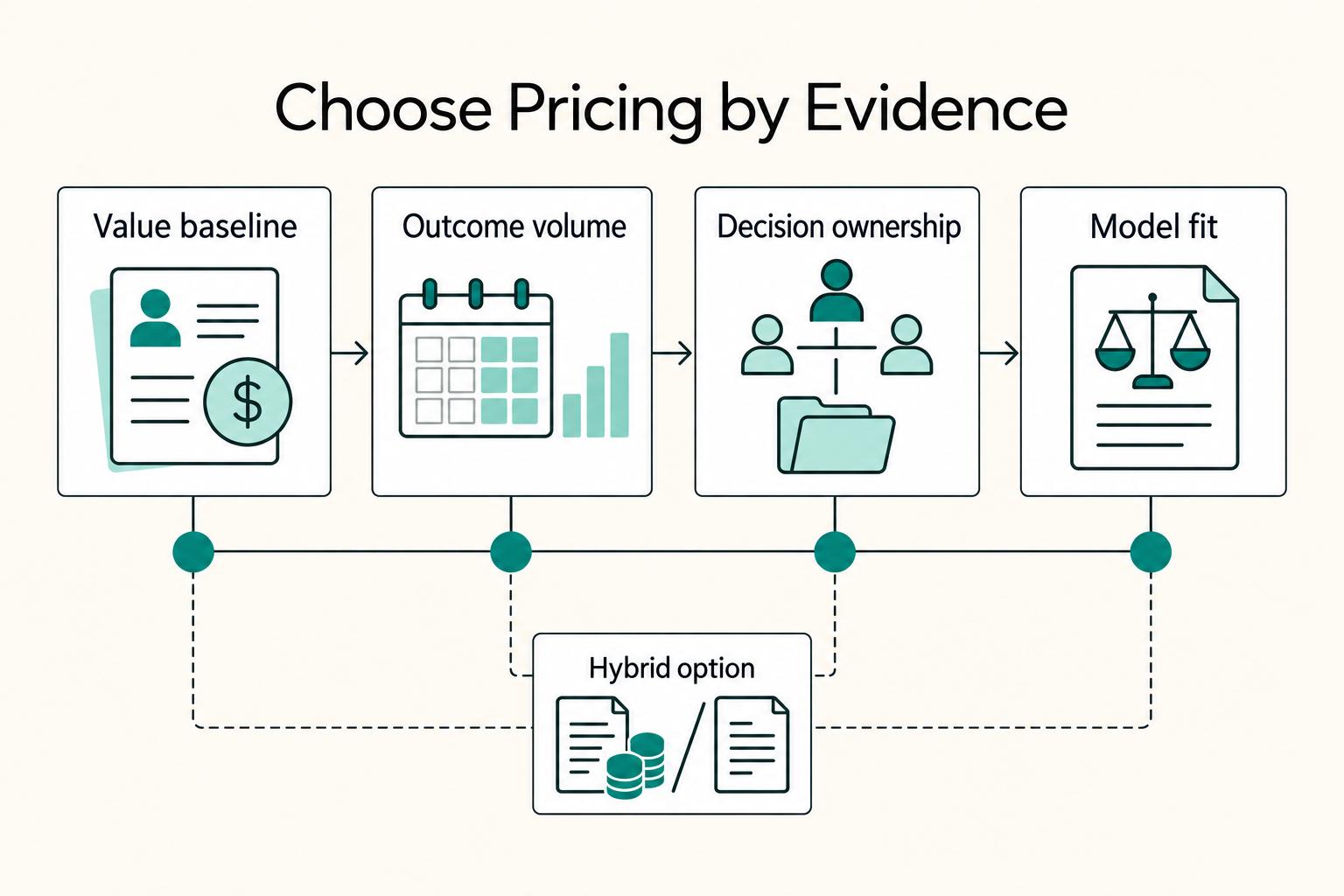
Value-based pricing works when you and the client can name the business result before kickoff and agree on how progress will be judged. If that link is weak, use a tighter model first. This is not about defending one pricing philosophy over another. It is about avoiding surprises by keeping pricing, scope, delivery, and payment aligned from day one.

The Best Gear for a Portable Home Office
Portable-office gear decisions are not directly tested in this guide, so use this as a practical framework rather than a proven standard.

The Best Calendly Alternatives for Freelancers
If you're shopping for Calendly alternatives, the real risk isn't just picking the wrong interface. It's choosing a tool that books time cleanly but still leaves you chasing missed meetings, sending manual follow-ups, and stitching the next step together by hand.