
Quick Answer
Start by choosing plugins for three jobs only: risk control, faster production, and cleaner delivery. Use checks like Stark and Design Lint at fixed review points, use tools like Content Reel or RemoveBG only where cleanup stays low, and use Autoflow with Dev Mode notes to keep handoff readable. Keep proof in the file for each tool decision, such as a screenshot, export sample, issue log, or license link.
Introduction: Judge plugins by risk, time, and delivery clarity#
If you run client work in Figma, it can become more than a design tool. It is where you check accessibility, run QA hygiene checks, share flows, gather feedback, and iterate quickly. In practice, it can become part of your operating layer.
| Business job | What the tools do | Outcome |
|---|---|---|
| Risk mitigation | Catch misses earlier and make hygiene checks less ad hoc | Fewer avoidable revisions and clearer client conversations |
| Productivity | Automate repetitive tasks and reduce low-value manual work | More time for higher-value design decisions |
| Delivery | Make flows, handoff, and review easier to understand | Faster feedback loops and smoother iteration |
The best Figma plugins are the ones that reduce risk, save time, or make delivery clearer. That is a better filter than asking which entry in a best figma plugins roundup looks impressive. If a community-built extension does none of those jobs, it is probably just adding noise.
The friction points are familiar. Accessibility issues can slip through until late review. QA gets inconsistent when checks depend on memory. Repetitive tasks slow teams down when they stay manual. Flows and assumptions are harder to align when they are not obvious inside the file. If you need to make legal, financial, or compliance claims around these risks, verify those specifics separately before you publish them or repeat them to clients. Plugins can support better practice, but they do not guarantee safety. That is the lens for the rest of this article:
- Risk mitigation: tools that help you catch misses earlier and make hygiene checks less ad hoc. The outcome can be fewer avoidable revisions and clearer client conversations.
- Productivity: tools that automate repetitive tasks and reduce low-value manual work. The outcome is more time for higher-value design decisions.
- Delivery: tools that make flows, handoff, and review easier to understand. The outcome can be faster feedback loops and smoother iteration.
From here, the comparisons stay grounded and the guidance stays practical, so you can decide what belongs in your stack and what does not. For a step-by-step walkthrough, see The best UI kits and design systems for Figma.
Pillar 1: Plugins you can verify, document, and repeat#
Use plugins you can verify, document, and repeat across every client file. If a tool adds ambiguity, it increases risk instead of reducing it.
Before you install any plugin, run this four-point vetting check:
- Record the permission scope the vendor says it needs.
- Check for a clear data-handling statement. If you cannot tell what leaves the file or where it goes, pause.
- Capture one maintenance signal: whether the listing/docs look current and whether source context appears stale (for example, 2025 framing or 2022 material that needs 2026 re-verification).
- Log visible commercial-use signals:
Free/Paidstatus and category labels (including labels likeLegal).
Treat those as signals, not proof. Also verify from more than one source if needed: a single page load can fail (for example, with a client-side exception), and that is a verification miss.
Accessibility you can repeat#
Run accessibility checks at fixed checkpoints, then document exceptions so context is not lost later.
| Checkpoint | Action |
|---|---|
| Before internal review | Run checks on key frames |
| Before client share | Rerun checks and confirm no regressions |
| At handoff | Include a short note on what you checked, and verify the exact benchmark from approved project records before use. |
Keep an exception log with: frame name, issue type, reason for exception, owner, and review date. This prevents the common failure where an exception is remembered as "handled" but was actually deferred or overlooked.
Licensing with an evidence trail#
For each image, icon, or illustration, keep a defendable record, not a memory: asset source, license type, attribution requirement, and client-use record.
| Sourcing route | What you can record fast | Main failure mode |
|---|---|---|
| Library plugin | Library name, asset ID or URL, visible license wording, Free/Paid status | Assuming the listing alone settles client-use rights |
| Open-web sourcing | Original page URL, screenshot or PDF of license page, download date, attribution note | Source trail disappears or terms are unclear later |
| Client-supplied asset | Client source, written confirmation of rights, intended use | Inheriting a rights issue without a paper trail |
Brand consistency before review#
Run linter-style QA at two checkpoints so issues are caught before they turn into revision cycles.
- Pre-share: fix visible churn drivers (wrong colors, font swaps, duplicate styles, broken naming).
- Pre-handoff: fix build-friction issues (inconsistent component use, unstructured styles, one-off values).
Use this short risk-control checklist:
- Accessibility checker: prevents late defects and undocumented exceptions.
- Asset sourcing plugin or record sheet: prevents licensing disputes and attribution misses.
- Linter-style QA plugin: prevents off-brand revisions and cleaner handoff approvals.
For the same repeatable-ops approach in another workflow area, see The Best Calendar and Scheduling Apps for Freelancers.
Pillar 2: The Profitability Stack for Maximizing Your Effective Rate#
Your effective rate improves when you remove repeat manual work without creating new cleanup work later. After your risk controls are in place, focus this stack on three buckets: prep automation, data population, and early alignment.
Use this rule for every tool decision: choose by project complexity, budget, and how much output control you need, not by novelty.
Use the right bucket for the right job#
| Bucket | When to use | When to skip | Best fit | Output quality | Collaboration impact | Failure risk | Handoff implications |
|---|---|---|---|---|---|---|---|
| Prep automation | Repeated, mechanical prep or conversion tasks you can QA quickly | Work that still depends on heavy visual judgment | AI-based interpretation or structured export pipelines | Can be strong when source files are organized and parsing is correct | Cuts routine production back-and-forth | Accuracy drift (spacing, typography, grouping) and responsive mismatch | Always run QA before handoff |
| Data population | Content-heavy layouts (cards, tables, listings, profile views) where realistic content improves review quality | Early concept work where placeholders are enough | Repeated-field mockups that need realistic structure | Better review realism when sample data matches layout intent | Speeds feedback by reducing "lorem ipsum" debates | Misleading sample content can pull feedback off target | Label sample content clearly so it is not treated as final copy |
| Early alignment | Sitemap, wireframe, and direction-setting stages | Projects already aligned on structure where implementation fidelity is the bottleneck | Fast concept alignment before detailed build | Good enough for decision-making, not final polish | Shortens early approval loops | Rough concepts may be over-read as final design | Mark concept status clearly in-file |
If you use conversion tooling, validate design parsing first. Confirm the layer hierarchy and grouping structure are read correctly before trusting output.
Manual Figma-to-Elementor rebuild can be costly: one 2026 buyer's guide describes 6-12 hours for a typical 5-page rebuild, and 15-20 hours with feedback loops. Treat those figures as a prompt to measure your own workflow, not a guaranteed result.
Track savings before you believe them#
Use one month of tracking before you call any plugin "profitable."
- Baseline task time: manual minutes for the same task.
- Automated task time: plugin run time plus cleanup and QA minutes.
- Monthly rollup: how often the task appears in your projects.
Use this template:
| Field | Your value |
|---|---|
| Baseline minutes per task | Verify from project tracking records |
| Automated minutes per task | Verify from project tracking records |
| Monthly task count | Verify from monthly project records |
| Hourly rate | Verify from approved rate records |
| Monthly time saved (minutes) | (baseline - automated) x monthly count |
| Monthly value of time saved | (time saved / 60) x hourly rate |
Add example calculations only after the baseline time, automated time, task count, and hourly rate are verified from project records.
Implementation sequence: start with one high-friction task, standardize plugin settings, then document the exact workflow in your project SOP so gains are repeatable. If automation still causes spacing drift, typography shifts, or breakpoint mismatch, keep it for internal drafts and skip it for client delivery. For pricing context, see Value-Based Pricing: A Freelancer's Guide.
Pillar 3: A three-part routine for delivery and handoff#
Protect your time savings at delivery, or you lose them to rework before invoicing. Use a three-part routine: a presentation that prevents misalignment, a flow artifact that controls scope drift, and a handoff pack that reduces implementation delays.
| Delivery workflow | Outcome | Handoff risk reduced | Best-fit context |
|---|---|---|---|
| Presentation inside Figma (or your design library workflow) | Clear review decisions in one source of truth | Misalignment on what was approved | Concept reviews, walkthroughs, final approval rounds |
| Flow documentation artifact | Visible included paths and boundaries | Scope drift after sign-off | Multi-screen journeys like onboarding, checkout, and account flows |
| Dev Mode + annotated handoff pack | More usable implementation reference | Delays from missing context or unclear translation | Projects moving directly from design to code or page-builder rebuilds |
1. Presentation that prevents misalignment#
Keep the client-facing presentation in the same file as approved designs whenever possible. That keeps decision context and final frames together, so updates are less likely to be missed.
Use this pre-client delivery checklist every time:
- Export only review-ready frames with versioned names, for example
v03_client-review_2026-03-19 - Rename frames as an agenda, not leftovers:
01_Context,02_Home_Desktop,03_Checkout_Error - Verify the prototype start frame, then click every approval path once at desktop width and once at mobile width
- Add approval-ready notes per section: what is final, what is pending, and what feedback is open
2. Flow artifact that limits scope drift#
Treat the flow diagram as a scope-control asset, not decoration. Use it to show included paths, intentionally excluded branches, and deferred edge cases so scope is explicit before build starts.
Attach the flow to your approval trail (SOW or approval email), but do not treat it as legal language by itself. Keep the exact change clause out of the article or deck until it has been verified against the SOW or client-approved approval trail. If a new branch appears after approval, log it as a change request instead of absorbing it silently.
3. Handoff pack that avoids build delays#
Dev Mode is your baseline, not your full handoff. Design and build models still do not map 1:1 in 2026, so a layout can look right at first and break when edited later.
Before handoff, run this short QA pass:
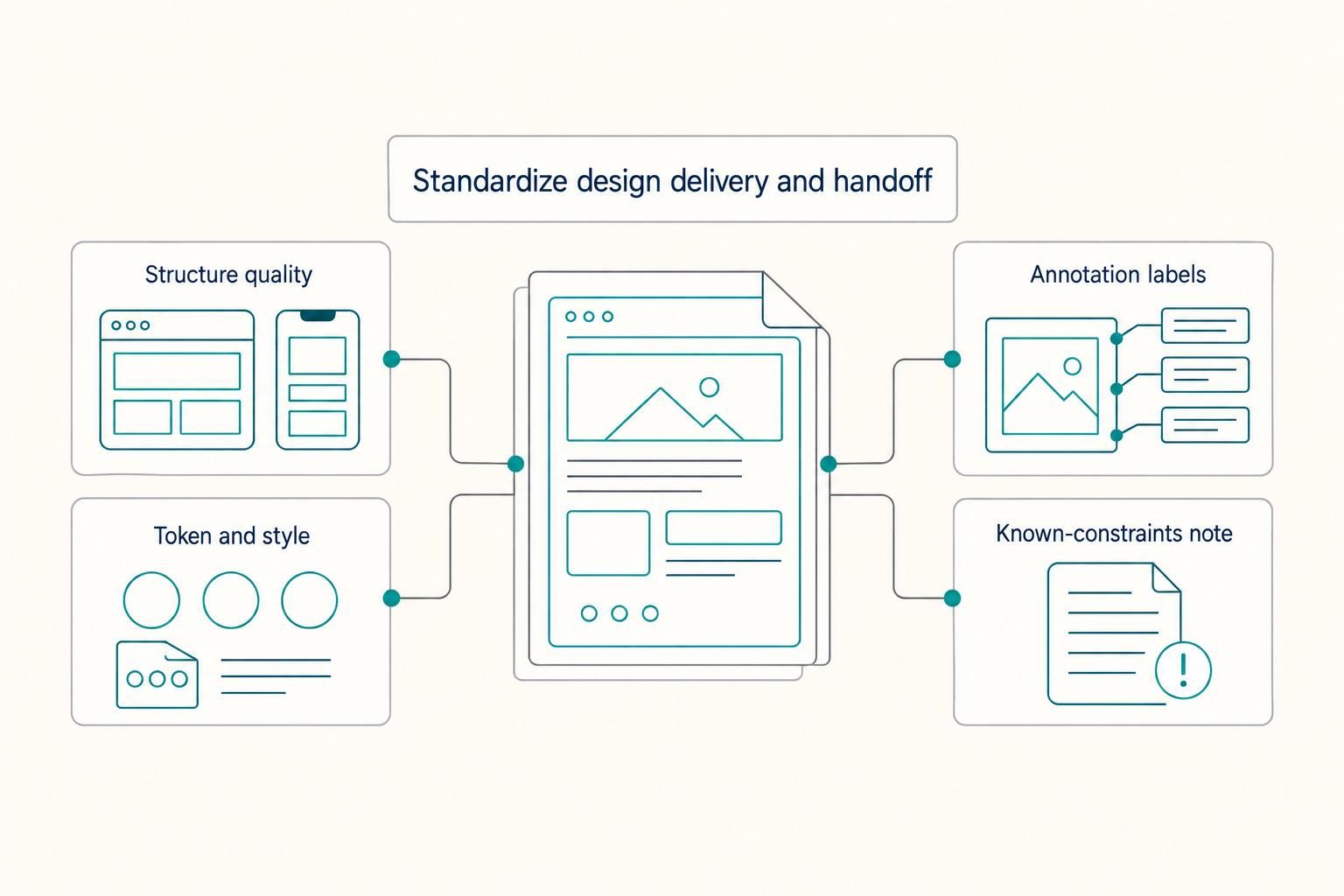
| QA item | What to verify |
|---|---|
| Structure quality | Check one complex component and one responsive screen for structure quality, favoring flexbox/container patterns over absolute positioning |
| Token and style consistency | Confirm token and style consistency across repeated components |
| Annotation labels | Clean annotation labels so engineering can act without follow-up interpretation |
| Known-constraints note | Add a short known-constraints note: responsive exceptions, intentional raster assets, interaction limits, and anything desktop-only that may fail on mobile |
This is the part that helps you avoid the manual translation burden that can consume 4 to 8 hours per project. If handoff quality is a recurring issue across tools, see The Best Tools for Creative Collaboration with Remote Teams.
Conclusion: Your Figma Setup Is Your Business's Central Nervous System#
Treat your setup as part of delivery, not a pile of add-ons. A plugin should reduce manual production work, improve approval clarity, or support a cleaner delivery process. If it does none of those, it probably should not stay in paid client work.
-
Review every plugin against 3 business jobs. Put each one under risk, profitability, or delivery, then ask what it actually changed on a live project. Proof matters more than intent, so keep the screenshot, export sample, issue log, or license link that shows the tool earned its place.
-
Check what is really available in your account. Figma AI was announced on June 26, 2024, but Figma says it is currently in limited beta and rolling out gradually, so do not build client promises around features you cannot access yet. A practical checkpoint is in the in-product "?" menu, where you can select Join UI3 + AI waitlist. Reliability matters more than roadmap excitement.
-
Remove overlap and write one default client process. If two plugins do the same job, keep the one with cleaner output and more predictable delivery. Because Figma supports simultaneous editing in one file and cloud-based access, your default file can hold approved screens, asset links, accessibility notes, and export notes in one place. The payoff is continuity, with fewer version conflicts and less memory-based work.
-
Keep your judgment ahead of automation. Tools can speed execution, but weak composition still hurts the result. Figma notes that uninspired layouts can make even strong information fall flat, and 47% of presenters say slide design is a challenge. Limit bold colors and type to meaningful areas, then re-check key screens before sign-off.
The plugins worth keeping are the ones that survive this audit. Your Figma setup is not a one-time choice list. It is a repeatable working setup you maintain, audit, and refine as client work changes.
You might also find this useful: How to create a 'Design System' in Figma.
Frequently Asked Questions
Which plugins are best for brand consistency?
Start with a linter or token-focused plugin, not a large stack. Check whether it catches repeat errors in a real file, then use it on one approved screen set and confirm the fixes stay editable. Keep a small evidence pack with screenshots of issues found, the style library you used, and a note on which plugin you trusted for final QA.
How can plugins speed up client handoff?
Use plugins that reduce repetitive layout, asset, or handoff work without taking away design control. Check whether the export or handoff output is clean and editable, then test one responsive frame and one complex component before you promise faster delivery. Keep the sample export and your known-constraints note.
What should you use for accessibility checks?
Use an accessibility checker early, then run it again before sign-off. Document what changed and what still needs client review. Keep screenshots, issue notes, and any client approval for exceptions.
Are plugins safe for commercial use?
Not by default. Verify the rights and terms for each imported asset every time, and avoid using anything unclear in paid work until you confirm it is allowed.
How do you choose plugins without slowing down Figma?
Tie plugin cleanup to active projects, not a vague someday audit. Keep the plugins that still save time after real testing, and remove the ones that do not.
Try a related tool
Researched and edited by the Gruv editorial team. Gruv builds cross-border billing, payouts, and finance-operations software for global businesses.
Sources
Includes 5 external sources outside the trusted-domain allowlist.
- sec.gov/Archives/edgar/data/1579878/0001628280250337...trusted
- sec.gov/Archives/edgar/data/1579878/0001579878250000...trusted
- ucsc-extension.edu/sites/default/files/documents/197/2025_summe...trusted
- aguayo.co/en/blog-aguayo-user-experience/mastering-fig...external
- assets.cengage.com/gale/tlist/additional/udemy_business-courses...external
- blog.logrocket.com/ux-design/34-figma-pluginsexternal
- cypherlearning.com/marketplaceexternal
- figma.com/resource-library/vibe-coding-toolsexternal
Educational content only. Not legal, tax, or financial advice.
Related Posts
Value-Based Pricing for Freelancers Under Real Payment Risk
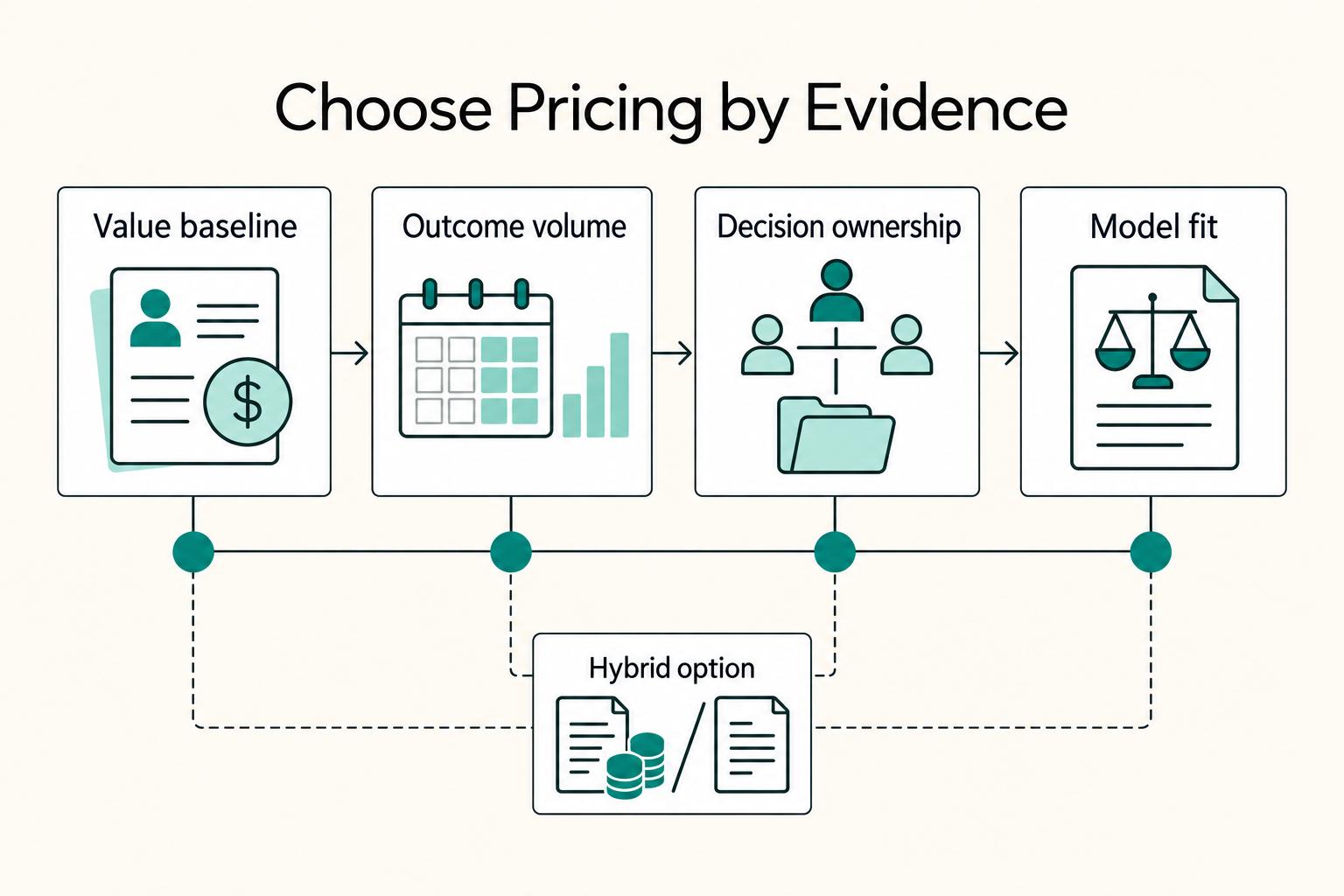
Value-based pricing works when you and the client can name the business result before kickoff and agree on how progress will be judged. If that link is weak, use a tighter model first. This is not about defending one pricing philosophy over another. It is about avoiding surprises by keeping pricing, scope, delivery, and payment aligned from day one.
The Best Tools for Creative Collaboration with Remote Teams
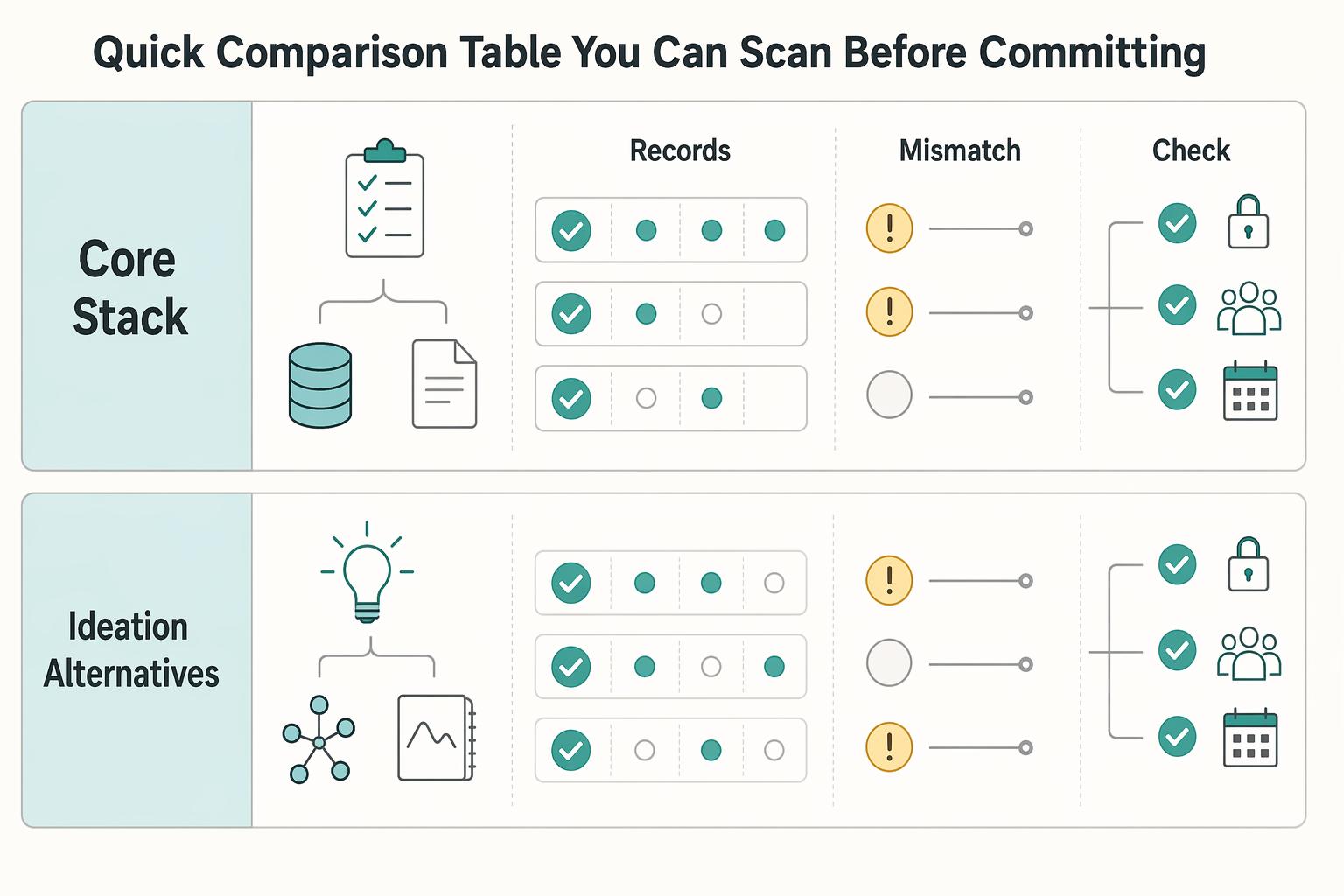
As the CEO of your business-of-one, you're not here for vibes; you're here for a repeatable system you can run.
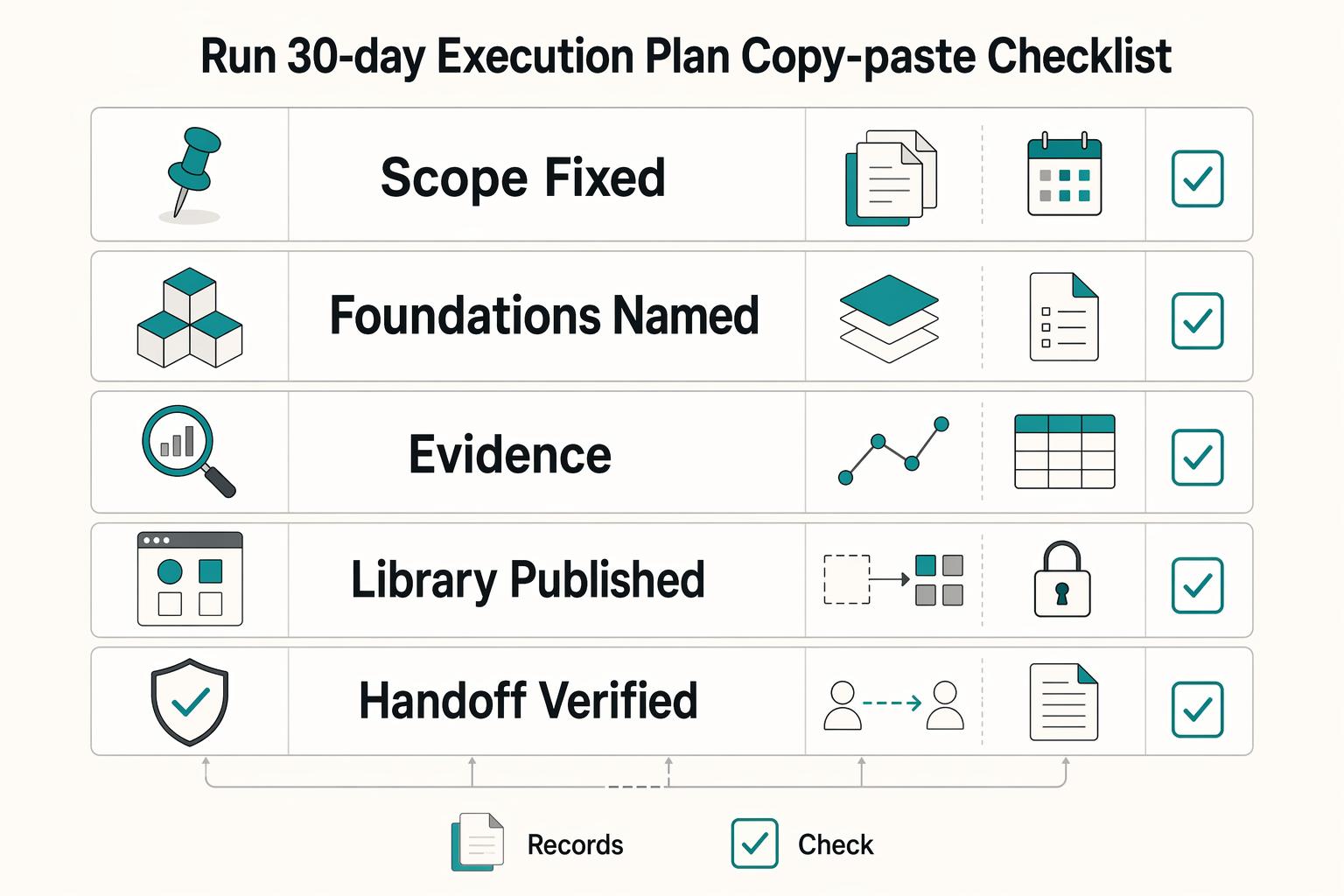
How to Create a Design System in Figma
A **design system in Figma** gives your team shared foundations, reusable assets, and enough documentation to move with fewer repeated decisions. Treat this as a focused v1 build target, not permission to start a side project that drags on for months. The point is not to make files look tidy.