
Quick Answer
Choose the best password managers for families by testing whether the plan can run your Three-Vault System in daily life. You need clear separation between business, personal, and shared household access, plus practical admin controls and recovery options that work on your actual phones, laptops, browsers, and tablets. Then confirm continuity with an emergency-access path and documented instructions. If any part fails in a pilot, skip that tool even if its feature list looks strong.
Judge a Password Manager on Separation, Onboarding, and Recovery#
If you run a business by yourself, your family setup is part of your security posture whether you meant it to be or not. The real decision is not which app has the longest feature list. It is which tool lets you separate risk, onboard real people, and recover cleanly when something goes wrong.
That matters because many current roundups compare tools with a lot of overlapping capabilities. Some include a "Best for families" category plus sections like "How to choose" and "How we test." Useful, yes, but still secondary guidance. If a comparison is compiled from review platforms, treat it as a shortlist, not proof.
How to evaluate#
For family use, judge tools by how your household and your business actually operate. Security matters, but so do usability and fit. A stronger setup that nobody follows is weaker in practice. A 2018 passphrase study with 50 participants is a useful reminder. Stronger authentication approaches can still run into human-factors problems.
| Criterion | What to verify in a trial | Why it matters |
|---|---|---|
| Vault separation | Can you keep business, personal, and shared household items distinct without awkward workarounds? | Separation limits accidental exposure and keeps client or business accounts out of family circulation. |
| Family admin controls | Can one adult handle invites, access changes, and basic oversight without constant support tickets? | Someone has to maintain the account when devices change, kids age up, or a relationship changes. |
| Recovery options | What happens if you forget your master credential, lose a device, or need someone else to regain access? | Recovery is where many setups fail, especially under stress. |
| Device coverage | Does it work on every phone, laptop, tablet, and browser your household actually uses? | A tool that fails on one everyday device creates bypass behavior fast. |
| Passkey readiness | If passkeys matter for your accounts, can it handle them alongside passwords and other sensitive items? | This helps avoid splitting sign-in methods across too many systems. |
| Secure sharing controls | Can you share one item or a small set of items without exposing an entire vault? | Most families need selective access, not full visibility. |
Do not stop at the marketing page. Run a small pilot with a few accounts, then test it on the devices that matter most. If the browser extension, mobile autofill, or sharing flow feels awkward in daily use, that friction will become your failure mode.
The three-part design#
Before you compare products, decide what you are actually building. For most business-of-one households, the design has three parts, and each one affects product choice.
| Design part | What to decide | Later sections cover |
|---|---|---|
| Segmentation | Define clear boundaries between business credentials, your private accounts, and household shared access. | A vault design so work logins are not sitting beside streaming, school, or gaming accounts. |
| Onboarding | Set up the tool so the other people in your life can use it correctly with minimal confusion. | Who needs access, who can administer the account, and what training or written instructions will keep people from saving credentials in notes instead. |
| Continuity | Plan for lockout, illness, travel, or death before you need that plan. | Emergency access decisions, trusted-contact choices, and the evidence pack you should document so someone else can act without guessing. |
- Segmentation
Define clear boundaries between business credentials, your private accounts, and household shared access. Later sections turn this into a vault design so work logins are not sitting beside streaming, school, or gaming accounts.
- Onboarding
Set up the tool so the other people in your life can use it correctly with minimal confusion. Later, you will decide who needs access, who can administer the account, and what training or written instructions will keep people from saving credentials in notes instead.
- Continuity
Plan for lockout, illness, travel, or death before you need that plan. Later sections cover emergency access decisions, trusted-contact choices, and the evidence pack you should document so someone else can act without guessing.
Write this down before you compare products. A one-page note is enough. Include what must be isolated, what can be shared, and what must remain accessible in an emergency. If you need to justify the change to a partner or adviser, start with your own account inventory and downtime risk.
Readiness check#
You are ready to compare tools only after you can answer these four questions:
| Topic | Question |
|---|---|
| Accounts to migrate first | Which accounts are you migrating first, and which ones are business-critical? |
| Who needs access | Exactly who needs access today, and who should never see certain items? |
| What stays private | What must stay private even inside the household? |
| Emergency contact model | What is your emergency contact model if you are locked out or unavailable? |
If any answer is fuzzy, pause there. Tool choice is secondary to system design, and the first implementation step is vault boundary design.
If you want a deeper dive, read Value-Based Pricing: A Freelancer's Guide.
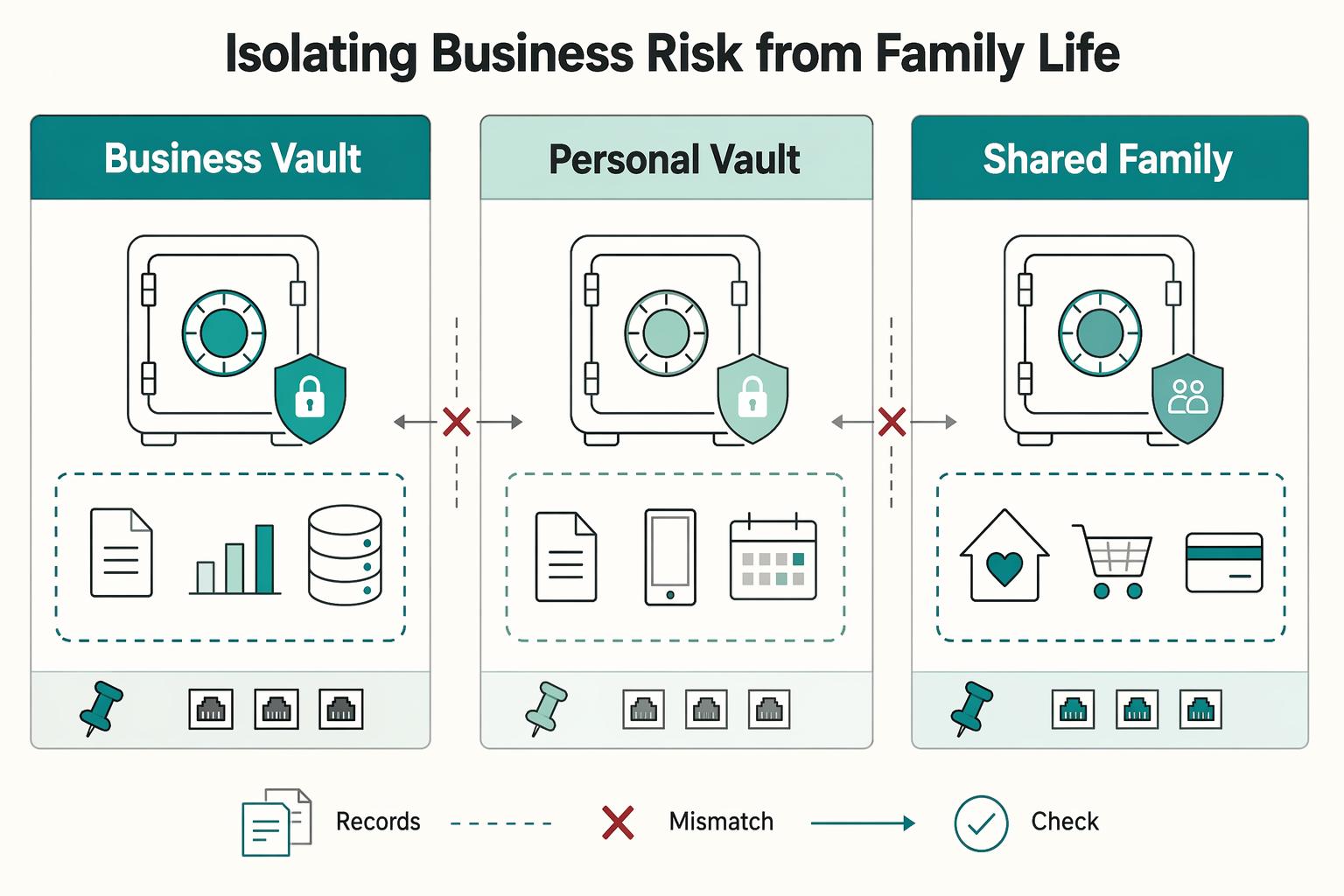
The Digital Firewall: Isolating Business Risk from Family Life#
Use a Three-Vault System as a hard boundary, not a convenience setting. Personal and family accounts are often the easiest path into business systems, so your goal is to contain spillover if one account is compromised.
| Vault | What belongs | What never belongs | Who can view | Who can edit | Use item-level sharing instead when... |
|---|---|---|---|---|---|
| Business Vault | Revenue and operations access: client portals, payment tools, domain/cloud admin, business email, license/admin credentials | Household logins (streaming, school, shopping) | You only | You only | Someone needs one credential for one defined task |
| Personal Vault | Your private accounts (for example banking, tax, personal email, health, personal social) | Client credentials, shared household logins, contractor access | You only | You only | A trusted person needs one record briefly |
| Shared Family Vault | Low-impact household accounts: Wi-Fi, utilities, streaming, school, shared shopping, family travel | High-impact credentials that could expose client work, money movement, or core business access | Household members who genuinely need access | Keep editing to one or two adults | Access should be temporary or limited to one item |
Plain-language rule: if compromise could cost money, expose confidential work, or damage client trust, it does not go in the shared vault.
For edge cases, use a short approval flow:
- Share only the single item needed.
- Verify the request through a second channel before approving.
- Revoke access immediately after the task.
- If your tool has no expiry, calendar the removal and confirm it happened.
Use the same least-privilege workflow for contractors or assistants: create a dedicated access space, grant only what the task requires, set an end date, and verify removal when work ends.
Before you commit to a tool, run this family-fit check:
- Can it keep business, personal, and shared access clearly separated?
- Can you grant limited access without exposing an entire vault?
- Are recovery controls clear enough to avoid lockout failure?
- Can you confirm who has access and what was shared?
- Does it work reliably on the devices your household actually uses?
Price points matter less than boundary control. For example, one family-plan guide lists Bitwarden at $40/year for 6 users and 1Password at $5 to $8/month with 5 users, but your decision should hinge on whether your required separation model is enforceable in daily use.
A clean vault design is necessary, not sufficient. The next step is household onboarding, because tools fail when people do not follow the system.
Related: The Best Password Managers for Freelancers and Teams.
The 'Family CISO': Onboarding Your Inner Circle Like a Pro#
Treat onboarding as a household workflow you can repeat, not a one-time talk. Your goal is simple: clear sharing rules, reliable access on real devices, and a default response when something looks wrong.
| Policy item | What the policy says |
|---|---|
| Shared vault | Household accounts only, for example Wi-Fi, streaming, school, utilities, and shared shopping. |
| Never in shared vault | Business credentials, admin email, primary banking, and anything tied to revenue. |
| New account standard | Decide vault location before account creation, and assign an owner. |
| Sensitive sharing approval | Name one approval owner, usually the primary admin, and require a second-channel check for urgent or unusual requests. |
| Approval-based access | If your tool supports approval-based shared-vault access, use it for higher-risk requests. |
- Set a one-page family security policy
Write rules people can follow quickly: - Shared vault: household accounts only (for example Wi-Fi, streaming, school, utilities, shared shopping). - Never in shared vault: business credentials, admin email, primary banking, and anything tied to revenue. - New account standard: decide vault location before account creation, and assign an owner. - Sensitive sharing approval: name one approval owner (usually the primary admin) and require a second-channel check for urgent or unusual requests. - If your tool supports approval-based shared-vault access, use it for higher-risk requests.
- Run setup as a checklist
Your first setup pass is complete only when each person signs in on more than one device or browser. This reduces lockout risk and avoids unnecessary recovery events. - Confirm access works on a phone and one other real device/browser they use. - Review recovery basics: if recovery is needed, do not complete it in an Incognito/Private window. - Note that the device used during recovery becomes a trusted device. - If multiple people lose access at once, check https://status.1password.com before rotating passwords or escalating.
- Use role-based onboarding
Keep one structure, then scale permissions to maturity and need.
| Role | Access baseline | Key responsibilities |
|---|---|---|
| Primary admin | Full policy/admin scope you define | Owns policy, approves sensitive sharing, verifies multi-device setup, keeps business secrets separate from family sharing |
| Adult partner | Shared vault access needed for household operations | Follows shared-vault rules, uses request/approval path for sensitive access, follows recovery steps |
| Teen | Only shared items they actively need | Uses approved items only, pauses on suspicious login pages/messages, asks before sharing codes/passwords |
| Child | Supervised, age-appropriate shared access | Uses only approved access and asks an adult before login prompts or installs |
- Set a light training cadence and incident first steps
Run one quick setup session, then set a short refresh cadence that you verify against your household plan, account risk, and provider guidance before use. Rehearse the same scenarios each time: phishing attempts, fake login pages, urgent-message scams, and device loss.
Keep the first-response script consistent: stop, do not enter credentials, do not approve prompts, contact the primary admin, then sign in only through a known-good path. This routine reduces lockouts, improves sharing behavior, and makes escalation into the continuity protocol in the next section cleaner.
For a step-by-step walkthrough, see The Best Channel Managers for Vacation Rentals.
The Legacy Protocol: Securing Your Digital Estate and Business Continuity#
Your continuity plan should let a trusted person act quickly without guessing if you are unavailable.
- Choose your trusted-contact model first
Pick a model, not just a name: one primary contact and one backup is a practical default. If business assets are included, appoint a technically capable digital executor who can manage digital assets without trial and error.
Keep access narrow by asset category. Household continuity and business continuity may need different people. Avoid insecure password lists and broad sharing "just in case," and do not grant access where the role is unclear.
- Set up emergency access, then test it end to end
Emergency access is the core control. In your password manager or continuity platform, add the trusted contact, set the delay options your provider allows, confirm notifications, and run a full recovery test.
Your test passes only if both sides can complete the flow without improvising. The trusted person should be able to find the invite and submit a request, and you should be able to receive, review, and deny if needed. If your platform supports assigning beneficiaries or trustees to individual entries, use that to separate household and business handoff paths.
| What to store | Where to store it |
|---|---|
| Critical login credentials | In the original vault item, available through emergency-access or trustee workflows, not copied into loose notes |
| Recovery instructions and account context | In a dedicated secure note inside your emergency kit vault (or equivalent) |
| Document locations | In a secure note that points to the exact folder, cabinet, or provider |
| Important documents | In the platform's document vault (if supported), or as a clear location reference if originals are stored elsewhere |
Some continuity-focused tools combine password management, document storage, and inheritance planning. If yours does not, keep the same structure so retrieval stays fast.
- Use a practical pre-travel and post-travel checklist
Treat travel as a temporary access-state change, not a one-off exception. Before travel, reduce what is available on carried devices and verify your recovery path still works.
If your provider has a temporary vault-removal or travel feature, verify the feature name, vault behavior, and restore process in provider guidance before relying on it. Pre-travel: keep only required entries on carried devices, confirm sensitive client material is not locally exposed, and confirm your trusted contact can still reach the emergency kit path. Post-travel: restore normal access on a known-good network, confirm expected vaults and entries are present, and document any recovery issue immediately.
- Run this protocol on a maintenance cadence
Assign a clear owner (usually you) and set a review interval that you verify against your household plan, account risk, provider guidance, or another official source before use. Add trigger-based reviews for major changes, such as new financial accounts, new crypto holdings, major platform changes, relationship-status changes, executor changes, or meaningful travel.
At each review, validate contacts, notification channels, emergency-request flow, and asset coverage across bank accounts, insurance policies, crypto holdings, online accounts, and important documents. This turns your setup from "configured once" into a working continuity system.
The edge cases usually appear during real setup, so the FAQ next covers the implementation questions people most often run into. You might also find this useful: The Best Cross-Platform Password Managers for a Freelance Team.
You're Not Buying a Tool, You're Deploying a System#
Pick the family plan that lets you run your Digital Firewall, Family CISO Protocol, and Legacy Protocol together. Security controls are more reliable when you implement them as one system, not as isolated features.
| Protocol | What you do next | Feature types to verify in family plans |
|---|---|---|
| Digital Firewall | Separate business, personal, and shared household access so daily family use stays away from client or banking credentials. | Distinct vault/collection separation, item-level sharing, search visibility boundaries, passkey support across your devices if you plan to use it |
| Family CISO Protocol | Assign who can view, share, edit, or administer items in your household. | Family admin permissions, member management, oversight controls, activity visibility, regular app updates |
| Legacy Protocol | Build a continuity path for lockout, incapacity, or outage. | Recovery options, emergency-access style controls where supported, export options, access on both phone and computer |
- Digital Firewall
Test separation in a real session. Sign in as a family member and confirm they can get a shared Wi-Fi or streaming login without seeing business items. Red flag: business credentials appear in family search, autofill, or shared views.
- Family CISO Protocol
Give each person the minimum access they need. If you cannot review and adjust permissions quickly, your setup is too fragile for normal household changes.
- Legacy Protocol
Treat continuity as contingency planning, not a side setting. If recovery depends on one powered device or one inbox, you already have a single point of failure. Keep one offline record of access instructions and test recovery on both phone and computer.
Use this quick check before calling the setup done:
- Each family member can access only what they need.
- Business items stay out of family search and sharing paths.
- Recovery and emergency settings are documented and tested.
- Apps are current on every active device.
You are done when this keeps working over time, not when the app is installed. Re-check permissions, access paths, and household rules whenever your business or family setup changes.
We covered this in detail in The Best VPNs for Families.
Frequently Asked Questions
How do you separate business and personal passwords in a family plan?
Use a need-to-know setup: keep business credentials in a restricted space, keep personal credentials separate, and share only the household logins others actually need. Use broad sharing only when a category truly needs ongoing access, and keep one-off access tightly scoped. The test is simple: a family member should be able to retrieve the Wi-Fi password without seeing client or banking entries.
Can you use one tool like 1Password for both business and family?
Sometimes, yes, but only if your setup can enforce clear separation and minimum access. Before committing, verify that sharing and recovery paths do not expose business credentials to family members who do not need them. The red flag is any setup where business credentials appear in family search, sharing, or recovery paths.
What is the safest way to share access with a virtual assistant?
Follow minimum access: share only the exact credentials needed for the task, review that access while work is active, and remove it when the work ends. After offboarding, rotate shared credentials and confirm access was revoked. If you spot suspicious sharing or phishing behavior, treat it as an incident and report it through your normal security channel.
How does a password manager help with digital estate planning?
It can support continuity by making handoff steps explicit and testable. Define who should receive access, what they need, and how requests are reviewed before real urgency hits. If your handoff test fails, your continuity plan is not ready.
Is it safe to store more than passwords in a password manager?
It can be reasonable for compact secrets and instructions, but do not treat it as your only archive. Store passwords, recovery codes, license keys, and short notes there, and keep large files or irreplaceable originals in a separate backup system. If a sharing mistake or phishing event happens, treat it like an incident and act fast. That keeps your manager in its proper role: one control inside the broader setup, not the whole answer.
Try a related tool
Researched and edited by the Gruv editorial team. Gruv builds cross-border billing, payouts, and finance-operations software for global businesses.
Sources
- cisa.gov/sites/default/files/2023-01/CISA%20Resilient...trusted
- cisa.gov/sites/default/files/publications/HVA%20Contr...trusted
- csrc.nist.gov/files/pubs/sp/800/53/r5/ipd/docs/sp800-53r5-...trusted
- department.va.gov/procurement-acquisition-and-logistics/nation...trusted
- engl.uic.edu/coursestrusted
- kb.ucdavis.edutrusted
- michigan.gov/dtmb/-/media/Project/Websites/dtmb/Procureme...trusted
- nvlpubs.nist.gov/nistpubs/SpecialPublications/NIST.SP.800-53r...trusted
Educational content only. Not legal, tax, or financial advice.
Related Posts
Value-Based Pricing for Freelancers Under Real Payment Risk
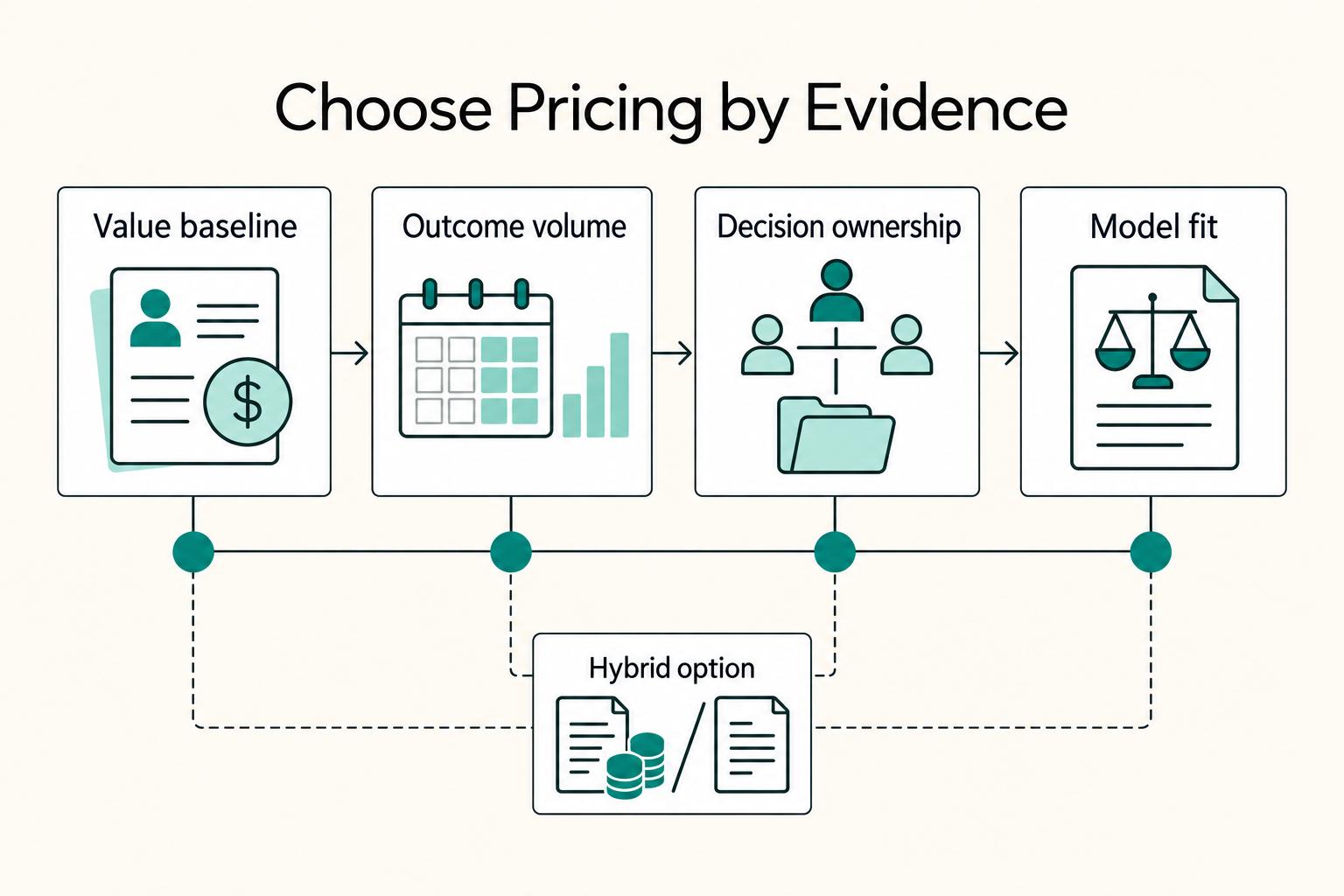
Value-based pricing works when you and the client can name the business result before kickoff and agree on how progress will be judged. If that link is weak, use a tighter model first. This is not about defending one pricing philosophy over another. It is about avoiding surprises by keeping pricing, scope, delivery, and payment aligned from day one.

The Best Password Managers for Freelancers and Teams
A client asks for an urgent file, you open their portal, and the login fails. Ten minutes later your invoicing app wants a reset too. That is why your password setup is a business risk, not just a nuisance. Weak credential habits can turn one mistake into wider account access problems, then into delivery delays and cleanup work.
The Best Cross-Platform Password Managers for a Freelance Team
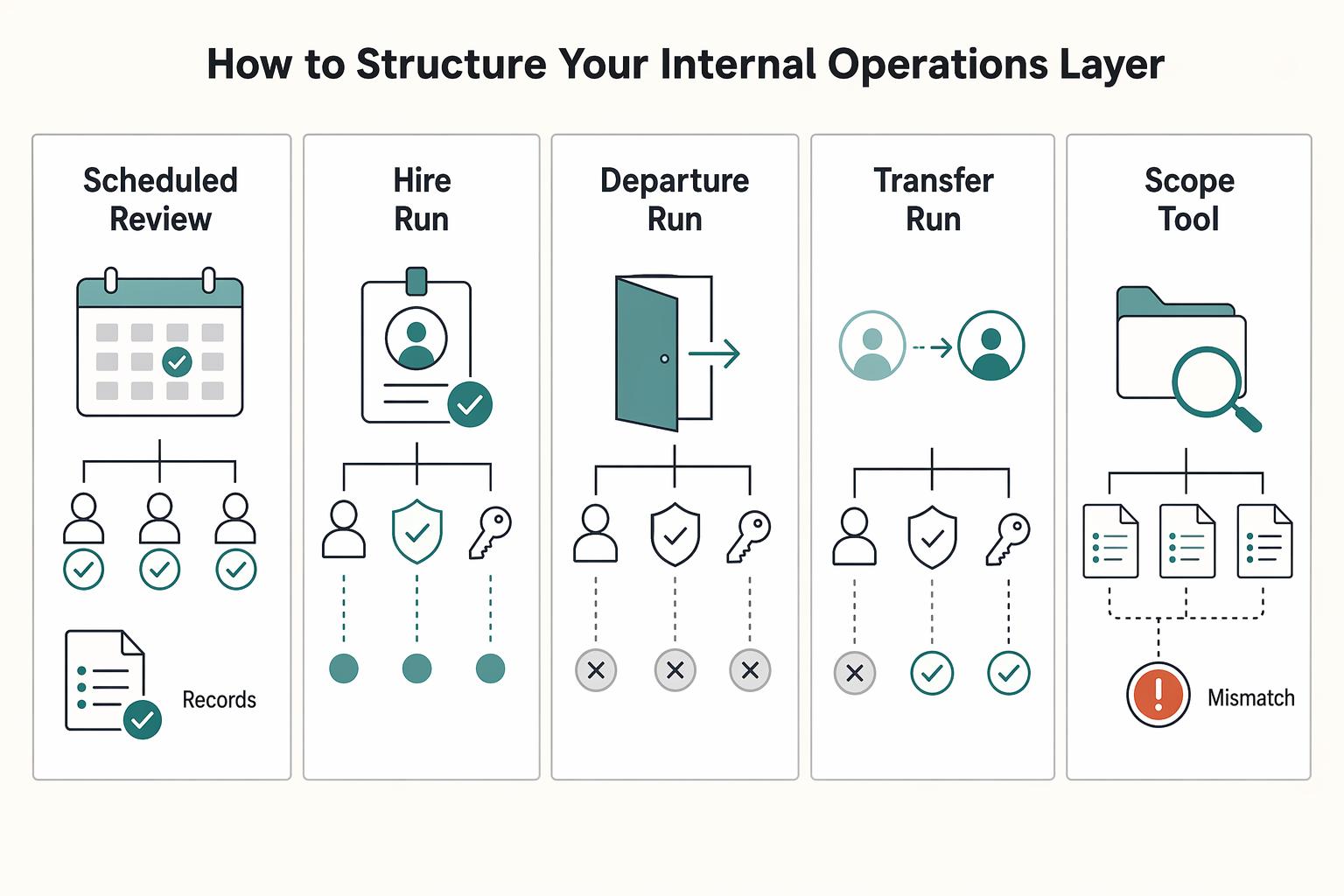
A password manager by itself gives you secure storage. It does not give you a clear rule for ownership, access, approval, or removal. A credential protocol does. It is the written operating rule for who owns credentials, who can see them, how access is granted, and how it is removed when work ends.