
Quick Answer
The best noise-cancelling app depends on your work setting and task. Use built-in Zoom or Teams suppression for predictable internal calls, Krisp or IRIS Clarity for stronger cross-platform live-call cleanup when noise or echo keeps breaking through, and Audacity for recorded work you can edit before delivery. Adopt a tool only after it passes real-world tests for performance, privacy, routing, and fallback.
Short answer: the right noise-cancelling app depends on the job in front of you. Use real-time call cleanup for live conversations, post-production tools for recorded work, and built-in meeting suppression when low-friction internal calls are all you need.
Good audio is part of how you show up at work. In remote and hybrid settings, background noise can turn a routine call into a distraction and a high-stakes call into a credibility problem. The fix is not to download whatever ranks highest. It is to choose a tool that fits where you work, the calls you actually take, and the amount of setup you will keep using.
This guide helps you make that choice in the right order. First, size up your real audio risk. Next, match the tool to the task. Then decide whether it is worth adopting at all.
Step 1: Define Your Audio Risk Profile#
Treat this as a business-risk decision, not a gadget preference. Before you compare apps, classify yourself by the noisiest recurring situation where a muddied sentence would cost you trust, time, or money.
| Profile | Where you work | What shows up | Default lane | Note |
|---|---|---|---|---|
| Fortress | One predictable space | Occasional spillover, like a doorbell, construction, or a loud appliance | Built-in meeting suppression or a light dedicated app | Teams noise suppression is on by default and offers 3 levels, including High |
| Hybrid | Home, conference rooms, coworking, and client sites | Chatter plus room echo | Stronger real-time noise-cancelling software | Google Meet cancels non-speech noise, but it does not cancel other people talking |
| Nomad | Unpredictable places | Cannot control who or what appears in the background | Call-first voice isolation designed for noisy environments | Zoom notes that louder workplaces may need higher suppression |
Use a quick check based on real conditions, not ideal ones. Pick one call you take often enough to matter. Then ask yourself four things:
- Where are you actually sitting when it happens: one controlled room or whatever space is available?
- What happens if a minute of audio goes bad: minor annoyance or damaged client confidence?
- What kind of noise shows up: steady HVAC hum or sudden voices, echo, and interruptions?
- How much setup will you really keep doing every time?
Then choose a profile. If the same failure keeps showing up across two or three call types, move up one profile.
- Fortress
You are likely here if most important calls happen in one predictable space and your main problem is occasional spillover, like a doorbell, construction, or a loud appliance. Your default lane is built-in meeting suppression or a light dedicated app. Teams often fits this profile because noise suppression is on by default and offers 3 levels, including High for tougher background noise.
- Hybrid
You are likely here if you rotate between home, conference rooms, coworking, and client sites, and your common failure is chatter plus room echo. Your default lane is stronger real-time noise-cancelling software. A useful checkpoint: Google Meet cancels non-speech noise, but it does not cancel other people talking, so nearby voices are often a sign you need stronger suppression than basic built-ins.
- Nomad
You are likely here if you take calls from unpredictable places and cannot control who or what appears in the background. Your default lane is call-first voice isolation designed for noisy environments. Zoom itself notes that louder workplaces may need higher suppression, which is your cue that convenience alone is no longer enough.
Your profile can change by project, week, or client mix. Classify by the highest-risk scenario that shows up often enough to matter. If you also need a hardware fallback, see The Best Noise-Cancelling Headphones for Remote Work. If you want a deeper dive, read Value-Based Pricing: A Freelancer's Guide.
Step 2: Match the Tool to the Task#
Match the tool to the failure point, not the feature list. Use native suppression first when it holds up in your real calls, then move to a dedicated app only when repeated failures justify the extra routing and checks.
Quick fit by profile:
- Fortress: start with Zoom or Teams native suppression.
- Hybrid: move to Krisp or IRIS Clarity if native modes keep missing nearby voices, echo, or location changes.
- Nomad: prioritize dedicated, cross-platform live-call cleanup first, then validate hard in Step 3.
Live calls#
Use this lane when one bad minute on a live call can cost trust, control, or revenue. Skip it when the work is low stakes or you can safely fix the audio before delivery.
| Tool | Use this lane when | Suppression direction | Platform coverage | Setup complexity | Fallback path | Privacy verification status |
|---|---|---|---|---|---|---|
| Krisp | You switch across meeting apps and want control over your side, the other side, or both | Stated options for "my noise" and "others' noise" | Works as a virtual audio device in apps that let you choose input/output | Moderate: set Krisp Microphone and Krisp Speaker in the meeting app | Switch the meeting app back to physical mic/speaker if routing fails | Verified: call-time cancellation is local on device; recordings for meeting-recording features are kept in the cloud |
| IRIS Clarity | You want dedicated live-call cleanup with quick on/off control | Verify current vendor detail | Compatible with programs that allow audio input/output changes | Moderate: IRIS describes Zoom setup as a one-time, few-step change | Toggle Clarity on/off from the toolbar app | Verified: IRIS states no audio leaves device and no audio is recorded/retained; trial length should be verified because vendor pages conflict |
| Zoom | Your important calls are already in Zoom and low-friction setup matters most | Native noise removal by default; optional Personalized audio isolation | Zoom | Low: built in | Return to default Noise removal or switch modes if isolation hurts speech | Partly verified: automatic voiceprint stored locally until deletion; optional reference voiceprint recording stored by Zoom until deletion |
| Microsoft Teams | Most call volume is in Teams and you want native controls first | High suppresses all non-speech background sound; broader direction detail: Verify current vendor detail | Teams desktop, iOS, Android, Teams Rooms on Windows, Windows AVD | Low: on by default with 3 levels | Move to stronger suppression, or revert if speech quality drops | Verify current vendor detail |
Before client-facing calls, confirm your input/output devices right before you join. With virtual routing, the common failure is wrong-device selection, silence, or bypass, not subtle quality drift.
Recorded deliverables#
Use this lane when you can review and edit before delivery (podcast, lesson, voiceover, edited video). Avoid it when noise is irregular (traffic, audience, clicks, pops), because Audacity noise reduction is not built for that pattern.
| Checkpoint | Article detail |
|---|---|
| Use this lane | You can review and edit before delivery |
| Examples | Podcast, lesson, voiceover, edited video |
| Avoid it | Noise is irregular: traffic, audience, clicks, pops |
| Noise profile | Select a noise-only region and get a noise profile first |
| Minimum sample | At least 2048 samples (about 0.05 sec at 44,100 Hz) |
| Reduction | Apply light reduction |
| Residue | Use Residue to hear what will be removed |
| Stop sign | Consonants clip or voice texture turns unnatural |
| Stop sign | Residue contains parts of words, breaths, or wanted room tone |
| Stop sign | Short tonal bursts or watery artifacts appear |
| Stop sign | One profile no longer matches because background noise changed during recording |
Use this workflow:
- Capture the cleanest input possible.
- Keep an untouched original.
- In Audacity, select a noise-only region and get a noise profile first.
- Make sure the sample is at least 2048 samples (about 0.05 sec at 44,100 Hz).
- Apply light reduction.
- Use Residue to hear what will be removed.
Stop when any of these appear:
- consonants clip or voice texture turns unnatural
- Residue contains parts of words, breaths, or wanted room tone
- short tonal bursts or watery artifacts appear
- one profile no longer matches because background noise changed during recording
Internal meetings#
For internal meetings, start with native suppression and escalate only after repeated failure in real conditions. If native settings work consistently, keep the low-friction setup.
Zoom uses suppression and echo cancellation by default. Teams suppression is also on by default and offers 3 levels. For many Fortress setups, that is enough.
Escalation path:
- Start with native suppression.
- If failures repeat in your normal rooms/devices, test a stronger native mode.
- If failures still repeat, move to Krisp or IRIS Clarity.
- Then run Step 3 validation (performance, privacy, integration stability, fallback).
If you want help protecting focus between calls, see The Best Apps for Blocking Distracting Websites.
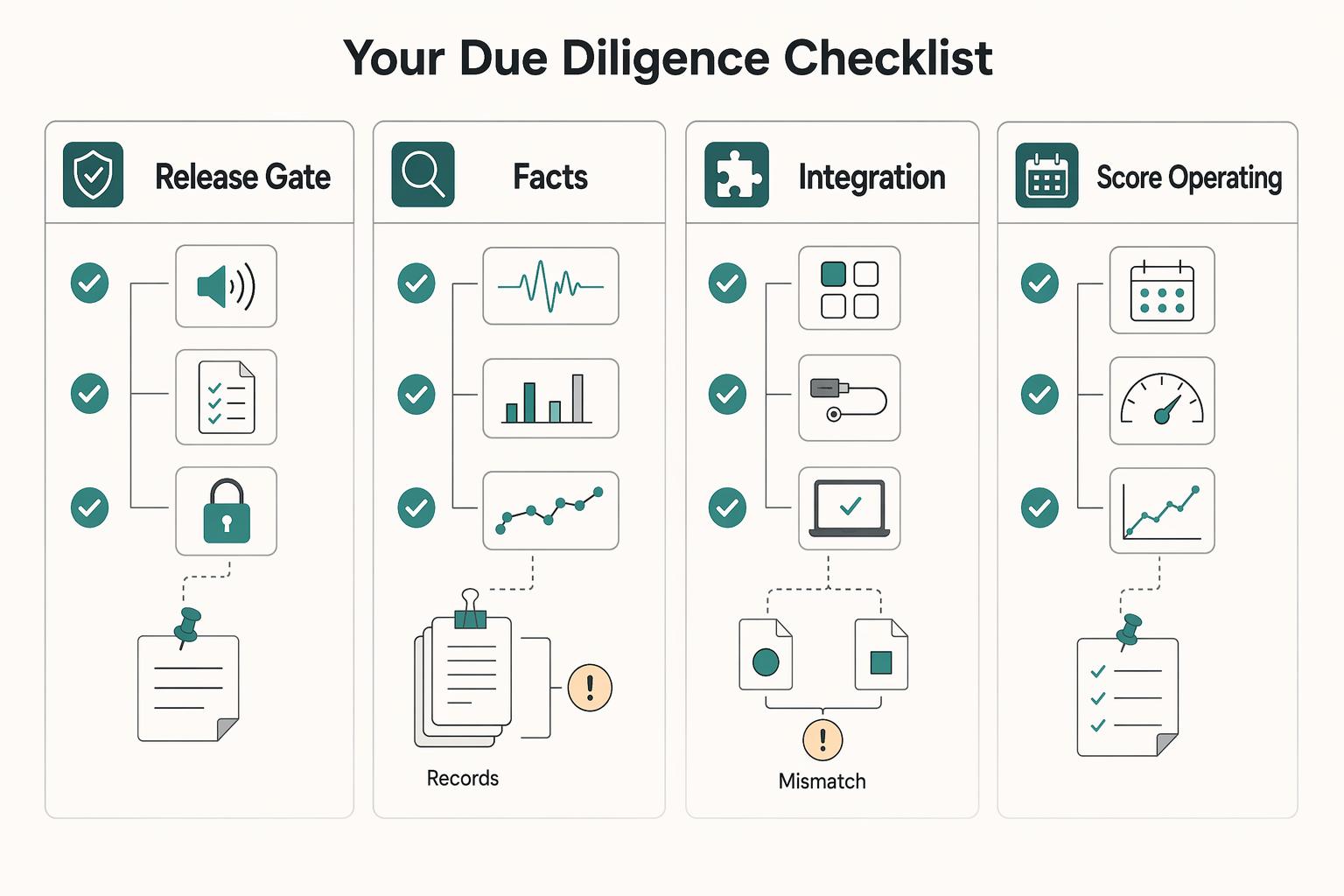
Step 3: Your Due Diligence Checklist#
Once you have a shortlist, stop comparing feature pages and run a strict go/no-go workflow. You should adopt only if all four checks pass, in order.
- Run a real performance test and apply a hard pass/fail gate.
Test under your normal load: your usual meeting app, tabs, screen share, notes, and recording setup. Start in the noisiest condition from your Audio Risk Profile, then use platform preflight so results are repeatable: in Teams, use Make a test call; in Zoom, use Test speaker and microphone plus Test microphone.
Fail any option that causes clipped words, robotic tone, lag, dropouts, or system strain you would not trust on a client call. Include a voice-like noise test on purpose, because Google Meet notes that non-speech noise is canceled but voices (like TV or nearby conversation) are not always canceled.
| Test context | Observed artifacts | System impact | Decision |
|---|---|---|---|
| App, device route, noise scenario, meeting load | Clipping, robotic tone, missed words, dropouts | CPU/fan strain, lag, instability | Pass / Defer |
- Separate verified privacy facts from unresolved claims.
Do not accept broad marketing claims. Record only what you can verify. For example: Krisp says live call noise cancellation is on-device, and also says analytics events are stored and recordings are kept in the cloud. Zoom personalized audio isolation includes voiceprint handling, with automatic voiceprints stored locally until deletion.
If processing location, retention, admin controls, or policy wording is unclear, insert this exact line: Verify vendor statement before rollout. Also timestamp what you reviewed (for example, Krisp Privacy Policy: Last updated: March 4, 2026).
- Pressure-test integration with failure drills and define your fallback.
Do not approve after one good call. Run drills for device switching, leave/rejoin behavior, and routing recovery in normal conditions. This is critical when virtual routing is involved. Krisp's Zoom setup depends on selecting Krisp Microphone and/or Krisp Speaker, and Krisp also warns Zoom Medium or High suppression can suppress your voice when combined.
Write your live-call fallback path before rollout: switch back to your physical mic/speaker and use native suppression. Teams supports changing audio settings before or during meetings and allows switching back to computer audio in-call.
- Score operating cost, then decide adopt/defer.
Price alone is not enough. Use this decision table and defer unless every row passes.
| Category | What to score | Weight | Pass rule |
|---|---|---|---|
| Subscription cost | Monthly/annual fee (for example, Krisp Core $8 /mo/user, Advanced $15 /mo/user) | Medium | Cost matches your call volume and stakes |
| Maintenance burden | Setup/update friction and hardware floor (for example, NVIDIA Broadcast RTX 2060+ and 8GB RAM) | Medium | You can run it consistently without babysitting |
| Reliability impact | Artifacts, routing errors, CPU strain, rejoin recovery | High | No recurring failures in your test log |
| Client-trust risk | Missed words, awkward recovery, unresolved privacy points, professionalism risk | High | You would use it on a live client call without hesitation |
Only after a tool passes this checklist should you use optional next-step support: How to Create a 'Distraction-Free' Work Environment at Home, The Best Digital Journaling Apps for Freelancers, or Browse Gruv tools.
The Final Word: Invest in Audio, Secure Your Reputation#
Treat audio quality as an operating standard, not a bonus feature. Choose based on your Audio Risk Profile, keep only tools that passed your due diligence checks, and make fallback readiness mandatory.
| Platform | What it says | Check |
|---|---|---|
| Zoom | Auto is a practical default for most situations, and you can raise suppression when your environment is louder | Use the pre-join speaker and microphone check or a dedicated test call; personalized audio isolation stores its automatic voiceprint locally until deleted |
| Teams | Tune among its three suppression levels for your room and meeting type | Use Make a test call; Teams test recordings are deleted immediately |
| Google Meet | Cloud-based noise cancellation is only available on certain plans | Confirm your Workspace edition first; voices from a TV or nearby people talking will not be canceled |
- Commit to one primary setup
Pick one setup for your real call environment and document the exact settings you will use. In Zoom, Auto is a practical default for most situations, and you can raise suppression when your environment is louder. In Teams, tune among its three suppression levels for your room and meeting type. In Google Meet, confirm your Workspace edition first, since cloud-based noise cancellation is only available on certain plans. For confidential work, document the privacy details you verified, such as Teams test recordings being deleted immediately and Zoom personalized audio isolation storing its automatic voiceprint locally until deleted.
- Commit to one backup path
Your backup should be simple and immediate: switch to your physical mic or headset and use native platform suppression. This is non-optional because cancellation has limits. Google Meet states that voices from a TV or nearby people talking will not be canceled, and stronger suppression settings can create tradeoffs in call quality.
- Commit to one pre-meeting test
Run a quick rehearsal before important calls. In Zoom, use the pre-join speaker and microphone check or a dedicated test call. In Teams, use Make a test call. Confirm the correct input and that your voice is clear before you join.
Decide, document, rehearse. That is how your setup stays reliable under pressure. If hardware is your weak point, see The Best Noise-Cancelling Headphones for Remote Work. If you want help pressure-testing your shortlist, Talk to Gruv.
You might also find this useful: The Best Calendar Apps for Freelancers Who Juggle Multiple Projects.
Frequently Asked Questions
Which is better for business calls, Krisp or IRIS Clarity?
Do not choose from comparison pages alone. In the current source set, both should be treated as unproven until you verify current vendor details and run the same Step 3 performance, privacy, integration, and fallback tests.
Are these apps secure enough for confidential client meetings?
Assume nothing until you verify the current privacy terms yourself. Confirm processing location, retention, admin controls, and the document date you reviewed; if the language is vague or conflicting, defer confidential use.
Will a noise-cancelling app slow down your computer?
Possibly. Test on your own machine with your usual browser tabs, notes, screen sharing, and recording, and reject any option that adds clipped words, robotic artifacts, lag, or dropouts.
What is the fastest way to sound professional from a noisy environment?
Use the shortest audio path you can trust: a headset or your regular mic placed close, the correct input selected, and a quick live test with real noise present. If routing fails, switch immediately to your physical mic and turn on built-in meeting-app suppression.
Can these apps remove other people talking nearby?
Do not assume these apps remove other people talking nearby. Treat nearby speech as a deliberate stress test, because it may still come through or the cleanup may sound over-processed; have a backup room or backup plan.
Is a paid app worth it?
Only if it clearly improves the calls that matter in your chosen task lane and stays reliable after updates, reboots, and device changes. If it creates routing failures or awkward recovery, it is an operating cost rather than a productivity gain.
Do you need a special microphone for these apps to work?
Not necessarily. Test your current mic first at normal speaking distance, because placement, room noise, and setup stability can matter more than new hardware. If the app only sounds acceptable when everything is positioned just right, treat that as a warning.
Try a related tool
Researched and edited by the Gruv editorial team. Gruv builds cross-border billing, payouts, and finance-operations software for global businesses.
Sources
Includes 5 external sources outside the trusted-domain allowlist.
- data.cdc.gov/resource/biid-68vb.xmltrusted
- efc.ny.gov/stormwater-management-design-manual-exittrusted
- sde.idaho.gov/wp-content/uploads/2026/03/ISAT-Science-Tech...trusted
- audacityteam.org/downloadexternal
- audacityteam.org/faqexternal
- help.krisp.ai/hc/en-us/articles/360012035500-What-data-Kri...external
- help.krisp.ai/hc/en-us/articles/10616009856412-FAQ-about-K...external
- iris.audio/personalexternal
Educational content only. Not legal, tax, or financial advice.
Related Posts
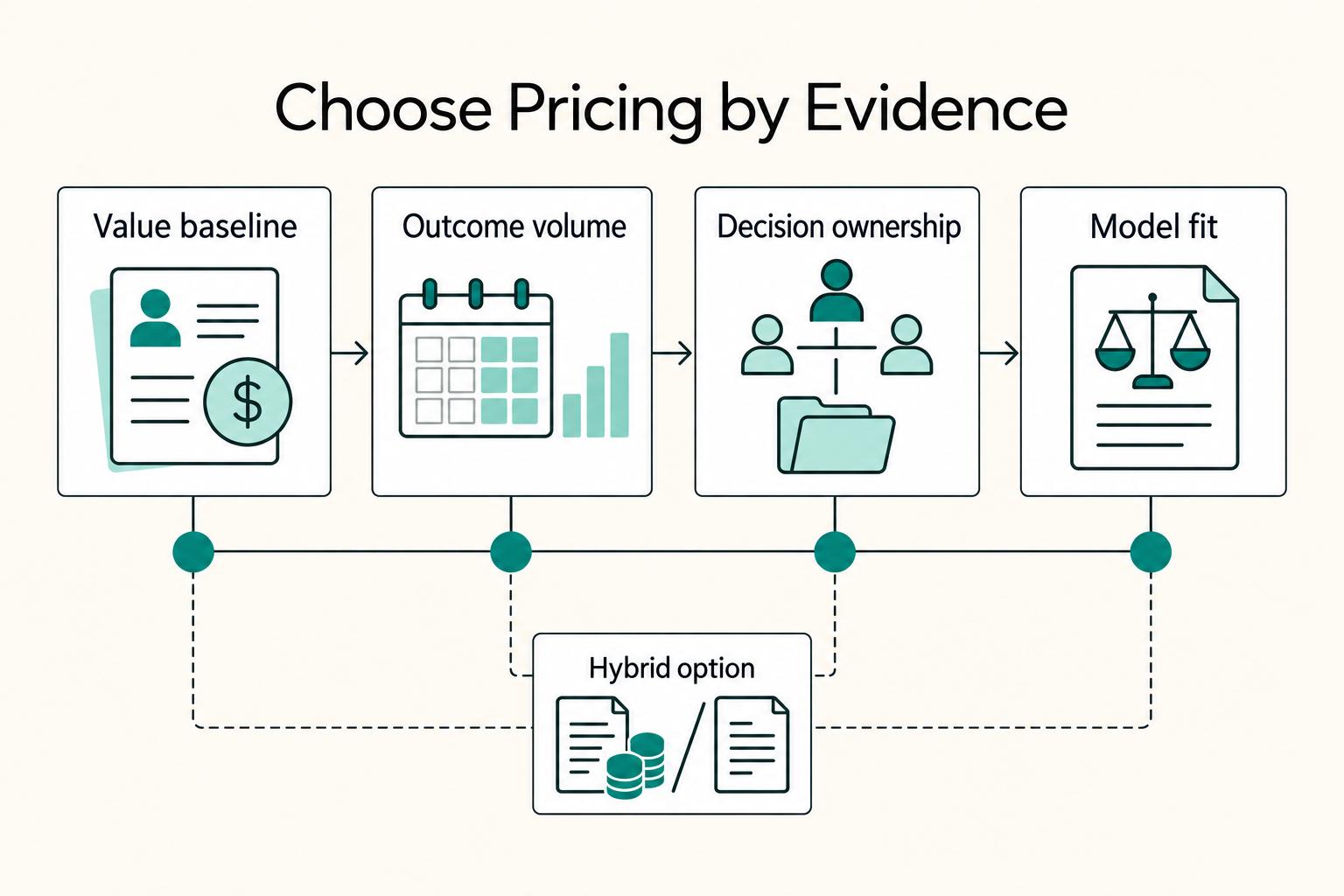
Value-Based Pricing for Freelancers Under Real Payment Risk
Value-based pricing works when you and the client can name the business result before kickoff and agree on how progress will be judged. If that link is weak, use a tighter model first. This is not about defending one pricing philosophy over another. It is about avoiding surprises by keeping pricing, scope, delivery, and payment aligned from day one.
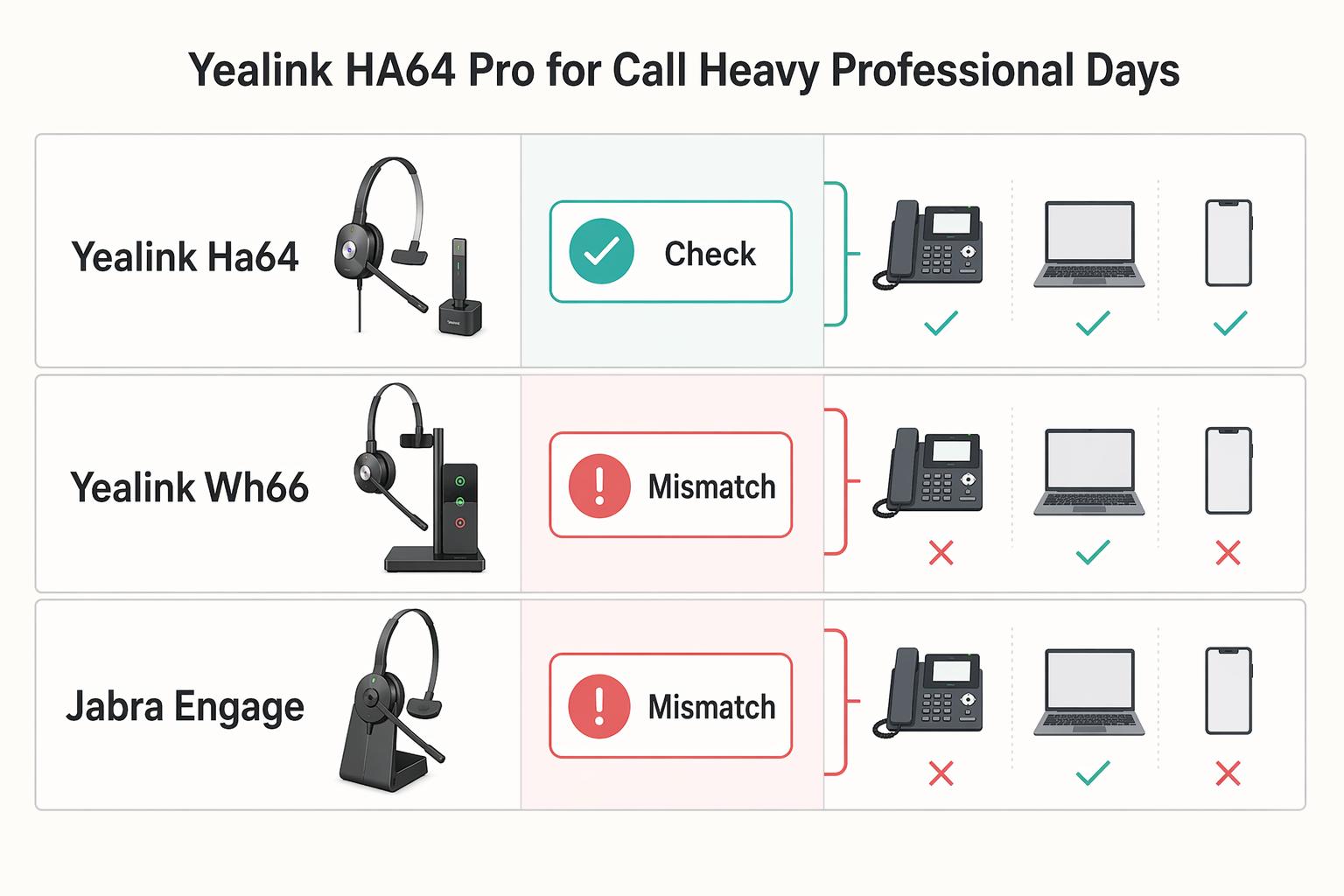
The Best Noise-Cancelling Headphones for Remote Work
If you are trying to choose the best noise cancelling headphones for work, start with how you actually get paid. The right pair is the one that protects billable calls, deep work, and device switching in your setup, not the one getting the most launch buzz.
How to Create a Distraction-Free Home Office That Actually Holds Focus
A distraction-free home office is not just another expense. It is a business investment that protects your body and helps you sustain higher-value work. This is not productivity theater. It is about looking at your physical space, digital rules, and mental load as operating assets, then deciding what earns its place.