
Quick Answer
Start with fit and workflow, then pick the board class that matches your tolerance for setup work. The best ergonomic keyboards are the ones you can position correctly, use consistently, and maintain over time. A prebuilt option like Logitech ERGO K860 can reduce change friction, while a programmable split like ZSA Moonlander can unlock deeper shortcut control if you will actually build layers. Validate the choice with real-session testing, not spec-sheet assumptions.
Judge a Keyboard by Posture Load and Output Quality#
Treat your keyboard like an operating decision, not a desk accessory. This guide uses a simple lens: reduce risk, protect output quality, and keep control over how you work when deadlines are real and no one else can absorb your downtime.
For an independent professional, that matters because your delivery capacity is personal. If typing posture, repetition, or poor fit starts creating avoidable interruption, the cost is missed work, slower execution, and harder recovery, not just mild discomfort. The better question is not, "Is this keyboard comfortable?" It is, "Does this setup lower posture load without hurting the way I produce work?"
Research on a fixed-split ergonomic keyboard gives that framing some support. In one study summary of 39 adult users, tested design changes reduced forearm pronation and wrist extension without adverse effects on typing performance. It also found that no single slope setting won for everyone. Positive, flat, and negative slopes were all preferred by different users and supported postural variation. That is your first checkpoint. If a board does not let you test fit through slope, split position, or related adjustments, you are buying aesthetics before function.
Use this section to choose fit, compare tradeoffs, and plan implementation#
| Step | What to review | Decision focus |
|---|---|---|
| Choose fit | Lateral inclination, wrist-rest height, slope options, curved gull-wing layout | Check fit variables, not a one-size-fits-all answer |
| Compare tradeoffs | Posture-load reduction, learning curve, desk footprint, customization depth | Fit and customization matter more than one-size-fits-all rules |
| Plan implementation | Symptom pattern, daily typing hours, app mix, whether the current board locks you into one posture | Keep the decision grounded in hazard control, not impulse shopping |
- Choose fit
Compare boards using concrete factors from the cited design features, such as lateral inclination, wrist-rest height, slope options, and curved gull-wing layout. The point is to check fit variables, not chase a universal answer to "best ergonomic keyboards."
- Compare tradeoffs
Weigh posture-load reduction against learning curve, desk footprint, and customization depth. The cited study did not find one preferred slope setting, so fit and customization matter more than one-size-fits-all rules.
- Plan implementation
Build a short evidence pack before you buy: your symptom pattern, daily typing hours, app mix, and whether your current board locks you into one posture. That keeps the decision grounded in hazard control, not impulse shopping.
That leads to the next question: what, exactly, is your standard keyboard asking your hands and shoulders to tolerate every day? For related setup choices, see The Best Ergonomic Gear for Your Remote Work Setup.
Why Your Standard Keyboard Is a Ticking Time Bomb#
A standard keyboard is usually a slow-drift risk, not a dramatic failure. Repeated load can chip away at consistency before you notice a clear problem. In real work blocks, that often feels like more corrections, tighter shoulders, and lower output quality by late day.
This is why the decision is operational, not cosmetic. Your keyboard sets default hand position and reach patterns across thousands of presses. That does not prove injury, but a board with limited adjustability gives you fewer ways to manage fatigue when workload spikes.
A quick reality check: many default boards are regular membrane keyboards. They register presses by pushing a rubber dome onto a circuit layer, and they are often described as having less tactile feedback and shorter lifespan as domes wear. The practical takeaway is simple: long sessions on vague feedback plus fixed positioning can add friction to your day.
| Downtime impact scenario | Time assumption | Revenue assumption | Business effect to consider |
|---|---|---|---|
| Brief disruption | Reader-specific missed typing days | Reader-specific billable rate pending business/source-record verification | Delayed drafts, lighter output, task reshuffling |
| Verified midpoint case | Reader-specific median downtime estimate | Reader-specific billable rate pending business/source-record verification | Client updates, deadline movement, invoice timing |
| Longer recovery assumption | Reader-specific conservative downtime estimate | Reader-specific billable rate pending business/source-record verification | Backlog growth, reduced throughput, slower restart |
Three stressors to check on your own desk#
| Desk stressor | What you may notice | First test |
|---|---|---|
| Palms-down typing for long sessions | Forearm fatigue and "shake-out" breaks by the end of a block | A board that supports tenting so you can change hand angle |
| Wrists angled outward to fit one fixed board | Wrists staying slightly bent outward in long sessions | Split positioning so each half can sit closer to your natural shoulder line |
| Constant reach to high-use keys and shortcuts | Finger and shoulder fatigue by late day | Contoured or columnar layouts that bring frequent keys into easier reach |
- Palms-down typing for long sessions
If your setup keeps your hands palms-down for hours, you may notice forearm fatigue and "shake-out" breaks by the end of a block. First countermeasure to test: a board that supports tenting so you can change hand angle instead of staying in one fixed position.
- Wrists angled outward to fit one fixed board
When both hands must meet one centered slab, your wrists can stay slightly bent outward, especially in long sessions. First countermeasure to test: split positioning, so each half can sit closer to your natural shoulder line.
- Constant reach to high-use keys and shortcuts
If your workflow is shortcut-heavy, repeated small reaches can add up to finger and shoulder fatigue by late day. First countermeasure to test: contoured or columnar layouts that bring frequent keys into easier reach. Split columnar formats are commonly presented as an ergonomic typing approach, but expect setup time for keymap changes.
Match the countermeasure to your work mix#
| Work mix | Best first test | Why it fits this workflow | Tradeoff to plan for |
|---|---|---|---|
| Writing-heavy | Split positioning (optionally with tenting) | Fastest way to test spacing and angle changes without deep remapping | May not change shortcut reach much |
| Programmer-heavy | Split columnar + programmable keymap | Better alignment with heavy shortcut/layer use | Keymap setup can take significant time |
| Mixed writing + coding | Split first, then decide on columnar/remap depth | Lets you solve posture constraints before committing to retraining | Two-stage rollout takes planning |
Use this sequence as your filter: remove posture constraints first, then choose how much remapping effort you want to absorb.
Calculating the ROI: How a $350 Keyboard Pays for Itself in Weeks#
It can pay for itself in weeks, but only when your numbers prove it. Evaluate your keyboard decision with three inputs: time recovery, interruption-risk reduction, and cognitive-load reduction.
Start with a 5-day baseline. Track repeated tasks that break your flow, then compare recoverable value against total keyboard cost, including the board and setup time for remaps.
- Time recovery
Use a reusable formula instead of a guess: (Recoverable minutes per day ÷ 60) × (verified average billable rate) × (current monthly working days pending business/source-record verification) = monthly time value. This gives you an auditable number for efficiency.
- Interruption-risk reduction
Treat this as income protection, not speed. Poor ergonomics are linked to repetitive strain injuries, wrist pain, carpal tunnel risk, business interruptions, decreased income, and missed opportunities. For a solo operator, even one disruption window can be expensive, so model downtime as a real failure mode.
- Cognitive-load reduction
Macro programming lets you remap keys and collapse long repeated strings or multi-step actions into fewer keystrokes. Programmer example: map a repeated command chain you run many times per day into one trigger. Writer example: map a recurring heading, format, or snippet pattern into one trigger. The gain is often fewer focus breaks and fewer rushed errors, not just faster typing.
Use this mini worksheet:
- Use your verified average billable rate.
- Current monthly working days pending business/source-record verification.
- List your top 3 repeated actions and time each one 5 times manually.
- Estimate daily uses for each action.
- Record total keyboard cost, including hardware and expected setup time.
- Log 2 weeks of evidence: recovered minutes, discomfort interruptions, and fatigue-related cleanup.
Use this confidence table to avoid overestimating day-one returns:
| Usage profile | Prebuilt ergonomic ROI confidence | Highly programmable split ROI confidence | Typical return driver |
|---|---|---|---|
| Heavy coding | Medium | High if you will actually remap | Repeated shortcuts, command sequences, less reaching |
| Heavy writing | Medium to High | Medium | Better positioning, fewer interruptions, snippet/format macros |
| Mixed work | High | Medium to High | Posture gains first, selective macros second |
One final check: annualize cost before deciding. One anecdotal report puts a Kinesis Advantage Pro around $300 with roughly six years of use, which worked out to less than $50 per year in that specific case. That is not a market average, but it is a useful reminder that upfront price and operating cost are different.
For a step-by-step walkthrough, see The Best Ergonomic Mice for Preventing Repetitive Strain Injury (RSI).
The Control Imperative: Building Your Bespoke Professional Cockpit#
Treat keyboard customization as an operations task: map your repeated work first, then build only the layers you can maintain.
- Identify repeat work by context
List your most repeated actions, then group them by where they happen. For programmers, that often means editor, terminal, and Git. For writers, that often means headings, quote/comment markup, and navigation. Use a simple blueprint for each mapping: trigger -> mapped action -> expected friction reduction.
- Programmer example:
Trigger:run/test sequence you repeat all day ->Mapped action:one key combo on a coding layer ->Expected friction reduction:fewer context breaks between edit and verify. - Writer example:
Trigger:recurring formatting block ->Mapped action:one key combo on a writing layer ->Expected friction reduction:less repetitive formatting and fewer flow interruptions.
- Pick a layer strategy you will keep updated
No single layer model is proven best for everyone, so choose based on setup effort and upkeep.
| Layer strategy | Setup effort | Maintainability | Day-to-day consistency |
|---|---|---|---|
| Single universal layer | Low | High | Consistent, but can get crowded |
| App-specific layers | Medium to high | Medium | Strong inside one app, less consistent across app switching |
| Role-based layers | Medium | Medium | Useful when your day is clearly split by work mode |
- Use thumb-cluster and layout decisions as a checklist, not a one-time guess
Prioritize high-frequency keys first, modifier placement second, reach comfort third. Verify your current usability benchmark from source records before using it. Keep the setup iterative. Evidence on fixed-split ergonomic keyboard users found no single slope setting won across users, and tested adjustments included lateral inclination changes from 8° to 14° and wrist-rest height increases up to 10 mm. Use this sequence: baseline layout -> one-week adjustment cycle -> refine from actual work patterns. If discomfort persists, for example eyestrain, neck aches, backaches, or headaches, review the full workstation setup, not only the keyboard.
Your Strategic Options: A Framework for Choosing Your Keyboard#
Choose the simplest keyboard path that solves your current discomfort and supports the level of control you will actually use. For most buyers, the real decision is this: comfort-first prebuilt now, or a deeper programmable split for longer-term workflow control.
Use Logitech ERGO K860, Kinesis Freestyle2, ZSA Moonlander, and MoErgo Glove80 as category examples only. Verify the current model lineup before you finalize any product-specific choice.
| Path | Category examples | Ergonomics adjustability | Programmability depth | Setup effort | Portability | Support network check | Total ownership effort check |
|---|---|---|---|---|---|---|---|
| Comfort-first prebuilt | Logitech ERGO K860 | Check fixed vs adjustable split, wrist-rest shape, and tilt method | Often basic remapping or none | Low | Usually simpler one-piece carry | Verify OS compatibility, remap tooling, and update path | Best if you want minimal ongoing tuning |
| Modular split | Kinesis Freestyle2 | Check half-placement flexibility and whether tenting is built in or optional | Varies by model; often moderate | Medium | Mixed; multiple pieces can add packing friction | Verify accessory availability, setup docs, and replacement options | Fits if you want adjustability without constant remapping work |
| Deep programmable split | ZSA Moonlander, MoErgo Glove80 | Check tenting method, palm support, and thumb reach in real use | High, including layers and custom macros | High | Mixed to lower when stands, halves, or cables add travel overhead | Verify firmware route, documentation quality, and troubleshooting community | Fits if you plan to keep refining layers and macros |
If you need relief quickly, prebuilt is usually the lower-friction path. If measurable macro time savings and application-specific layers are part of your goal, a programmable split is the stronger fit.
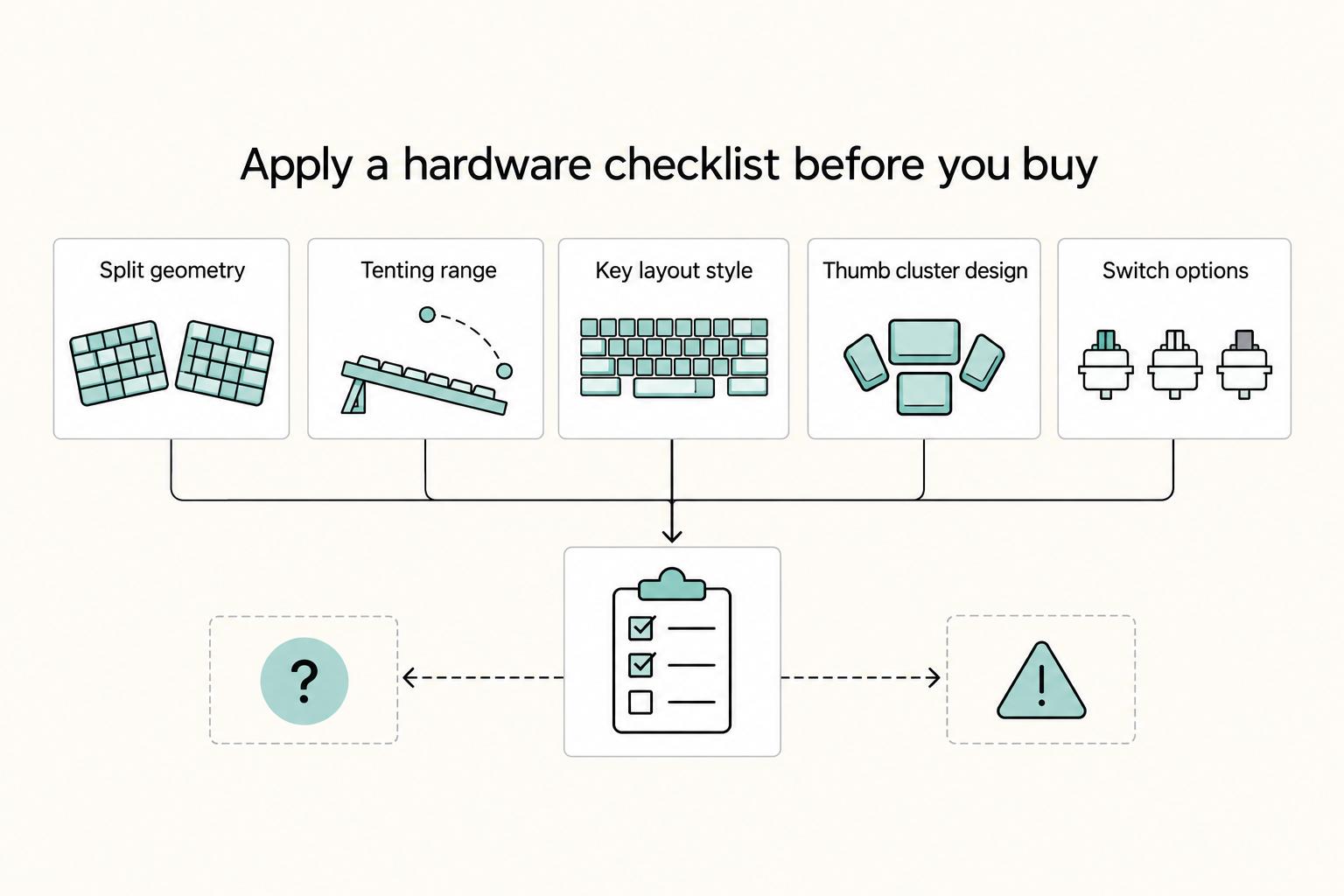
Apply a hardware checklist before you buy#
Run each candidate through the same checklist so you catch workflow and comfort failures early.
| Checklist item | What to verify | Why it matters |
|---|---|---|
| Split geometry | Fixed split vs independently positioned halves | Independent placement matters if shoulder width and posture are key issues |
| Tenting range | How tenting is adjusted and whether extra accessories are required | Helps catch comfort and workflow failures early |
| Key layout style | Layout consistency if you switch between laptop and desktop often | One user report says staying close to an 85-keys layout made switching smoother |
| Thumb cluster design | Whether highest-frequency actions sit under natural thumb motion | Avoids full stretch for common actions |
| Switch options | Switch mechanism and current switch lifespan range pending product/source-record verification | Keeps switch choice in the evaluation instead of focusing only on layout |
| Wired vs wireless behavior | Whether you trust fewer cables or fewer charging variables for long sessions | Matches connection choice to long-session use |
| Firmware/software network | How remapping works, whether settings are portable, and whether cloud-based configuration supports multi-location work | Important for portable settings and multi-location work |
- Split geometry
Confirm fixed split vs independently positioned halves. If shoulder width and posture are key issues, independent placement matters.
- Tenting range
Verify how tenting is adjusted and whether extra accessories are required.
- Key layout style
If you switch between laptop and desktop often, prioritize layout consistency. One user report says staying close to an 85-keys layout made switching smoother.
- Thumb cluster design
Check whether your highest-frequency actions sit under natural thumb motion, not full stretch.
- Switch options
Include switch mechanism in your evaluation, and verify the current switch lifespan range from product or source records before using it.
- Wired vs wireless behavior
Choose based on what you trust for long sessions: fewer cables or fewer charging variables.
- Firmware/software network
Verify how remapping works, whether settings are portable, and whether cloud-based configuration supports multi-location work.
Two practical red flags are easy to miss on spec sheets. One user reported that a layout change removed a key they relied on for window manager commands; map your top shortcuts before buying. Another user linked sharp palm-rest edges to wrist pain; if a short test creates wrist pressure, skip that model.
Choose the low-risk path#
Treat migration as a reversible trial, not a one-time jump. Keep your old board available for deadline work, move one layer at a time, and verify any typical adaptation window from source records before using it.
- Needs immediate relief
Choose a comfort-first prebuilt and keep layout change minimal.
- Wants moderate customization
Choose a modular split for placement flexibility without a full remapping project.
- Wants full workflow control
Choose a deeply programmable split if you will actively build and maintain layers and macros.
The Nomad's Dilemma: Portability and Performance on the Road#
Travel only works in your favor if your keyboard setup is repeatable away from home. Choose for low rework: packability, fast setup, and a restore path you have already tested on another machine.
A portable split keyboard can still be the right call, but only if you can carry and deploy it without extra friction at each stop.
| Model | Packability | Setup friction | Desk footprint | Case availability | Firmware/profile portability |
|---|---|---|---|---|---|
| Logitech ERGO K860 | Verify fit in your real travel bag | Verify what must be configured per machine | Verify usable fit on small desks | Verify current official or third-party case options | Verify where remaps live and how you restore them |
| Kinesis Freestyle2 | Verify how many parts you need to carry | Verify repeatable setup steps and cable handling | Verify comfortable placement on shallow desks | Verify case options for board plus accessories | Verify what persists when switching computers |
| ZSA Moonlander | Verify packed shape with your normal kit | Verify reassembly and positioning effort on arrival | Verify space needs with your preferred split position | Verify current case options | Verify backup and restore path for your layout profiles |
| MoErgo Glove80 | Verify travel bulk in your day-to-day carry | Verify setup time and stability in temporary workspaces | Verify placement limits on compact desks | Verify current case options | Verify profile recovery flow before travel |
Use this as a decision screen, not a spec sheet. Before you buy, verify four practical items that often decide road reliability: official case options, accessory network, wired or wireless behavior, and replacement-part availability.
Trip checklist
- Pre-trip packing
Pack exactly how you will travel, then run one full setup and teardown at home. If the process is inconsistent, fix that before the trip.
- Airport and transit protection
Keep the keyboard in carry-on and group small parts in one pouch. Most travel failures are missing small essentials, not full hardware failure.
- On-site setup sequence
Set your laptop and pointing device first, then place your keyboard to match your normal reach. Confirm your core workflow still feels natural before you start client work.
- Fallback when you must use a laptop keyboard
You can still improve comfort and control without an expensive programmable board. If you use Windows, EPKL with Colemak is one direct path; verify current instructions first because the Colemak Big Bag thread notes the main resource moved and some content may still be split across locations.
One-half split use is useful in specific conditions, not by default. It can reduce setup burden on constrained desks, but it can also add friction if your work session depends on full two-hand text flow.
Cloud-based configurations are similarly useful when they are already tested in your workflow. Do a restore trial on a secondary machine before you leave, so travel time does not become troubleshooting time.
Conclusion: Your Keyboard is Your Cockpit. Take Command.#
At this point, the decision is not really about buying a nicer accessory. It is about how you operate every day. Think of your keyboard as the control surface you use for hours at a time. Choose it carefully, configure it on purpose, test it in real work, and maintain it so it stays reliable.
- Longevity
Your first job is reducing avoidable strain and interruption. This article treated unaddressed RSI risk as a revenue problem for a reason: the cited median lost work time for a CTS diagnosis is over 25 days. Verify fit before you chase features, and test your setup during normal sessions so friction and strain show up early.
- Productivity
Once the fit is right, judge value by friction removed, not sticker price. Programmable boards earn their keep when you build application-specific layers and a few repeatable shortcuts you actually use. Track repeated actions in your real workflow before you remap anything. If you cannot point to time saved through macros, you are probably overconfiguring.
- Autonomy
A good setup is one you can recreate without drama. For mobile work, a portable split keyboard plus cloud-based configuration portability, when supported, can make that much easier. Save a baseline layout and keep it current. A clever layout is not helpful if a reset, laptop swap, or travel day leaves you rebuilding from memory.
What to do next:
- Confirm your primary model fit at your actual desk.
- Set one baseline layout before experimenting.
- Schedule adaptation practice across several real work sessions.
- Review the setup after a real project, not after one first impression.
Frequently Asked Questions
What is the real ROI of a pricier ergonomic keyboard?
The real ROI is better fit and less friction in a tool you use for hours, not a universal promise that it will pay for itself in a fixed number of weeks. If your current board gives you limited customization or keeps you in a cramped position, the upgrade case is often stronger than if you type only occasionally. What to do next: ignore generic payback math and verify the features you will actually use: layout type, customization options, connection method, and long-term usability for your workflow.
Are split keyboards actually better for coding and writing?
Often, yes, if your problem is posture or reach rather than raw typing speed. A standard split keyboard lets you move the two halves independently, which can help wrist, elbow, and shoulder posture, but non-touch typists may find the change harder to adapt to. One useful reality check: split keyboards have been described as the highest-selling ergonomic keyboard type in the US market by 2006, which suggests this is a long-established category. What to do next: if you touch type and want more control, test a split first. If you want a gentler change, start with an Alice-style or wave-style board.
How do you protect a split keyboard when you travel?
Grounding here does not support one universal travel-protection method, so focus on practical checks. Confirm how your halves connect (cable or wirelessly) and make sure you have the pieces your setup depends on. What to do next: do a full pack-and-setup check before your trip so you can verify your normal layout works when you arrive.
Should you start with an entry-level ergonomic board or a highly programmable split?
Start simpler if you want comfort with less setup effort. Go advanced only if you know you will use the extra control. | Option | Setup effort | Customization depth | Travel practicality | Maintenance overhead | | --- | --- | --- | --- | --- | | Wave-style one-piece | Varies by model | Varies by model | Mixed, because larger boards can increase mouse reach and may not fit small trays | Varies by model | | Alice-style one-piece | Varies by model | Varies by model | One-piece design can be simpler to carry than separate halves | Varies by model | | Highly programmable split | Varies by model | Varies by model | Can work well if you can consistently manage both halves and required connections | Varies by model | If you rely on a dedicated number pad, remember that some split setups may require a separate external numpad. What to do next: ask one blunt pre-buy question before you click buy: “Are there any drawbacks to using this product?” If the drawbacks match your actual work habits, keep looking.
How long does adaptation take?
There is no verified universal timeline, so be careful with claims that everyone adjusts in a set number of days or weeks. The adjustment is usually harder if you do not touch type, because split layouts can expose habits that a standard board lets you hide. What to do next: test with your real work for several sessions before deciding the layout is wrong for you.
Do switches matter, or is that mostly hobbyist noise?
They can matter, but there is no verified medically correct switch for everyone. What matters is whether the board gives you a feel you can type on comfortably and consistently. Exact force ranges and pain-reduction claims need current verification. A common mistake is obsessing over switches while ignoring layout, desk fit, or mouse reach. What to do next: try a few switch types if you can, and note what actually causes fatigue: finger effort, bottoming out, noise, or awkward hand position.
Can an ergonomic keyboard fix wrist pain?
No keyboard should be treated as medical advice or a guaranteed fix. These boards are designed for long-term comfort and can reduce typing strain, and some designs support straighter wrists or let you separate the halves, but outcomes vary. If you already have pain or a diagnosed condition, get clinician input instead of assuming new hardware will solve it on its own. What to do next: first remove daily aggravators you can control, like poor wrist angle, excessive mouse reach, or a board that does not fit your desk, then choose the layout that best addresses those specific problems.
Try a related tool
Researched and edited by the Gruv editorial team. Gruv builds cross-border billing, payouts, and finance-operations software for global businesses.
Sources
- eric.ed.govtrusted
- faa.gov/sites/faa.gov/files/about/initiatives/mainte...trusted
- ncbi.nlm.nih.gov/pubmed/21099019trusted
- nrc.gov/docs/ML1815/ML18158A333.pdftrusted
- osha.gov/laws-regs/federalregister/1999-11-23trusted
- osha.gov/laws-regs/federalregister/1999-11-23trusted
- pencol.edu/sites/default/files/2020-PC-College-Catalog_...trusted
- pmc.ncbi.nlm.nih.gov/articles/PMC7345928trusted
Educational content only. Not legal, tax, or financial advice.
Related Posts
Value-Based Pricing for Freelancers Under Real Payment Risk
Value-based pricing works when you and the client can name the business result before kickoff and agree on how progress will be judged. If that link is weak, use a tighter model first. This is not about defending one pricing philosophy over another. It is about avoiding surprises by keeping pricing, scope, delivery, and payment aligned from day one.
The Best Ergonomic Gear for Your Remote Work Setup
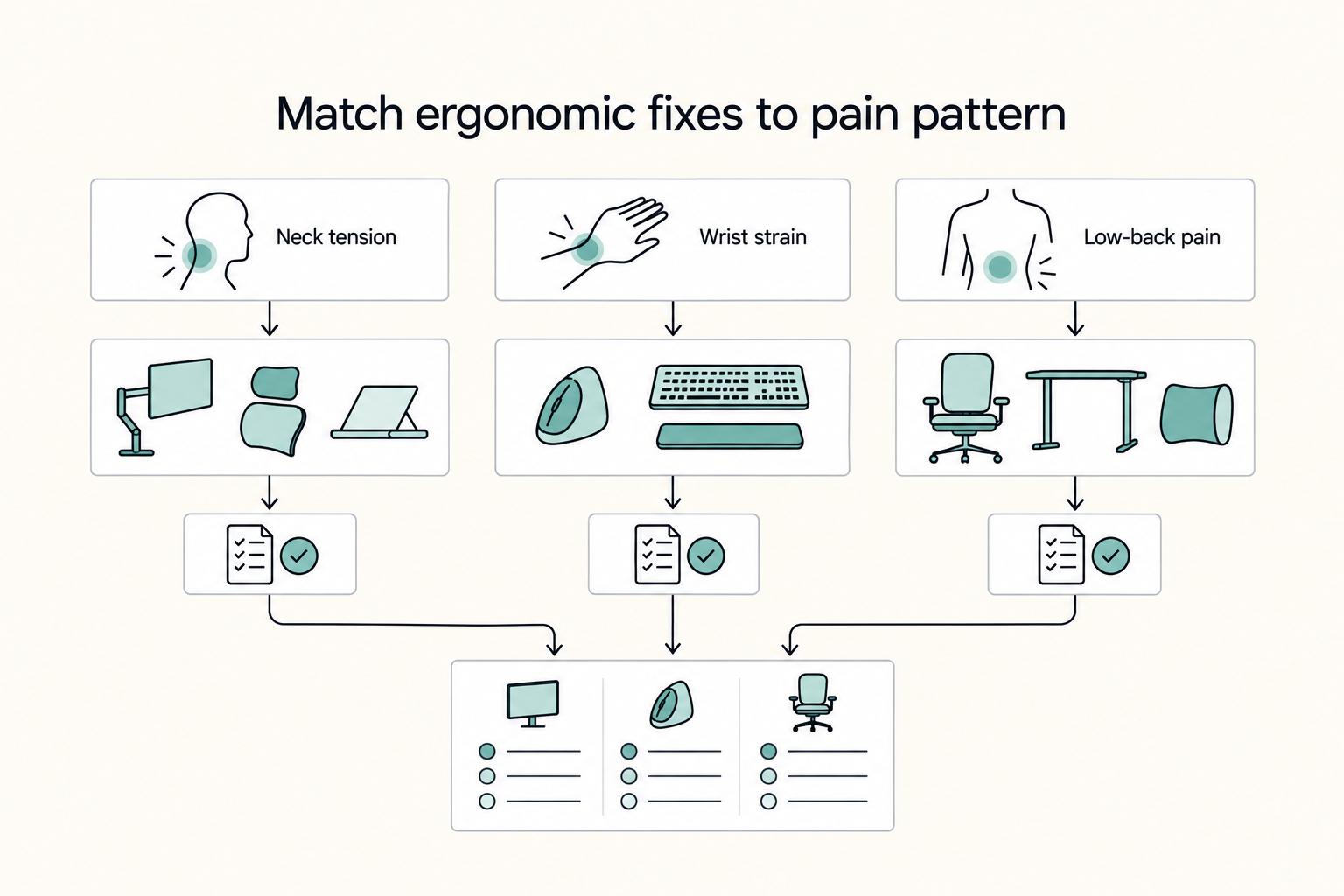
**Treat your ergonomic remote work setup as operating infrastructure, not a comfort splurge.** When posture breaks down, delivery quality and scheduling usually break down right after. Start by setting a baseline that protects your body and your business before you compare products.

The Best Gear for a Portable Home Office
Portable-office gear decisions are not directly tested in this guide, so use this as a practical framework rather than a proven standard.