
Quick Answer
Choose a three-lane setup instead of chasing one winner for best dictation software for writers: use a drafting tool, a transcription tool, and a refinement workflow. Prioritize options that pass an ROI check with correction time included, then confirm data handling details for confidential work. In practice, that often means pairing a drafting-focused option such as Dragon Professional with a transcription-focused option such as Otter.ai, then finishing edits in your normal writing environment.
Judge Dictation Tools by ROI, Security, and Workflow Fit#
If you are looking for the best dictation software for writers, do not try to crown a universal winner. Start by deciding what kind of stack you need for your work. This guide looks at tools through three practical lenses: cost to value, privacy and security, and day-to-day integration friction.
| Lens | Core question | What to verify |
|---|---|---|
| ROI | Does it improve output in your real writing tasks? | Judge value by whether it improves output in your real writing tasks, not by the cheapest monthly line item. |
| Security | Where does your data go, and is it secure? | Verify the data-handling model before you dictate client notes, interviews, or sensitive drafts. |
| Workflow fit | What kind of stack do you need? | Check your actual writing surface and use case: desktop app, browser, Google Docs, WordPress, or CMS. |
- ROI
Price alone is a weak signal. A tool can start at $4.99 and still be a poor fit if it creates cleanup work or slows drafting. Judge value by whether it improves output in your real writing tasks, not by the cheapest monthly line item.
- Security
For solo operators, privacy starts with one blunt question: where does your data go, and is it secure? That is the data-handling model to verify before you dictate client notes, interviews, or sensitive drafts. The right choice starts with verifying privacy terms instead of relying on marketing copy.
- Workflow fit
Use-case suitability matters as much as speech recognition. Some tools are built for quick notes, some for professional transcription, and some reduce friction by working directly in web text fields. For example, Voice In is described as working across sites like Google Docs, WordPress, Medium, email clients, and content management systems. Smoother writing usually comes from fewer copy-paste steps and less context switching.
How to use this guide#
Before you compare options, do this quick self-check:
- Write down your top 3 dictation jobs: draft articles, capture notes, transcribe interviews, or edit hands free.
- Verify your actual writing surface: desktop app, browser, Google Docs, WordPress, or CMS.
- Pull three proof points for each tool: pricing details, interface screenshots, and clear pros/cons.
- Test in your real environment. Benchmarks and polished demos do not always match everyday use.
If you want a deeper dive, read Value-Based Pricing: A Freelancer's Guide.
Beyond Price Tags: Calculating the True ROI of Your Dictation Software#
Treat dictation as a capacity decision, not a software line item. The real question is whether it improves your full writing workflow enough to justify its cost in your environment.
ROI worksheet: inputs, calculation, decision#
Use your own verified numbers.
| Worksheet input | What to include |
|---|---|
| Effective hourly rate | Your verified current rate. |
| Drafting time impact per week | Time saved (or lost) versus typing. |
| Revision time impact per week | Include cleanup, punctuation, and structure fixes. |
| Admin time impact per week | Notes, email drafts, and quick capture in your actual writing surfaces. |
| Error-correction drag per week | Time spent fixing misheard words, formatting issues, and broken phrasing. |
| Tool cost basis | First-year cost, including expected setup/training effort. |
Calculate:
- Net weekly value
(drafting impact + revision impact + admin impact - error-correction drag) × effective hourly rate
- Break-even weeks
first-year cost ÷ net weekly value
Decision rule:
- If break-even only works with perfect assumptions, treat the ROI as weak.
- If break-even still works after realistic revision and correction drag, the tool is likely financially viable.
Validate usability where you actually write#
Speed claims alone are not enough. Real-time dictation can lag, miss context, and break flow, so test live behavior where you actually work:
- Time-to-first-transcript
- Partial refresh behavior
- Stabilization behavior
Vendor claims like up to 99.7% accuracy and 360 words per minute are only useful if transcript behavior stays usable during real work. Also test by surface: if you write mostly in browser fields such as Google Docs, WordPress, Medium, email, or a CMS, browser-native coverage can reduce switching and copy-paste overhead; if you work across desktop apps, cross-app behavior may matter more.
Add two operational checks most people skip#
Before you call the trial a win, run a quick self-check:
- Cognitive load check: Did dictation keep you writing, or did mic controls and settings pull you out of flow?
- Typing strain exposure check: Are you actually reducing long correction bursts on the keyboard, or just moving short notes to voice?
If these checks fail, productivity gains on paper may not hold up in practice.
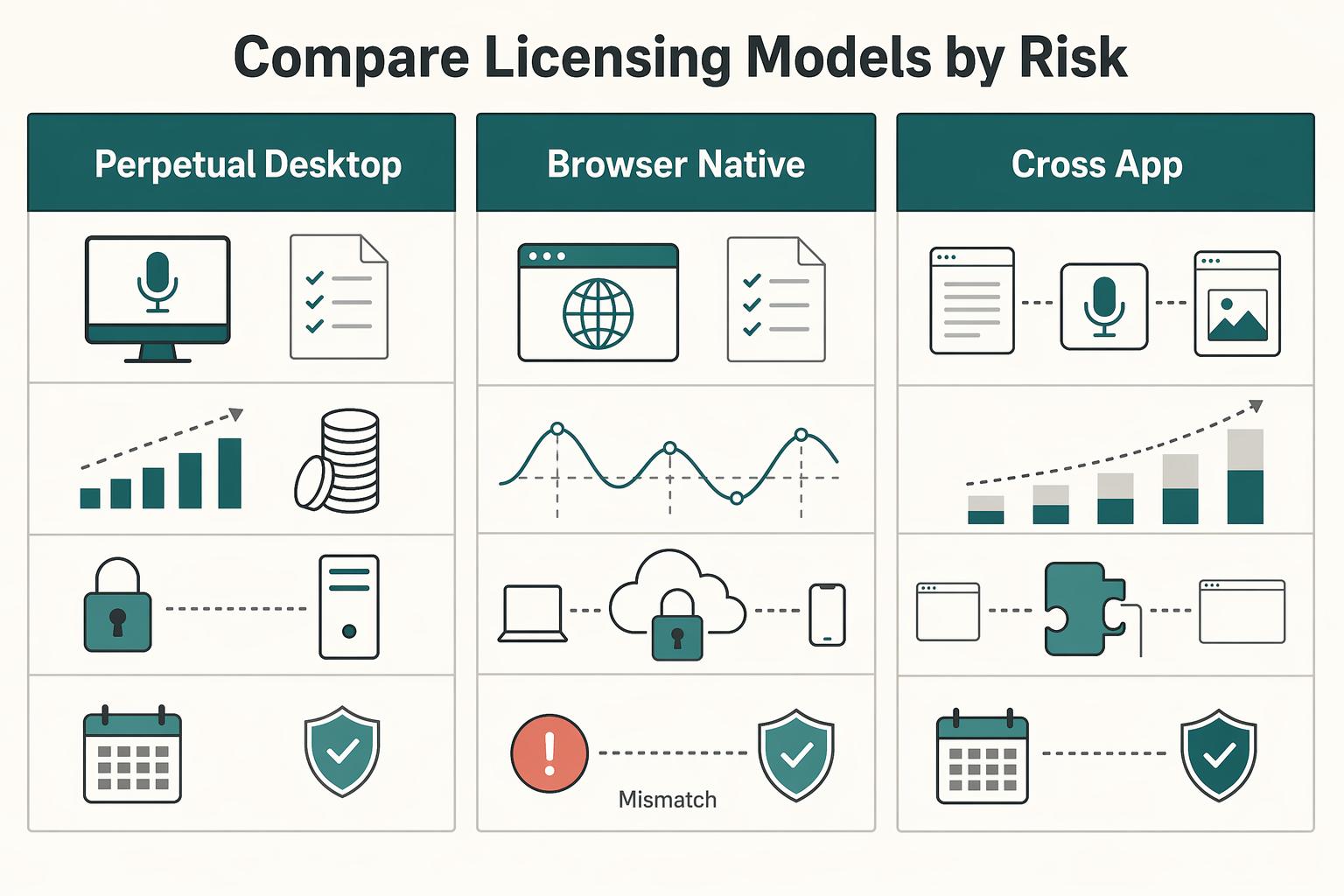
Compare licensing models by risk, not just monthly cost#
Use this as a decision sheet, then verify each vendor's actual terms.
| Model pattern | Writer use case | Cash-flow shape | Ownership/control to verify | Cancellation risk | Switching friction | Update dependency |
|---|---|---|---|---|---|---|
| Perpetual desktop license | Stable, heavy drafting on one machine | Higher upfront | What access/version rights continue after purchase; upgrade terms | Verify terms before purchase | Can rise if you build custom command habits | Lower for basic access; major improvements may require paid upgrades |
| Browser-native subscription | Web-first writing in Docs, WordPress, email, CMS | Lower upfront, recurring | What happens to access and data handling if billing stops | Can be higher because access depends on active plan | Medium if your workflow is browser-field dependent | High; vendor controls release pace |
| Cross-app subscription/service | Writing across multiple desktop apps | Recurring operating expense | Account controls and processing model to verify | Can be higher if pricing or product changes | Can be high when embedded across many apps | High; changes ship on vendor timeline |
If your workload is steady and cash flow is predictable, prioritize the model with durable long-term economics after your worksheet passes. If workload is variable or cash is tighter, a subscription can still work, but only if break-even remains solid after revision and correction drag. Next, apply the same rigor to security: where your dictated content goes matters as much as ROI. Related: The Best Project Management Tools for Freelance Writers.
Is Your Dictation Software Leaking Client Secrets? A Security Audit Framework#
If you handle confidential client work, start with one question: Where is your voice processed? Your safest default is on-device processing, because it keeps sensitive dictation off third-party servers unless you choose otherwise.
Then verify four points in writing before you trust any tool: processing location, storage location, retention/deletion behavior, and model-training usage terms. If any of these are unclear, treat that as a risk.
| Model | Data flow | Your control | Deletion path to verify | Vendor exposure | Best fit |
|---|---|---|---|---|---|
| On-device processing | Audio is transcribed on your machine | Highest, since client content does not require vendor-side processing | Check local files, app caches, and backups on your device | Lower third-party exposure | NDA work, sensitive strategy, privileged or regulated material |
| Cloud dictation workflow | Audio/text is uploaded and handled through vendor servers | Lower, because control depends on account settings and vendor systems | Check retention and whether deleted items can still be restored | Higher, because vendor infrastructure handles content | Low-sensitivity drafting, rough notes, non-confidential admin capture |
| Unclear or mixed model | Processing changes by feature, app, or plan | Hard to govern consistently | Hard to verify when marketing, help docs, and terms differ | Highest operational uncertainty | Avoid for client material until data flow is clearly documented |
Run this pre-purchase audit before real client use#
| Audit step | What to verify |
|---|---|
| Ask support or sales for the exact data path | Ask whether audio is processed on-device or on vendor servers, where transcript data is stored, what happens after deletion, and whether terms mention model training or product-improvement usage for customer content. |
| Read terms for failure modes, not just security claims | Encryption claims matter, but they do not answer retention by themselves; verify what "deleted" actually means in practice. |
| Test account settings with dummy content | Upload a fake note, delete it, sign out and back in, search for it, and check history, shared views, and exports for recovery paths. |
- Ask support or sales for the exact data path
Ask directly: Is audio processed on-device or on your servers? Where is transcript data stored? What happens after deletion? Do terms mention model training or product-improvement usage for customer content? A usable answer points you to exact docs, not general assurances.
- Read terms for failure modes, not just security claims
Encryption claims matter, but they do not answer retention by themselves. For example, SpeechLive describes cloud upload/download workflow, says data is encrypted during recording, transfer, and storage, and also says deleted dictations can be restored. That means you must verify what "deleted" actually means in practice.
- Test account settings with dummy content
Before production, upload a fake note, delete it, sign out and back in, search for it, and check history, shared views, and exports for recovery paths. If the workflow is browser-managed, test there first. Also confirm access controls, especially for services marketed as available 24/7.
Apply one decision guardrail#
Use cloud transcription only for work you would be comfortable placing in a normal online business tool without breaking client trust. Keep on-device as your default for NDA-covered material, sensitive interviews, strategy memos, or anything tied to privacy terms or jurisdiction requirements.
If your jurisdiction or client terms are still unresolved, keep cloud transcription out of that workflow until you know what applies. If a vendor cannot clearly explain processing, storage, retention, and usage terms, do not route client material through it. For a step-by-step walkthrough, see The best 'notebooks' and 'pens' for writers.
Architecting Your Workflow: From Framework to Toolkit#
Build your stack around jobs, not features: one lane to Capture, one to Transcribe, and one to Refine. This keeps handoffs clean, reduces app switching, and helps you keep sensitive work in the right environment.
| Tool or tool type | Primary job | Handoff friction | Customization depth | Confidentiality suitability |
|---|---|---|---|---|
| Dragon Professional | Original drafting and domain-heavy dictation | Low when drafting and refining stay in one desktop flow | High (specialized vocabulary and formatting) | Strong fit for sensitive work when processing stays on-device |
| Otter.ai | Interview and meeting transcription | Medium (transcripts usually need cleanup before draft use) | Medium (speaker ID, summaries, sharing) | Better for lower-sensitivity conversations unless you have cleared the data path |
| Apple Enhanced Dictation | Short-session note capture | Medium (quick notes often need manual move into draft) | Low to medium | Useful entry point for lighter use; framed as free, offline, and good for short sessions |
| Browser-extension dictation | Quick capture in web text fields | Low for web-first writing | Low to medium | Use carefully for client work; exposure depends on where text is entered |
Capture#
Capture is for getting raw thinking out fast, not polishing. Speak in full thoughts, keep momentum, and avoid editing during this stage.
For domain-heavy drafting, Dragon Professional is the clearer fit because it is positioned for specialized vocabularies and formatting. Before live work, test recurring client terms and jargon in a short sample so you can trust the output.
Use this lane for outlines, first drafts, and memo-style thinking. Do not use meeting-transcription tools here unless you specifically need speaker labels and summary artifacts.
Transcribe#
Transcribe is for creating a searchable record, not composing publishable copy. Your output should be a transcript you can review, quote, and mine for ideas.
Otter.ai fits this lane when you need multi-speaker capture, speaker identification, summaries, and sharing. Keep the boundary simple: use it for interviews, client calls, and research conversations you may revisit.
Avoid turning transcription software into your default writing app. That usually increases cleanup and can route sensitive material into a cloud workflow by accident.
Refine#
Refine is where rough text becomes usable draft copy. Clean structure, fix obvious errors, and use voice commands for navigation and formatting so you reduce constant input switching.
Use this handoff protocol every time:
- Save raw output with a clear label (
ProjectName_Interview_Raw,ProjectName_Draft_V1). - Create a separate clean file for edits.
- Mark uncertain names, numbers, or terms for later verification instead of guessing.
- Move only cleaned text into your main document or CMS.
This keeps stages separate and cuts rework later.
Your maturity path depends on workload and sensitivity. If you mostly capture short personal notes, lightweight options can be enough. If you draft frequently, rely on custom vocabulary, or handle sensitive client material, a professional setup is easier to justify. In one comparison snapshot, Otter.ai was listed at free to €20/month, while Dragon Professional was listed around €300 to €700 one-time.
Quick self-audit:
- Do I have one primary tool for drafting, one for interviews, and at most one quick-capture tool?
- Where does my current process still create copy-paste cleanup?
- Have I tested custom vocabulary with real client terms?
- Am I sending sensitive material through a cloud flow I have not fully verified?
- Which app in my stack has no clear job and should be removed?
You might also find this useful: The best tools for transcribing 'User Interviews'.
Conclusion: Invest in a System, Not Just a Tool#
If you want the best dictation software for writers, think in terms of a repeatable setup, not a single winner. Adopt a tool only after it proves three things in your real work: it saves time overall, handles your data the way you need, and fits the way you actually draft, transcribe, and edit.
- ROI fit
Run one real assignment by keyboard and one by dictation, then compare total time, including cleanup. Speaking can be quicker than typing, but dictation still leaves you with tweaks, so raw word count is not enough. What decides it is whether voice reduces total drafting effort on your actual client or editorial work.
- Data handling fit
Separate use cases before you commit. A tool that is acceptable for interview transcription or rough idea capture may be the wrong choice for confidential client drafts if you cannot verify storage location, whether it relies on cloud storage, or whether an offline mode exists. What decides it is matching the product's data behavior to the sensitivity of the material.
- Workflow fit
Test each stage on purpose: Capture with real-time transcription for drafting, Transcribe with on-demand transcription for recorded audio, and Refine in the environment where you finish the piece. Check whether voice commands like "new line" and "bold that" work reliably, and watch for cases where cleanup erases the speed gain. What decides it is low correction drag in the apps you use every day.
Your next move is simple: pick one option for Capture, one for Transcribe, and your normal environment for Refine, then trial them on low-risk work first. Keep notes on command misses, jargon errors, and privacy questions, and revisit the stack as features and terms change. For related operational detail, we covered this in The Best E-Signature Software for Freelancers.
Frequently Asked Questions
Is premium dictation software worth paying for?
Sometimes, but only after you test whether dictation fits your writing style. Some writers never get comfortable with it, and most people need an adaptation period before the gains show up. Start with a low-risk pilot using built-in options like Windows Speech Recognition, Apple Dictation, or Google Doc Voice Typing, then compare cleanup time, not just raw word count. Next action: run two 30-minute sessions this week, one typed and one dictated, and compare cleanup time, not just raw word count.
Is dictation software secure enough for confidential work?
Do not assume it is. Before you use any tool for client material, check its policy and settings to confirm whether processing is local or cloud-based and whether handling is clear enough for your risk tolerance. If you cannot verify how voice data is handled, keep that tool away from sensitive drafting and recordings. Next action: make a one-page security checklist and complete it before your first real client session.
How should you fit dictation into your writing process?
Use it where it matches the job. Start with drafting tasks in your primary writing app, then test voice commands like “new line” or “bold that” during cleanup instead of mixing every stage together. If correction work starts to outweigh speed, adjust the workflow before scaling it. Next action: assign one workflow for drafting and one quick option for short notes only.
Can it handle your jargon, client names, and niche terms?
It can, but test it before you rely on it. If repeated terminology matters in your work, run a short sample with recurring terms and make sure correction effort stays low enough to preserve a net gain. As a practical checkpoint, test 10 to 20 recurring terms and verify the hit rate is high enough for your workflow. Next action: build a short glossary from your last three projects and run a five-minute sample dictation.
What microphone setup should you use?
There is no single setup that guarantees good results. Use a setup that keeps recognition quality high in your real workspace, because lower accuracy quickly turns into editing overhead. If accuracy drops in normal working conditions, your setup is not ready yet. Next action: record the same paragraph with your laptop mic and your preferred mic, then compare error rates side by side.
Will dictation work inside Scrivener, Ulysses, browser fields, or your CMS?
Maybe, but do not assume smooth cross-app behavior just because text entry works in one place. Test your main writing app first, then check formatting commands, punctuation, and field behavior in each target app. Interoperability matters early because a tool that plays nicely with other apps saves time, while one that does not can slow you down with corrections and retries. Next action: run the same 10-line script in your top three apps before you commit to any paid setup.
Try a related tool
Researched and edited by the Gruv editorial team. Gruv builds cross-border billing, payouts, and finance-operations software for global businesses.
Sources
Includes 5 external sources outside the trusted-domain allowlist.
- framingham.edu/sites/default/files/2025-09/undergraduate_ca...trusted
- sandia.gov/app/uploads/sites/224/2024/12/SUNS-RDE-Roadm...trusted
- tiffin.edu/wp-content/uploads/AI-Tools-with-Description...trusted
- assemblyai.com/blog/choosing-a-stt-api-for-voice-agentsexternal
- gruv.ai/blog/the-best-dictation-software-for-writersexternal
- kindlepreneur.com/dictation-softwareexternal
- maestra.ai/blogs/best-dictation-software-for-writersexternal
- nytimes.com/wirecutter/reviews/best-dictation-softwareexternal
Educational content only. Not legal, tax, or financial advice.
Related Posts
Value-Based Pricing for Freelancers Under Real Payment Risk
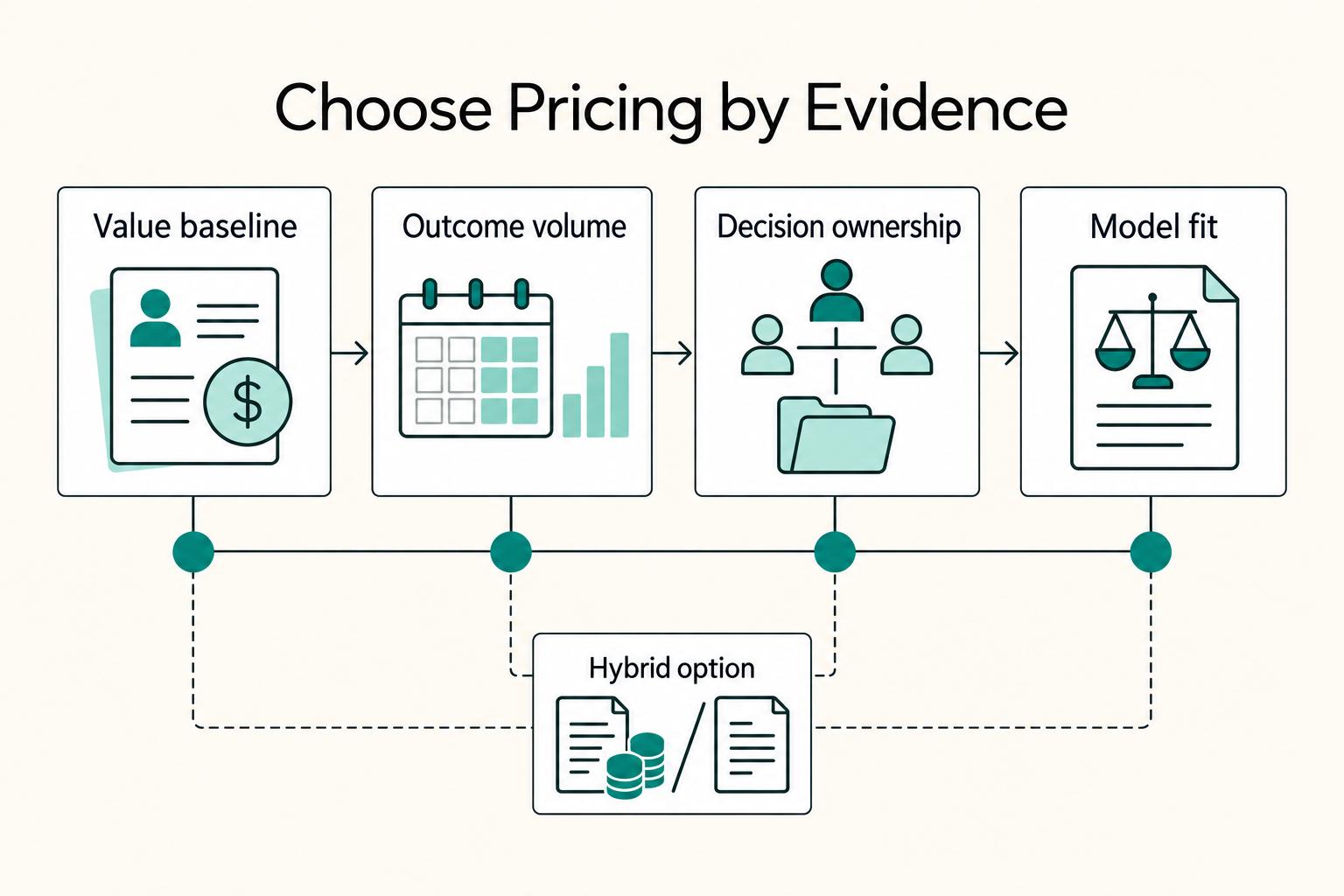
Value-based pricing works when you and the client can name the business result before kickoff and agree on how progress will be judged. If that link is weak, use a tighter model first. This is not about defending one pricing philosophy over another. It is about avoiding surprises by keeping pricing, scope, delivery, and payment aligned from day one.
The Best Project Management Tools for Freelance Writers
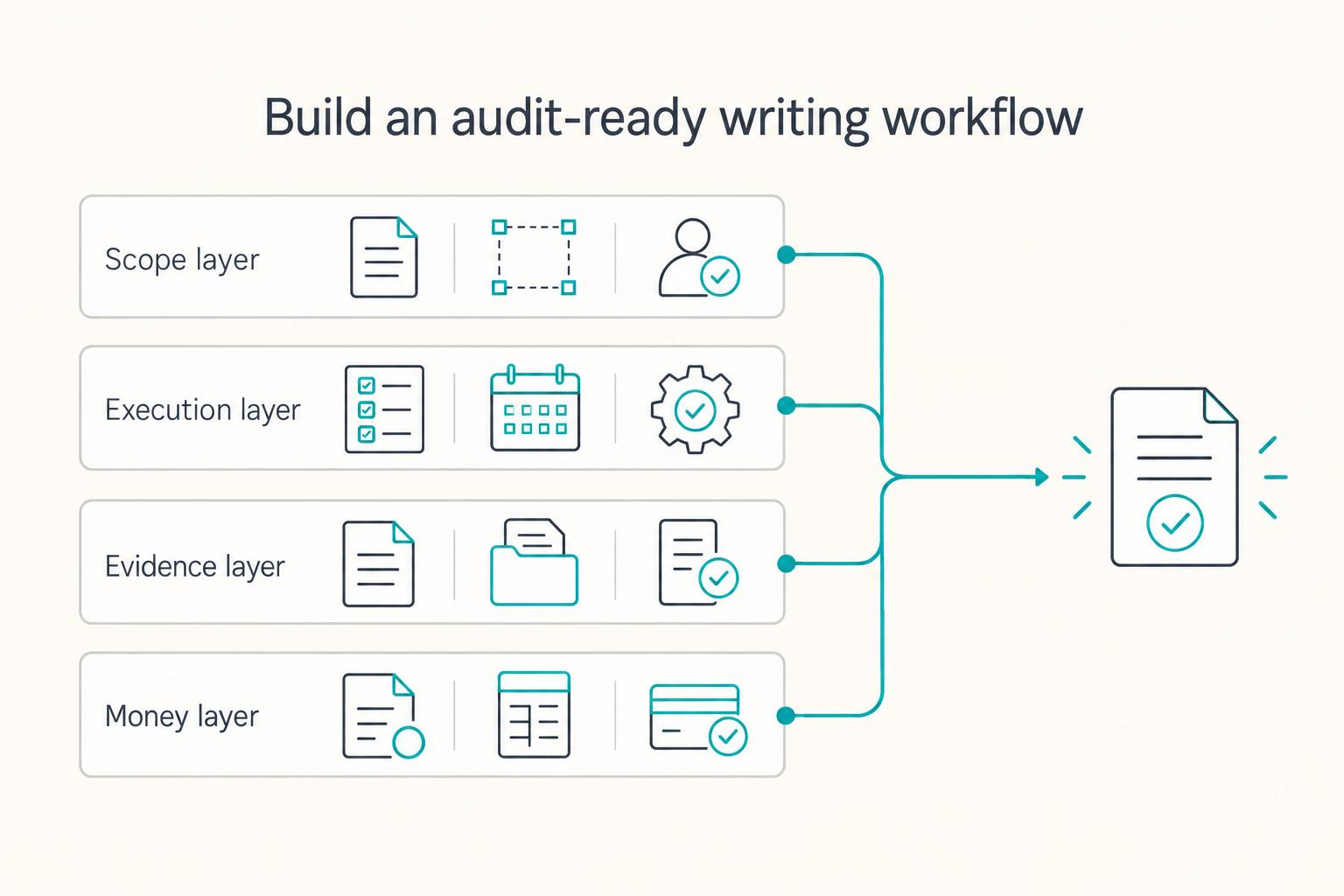
**Build one traceable system for scope, execution, and billing, and give each tool one clear job.** Freelance writing ops is not "a writing project." It is overlapping deadlines, revision cycles, approvals, and payment triggers. When you can't reconstruct what happened, you lose time, margin, and sometimes trust.
How to Vet User Interview Transcription Tools for Trust and Compliance
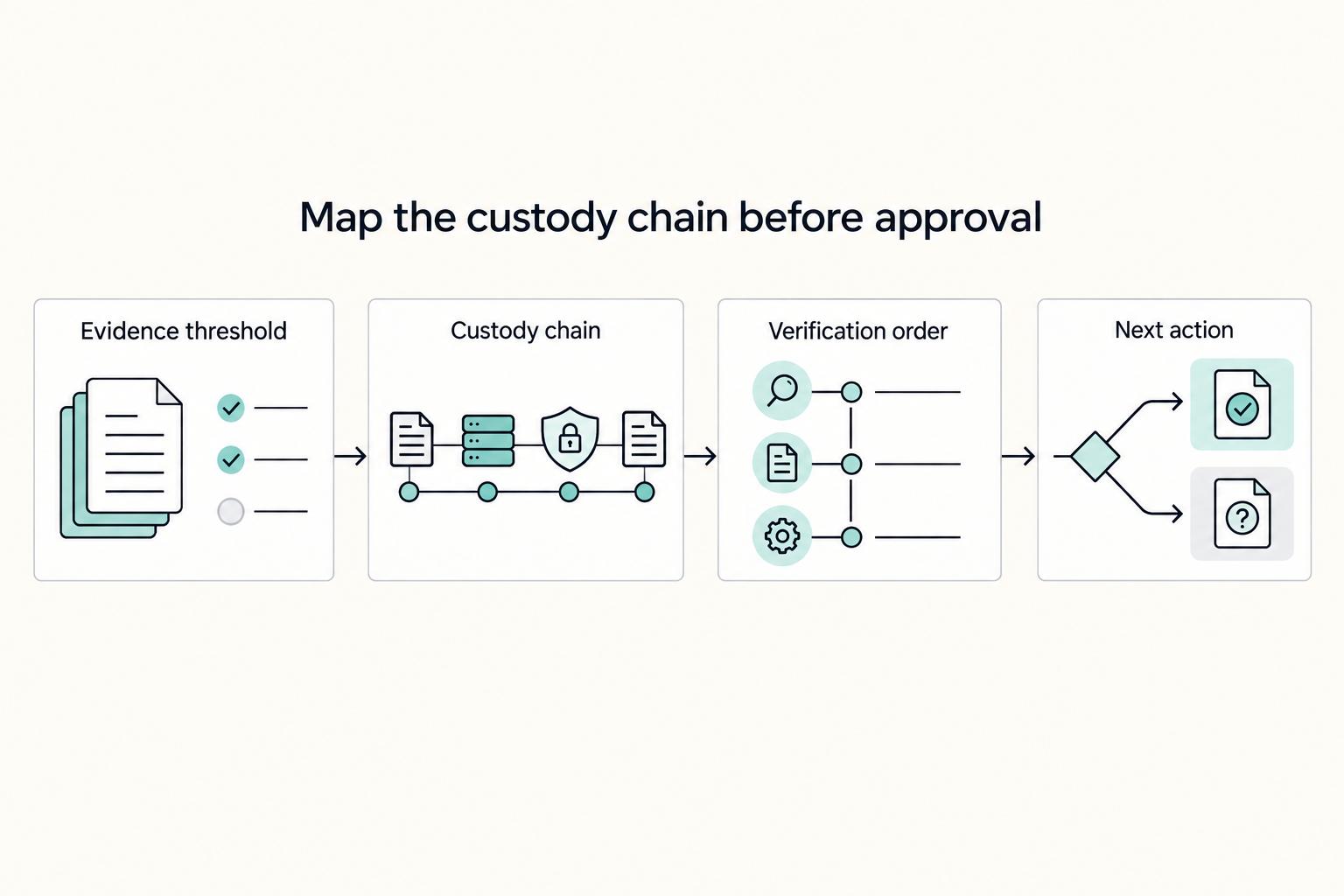
Treat tool selection as a data-custody decision first. Before you look at speed, price, or editing features, know where interview data goes, what the vendor can do with it, and how you will prove you checked.