
Quick Answer
Start with three phone profiles tied to context: Deep Work for delivery, Shallow Work for admin, and Recharge for off-hours. On iPhone, iOS Focus can allow selected people and apps and trigger by time, location, or app launch; on Android, Focus mode can pause chosen apps and block their notifications while active. Define one narrow urgent path, test with real alerts, and tighten any rule that leaks.
Your Phone Isn't a Distraction; It's an Unmanaged Employee#
Your phone turns into a distraction when its interruption settings are unmanaged, even if your discipline is solid. Start with a quick self-check:
| Element | What it means | Examples in the article |
|---|---|---|
| Inputs | Which people and apps can reach you | Separate controls for People and Apps |
| Rules | What to allow and what to silence | Silence all notifications or allow specific ones |
| Triggers | When settings turn on automatically | Time, location, app, or schedule-based activation |
- Are work and personal apps both allowed to interrupt the same work block?
- Can the same people reach you whether you are doing deep work, admin, or off duty?
- Do app defaults decide when you look, instead of you deciding?
If any answer is yes, your setup is running you. A simple test is to send yourself a nonessential app message during a task block and see whether it breaks through.
The real cost is task switching. Research summaries describe a measurable time cost when people switch tasks. Extra preparation time can reduce that cost, but it does not remove it. Attention residue helps explain why: part of your attention stays on the previous task, so the next task gets less of your focus. If you need a specific benchmark, verify a current one before using it.
Think about your phone as a simple control model:
- Inputs: which people and apps can reach you
- Rules: what to allow and what to silence
- Triggers: when settings turn on automatically
On iPhone, Focus lets you silence all notifications or allow specific ones, with separate controls for People and Apps, plus automation by time, location, or app. On Android, Focus mode lets you pause selected apps. In Google's guidance, while it is on, those apps cannot be used and their notifications are blocked. Android also supports schedule-based activation, and some steps are version-gated to Android 10+.
You do not need to fight your phone all day. You need clear inputs, rules, and triggers, plus a simple way to apply them. That is what the three-mode setup in the next section is for.
The 3-Mode Framework: Your System for Commanding Deep Work#
A single generic Work mode is often not enough. Different kinds of work need different interruption rules, and the wrong notifications can break the wrong moments. Build your setup around work context, not around one default profile. There is no perfect universal configuration, so let your own needs drive it. Keep it simple enough that you always know which mode to use and why.
| Mode | When to use | What to allow | What to silence | Expected outcome |
|---|---|---|---|---|
| Deep Work | Writing, analysis, coding, strategy, and core deliverables | Only essential tools and truly urgent reachability | Nonessential notifications, chat noise, social apps, promos, and casual check-ins | Longer uninterrupted blocks on one cognitively demanding task |
| Shallow Work | Email, messages, admin, scheduling, and approvals | Communication and coordination channels needed to process inputs | Entertainment, low-value browsing, and unrelated app prompts | Faster inbox/admin processing without spilling into focus time |
| Recharge | Breaks, evenings, and off-duty time | Personal essentials and intentional non-work use | Work apps, work contacts, and task-related prompts | Real recovery time without being pulled back into work |
A quick clarity test helps here. For each mode, write one sentence answering, "What is this mode for?" If that sentence is fuzzy, your rules are probably overlapping.
You can apply this with the Focus or Digital Wellbeing tools already on your device. These tools sit within the broader category of digital well-being apps, a category examined in a 2022 review of app functionalities aimed at limiting smartphone use. From here, the job is to turn the idea into concrete rules and activation logic.
For a step-by-step walkthrough, see How to use a 'Decision Journal' for your freelance business.
Mode 1: Deep Work ("Monetization Mode") - Firewall Your Most Billable Hours#
For deep work, start with a whitelist. Allow only what protects delivery or genuine safety, and silence everything else. If a notification does not help you finish the task in front of you, it does not belong in this mode.
| Item | iPhone | Android |
|---|---|---|
| People | Focus lets you explicitly allow or silence specific people | Interruption settings can control which calls or alerts still come through |
| Apps | Focus lets you explicitly allow or silence specific apps | Focus mode lets you pause selected distracting apps |
| Repeat callers | Two or more calls from the same person within 3 minutes | The same person calls twice within 15 minutes |
| Alert handling | Be careful with Time Sensitive Notifications; keep it off unless you have a verified reason to enable it | System security notifications still appear |
This is not about being dramatic. Task switching costs time, and that cost rises as work gets more complex. The point is to protect task continuity.
Step 1. Decide what is essential before the block starts#
Decide what is essential before the block starts. On iPhone, Focus lets you explicitly allow or silence specific people and apps. On Android, Focus mode lets you pause selected distracting apps, and interruption settings can control which calls or alerts still come through.
For an independent professional, "essential" usually means:
- the tool needed to complete the current client deliverable
- a true emergency contact
- a critical security alert you cannot safely defer
Routine chat is not essential by default. During writing, coding, design, or analysis blocks, chat and inbox tools are usually input channels, not output tools.
Step 2. Configure for the next work block#
Configure for the next work block, not forever. This works best when the rules match the block you are about to run.
| Category | Allow now | Silence now |
|---|---|---|
| Apps | The delivery tool for the current task, plus directly supporting reference apps | Chat apps, inboxes, social apps, news, shopping, promo-heavy apps, unrelated work tools |
| People | Emergency contacts, and one critical client contact only if there is a live deadline risk | Group threads, routine client contacts, colleague check-ins, networking messages |
| Notification types | Emergency calls, critical security alerts | Badges, previews, marketing pushes, routine status updates, casual check-ins |
On iPhone, be careful with Time Sensitive Notifications. Apple notes this can allow all apps to send time-sensitive alerts immediately, so keep it off unless you have a verified reason to enable it. For emergency reachability, prefer emergency contacts and, if needed, repeated-call pass-through. That means two or more calls from the same person within 3 minutes.
On Android, use Focus mode to pause distracting apps, then review interruption settings for call exceptions. Depending on device and version, repeat callers can be allowed when the same person calls twice within 15 minutes, and system security notifications still appear. Some steps are version-dependent, for example Android 10+ or Android 14+ guidance on certain Pixel flows.
Step 3. Run one test block, then tighten what leaked through#
Run one test block, then tighten based on what actually leaked through. Success is straightforward: you complete one focused deliverable, or a meaningful chunk of one, without notification-driven context switching. If anything breaks through, move that specific app, person, or notification type to silence before the next block.
Checkpoint: in Deep Work mode, your phone should support production, not conversation. Once that boundary is working, shift into a separate mode for processing communication on purpose instead of letting it interrupt strategy work.
Mode 2: Shallow Work ("Communications Mode") - Process Inputs Without Derailing Strategy#
A dedicated communications mode keeps admin work contained instead of letting it bleed into focus time. The pattern is simple: open a planned window, process inputs in batches, then close the mode when the queue is clear.
Step 1. Set your communication windows and stop rule#
Set your communication windows and stop rule before you start. Choose windows based on your response obligations, meeting load, and client expectations, not someone else's schedule. A practical start trigger is that your deep-work block ends, your planned admin window begins, or a real deadline requires coordination.
Just as important, define the stop condition. Triage the queue, respond to urgent items, update calendar changes, and capture next actions in your system. Then exit the mode. If you stay in it after the queue is handled, you are back to constant monitoring.
A useful benchmark from email research: in a study summary of 124 adults, people asked to check email three times daily reported lower daily stress during that week than during unlimited checking. The principle is simple: check in chunks, not continuously.
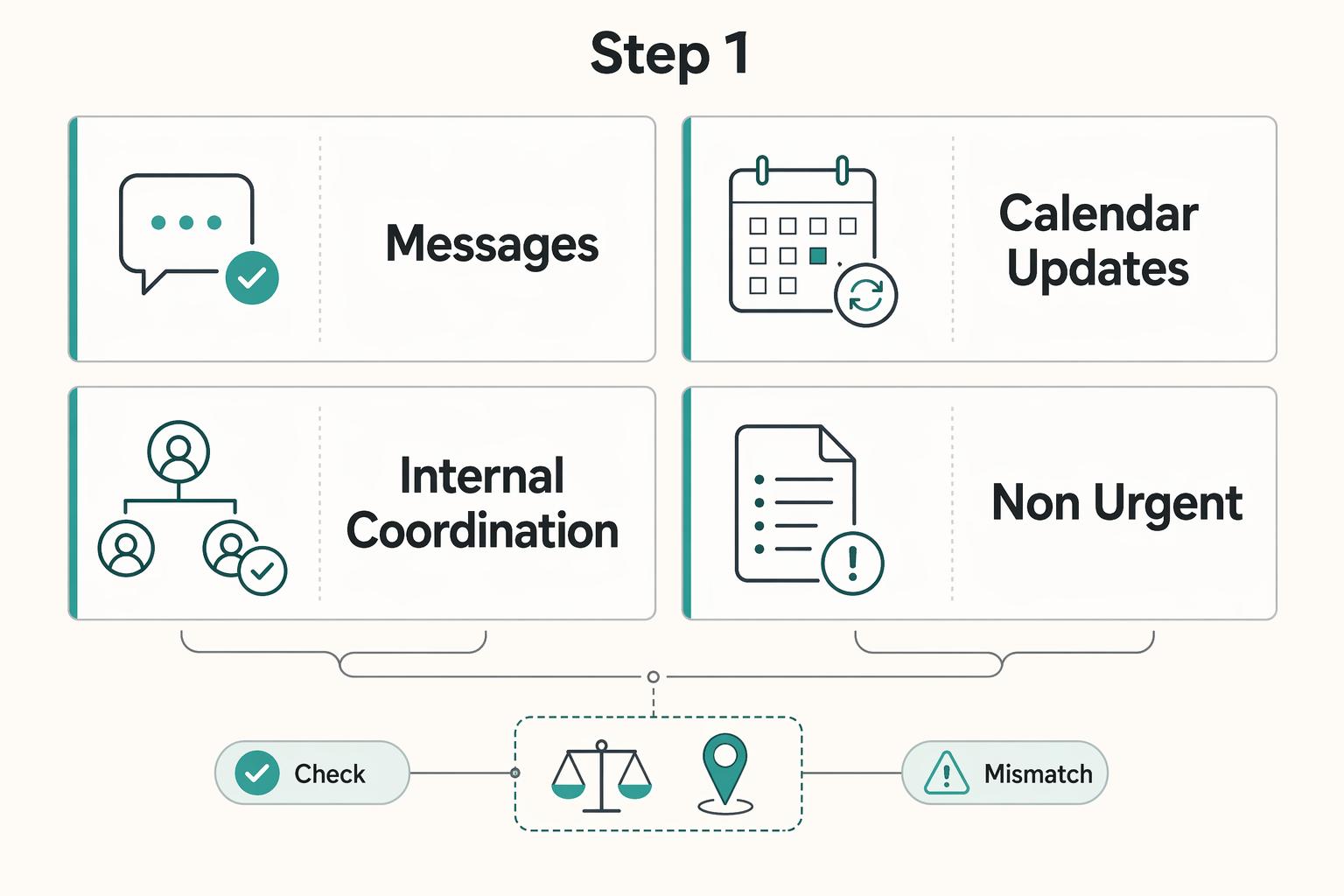
| Workflow area | Process now | Defer |
|---|---|---|
| Messages | Replies that unblock active delivery, urgent scheduling, direct questions tied to in-flight work | FYIs, newsletters, routine pings, threads with no action for you |
| Calendar updates | Confirmed meetings, reschedules, deadline changes, reminders that affect near-term delivery | Tentative holds, optional events, planning unrelated to current work |
| Internal coordination | Handoffs, approvals, and clarifications needed to move work forward | Open-ended brainstorming, process debates, non-essential check-ins |
| Non-urgent requests | Triage, assign a later slot, send a brief receipt if needed | Anything that can wait without delivery or relationship risk |
Step 2. Configure this mode for processing communications#
Configure this mode for processing communications, not for browsing everything. On iPhone, use iOS Focus to allow only selected communication inputs while silencing most other notifications. Use Focus Filters to narrow what you see, such as a work-only inbox or work calendar view during this mode. Keep the detailed tap-by-tap setup in the implementation section. The key choice here is reducing visible noise.
On Android, use Focus mode in Digital Wellbeing to pause distracting apps and suppress their notifications. Then use Modes or Do Not Disturb to define what is blocked or allowed. Expect device and version differences. Some steps apply to Android 10 and up, and some Modes guidance applies to Android 14 and up.
Step 3. Run one session, fix leaks, then turn the mode off#
Run one session, fix leaks, and turn the mode off when done. Success looks like clearing email, messages, and calendar tasks without getting pulled into unrelated apps or alerts. If something non-essential breaks through, tighten that exact app, person, or notification rule before the next session.
Keep urgency exceptions narrow. Repeated-call pass-through can help for true urgency, but it should stay an exception. iPhone can allow repeated calls within 3 minutes, and Android may allow repeat callers within 15 minutes.
When the queue is clear, turn the mode off. Ending Focus after you finish is part of the routine, and it helps protect your next deep-work block.
Mode 3: Recharge ("Firewall Mode") - Strategic Recovery is a Competitive Advantage#
Recharge mode is not a perk. It is a boundary that protects next-day attention. That matters because sleep deficiency can hurt learning, focus, and reaction time, and adults are generally advised to get at least 7 hours of sleep per day.
| Boundary item | What to set | Article example |
|---|---|---|
| Work inputs | Silence work communication apps, project tools, and client portals | Mute work email, chat tools, project tools, and client-portal notifications |
| Allowed people | Allow only a very small people list | Household or one operations contact |
| Emergency path | Keep one emergency override path | Repeat callers on Android within 15 minutes or urgent-message override on iPhone |
| Verification | Run one live test before relying on it | Trigger a work chat, email, and project alert after activation |
Step 1. Silence work inputs by default, keep one emergency path#
Build a real shutdown. Silence work inputs by default, then keep one narrow emergency path. Mute work email, chat tools, project tools, and client-portal notifications. On iPhone, set this up in Settings > Focus, then configure People and Apps allowlists. On Android, use Modes or Do Not Disturb for interruption rules, and use Digital Wellbeing > Focus mode to pause selected distracting apps. Expect device and version differences. Some Modes steps apply only on Android 14 and up, and some Digital Wellbeing steps apply on Android 10 and up.
Use this checklist:
- Silence work communication apps, project tools, and client portals
- Allow only a very small people list, for example household or one operations contact
- Keep one emergency override path, such as repeat callers on Android within 15 minutes or urgent-message override on iPhone
- Run one live test before relying on it
Verification matters here. Trigger a work chat, email, and project alert after activation. If any routine work alert still gets through, tighten the setup.
Step 2. Pick the activation method you will follow every week#
Pick the activation method you will actually follow every week. Use manual activation if your end time changes often. Use scheduled activation if your stop time is usually stable. Use context-based activation where your platform supports it and your boundary maps to a place or app pattern. Documented support is strongest on iPhone Focus through time, location, or app launch. iPhone Focus can also be toggled in Control Center, Android Modes can be toggled in Quick Settings, and Android Focus mode supports scheduling.
| Activation method | Best when | Main tradeoff | Suits |
|---|---|---|---|
| Manual shutdown | Your workday ends unpredictably | Easy to forget on busy days | People with irregular client schedules |
| Scheduled activation | You stop work at roughly the same time most days | Less flexible during deadline spikes | Most solo operators |
| Context-based activation | Your stop-work pattern maps to location/app cues | Needs testing and varies by platform/device | iPhone users with repeatable routines |
If you are unsure, start with a weekday schedule and keep manual control as backup.
Step 3. Make after-hours boundaries explicit#
Make after-hours boundaries explicit so cross-time-zone work does not spill over. Use a short, repeatable protocol:
- Status message: "Offline now. Back at 8:30 AM local time."
- Response window: "Non-urgent messages are reviewed in the next business window."
- Escalation channel: "If something is truly urgent, call or text this number."
On iPhone, Focus status can appear automatically in Messages to reinforce this boundary. Mirror the same language in email autoresponders, chat status, and onboarding docs so expectations stay consistent.
Step 4. Review this mode every few weeks and after updates#
Maintain this mode so it stays reliable. Review it every few weeks, and again after adding a client, app, or device update. Remove stale exceptions, confirm allowlists are still tight, and verify automation still turns on at the right time. If routine work alerts keep appearing, your exceptions are too broad or your rules are split across settings and not aligned.
Implementation Guide: Building Your High-Performance System#
Build three profiles and test them in real conditions before you trust them: Deep Work, Shallow Work, and Recharge. If you want the practical answer to how to use phone focus mode, start here: set clear allow and block rules for each profile, keep one narrow urgent path, and maintain it on a review cadence.
Before You Start#
Decide the rules first, then configure your phone:
- Profile names: Deep Work, Shallow Work, Recharge
- Urgent path: exactly who can break through and by what method
- App rules per profile: what stays available versus what stays quiet
- Activation method per profile: manual, scheduled, or context-based (if available on your device/version)
Keep this in a short note so you can re-check your setup after OS updates or menu-label changes.
| Tool | Setup effort | Automation depth | Filter granularity | Best-fit use case |
|---|---|---|---|---|
| iOS Focus | Depends on iOS version and current menus | Depends on options available on your version | Depends on controls exposed on your device | Use one consistent profile system for work, admin, and off-hours behavior |
| Android focus controls | Depends on Android version and device implementation | Depends on options available on your version/device | Depends on controls exposed on your device | Use one consistent profile system for distraction blocking during focus blocks |
| Samsung modes/routines features | Depends on device and OS version | Depends on options available on your device | Depends on controls exposed on your device | Use the same three-profile logic if these features are available |
Step 1. Build each profile as a rule set#
Build each profile as a rule set, not a goal statement.
- Deep Work: allow only urgent contacts and essential task apps; silence everything else that invites checking
- Shallow Work: allow communication and execution tools; keep non-work distractions blocked
- Recharge: block work apps and alerts by default; keep only personal essentials and your narrow urgent path
If an app does not have a clear reason to be in a profile, remove it.
Step 2. Set up iPhone profiles and verify your iOS labels#
Set up iPhone profiles in your current settings menus, then verify labels on your iOS version. Create the three profiles and apply contact and app rules first where those controls are available. Add automation only after baseline behavior is correct.
Run a live test in Deep Work. Trigger an email, chat, calendar alert, and a non-urgent call. Your urgent path should be the only reliable interruption route.
Step 3. Set up Android in the right order#
Set up Android in the right order, then layer Samsung-specific controls only when relevant.
Start by checking Android version, because behavior differs across Android 12 and higher, Android 8.0 through Android 11, and Android 7.1 and lower. Then configure your interruption controls for that version path, since labels vary by device and version. If you use Samsung modes/routines features, mirror the same three-profile logic instead of creating a separate rule set.
Do one reliability test many people skip. While media is playing, trigger an interruption and confirm the response to the audio focus change matches your rules, including behaviors like automatic ducking or delayed focus gain where your version supports them. That checks real interruption handling, not just whether a toggle appears to be on.
Step 4. Run a maintenance cadence so the setup stays reliable#
Run a maintenance cadence so the setup stays reliable.
- Test each trigger after setup: manual, schedule, and context-based (if used)
- Review exceptions regularly and after app, device, or OS changes
- Tighten urgent-contact rules and prune stale app allowances
- Re-test after every change
If work leaks into Recharge or distractions leak into Deep Work, your rules may be split across multiple settings areas. Consolidate them, retest, and update your note.
Related: How to Create a 'Distraction-Free' Work Environment at Home.
Once your modes are automated, batch your client admin in one window so notifications stay off the rest of the day. Use the free invoice generator to handle that block in one place.
Conclusion: Run your phone with clear operating rules#
Run your phone with clear operating rules, not willpower. If you want a durable, low-friction business, treat attention as a managed asset, because constant task switching reduces efficiency and increases risk.
The three modes map to three distinct outcomes:
- Deep Work: Protect creation time. Keep allowances tight so only truly necessary people or apps can interrupt writing, analysis, design, or delivery blocks.
- Shallow Work: Control communication. Process email, chat, and callbacks in defined windows instead of letting them fragment your day.
- Recharge: Protect recovery. Keep work inputs out when you are off the clock so you can come back ready for the next work block.
The goal is not more discipline. It is a phone setup that supports the kind of work you are doing right now. On iPhone, iOS Focus can silence all notifications or allow selected ones, and it can turn on automatically by time, location, or app trigger. On supported Android devices, Focus mode can pause selected apps, block their notifications while active, and can also be scheduled.
Validate each mode with a live test: send a text, email, and non-urgent call, and confirm your settings behave the way you expect. Finish with a simple weekly loop: audit notification rules, check automations, and review phone-use patterns so you can simplify any mode that gets overridden too often. Your focus policy is part of how you run an independent business that stays durable and low friction.
Keep this system sustainable by pairing focus boundaries with a lightweight operations stack you can run in scheduled blocks. Browse Gruv's tools and pick one next workflow to automate.
Frequently Asked Questions
What is the best way to use focus mode for work?
A practical approach is to use separate work Focus setups for different contexts, such as Deep Work (creation/analysis) and Shallow Work (email/chat/admin), if your day alternates between them. Start with one mode, then add another only if it helps, and test with real notifications to confirm only intended interruptions get through. Focus supports this tradeoff by letting you temporarily silence everything or allow only task-relevant notifications.
What is the difference between Focus and Do Not Disturb?
From the material here, iOS Focus is explicitly activity-based: it helps reduce distractions by setting boundaries, and it can either silence all notifications or allow only task-relevant ones. A full, feature-by-feature comparison with Do Not Disturb is not provided, so treat Do Not Disturb behavior as device-specific and verify on your phone. | Option | Best use | | --- | --- | | Do Not Disturb | Not fully specified in this material; verify behavior on your device | | iOS Focus | Activity-specific boundaries with configurable notification allowances | Use that distinction when deciding between general quiet behavior on your device and a task-specific Focus configuration.
Can you automate Focus Mode on iPhone?
Yes. A concrete checkpoint is linking a Focus to a Lock Screen so activation can be a swipe action. Another is setting a Focus-specific Home Screen page with only relevant apps. Confirm your notification allowances first, then test that each mode behaves as expected.
How do I use iPhone Focus Filters?
Treat Focus Filters as a secondary layer after your core Focus setup is stable. Do not assume reliable, version-specific Filter behavior; keep your first test small and verify outcomes on your own device before depending on it. If a filter hides something you need, remove it and keep the simpler profile.
Is Android's Focus Mode as good as iPhone's?
Choose based on fit, not on a winner label. The supported iPhone side is clear: iOS Focus supports activity-based boundaries, preset or custom Focus types, Lock Screen linking, and Focus-specific Home Screen pages. For Android and Samsung, implementation details and parity are not established in this material, and one cited Android work guide also notes that complex spreadsheets, extensive writing, and detailed design still benefit from larger screens and stronger hardware. | Platform path | What is supported here | What to do now | | --- | --- | --- | | iOS Focus | Activity-based setup with preset/custom modes and screen linking options | Build one mode, then validate with live notifications | | Android Digital Wellbeing / Samsung Modes and Routines | Detailed rules/parity are not established; supported Android excerpt notes limits for complex work on phone screens/hardware | Run a live test and keep rules simple on your device | Use that approach when you need a practical setup decision quickly.
Try a related tool
Researched and edited by the Gruv editorial team. Gruv builds cross-border billing, payouts, and finance-operations software for global businesses.
Sources
Includes 3 external sources outside the trusted-domain allowlist.
- cdc.gov/sleep/data-research/facts-stats/adults-sleep...trusted
- nhlbi.nih.gov/health/sleep-deprivation/health-effectstrusted
- pmc.ncbi.nlm.nih.gov/articles/PMC9066336trusted
- pmc.ncbi.nlm.nih.gov/articles/PMC6539461trusted
- uwb.edu/business/faculty/sophie-leroy/attention-residuetrusted
- android.com/digital-wellbeingexternal
- apa.org/topics/research/multitaskingexternal
- apa.org/research/action/multitaskexternal
Educational content only. Not legal, tax, or financial advice.
Related Posts
How to Manage Your Time Effectively as a Freelancer
Most freelancers struggle not because they work too few hours, but because they misallocate the hours they have—treating time as an infinite resource rather than a finite business asset with a real cost per unit. The solution is a three-layer operating system: a Time Budget Framework that commits hours to four categories before any client work is booked, a Weekly Operating Template that assigns those categories to specific calendar windows, and a monthly Admin Audit Checklist that reconciles invoicing, bookkeeping, and compliance records. Multi-client orchestration requires a WIP limit, dedicated client windows, and a capacity decision rule run before accepting new engagements. Together, these systems replace reactive decision-making with a repeatable structure that keeps delivery quality consistent, records audit-ready, and the freelance practice operationally durable.
How to Create a Distraction-Free Home Office That Actually Holds Focus
A distraction-free home office is not just another expense. It is a business investment that protects your body and helps you sustain higher-value work. This is not productivity theater. It is about looking at your physical space, digital rules, and mental load as operating assets, then deciding what earns its place.

A Digital Detox Routine for Freelancers Who Need to Stay Reachable
Use your devices as operating tools, not open doors to constant interruption. The goal is not to quit screens. It is to control when they get to interrupt your work.