
Quick Answer
Set controls in three steps: start at the router, secure each device that touches work, then lock down the apps your child actually uses. Add router-level DNS filtering and guest Wi-Fi, use standard child accounts and separate browser profiles, turn on native platform controls plus app-specific settings, and verify changes from the child device.
If your work and family life run on the same home network, parental controls are not just about screen time. They are part of basic risk management. A stray click, a bad download, or a weak shared-device setup can spill from family tech into client work faster than most people expect.
So the setup needs to be more deliberate. In practice, you are the CISO of your home, even if that is not your title.
This 3-layer digital defense framework gives you a practical way to do it. Start with the network, move to the devices that touch work, and finish with the apps your child actually uses. The goal is not perfect control. It is a setup that lowers avoidable risk, holds up under normal family use, and does not become another part-time job.
Layer 1: Start With Network Controls at the Router#
If you are deciding how to set up parental controls, start at the router. Network controls give you a baseline for the whole home before you spend time tuning phones, tablets, consoles, or laptops one by one.
For that first pass, you are usually choosing between a simple family-safe resolver and a more customizable one:
| DNS option | Setup complexity | Control level | Best-fit household scenario |
|---|---|---|---|
| OpenDNS FamilyShield | Low | Preset family-safe filtering | You want a quick default and do not want to manage categories |
| OpenDNS Home | Medium | More customizable filtering | You want to tune filtering rules rather than accept a preset |
| Cloudflare 1.1.1.1 for Families | Low to medium | Preset by variant | You want a simple malware-only or malware-plus-adult-content choice |
Enable DNS filtering at the router first#
Do this first because it gives you broad network-level coverage from one place. Open your router app or admin page and find DNS or internet settings. In Google Home, the path is Home > Wi-Fi > Network settings > Advanced Networking > DNS. On some gateways, parental and network controls may live in the provider app or an admin tool such as http://10.0.0.1.
Pick a provider, then enter both a primary and secondary DNS server if your router asks for custom values. For Cloudflare 1.1.1.1 for Families, the malware option is 1.1.1.2 / 1.0.0.2 and the malware plus adult-content option is 1.1.1.3 / 1.0.0.3. OpenDNS's setup guide lists 208.67.222.222 / 208.67.220.220.
Before you move on, confirm it is actually working. If you use Cloudflare, run its post-setup test. Then reconnect a phone to Wi-Fi and make sure it is using Wi-Fi, not cellular. A common failure mode is assuming router DNS covers everything when a device is not actually using your home network.
Turn on a guest network and keep scope tight#
Once filtering is in place, separate what matters. Turn on Guest Wi-Fi and give it its own name and password. In Google Home, that is Network settings > Guest Network > Turn on Guest network. The point is isolation. On many routers, devices on guest and primary networks cannot access each other.
| Device or category | Recommended network | Article guidance |
|---|---|---|
| Work laptop | Primary network | If a device stores work data, keep it off guest. |
| Desktop with client files | Primary network | Your primary network should hold any desktop with client files. |
| Shared devices you actually need for work on the local network | Primary network | Keep shared devices you actually need for work on the local network on primary. |
| Visitors' devices | Guest | Guest should hold visitors' devices. |
| Smart TVs | Guest | Guest should hold IoT gear such as smart TVs, where practical. |
| Cameras | Guest | Guest should hold IoT gear such as cameras, where practical. |
| Thermostats | Guest | Guest should hold IoT gear such as thermostats, where practical. |
| Voice assistants | Guest | Guest should hold IoT gear such as voice assistants, where practical. |
| Game consoles | Guest | Guest should hold IoT gear such as game consoles, where practical. |
Use a simple rule: If a device stores work data, keep it off guest. Put your work laptop, any desktop with client files, and shared devices you need on the local network on primary. Use guest for visitors' devices and, where practical, IoT gear such as smart TVs, cameras, thermostats, voice assistants, and game consoles.
There is a tradeoff. Devices on guest may lose access to local printers or storage, so test those dependencies before you move everything.
Schedule downtime by device group, not by device chaos#
For schedules, group devices by use, not by brand. A practical split is one group for kids' entertainment devices, one for shared family devices, and no schedule at all for your work machines. If your router supports it, start with recurring pauses for school-night tablets, consoles, and TVs, then decide whether weekends need their own routine.
Run a short live test instead of trusting the setup screen. In Google Home, Family Wi-Fi can pause a group or specific devices and bring them back online automatically on schedule. Start with a 5 minute midday pause and check that the right devices drop and recover. If one device ignores the rule, check whether it uses Private Address or a Randomized MAC Address. Some router-level family features do not work properly with those settings. Router controls vary a lot, so once you confirm your model's current options, add any router-specific time limits or profiles it actually supports.
With the network baseline doing its job, the next move is to protect the machines that can expose work data if the first layer misses something.
Layer 2: Set Device Controls That Block Routine Mistakes#
After your router baseline is live, secure the devices that touch work first. Layered controls matter here because no single solution guarantees 100% protection, so this layer is about blocking routine mistakes before they reach sensitive data.
Create a non-admin family account on any computer that touches work#
If anyone else uses a computer that also holds work data, do not share your admin login. Create a separate standard (non-admin) account, then verify it before regular use.
For Windows:
- Open Settings and go to Accounts (labels can vary by version, including Other users or Family & other users).
- Add a separate user account for family use.
- Confirm the account type is Standard, not administrator.
- Use a clear name like Family, Kids, or Shared.
For macOS:
- Open System Settings and go to Users & Groups (or the equivalent label on your version).
- Add a separate user instead of reusing your admin account.
- Set the account type to Standard, not administrator.
- Use a clear account name at the login screen.
Quick verification:
- Sign in to the family account and try a protected action (for example, software install or security-setting change).
- If you are not prompted for admin approval, treat setup as incomplete and recheck account type and active sessions.
Split browser use completely, not halfway#
Keep browser separation strict: one profile for work, one for family. Tie each profile to its own sync identity and saved-login context so work sessions do not leak into shared use.
What not to mix in shared profiles:
- Work logins
- Saved payment methods
- Active client tabs
If profile boundaries blur, you create blind spots between verification points. That is where oversight usually fails.
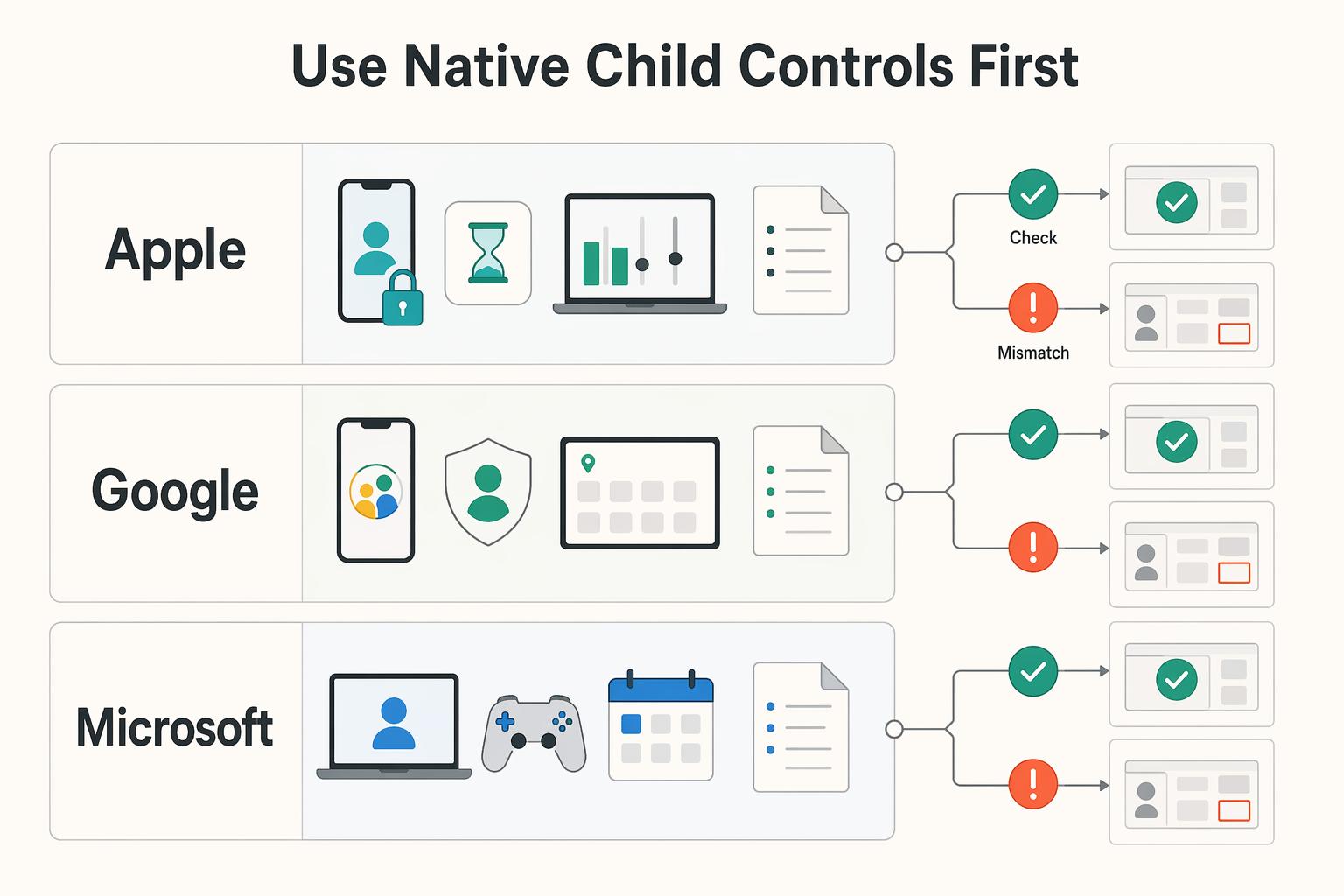
Use native child controls first, then harden the easy bypasses#
Start with the built-in controls on the child's platform, then verify your settings directly in the current UI before you rely on them.
| Platform | Native control to start with | Setup check you should run |
|---|---|---|
| Apple | Screen Time | Confirm your chosen limits and approvals are enabled in current menus |
| Family Link (plus YouTube settings) | Confirm supervision settings and YouTube behavior in the child profile | |
| Microsoft | Family Safety | Confirm your chosen filters and approvals are active in current menus |
YouTube checkpoint (important):
- Restricted Mode is a built-in filter, but it has high bypass risk because it can be easily disabled.
- For ages 9-17, Supervised Accounts provide stronger content-level control than relying on Restricted Mode alone.
- If you use Restricted Mode on desktop, use Lock Restricted Mode on this browser with a password.
Common failures and fixes:
- Bypass attempts: If controls fail when accounts or browsers change, move enforcement up to device/account level, not just app level.
- Shared credentials: Rotate admin and approval credentials immediately if they are shared.
- Permission drift: After updates or account changes, recheck account roles and family-control settings so blind spots do not reappear.
Once this layer is stable, you can move to app-level rules and approval workflows.
Layer 3: Implement the Human & Application Layer (Executing Granular Control)#
After device setup, move to app-level controls for content, contact, and spending.
Audit the apps your child actually uses#
Start with the highest-risk apps your child uses most, usually YouTube, TikTok, and Roblox. In each app, set controls in this order: content, contact, then purchases or spend.
Use one repeatable workflow for every app:
- Identify the app and the child account used in real life.
- Map the built-in controls for content, contact, and spending.
- Apply limits in that order.
- Verify immediately from the child account or device by testing one blocked action.
- Save a screenshot of final settings so you can spot drift after updates or resets.
| App | What you can control | Where it stays weak | When to add device-level backup |
|---|---|---|---|
| YouTube | With a supervised kid account, you can block specific channels and review watch history. Restricted Mode is also available. | Restricted Mode is optional and not perfect, and restricted content can still appear in search results or via direct links. | Keep device-level web filtering and account supervision in place, especially for younger kids or shared browsers. |
| TikTok | Family Pairing lets you link parent-teen accounts, set safety settings, and apply one daily TikTok limit across the teen's devices. For ages 13-17, TikTok says a one-hour daily limit is on by default. | Restricted Mode is per account, so each account needs separate setup. Teens can also deactivate or delete their account. | Use device backups if alternate accounts appear, web use increases, or you get an unlink notification. |
| Roblox | With a parent-privilege account, you can manage screen time, content maturity, spend limits, and privacy settings. | Blocked experiences can still appear in search results. Parent privileges require a verified adult age 18 or older. | Keep device purchase approvals and time limits active when spend control or discovery exposure is still an issue. |
Do not assume Family Link covers every device. Google states iPhones, iPads, and computers other than Chromebooks cannot be supervised with Family Link, so keep Apple Screen Time active on Apple devices and enable Ask to Buy in Family Sharing for purchase approval.
Write a one-page family policy and treat it like a live document#
Write the policy as an operating agreement, not a lecture, so everyone knows the rules and next steps. Keep it to one page and review it together.
| Policy section | What to include |
|---|---|
| Usage boundaries | Where devices can be used, when apps pause, and which apps require parent-linked accounts. |
| Purchase approval | No purchases, subscriptions, or free downloads that can trigger spend without approval first. |
| Reporting uncomfortable content | Your child reports it the same day; for TikTok, reporting can be done in-app or on the web. |
| Escalation steps | If rules are bypassed, accounts are unlinked, or hidden accounts appear, pause app access until settings are reset and reviewed together. |
Then ask your child to explain the policy back to you. If they cannot explain reporting, purchase approval, or escalation, tighten the wording.
Run short check-ins that build judgment, not just compliance#
Use recurring check-ins to build digital judgment, because controls alone are not enough. Keep them short and predictable, and ask what they watched, what felt off, whether anyone contacted them, and whether they felt pressure to bypass a rule.
Add an extra check-in when behavior shifts, such as sudden secrecy, repeated account-switching, or strong mood changes after specific apps. The goal is trust and early reporting, not surveillance alone.
Keep the Three Layers Working With a Repeatable Routine#
You do not need perfect control. You need a repeatable routine that keeps avoidable incidents lower, keeps household rules clear, and protects your work continuity when family and business tech share the same space.
| Maintenance check | What to confirm |
|---|---|
| Controls review | Review controls and confirm key settings are still enabled. |
| Account boundaries | Confirm account boundaries: right person, right profile, right parent-linked account. |
| Account security | Confirm important accounts still use strong passwords and two-factor authentication. |
| Family expectations | Revisit family expectations together and update wording if rules are unclear. |
Keep the three layers working together: router, device controls, and app rules. On each review, confirm your core protections are still on, especially automatic updates for security software, browser, system, and mobile apps. That matters because one compromised device on your home network can affect other connected devices. If your home setup also supports client work, a basic cybersecurity plan for freelancers helps cover the account, device, and network hygiene this page does not.
Use this quick "what this framework helps you avoid" check:
- a child clicking a phishing link on a shared device
- blurred account boundaries that expose work files or business logins
- purchase prompts or charges hitting the wrong profile
- one infected device creating risk for other devices on the same network
Finish by asking your child to explain the rules back in plain language: who can install apps, what happens after a bypass, and how to report a weird message or video. That is how you keep parental controls working over time: calm consistency, clear boundaries, and fewer surprises.
Frequently Asked Questions
What order should I use when setting controls up?
Start at the network layer, then move to each device, then finish inside the apps your child actually uses. Router or broadband controls are the first line of defense because they can filter content across devices on the same home Wi-Fi. After that, apply device rules for screen time and app access, then enable app-specific controls like a supervised YouTube experience.
What changes across Apple, Android, and Windows?
Apple lets you manage a child's Screen Time remotely through Family Sharing, and a Screen Time passcode is required to change settings. Google Family Link works for Android and Chromebooks, but not iPhones, iPads, or computers other than Chromebooks. On Windows, make sure the child account is not an administrator, because admin rights can weaken Microsoft Family Safety controls.
How do I stop easy bypasses?
Use a child account instead of a shared adult login, and protect the parent side with a real credential. On Apple, set a Screen Time passcode, and on Google, a parent must use their Google Account password to change child-control settings. Still, treat controls as friction rather than a lockbox, because restricted content can still appear in search results or through direct links.
Which layer should I use for what?
Use router-level controls for broad filtering on home Wi-Fi, device-level controls for app access and screen time, and in-app controls for service-specific rules. If something breaks, check the narrowest layer first so you do not loosen every control at once. A single blocked app may point to a device or in-app setting, while issues across several devices on the same home Wi-Fi may point to the router layer.
What if settings are not applying or I forgot the admin code?
Check the basics first: the child device should be on, connected to the internet, and signed into the correct child account. On Windows, use the child account's Verify prompt if available, and on Apple, use the official forgot Screen Time passcode recovery path. If menus have moved, check the platform's current support steps, and always test from the child device rather than the parent one.
How often should I review and adjust this?
Review controls whenever your child gets a new app, device, or permission change, and do regular check-ins even if nothing seems wrong. On Apple, use Screen Time reports to see which apps and websites get the most use, then tighten or relax rules based on real behavior. After any permission change in Family Link, recheck that the setting still matches what you intended, and confirm current platform support guidance if country or region rules matter.
Try a related tool
Researched and edited by the Gruv editorial team. Gruv builds cross-border billing, payouts, and finance-operations software for global businesses.
Sources
Includes 6 external sources outside the trusted-domain allowlist.
- consumer.ftc.gov/articles/protect-your-personal-information-h...trusted
- consumer.ftc.gov/consumer-alerts/2025/04/how-use-parental-con...trusted
- developers.cloudflare.com/1.1.1.1/setup/macosexternal
- en.help.roblox.com/hc/en-us/articles/30428248050068-Parental-Co...external
- heimdalsecurity.com/blog/protect-your-pc-multiple-layers-securityexternal
- internetmatters.org/parental-controlsexternal
- kb.netgear.com/24097/How-do-I-set-up-guest-WiFi-on-my-NETGE...external
- opendns.com/home-internet-securityexternal
Educational content only. Not legal, tax, or financial advice.
Related Posts

Cybersecurity for Freelancers Who Need Reliable Client Delivery
If you want reliable delivery, start with continuity, not tools. In practice, that means protecting the accounts, devices, files, and payment paths you need to deliver work, communicate with clients, and recover without making the disruption worse. Incidents often hit operations before they look like an IT problem.

The Freelance Payment Penalty: A Modeled Audit of Platform Fees, FX Spreads, and Payout Delays
The money rarely disappears through a single, easy-to-spot fee. The real loss is stacked. A marketplace takes its commission, a processor adds a charge for international cards, a bank or payment company converts the currency at a spread, a platform holds the funds before release, and a wire sheds a little to intermediaries on the way in. Each layer looks defensible on its own, but the worker feels the combined result as a smaller deposit and a later payday.
How to Respond to a Subpoena for Business Records
Move fast, but do not produce records on instinct. If you need to **respond to a subpoena for business records**, your immediate job is to control deadlines, preserve records, and make any later production defensible.