

Quick Answer
To set up Google Analytics 4 on your freelance website, follow a clean sequence: confirm long-term account ownership, create and name your account/property/data stream consistently, install GA4 once through either direct code or GTM, and verify data in Realtime with a controlled test. Then document your setup, avoid duplicate implementations, and run a small recurring maintenance routine so your analytics stays trustworthy.
Stop "installing GA4" and start running an audit-ready analytics setup#
Treat GA4 as operational infrastructure, not a marketing toy. That's how you trust your website analytics when you make pricing and channel decisions. The win is not "GA4 installed." The win is GA4 that is owned cleanly, configured intentionally, verified fast, and credible enough that you stop second-guessing your numbers.
Google Analytics 4 (GA4) gives you modern, event-based tracking (it measures interactions as events rather than only sessions). That power cuts both ways. A sloppy GA4 setup creates silent errors you'll later "fix" by rebuilding reports, disputing performance, or arguing with your own analysis.
What "audit-ready" means for a freelancer (safe defaults, clear ownership, fast proof)#
Audit-ready does not mean "perfect." It means you can answer these questions in two minutes:
| Check | What you should be able to answer |
|---|---|
| Who owns it? | Which account controls access, and who can view vs change things |
| What exactly did you configure? | The key tracking and setup choices you made and why you chose them |
| Is it live right now? | You can run a quick test and see activity where it should appear |
| What changed and when? | You keep a simple change log with the date, what you changed, and where you changed it |
Hypothetical scenario: you raise your rates because your "best" lead channel looks strong in GA4. Two weeks later you realize you tracked the site twice (two tags) and inflated conversions. Audit-ready setup prevents that kind of self-inflicted chaos.
The framework you'll follow (tight sequence, policy-gate thinking)#
Here's one practical sequence you can use to set up GA4 cleanly:
| Phase | Your decision | "Safe default" outcome to aim for |
|---|---|---|
| Governance | Decide who can access and who can change settings | Clear ownership, limited edit access, no "mystery admins" |
| Configuration | Decide what you actually need to measure | Only the tracking you'll use, with clear naming and intent |
| Implementation | Choose one consistent implementation approach | One primary implementation path, not multiple overlapping ones |
| Launch | Make the first release deliberate | Small, documented changes instead of a messy "big bang" |
| Verification | Prove data flows | A controlled test shows live activity in the right place |
| Privacy controls | Minimize what you do not need | GA4 includes built-in privacy features intended to help with regulations like GDPR and CCPA |
| Maintenance cadence | Keep it trustworthy | Lightweight recurring checks so problems do not linger |
Run each phase like a policy gate. Do not move forward until the current step passes a quick verification. That's how you turn "installed GA4" into decision-grade analytics.
If you want a deeper dive, read The Best Meditation and Mindfulness Apps for Freelancers.
Prerequisites: what to prepare before you touch GA4 (10-minute setup hygiene)#
Prepare access, naming, implementation context, and a basic privacy posture before you set up Google Analytics 4. Do this prep first. Then account and property creation becomes a straight run, not a scramble for logins and "where does the tag go" guesses.
Step-by-step prep (operator-safe)#
Step 1: Confirm you can sign in with the right Google Account. Pick an account you will still control a year from now (not a temporary email, not "whoever set it up once"). Confirm you can access the places you might need to edit to publish tags, like your CMS, theme code, or an analytics plugin. Verification: you can reach the screen where you would add a tag, even if you do not change anything yet.
Step 2: Decide your system of record for ownership and naming. Create one Analytics account that represents the business, then use predictable names for each Analytics property so you can find the right property under pressure. Avoid "test drift" (examples like "Website 2 final") because it breaks confidence and makes troubleshooting slower. Verification: you can write your naming convention in one line and apply it consistently.
Step 3: Gather implementation context (this decides your install path later). GA4 supports installation via tracking code or via Google Tag Manager (GTM). Before you choose, capture these facts about your site:
- What platform runs the site (hosted builder, ecommerce platform, or custom code).
- Whether you already use GTM anywhere (even on a landing page tool).
- Who can publish changes, and how deployments happen (button click vs code release).
Step 4: Set a basic privacy baseline you can explain plainly. Do not over-lawyer this. Write down (a) what you plan to track and why, and (b) whether you plan to use consent tooling. Also note which relevant terms and settings you enable for your analytics stack so you do not "agree and forget." Verification: you can explain what you track and why in two sentences.
Your preflight checklist (copy into your ops notes)#
| Prep item | Decision you make | Quick verification |
|---|---|---|
| Sign-in + access | Which Google Account owns analytics long-term | You can log in and reach the publish point for tags |
| Ownership model | One Analytics account for the business | You can name the account and stick to it |
| Property naming | A consistent Analytics property naming rule | The name stays readable in the property selector |
| Install context | Direct tag vs GTM, based on your stack | You know whether GTM already exists |
| Privacy posture | What you track, what you avoid, which terms you accept | You can summarize it without hand-waving |
One constraint: interfaces and labels can change over time. Treat this guide as the workflow. When the UI looks different, verify the exact clicks in Google Help so your website analytics setup stays clean and auditable.
Who should "own" your analytics so you don't lose access later?#
If you want to avoid access surprises later, make sure your GA4 property shows up under the Organization you expect in the property selector. This is governance, not admin busywork. It helps prevent the classic "we installed GA4, then lost it" failure mode.
Step 1: Verify ownership by checking the Organization in the Property selector#
Property selector is the top-left menu in GA4, and it breaks down by Organizations. Your first job is to confirm the GA4 property lives under the Organization you intend to run long-term, not under someone else's Google Marketing Platform organization.
Open GA4 and use this workflow:
- Click the Property selector (top left).
- Look at the Organization grouping where your property appears.
- If you see the property listed under another party's Organization name, treat that as a governance risk. GA4 can apply inherited permissions when you create a property inside another party's Google Marketing Platform organization.
Use this decision table:
| Where the property shows up (Property selector) | What it implies | What to do next |
|---|---|---|
| Under your intended Organization | You're in the Organization you expect | Proceed with setup and keep moving |
| Under another party's Organization | That Organization can inherit permissions | Ask them to unlink the property from their Google Marketing Platform interface |
Hypothetical scenario: you build website analytics for a client, create the GA4 property while logged into their marketing stack, and later you cannot see the property where you expect it. Check the Property selector first. If the property sits under their Organization, you need them to unlink it.
Step 2: Decide who gets access, and write it down (so "future you" isn't guessing)#
Once the Organization looks right, be intentional about who should be able to make changes versus who only needs to view reporting, and keep a simple internal note of what you agreed and when it changed.
This is how you keep your Google Analytics 4 setup predictable enough to trust when you make decisions under pressure.
Your minimum viable GA4 build: account → property → data stream (with safe defaults)#
Build GA4 to be minimal, auditable, and easy to defend later. If you get the core setup right, everything else (events, conversions, dashboards) becomes easier to manage without breaking trust in your website analytics.
Before you start (2-minute operator prep)#
GA4 replaced Universal Analytics after its sunset on July 1, 2023, and it runs on event-based measurement (your reporting revolves around events, not sessions). Keep your build minimal and documented first, then expand.
Open an ops note (doc, Notion, ticket, whatever you actually use) and create a "GA4 Build Record." Paste names and choices into it as you go.
Minimum viable build: decisions + verification checks#
Step 1: Lock down ownership and access. Make sure GA4 lives under business-controlled access, not a single person's inbox. You want a setup that outlives contractors, collaborators, and email changes. Practical check: you can clearly answer "Who owns this?" and "Who can access it?" without guesswork.
| Build item | Practical check |
|---|---|
| Ownership and access | You can clearly answer "Who owns this?" and "Who can access it?" without guesswork |
| Naming convention | Someone new can tell what's what just by reading the names |
| Canonical domain | Everyone on the team can repeat the canonical choice correctly |
| Install method | You can point to the exact place measurement will be managed |
| Data flow | You can confirm you're receiving activity from the intended domain and environment |
Step 2: Set a naming convention you will actually stick to. Name your GA4 assets so future-you can answer "which brand, which site, which environment?" at a glance. Practical check: someone new can tell what's what just by reading the names.
Step 3: Decide your canonical domain and be consistent. Pick one primary version of the domain (www or non-www) and treat it as the reference point across setup and documentation. Practical check: everyone on the team can repeat the canonical choice correctly.
Step 4: Decide how you'll install measurement and where it will live. Use the official installation guidance available in-product for your setup, and don't improvise from a random snippet buried in an email thread. Practical check: you can point to the exact place measurement will be managed (directly on-site, via a tag manager, or via a platform integration when available).
Step 5: Verify data is flowing (and that it's event-based). GA4 reporting revolves around events, so your first "is this working?" check should be: are events arriving from the right site? Practical check: you can confirm you're receiving activity from the intended domain and environment.
Use this record format so nothing "mysteriously" breaks later:
| Item to record | Example format (yours will vary) | Why it matters |
|---|---|---|
| Owner + admin access | Business-controlled access | Prevents ownership confusion |
| Naming convention | Brand | Website | Environment | Keeps everything readable later | | Canonical domain choice | www (or non-www) | Prevents split or duplicated tracking | | Install method + location | Tag manager vs direct | Reduces "where is this coming from?" chaos | | Verification note | Date + what you checked | Creates an audit trail |
Hypothetical scenario: you build GA4 for a client with both example.com and www.example.com floating around. If you commit to one canonical domain and document it, you avoid weeks of "why do numbers look split?" debugging later.
Should you install GA4 directly or through Google Tag Manager (GTM)?#
Install GA4 directly for the simplest setup, and use GTM if you expect to manage multiple tags and event changes over time. This decision mostly comes down to how you want to deploy and maintain tracking: directly in site code, or through a tag manager.
Decision rule (freelancer-safe, low-maintenance)#
Step 1: Choose your lane based on what you will actually maintain. Use this default decision rule when you set up Google Analytics 4:
| Decision | Choose this when | What you'll install | What you'll manage later |
|---|---|---|---|
| Direct | You only need basic website analytics and you want minimal tooling | The GA4 install snippet (the Google Analytics tag/code) placed directly on the site | Occasional changes by editing the platform's header or integration settings when needed |
| GTM | You anticipate multiple marketing or measurement tags and want to manage them without editing site code directly | A GTM container on the site, then a Google tag inside GTM for GA4 | Ongoing tag and event changes inside GTM |
Keep the tool roles straight. GA4 handles analysis and reporting. GTM handles deployment and management of tags without editing site code directly.
Step 2: Run the platform reality check before you commit. Some platforms, themes, and plugins can change what "easy" means based on your exact setup. Pick the path you can reliably access and repeat.
Practical check: confirm you can edit the global header or the platform's integration settings, not just page content. If you can't touch the real install surface, your setup will be harder to maintain.
Step 3: If you choose GTM, configure the right GA4 primitive. Google's guidance stays simple: "To set up Google Analytics 4 (GA4) in Google Tag Manager, you need to configure the Google tag." Google also says: "Make sure you create a unique Google tag for each website." That becomes your clean starting point.
Risk controls + upgrade trigger#
Step 4: Pick one source of truth for tags, then document ownership. If you use GTM, avoid scattering standalone Google Analytics code across templates, plugins, and "quick fix" fields. You want one place to answer: "What fires on this site, and who changed it?"
Practical check: in your GA4 Build Record, write what matters for maintenance:
- Where tags live: direct header or integration, or GTM container
- Who can edit: names and access level
- Where changes get tracked: your team's change log or ops note
Step 5: Upgrade from direct to GTM when tag and event changes start to matter. When you expect frequent tracking updates, GTM can make it easier to add and update tags without editing site code directly.
Hypothetical scenario: you start with direct GA4 for basic traffic. Later, you add a new lead form and a couple of paid landing pages. Instead of hunting through templates to align tracking changes, you move to GTM, configure the Google tag, then manage updates from there.
Step-by-step installation: publish the tag without breaking your site#
Publish one GA4 implementation path (direct or via Google Tag Manager), then log it and verify it. At this point you are not "setting up GA4." You are shipping tracking as infrastructure, in a way that stays trustworthy.
Step 1: Pick your install lane and commit (no duplicates)#
- Choose Direct or GTM and write it down before you paste anything.
- Direct install = add the Google Analytics code one time using your platform's recommended integration method. * GTM install = add GA4 to your website using Google Tag Manager (GTM).
- Run the duplicate-tracking kill switch. Practical check: you can truthfully say, "Only one system owns the GA4 tag."
| Check | Direct install (Google Analytics code) | GTM install (GA4 in GTM) |
|---|---|---|
| Where does tracking "live"? | Your site platform's chosen integration point | Your Google Tag Manager setup |
| What counts as a failure? | Code added in multiple places | GTM plus a separate direct GA4 install |
| Safe operator proof | You can point to the exact setting or file | You can point to where GA4 is configured in GTM |
Step 2: Install and record (Direct or GTM)#
-
Pull the correct instructions from the right place. In your GA4 Analytics property, use your Data stream setup instructions (including "Start Measuring" for first-time users). Google frames setup around creating a property, adding a data stream, and adding your Google Analytics code. Do not improvise from memory.
-
If you chose Direct: add the code once, in the official integration surface.
- Action: add the provided Google Analytics code using your platform's recommended method. * Practical check: you can open your platform settings and show the exact location where the code lives.
- If you chose GTM: add GA4 using GTM.
- Action: add GA4 to your website using Google Tag Manager (GTM). * Practical check: you can clearly identify where GA4 is configured in GTM so you can review and change it later without guesswork.
- Publish and log the change like an operator. Incorrect settings create distorted data and incorrect conclusions, so treat this like a real release.
- Log fields: date/time, who, what changed, and the exact Analytics property and Data stream name deployed.
Hypothetical scenario: you add direct GA4 code through a theme setting, then a contractor later adds GTM for an ads pixel. Without a change log and a single source of truth, you double-count and spend a month questioning your metrics instead of fixing the duplicate install.
- Validate exact UI steps using official docs when your screens differ. Use Google Help and Google for Developers, plus your platform's official documentation, instead of guessing or following outdated screenshots.
How do you confirm GA4 is collecting data (and not lying to you)?#
Run a controlled test, then confirm activity in GA4's Realtime report. In GA, once data starts being received, it appears in Realtime first, then in other reports shortly after.
Step-by-step verification (5 minutes)#
Step 1: Run a controlled test (don't wait and hope).
- Open a fresh browser session (incognito or private works as a quick proxy).
- Do 2 to 3 meaningful actions:
- Visit a key page (home or a service page). * Click a primary link (contact, pricing, book a call). * Submit a test form if you can do it safely (or at least reach the form confirmation page).
Expected outcome: In GA, data shows up in the Realtime report first, then in other reports shortly after. The Realtime report reflects activity from the past 30 minutes, so it should react quickly when your setup works.
Step 2: Verify you're looking at the right Realtime view (common freelancer failure mode).
- In GA4, go to Reports → Realtime.
- Confirm you're in the correct Analytics property.
- Confirm you're checking the correct web data stream for your site (the stream tied to the domain you actually use publicly).
Step 3: Reduce "silent PII risk" while you verify. GA4 offers data redaction for web data streams. It evaluates events before collection and removes text it recognizes as an email address and configured URL query parameter pairs (a URL query parameter is a key-value pair after a ?). GA4 turns email data redaction on by default for new properties, but you still own the outcome. Google explicitly notes that the entity collecting data remains responsible for meeting regulatory requirements.
Fast trust checks (avoid bad decisions)#
Use this checklist to catch issues early:
| Symptom | Likely cause | Safe check |
|---|---|---|
| No activity in Realtime after your test | Wrong property or wrong stream (or you're not viewing the right place) | Re-check the property, then the Realtime report and the web data stream tied to your site |
| Counts feel inflated | Could be multiple implementations or other configuration issues | Verify you're not accidentally sending the same events more than once (for example, overlapping installs), and fix it at the source |
| Data feels "technically live" but useless | Tracking doesn't match business reality | Reconcile against your inbox or CRM: does a real lead map to a plausible landing page/source? |
Hypothetical scenario: you get an inquiry today from a referral partner. You should see a plausible session (even if attribution looks "direct") and a landing page path that matches what you shared. If you can't, treat GA4 as unverified and fix the plumbing before you trust any reporting.
Common GA4 setup mistakes freelancers make (and how to recover fast)#
If your GA4 numbers feel off, troubleshoot from symptoms back to configuration, then lock in a checklist and change log. Use Realtime as a quick sanity check that data is arriving. This section is about eliminating the quiet issues that distort numbers and ruin downstream analysis.
Triage from symptoms (not guesses)#
Start with what you can observe, then drill into Admin, your install path, and your documentation.
| Symptom you notice | What it often indicates | First place to check |
|---|---|---|
| Numbers don't line up with other systems when you sanity-check | Data discrepancies or integration challenges | Your event definitions and any connected integrations that feed or compare against GA4 |
| Data seems to "drop out" or go missing | Missing data (collection gaps) | Whether your tracking is sending data consistently (use Realtime as a quick check) |
| Conversions look duplicated or missing | An implementation or integration issue | Event configuration and how conversions are being triggered |
Lots of (not set) in reports | Missing parameters or incomplete configuration | Stream and event setup, then QA your tagging consistency |
| Direct traffic looks suspiciously high (often over 30%) | Attribution and tagging hygiene problems | Campaign tagging discipline and common attribution breakpoints (for example redirects or cross-domain setup) |
Hypothetical scenario: you publish a new landing page and see a sudden jump in "direct" sessions that does not match any outreach you did. Treat that as a tracking signal, not a growth win. Investigate first, then report.
Recovery steps: confirm the problem category first#
Step 1: Confirm the problem category before you "fix" anything. GA4 troubleshooting is often about data discrepancies, missing data, or integration challenges. Decide which bucket you're in, then work backwards from there.
| Recovery step | Focus |
|---|---|
| Confirm the problem category | Decide whether you're dealing with data discrepancies, missing data, or integration challenges |
| Verify data is arriving | Use Realtime to validate that events are coming in and write down expected key events and where they should originate |
| Fix duplicated or missing conversions | Focus on how the conversion event is triggered and where else it might be triggered again |
| Reduce ambiguity | Make naming and documentation clear enough to tell what's production vs test, and what changed when |
| Add a checklist | Make sure you have not missed important steps while setting up your account |
Step 2: Verify data is arriving, then document what "good" looks like. Realtime can help you validate that events are coming in. Write down your expected key events and where they should originate so you have a baseline.
Step 3: Fix duplicated or missing conversions at the source. If conversions are counted twice or missing, focus on how the conversion event is triggered and where else it might be triggered again (implementation and integrations are usual suspects).
Step 4: Reduce ambiguity in your setup and keep a change log. Make naming and documentation clear enough that future-you (or a contractor) can tell what's production vs test, and what changed when.
Step 5: Add a checklist so you stop repeating mistakes. MeasureU puts it plainly: "The purpose of a Google Analytics 4 checklist is to make sure you have not missed important steps while setting up your account."
Privacy + maintenance: keep GA4 compliant-ish and low-maintenance as you grow#
Set a baseline privacy posture, minimize what you collect, and keep a small maintenance cadence. This is how you keep your analytics stable as your site, offers, and tooling evolve.
Step 1: Write down your baseline privacy posture (practical, not legal theater)#
Start with one clear decision: do you need consent controls for visitors in regions with stricter consent rules, and what approach will you use. Rules vary by jurisdiction and your setup, so don't guess silently. Document it.
Use a plain-language statement on your site that mirrors what you actually do. A solid template is: "We use cookies to improve browsing experience, show personalized ads/content, and analyze traffic." (That phrasing matches how one studio explains cookies: "Vi bruker informasjonskapsler for å forbedre nettleseropplevelsen din, vise personlig tilpassede annonser eller innhold, og analysere trafikken vår.")
If relevant to your site, separate out necessary cookies (essential for basic functions) from anything optional, and keep that language clear.
Practical check: you can explain, in normal words, what you track in Google Analytics 4 and why.
Step 2: Record what terms you accepted (so future-you can audit)#
Your analytics tooling may surface terms and policies in-product. Don't treat them like background noise. Treat them as governance artifacts:
- Find and review any terms, data-processing, or data-protection items you were asked to accept (where shown in your account).
- Log them in ops notes: date + link + which account/property they applied to (or whatever structure your analytics setup uses).
Practical check: you can answer, "Which terms applied when we launched this setup?" without digging through inboxes.
Step 3: Minimize data like a professional (only what you'll use)#
Only enable optional reporting features (for example, audience or interest-style insights) if they drive a real decision in your business, not because they look interesting.
| Feature | Enable when you have a concrete use case | Skip when you can't articulate "so what?" |
|---|---|---|
| Audience insights | You will change positioning, offers, or channel mix based on who converts | You only want vanity audience info |
| Interest-style insights | You will use it to refine content strategy or lead quality assumptions | You won't act on it in the next quarter |
Hypothetical scenario: you notice "high traffic" but low inquiries. If you cannot name the decision an extra audience report would change (copy, niche, channel), leave it off and focus on conversion paths instead.
Step 4: Check tag health monthly, review access quarterly#
- Monthly: check tag health (still firing), scan for obvious anomalies (sudden spikes, suspicious "direct," weird drops).
- Quarterly: review access and any relevant sharing controls/settings in your analytics admin.
Practical check: a calendar reminder exists, and you follow the same tiny routine each time.
Step 5: Protect your attention (analytics without burnout)#
Pick one reporting window per week. Outside that window, you build, ship, sell, or deliver. Tie this to your client boundary system: How to Set Boundaries with Clients as a Freelancer.
Practical check: you can produce a simple monthly performance snapshot (top channels, key pages, conversion trend) without losing a day to dashboards or rabbit holes.
Conclusion: your freelancer-safe GA4 setup you can trust (copy/paste checklist)#
Treat GA4 as decision infrastructure, then run a quick audit so you can trust your metrics instead of debating them. Close the loop the operator way: verify access, confirm the analytics code is correctly installed, and sanity-check what GA4 reports against reality.
Google Analytics gathers statistics on website traffic, but the business win does not come from "having GA4." It comes from credible numbers you can use for pricing calls, channel bets, and content ROI without second-guessing your website analytics. CXL puts it plainly: most analytics setups are flawed, and "bad data is worse than no data." That's why your final step should look like an analytics audit, even if you keep it lightweight.
If you do nothing else (the safe defaults)#
- Verify user access: Make sure the right people have the right level of access, and remove access that should not exist. (CXL explicitly calls out "verify user access to maintain security.")
- Check your install for correctness: Confirm you placed the analytics code where you think you placed it. (An audit includes "check that analytics codes are correctly installed.")
- Reconcile against reality: Compare what GA4 reports against a back-end truth you already trust (inbox leads, CRM entries, or platform orders). (Audits include "compare analytics data with back-end figures.")
- Avoid collecting PII: Add this to your QA habit, especially around forms and URL parameters. (Audits include "check that you're not collecting Personal Identifiable Information (PII).")
Hypothetical: you publish a site refresh, leads dip, and GA4 shows "traffic up." Before you change your offer, you check installation, access, and a simple back-end comparison. You spot the measurement issue and avoid a bad business decision.
Copy/paste checklist (freelancer-safe GA4 setup)#
- I can sign in, and I've reviewed who has access so it stays secure.
- My analytics setup is documented enough that I (or someone else) can manage it later.
- The analytics code is correctly installed where I intended.
- I checked for obvious configuration mistakes that could skew reporting (for example, accidental duplicate installs).
- I compared GA4 numbers with a back-end source of truth I trust.
- I verified I'm not collecting PII in analytics (especially via forms and URL parameters).
- I recorded any changes I made so future "why did this spike?" questions are answerable.
If you want to professionalize your full measurement stack beyond GA4 setup, pair this with The Best Analytics Tools for Your Freelance Website.
Want to confirm what's supported for your specific market/program? Talk to Gruv.
Frequently Asked Questions
What are the minimum basics to get GA4 running on a freelance website?
At minimum, you need a GA4 property and a working implementation that sends interaction data into it. GA4 (Google Analytics 4) tracks behavior across websites and apps and uses an event-based data model, so clean inputs matter from day one. Keep it operational. Lock down who owns access to the Google/Analytics accounts, and set key reporting settings (like time zone and currency) before you rely on the data.
Should I install GA4 directly or through Google Tag Manager as a solo business owner?
Either approach can work. The practical rule is simple: implement it once and keep it consistent, or you risk messy data. Install directly if you want the simplest path with fewer moving parts. Use Google Tag Manager (GTM) if you expect to manage multiple tags later and you want one place to control them. | Choice | Best for | Biggest risk if you do it wrong | |---|---|---| | Direct install | Simple sites, minimal tracking | You later add more tracking inconsistently | | GTM | Growing stack, more events, more tools | You accidentally run two implementations and inflate counts |
What should I configure first in GA4 to avoid bad reporting later (time zone, currency, ownership)?
Start with clear ownership/access, then set reporting time zone and currency so your reporting doesn’t drift or confuse stakeholders later. The goal is simple: predictable reporting and clean handoffs.
How do I confirm GA4 is collecting data after setup?
Confirm in the GA4 interface that new activity is showing up for the right property. If nothing appears, assume an implementation issue (wrong placement, wrong account/property, or changes not published) and retrace what you installed. If you get stuck, Google’s Analytics Help Center is the official place to post to the help community or use the contact flow.
What common setup mistakes cause unreliable analytics for freelancers?
The usual offenders are duplicate implementations, wrong reporting settings (like time zone/currency), and messy access control that blocks you later. If your numbers feel inflated or inconsistent with reality, start by checking for duplicates and mismatched configurations.
Do I need to worry about GDPR when using Google Analytics 4?
Yes. Don’t assume GA4 setup equals compliance or that it removes consent needs. Requirements vary by jurisdiction, so treat privacy and consent as an active part of your analytics setup, not an afterthought. For official help routes, use Google’s Analytics Help Center.
If I’m on Shopify/Squarespace/Wix, does the GA4 setup change?
The core idea stays the same: GA4 measures behavior across websites and apps using events. What changes is where and how your platform lets you add the implementation (integrations, theme/header access, or a tag manager). The safe default stays consistent: implement once, verify it’s working, then document where it lives so you can maintain it. If you want a broader view of your measurement stack beyond GA4 setup, use The Best Analytics Tools for Your Freelance Website.
Is GA4 free, and what are the basic limits I should know?
For most websites and apps, the standard GA4 property is described as free. One third-party GA4 FAQ also states you can collect up to 10 million events per month, with data retention described as 2 to 14 months depending on settings. For enterprise needs, Google offers Analytics 360 (paid). A third-party guide describes it as having higher limits and longer retention, including retention up to 50 months.
When did Universal Analytics stop processing data, and how long could you access legacy UA data?
One third-party GA4 FAQ states Universal Analytics stopped processing data on July 1st, 2023, and GA4 became the default platform. A newsroom-focused GA4 guide also said you could access legacy UA data for 6 months for export. Availability and timing can vary and may change, so treat these as directional and verify in current Google documentation if it matters to your workflow.
Try a related tool
Researched and edited by the Gruv editorial team. Gruv builds cross-border billing, payouts, and finance-operations software for global businesses.
Sources
Includes 5 external sources outside the trusted-domain allowlist.
Educational content only. Not legal, tax, or financial advice.
Related Posts

The Best Analytics Tools for Your Freelance Website
Start with one sequence and keep it boring. Decide the business question. Choose one primary reporting source. Verify tracking against the origin. Then review it on the same day each week. That order matters more than which tool wins your shortlist.
The Best Meditation and Mindfulness Apps for Freelancers
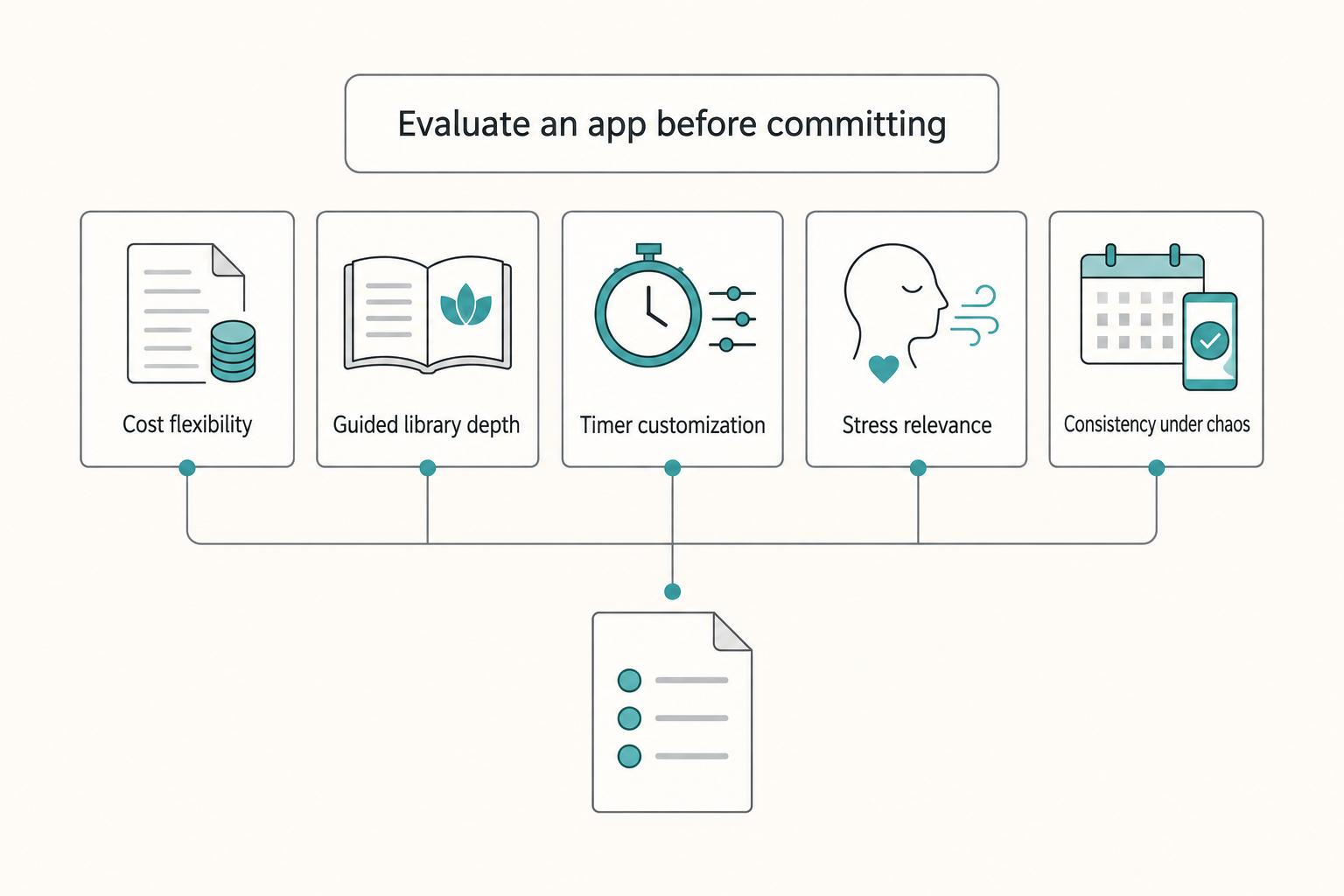
Freelance work breaks generic wellness advice. Working for yourself demands responsibility and accountability, and your schedule shifts fast, context switching drains attention, and stress spikes when delivery risk climbs. As the CEO of a business-of-one, your mind is part of your delivery stack. You own the outcome, so your mindfulness routine has to protect energy and mental health during real deadlines, not just on calm days.

How to Set Boundaries with Clients as a Freelancer
If you want to set boundaries with clients without sounding rigid or reactive, stop deciding case by case in the moment. Decide once, in writing, then respond the same way every time a request hits a known trigger.