
Quick Answer
Start by treating 1Password as a lifecycle workflow, not a password dump: create a client vault first, grant only task-based access, and close engagements with transfer then revocation. Use secure item sharing for short exchanges and keep ongoing work inside group-managed vault permissions. During offboarding, archive items to remove them from search and autofill, and delete only when retention rules allow; deleted items remain recoverable for 30 days.
A Three-Step Protocol for Managing Client Assets in 1Password#
To manage client assets in 1Password well, stop treating credentials like loose project notes. You need a process you can verify inside the workspace itself: create the right vault, assign access per person, change permissions when scope changes, then revoke or archive cleanly when the work ends.
For freelancers, the usual failure mode is not dramatic. Credentials arrive through email or chat. Shared logins end up in the wrong place. Ownership gets fuzzy when a client wants everything back, and closeout turns into a scramble because nobody is sure who still has access.
1Password gives you practical controls for this: vaults to organize items, per-person vault access, secure item sharing for one-off handoffs, team policies for sharing and sign-in behavior, and an Archive state that removes old items from search and autofill while keeping them restorable.
That is the standard this guide uses.
Before you start#
Your first checkpoint is simple: for every client, you should be able to answer three questions from inside 1Password: where the client's items live, who can access them, and what action will remove that access at closeout. If you cannot verify those three points in the workspace, you are still handling credentials ad hoc.
| Area | Ad hoc handling | Protocol handling |
|---|---|---|
| Intake | Credentials arrive in chat, email, or spreadsheets | Items go into a dedicated client vault or clearly named vault set |
| Access | People get copied on messages or handed passwords informally | Access is assigned per person at the vault level |
| Mid-project changes | Old collaborators keep access because nobody revisits it | Permissions are changed when scope or roles change |
| Closeout | Ownership is unclear and former helpers may still know secrets | Items are transferred, access is revoked, then items are archived or deleted per your retention process |
Follow this three-step operating protocol:
-
Create the container first. Start with a dedicated client vault before you collect or import anything. The goal is obvious placement: anyone on your side knows exactly where that client's items belong, and nothing lands in a general catch-all vault by accident.
-
Assign access by current work, not convenience. Grant vault access to the specific people who need it, and use secure item sharing only for one-off exchanges instead of sending credentials by email. In 1Password documentation you may see a mismatch on vault permission count, with one page referring to 12 permissions and another to 13 for 1Password Business. Do not optimize for the count. Optimize for explicit, reviewable access decisions you can inspect per person and per vault.
-
Close access in order. Before you suspend or delete someone's team-member account, confirm the needed items are in the shared vault the client or remaining team should own. Then revoke access, use Archive for items that should stay out of normal use, and delete only when your retention terms allow. One useful verification detail here is that deleted items remain available for 30 days, while archived items stay out of search results and autofill suggestions but can still be restored.
For broader context on freelancer credential hygiene, A Guide to Cybersecurity for Freelancers is a practical companion. If you want a deeper dive, read Value-Based Pricing: A Freelancer's Guide.
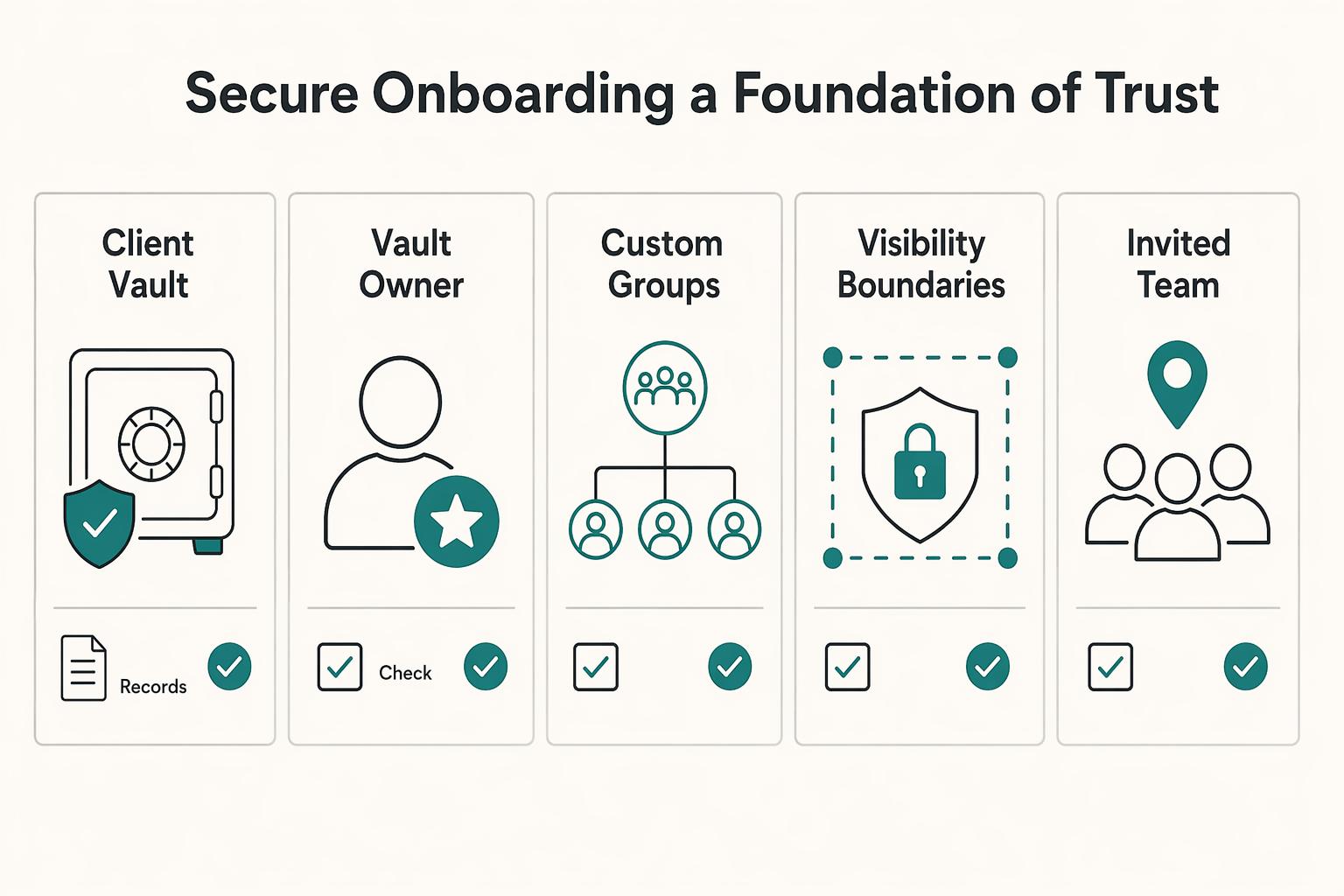
Phase 1: Secure Onboarding - A Foundation of Trust#
Set onboarding controls before any credential arrives. If you do this first, later access reviews and offboarding stay clean instead of becoming cleanup work.
| Onboarding check | Requirement |
|---|---|
| Client vault | Create the client vault before any credential arrives |
| Vault owner | Assign a vault owner |
| Custom groups | Assign custom groups by current responsibility |
| Visibility boundaries | Set who can view, edit, or manage |
| Invited team members | Confirm invited team members have their accounts |
| Guest access | If using a guest, remember the guest is limited to 1 vault |
Use this intake gate and pause credential ingestion until every item is true:
- client vault is created
- vault owner is assigned
- custom groups are assigned by current responsibility
- vault visibility boundaries are set (who can view, edit, manage)
- invited team members have confirmed their accounts
- if using a guest, the team understands the guest is limited to 1 vault
-
Create the client vault first. Build the vault as the container for client items, then set access at the vault level by person or group. Decide view, edit, and manage rights up front so placement and permissions are intentional from day one.
-
Add minimum handling clauses to engagement terms. Keep a reusable baseline:
- credentials move only through 1Password item sharing or another agreed secure channel - access change requests come from a named client approver - permission or policy changes on your side route through a named owner, admin, or other person with Manage Settings authority - security incidents route to a named contact path - end-of-engagement handling states transfer, access removal, deletion, or retained storage by agreement, with placeholder timing language such as a defined number of days after close, unless otherwise agreed in writing
- Use a naming pattern that matches complexity. Keep names predictable so search and tags stay reliable.
| Pattern | Use when | Confusion it prevents |
|---|---|---|
[Client]-[Function] | One project, lower complexity | Mixing billing, support, and operations items |
[Client]-[Project] | Multiple projects for one client | Project assets drifting into a shared catch-all |
[Client]-[Project]-[Environment] | Dev/staging/production need different handling | Editing or sharing the wrong environment |
- Create an onboarding record inside the vault. Store it as a secure note or custom fields with: primary contacts, authorized approver, starter asset inventory, scope/SOP links, and removal triggers, for example contractor offboarded or production handoff complete. In Business setups, this record gives you a concrete reference point when you review access with usage reports and audit-log events during periodic checks and closeout.
That onboarding record becomes your control point for the rest of the engagement.
You might also find this useful: How to Manage a Client's Social Media Accounts Securely.
Phase 2: Controlled Access - The Principle of Least Privilege in Practice#
During active work, use one repeatable flow: define the task, assign the right group, grant the minimum vault or item access, then log the approver and removal trigger. If you cannot explain why access is still needed, remove it.
Grant access by task#
Least privilege works only when each grant is tied to current work, not job titles.
Step 1. Define the task before granting access. Write the real task, for example: update staging plugin, publish CMS pages, reconcile invoices. If the task does not require a credential, keep it out of scope. For each grant, log: task, group, approver, and removal trigger, such as launch complete, handoff signed, or contract end.
Step 2. Assign through custom groups first. Use groups to grant vault access in bulk. Avoid mixing group access with direct person-level grants unless you need a narrow exception, because effective access can become the more permissive result. After granting, verify the person can see only the vaults needed for that task.
Step 3. Match the sharing method to the job.
| Method | Use this | Avoid this when | Revoke this way |
|---|---|---|---|
| One-off item share | A short handoff of one login or a small set of items | The person needs ongoing access | Disable or revoke the share link; confirm expiry and recipient scope before sending |
| Ongoing group vault access | Repeated work by an internal teammate | Work is temporary or narrower than the full vault | Remove the person from the group or reduce group vault permissions |
| Dedicated contractor vault | Time-bound external work with limited scope | You only need a one-time handoff | Remove vault access, then rotate credentials they could have copied |
When using item sharing in 1Password Business, set the shortest workable link life. Admin policy can cap link lifespan at 1 hour, 1 day, 7 days, 14 days, or 30 days, and restrict who can receive shared items. If you use guest access, keep scope tight because a guest can access only one vault at a time.
Keep the active session narrow#
Most mistakes happen when valid credentials are used in the wrong context.
Step 4. Run a pre-flight check before you start work. If you use separate browser profiles, treat that as workflow discipline, not automatic enforcement. In 1Password, switch to the specific account or collection so only relevant vaults are visible. Before filling, confirm: correct browser profile, expected vault context, and exact autofill item. If multiple suggestions appear, manually choose the right one.
Step 5. Decide when to keep one vault vs split. Keep one vault when the same people need roughly the same access and the issue is organization. Split by environment or scope, for example Client-GENERAL, Client-DEV, Client-PROD, or contractor-only, when production access differs, environments are materially different, or contractors should not see broader client data. The tradeoff is more admin overhead: more groups, more review points, and more chances for drift if ownership is unclear.
Review and tighten active access#
Access drift is normal unless you correct it on purpose.
| Review trigger | Guidance |
|---|---|
| Monthly | Usually workable for small teams |
| Quarterly | Usually workable for small teams |
| Role changes | Run an event-based review after this |
| Project pauses | Run an event-based review after this |
| Production handoff | Run an event-based review after this |
Step 6. Review on schedule and after scope changes. A monthly or quarterly cadence is usually workable for small teams, plus event-based reviews after role changes, project pauses, or production handoff. Check tasks against group membership, remove stale share links, confirm each contractor still needs access, and log the outcome. In 1Password Business, audit logs include time, actor, and IP metadata, which helps you prove what changed and when.
Do not assume SSO covers every client tool. Some apps still sit outside federated sign-in, so you still need direct vault controls and regular reviews. Keep active access clean now, and Phase 3 becomes predictable and auditable. Related: The Best Password Managers for Freelancers and Teams.
Phase 3: Ironclad Offboarding - A Clean and Decisive Exit#
Offboarding should be boring, verifiable, and one-way: transfer, revoke, archive, then delete. Do not proceed to the next step until the current step is complete and logged.
| Offboarding step | Verification gate |
|---|---|
| Transfer | Do not proceed until the client or replacement owner has accepted handoff and that acceptance is logged |
| Revoke | Revoke every access path and verify each one |
| Archive | Archive first and leave the exact retention schedule unresolved until it is verified from the governing contract, policy, adviser note, or official source |
| Delete | Do not proceed until the threshold is confirmed in the closeout record; then log scope, timestamp, responsible party, and record location |
Your goal is not only to remove access. It is to leave an audit-ready record that shows what changed, who approved it, and how you confirmed completion.
Step 1. Open the closeout record. Use one record as your single source of truth with a closeout reference, evidence log, approver trail, backup owner, and final status fields (Open, Transfer confirmed, Revoked, Archived, Deleted). Do not proceed until another reviewer could read that record and understand the full trail without asking follow-up questions.
Step 2. Transfer ownership before removing access. Map dependencies first, including shared admin paths, automation accounts, machine credentials, and downstream processes that still rely on the current path. If destructive changes are involved, capture a dated snapshot/export first. Do not proceed until the client or replacement owner has accepted handoff and that acceptance is logged in the record.
Step 3. Revoke every access path and verify each one. Use a checklist with clear ownership so completion is explicit, not assumed. After replacement or rotation work, test the live path because dependency changes can still require rebuild or retest work.
| Revocation scope | What gets missed | How you verify completion |
|---|---|---|
| Human access | A former collaborator still has standing access | Confirm no active task, no valid approval, and no remaining client-related access path |
| Shared links | Older one-off shares are still usable | Reconcile each shared item in the evidence log and mark revoked or expired |
| Active sessions | Previously authenticated sessions remain active | Run a session/device check and log sign-out actions where available |
| Non-human credentials | Service credentials still authenticate in scripts or integrations | Replace or rotate, then test the updated connection path |
Step 4. Archive, then delete on schedule. Archive first and leave the exact retention or deletion schedule unresolved until it is verified from the governing contract, policy, adviser note, or official source. Do not proceed to deletion until that schedule is confirmed in the closeout record. When deletion is complete, log a confirmation note with scope, timestamp, responsible party, and record location.
If you need edge-case handling, move to the FAQ next. The standard does not change: offboarding quality is measured by evidence, not by saying access was removed.
For a step-by-step walkthrough, see How to Manage a Client Project in a Different Language Using Translation Tools.
Frequently Asked Questions
How do you offboard a client cleanly?
Follow the same order every time: transfer first, verify the moved items are present in the shared vault, then suspend access. After that, change shared passwords and tokens, then remove the team member. Do not delete anyone before their Employee vault contents are transferred, because those items can be lost permanently. Do not stop at vault membership either. Check shared links, API tokens, and any downstream automation or app dependency that still expects the old secret path.
Should you put your credential-handling process in the contract?
Yes. State who owns the accounts, how credentials are exchanged, who can approve access changes, and what happens at termination. That turns offboarding into execution instead of a last-minute argument about transfer, retention, or deletion.
Can a client see anything beyond what you intentionally share?
Do not assume the boundary is what you think it is. Share only the exact item or vault you mean to share, then verify from the recipient side, or with a test account, what is actually visible before you place live credentials there. Also remember that concealed passwords in the app are not the same thing as full isolation. A person with read access to a vault still has that vault’s cryptographic keys.
What vault structure should you use for a larger client?
Start with team vaults as your main unit of organization, then split only when access needs truly differ. Pick the smallest structure that still lets you grant per-person access cleanly and review it without guesswork. | Structure | Pick it when | Practical cue | Common mistake to watch | |---|---|---|---| | Single client vault | One person handles most work or the engagement is simple | Fastest setup and easiest audit pass | Keeping it this way after production, billing, or admin access starts to diverge | | General plus restricted vaults | The same client has clear access tiers, such as routine work versus sensitive production access | Give the broader team the general vault and keep higher-risk items separate | Copying the same secret into multiple vaults and forgetting one copy still exists | | Guest or contractor vault | An external person needs one narrow slice of access | Useful when one vault is enough; guests can only be invited to a single vault at a time | Using a guest for someone who actually needs broader, ongoing collaboration across multiple vaults | If you use guests, remember the plan limits too: 1Password Teams includes 5 guests and 1Password Business includes 20.
When should you use secure sharing instead of a shared vault?
Use a unique-link share for a narrow handoff. Use a vault when someone needs ongoing access that you will need to review, suspend, or revoke later. A shared link sends a copy, not the original item. You can stop sharing it at any time. On Business plans, admins can also limit who your team can share with outside the account and how long links can stay active.
What about API tokens, SSH keys, and other machine secrets?
Handle machine secrets differently from human logins. If a person needs to sign in, keep that secret in a vault with least-privilege access. If an app, server, or CI job needs it, prefer 1Password integrations or a 1Password Connect server so secrets move app to app instead of through manual copy and paste. One important limit: Connect cannot access built-in Personal, Private, Employee, or default Shared vaults, so keep automation secrets in a dedicated vault you intend to expose.
Does offboarding stop at passwords and vault access?
No. Revoking vault access is necessary, but it is not the full closeout. Also suspend or revoke identity-based access where you use hosted provisioning, terminate any unique-link shares, and rotate passwords and tokens the person knew. Then log the evidence so another reviewer can see what changed, who approved it, and how you verified it.
What setup step do people miss before they start storing client secrets?
Make recovery and device readiness a pre-work checklist item, not a rescue step. Before you store the first client item, sign in on a second device, decide who can recover accounts, and make sure at least two trusted people can do it. Do not give recovery power to the same people who administer your email system, because 1Password cannot recover your account password or Secret Key for you. If you want to confirm what’s supported for your specific country/program, Talk to Gruv.
Try a related tool
Researched and edited by the Gruv editorial team. Gruv builds cross-border billing, payouts, and finance-operations software for global businesses.
Sources
Includes 2 external sources outside the trusted-domain allowlist.
- cisa.gov/resources-tools/resources/barriers-single-si...trusted
- cisa.gov/sites/default/files/2024-06/Barriers-to-SSO-...trusted
- csrc.nist.gov/glossary/term/least_privilegetrusted
- data.austintexas.gov/api/views/rzwg-fyv8/rows.rdftrusted
- nvlpubs.nist.gov/nistpubs/specialpublications/nist.sp.1800-5.pdftrusted
- tamucc.edu/information-technology/security/assets/cyber...trusted
- 1password.com/features/secure-password-sharingexternal
- support.1password.com/create-share-vaults-teamsexternal
Educational content only. Not legal, tax, or financial advice.
Related Posts
Value-Based Pricing for Freelancers Under Real Payment Risk
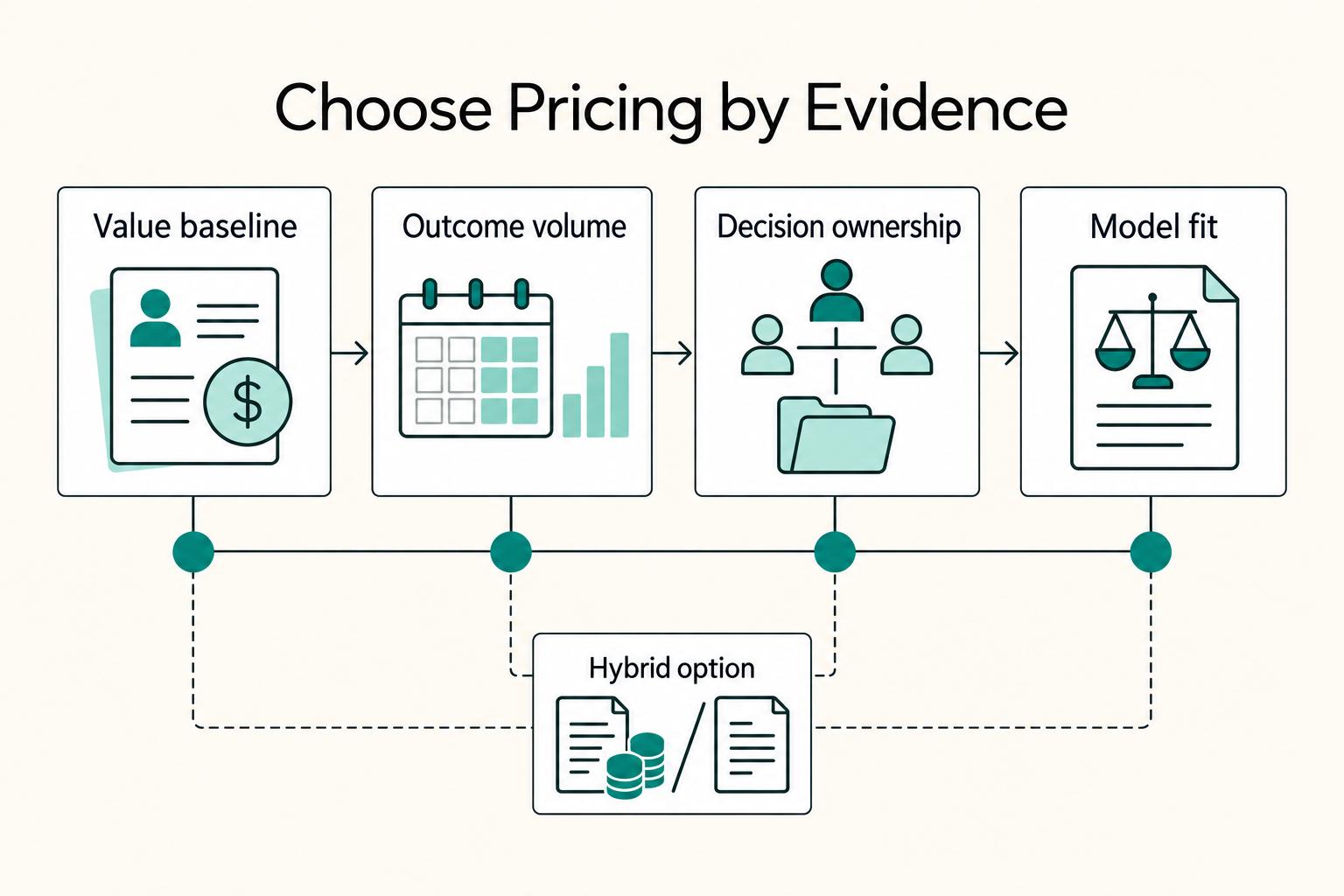
Value-based pricing works when you and the client can name the business result before kickoff and agree on how progress will be judged. If that link is weak, use a tighter model first. This is not about defending one pricing philosophy over another. It is about avoiding surprises by keeping pricing, scope, delivery, and payment aligned from day one.

The Best Password Managers for Freelancers and Teams
A client asks for an urgent file, you open their portal, and the login fails. Ten minutes later your invoicing app wants a reset too. That is why your password setup is a business risk, not just a nuisance. Weak credential habits can turn one mistake into wider account access problems, then into delivery delays and cleanup work.

Cybersecurity for Freelancers Who Need Reliable Client Delivery
If you want reliable delivery, start with continuity, not tools. In practice, that means protecting the accounts, devices, files, and payment paths you need to deliver work, communicate with clients, and recover without making the disruption worse. Incidents often hit operations before they look like an IT problem.