
Quick Answer
Use the PARA method in Notion as a filing decision system first, then a layout choice. Define what every live item must include, sort new inputs into Projects, Areas, Resources, or Archives, and test retrieval with a one-minute check on real client work. Choose from the Notion Templates marketplace only when it speeds setup without adding structure you will later remove. Keep trust high with a visible Change Log when you adjust properties or archive rules.
Start with outcomes, not pages#
Step 1: Define the operational result you want before you open Notion. For an independent professional, the goal is not a prettier workspace. It is a place where live work is visible, decisions are traceable, and client context does not disappear when your week gets crowded. If your setup does not make it easier to see what is active, what is waiting, and what was decided, the structure is decoration.
Tiago Forte describes the PARA Method on Forte Labs as "The Simple System for Organizing Your Digital Life in Seconds." That is a useful direction. Treat "simple" as the result of clear rules, not as permission to skip them. The article, authored by Tiago Forte and updated August 22, 2023, frames PARA as an organizing approach. Your job in Notion is to turn that approach into a working home for real commitments.
Step 2: Decide what problems this setup must solve in your business. Many solo operators do not need more pages. They need fewer loose ends. A good starting test is to pick one current client job and ask five blunt questions:
- What is the next action?
- What deadline or commitment matters next?
- What decision was made most recently?
- Where are the key links or files?
- If you had to hand this off today, what would the next person need first?
If you cannot answer those in under a minute, do not start by browsing Notion Templates. Start by defining the minimum information each live piece of work must hold. That checkpoint matters more than a dashboard layout because it shows whether the structure supports execution or just storage.
Step 3: Treat this as an operating approach, not a one-click install. Templates can give you a shell, but they cannot decide how you separate current work from reference material or how you record decisions so they stay legible later. In many cases, messy handoffs and lost client context reflect weak habits more than a missing widget.
A practical red flag is thinking about covers, icons, and six different views before you have named your core outcomes. Another common failure mode is copying a "second brain" setup that looks polished but does not match how you actually deliver work. In practice, your test set is simple: one active engagement, one recurring responsibility, one useful reference item, and one completed record you still need to retain. If your structure can hold those cleanly, you are ready to build.
From here, keep the standard high and the aim narrow. You want clean operations, a visible trail of decisions, and fewer unpleasant surprises as volume grows. The next step is to understand the buckets clearly enough that you stop forcing Notion into a rigid folder habit.
Understand PARA in Notion without forcing a folder mindset#
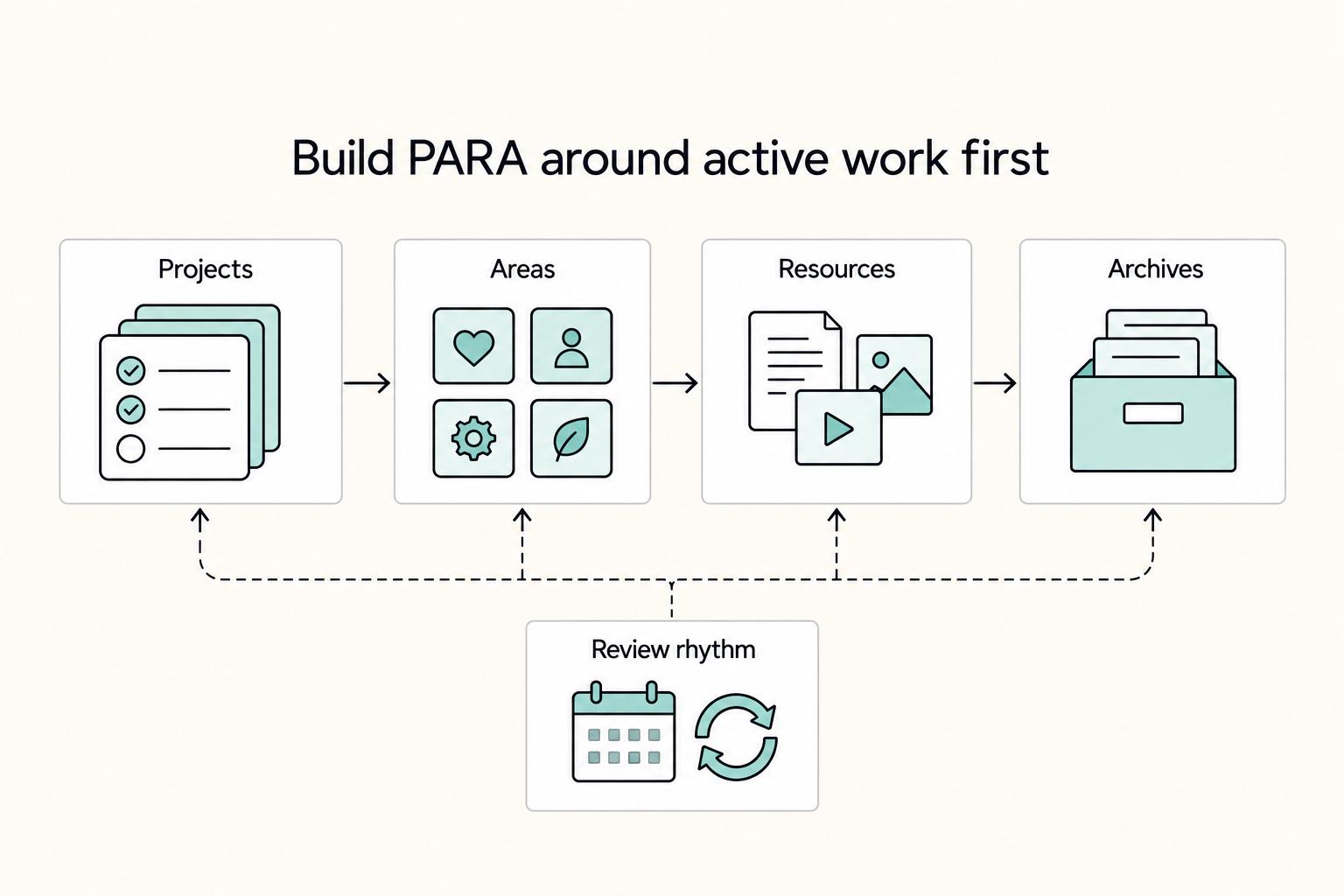
Start with purpose, not page location: think of PARA as four functional buckets that make digital knowledge easier to find and use.
| Bucket | Use when | Sorting test |
|---|---|---|
| Projects | Things you are actively working on right now | It has a clear endpoint |
| Areas | Roles and responsibilities you manage over time | It is ongoing stewardship |
| Resources | Useful reference material without active ownership | It is useful reference material without active ownership |
| Archives | Inactive but worth keeping | It is inactive but worth keeping |
Step 1. Name the buckets before you build structure. Use the four PARA categories: Projects, Areas, Resources, Archives. In this setup, classify by role first and layout second, so your system stays useful as work changes.
Step 2. Keep Notion flexible instead of rebuilding rigid folders. Over-engineering your setup with deep nesting and heavy tagging can make it clunky and inefficient. Search can handle more retrieval than most people expect, so you do not need to index everything from every angle. A clear red flag is duplication: if one brief or note must live in multiple places just to stay findable, simplify.
Step 3. Use one quick test per bucket when you sort new items. If it has a clear endpoint, treat it as a Project. If it is ongoing stewardship, treat it as an Area. If it is useful reference material without active ownership, treat it as a Resource. If it is inactive but worth keeping, move it to Archives.
Verification point: test four real items now, one live client job, one recurring responsibility, one reference note, and one finished engagement. If you cannot place each one in under a minute, tighten your rules before adding more pages.
Prepare your workspace and rules before building anything#
Before you create pages, set simple rules for how you will classify and maintain information. Notion does not force a storage model, so your setup stays reliable only if your rules are clear from the start.
Start with a small working set of real material#
Use real current items, not a hypothetical future system. A practical starter set can include:
- active outcome-based work
- ongoing responsibilities you maintain
- reference material you reuse
- inactive items you still want to keep
PARA gets easier when you classify real work. If placement feels slow or debatable, tighten the rules before adding more structure.
Set naming and ownership rules first#
Decide naming and ownership rules before adding content. Keep names consistent so outcome-based work and ongoing responsibilities are easy to distinguish, and assign one primary owner when an item could sit in multiple places.
This reduces duplication and keeps Projects and Areas from overlapping.
Choose a review rhythm before you build#
Pick a review rhythm you can realistically maintain, then write it into your workspace. The goal is simple: make triage and cleanup routine enough that your system stays trustworthy.
If items stay unclassified across repeated reviews, simplify the rules instead of adding more complexity.
Define success conditions for Projects and Areas#
Set completion criteria before creating entries:
- "This Project is done when..."
- "This Area is maintained when..."
That distinction keeps boundaries clear. Projects close; Areas continue.
Related: A Guide to Notion for Freelance Business Management.
Pick the right starting point from templates or from scratch#
Pick the lightest starting point that helps you classify real work quickly without inheriting structure you will fight later. If you are new to Notion, a lightweight Second Brain PARA-style template is often the easiest way to start. If you already have active client data, build core databases first and import selectively.
| Option | Setup speed | Customization effort | Migration friction | Maintainability watchout |
|---|---|---|---|---|
| Notion Templates marketplace | Fast to duplicate and test | Moderate: you adapt someone else's structure | Can rise if you already have scattered live work | Extra pages/properties can linger after your system evolves |
| PARA dashboard variant | Fast when the layout matches your thinking | Moderate to high if the dashboard adds many views | Can rise when existing data does not map cleanly | Dashboard complexity can drift from your core PARA rules |
| Clean build in your own workspace | Slowest at the start | Highest up front, with full control | Lower when you define exactly what to bring in | Usually easier to maintain if you keep properties minimal |
Match the starting point to your current reality#
Use "helpful starting point" as the standard, not "perfect setup." PARA in Notion can feel awkward at first, and a clear starting point usually reduces that friction. A quick test: duplicate a candidate setup and place five real items into Projects, Areas, Resources, or Archives; if placement is still unclear after a few minutes, the setup is likely adding overhead.
Use templates for acceleration, not lock-in#
A template is useful when onboarding is lighter than the cleanup you expect later. Official Second Brain-style templates are explicit about PARA structure, include onboarding guidance, and are positioned for quick initial readiness, including "under an hour" setup messaging, but treat that timeline as intent, not a guarantee for every workspace.
Build from scratch when your data already matters#
If your workspace already holds active deliverables and ongoing responsibilities, start with core databases and import only what supports execution. Keep the decision explicit: template convenience now vs. cleanup work later as Projects and Areas change. Practical rule: if you are learning Notion with little legacy data, start small with a lightweight template; if you are stabilizing a live business workspace, copy the principles, not the whole structure.
Build the core PARA structure in a strict order#
Build PARA in a practical sequence: make active work clear first, then add reference and storage. PARA defines four categories, not a required Notion order, so use this flow to reduce clutter while you set up.
| Step | What to add | Checkpoint |
|---|---|---|
| 1 | Projects and Areas first | Place one real deliverable and one ongoing responsibility without second guessing where they belong |
| 2 | Resources after active work is visible | File one useful reference item and confirm it no longer sits in your active work lists |
| 3 | Archives last, with clear move triggers | Archive one finished or inactive item and confirm you can still retrieve it when needed |
| 4 | Only the views you actually use | Answer your key weekly triage questions from views without hunting across pages |
Step 1. Create Projects and Areas first. Projects are things you are actively working on right now. Areas are roles and responsibilities you manage over time. Set these up first so live commitments have a clear home before you add background material. Checkpoint: place one real deliverable and one ongoing responsibility without second guessing where they belong.
Step 2. Add Resources after active work is visible. Resources are topics that could be useful in the future. Use this category for reference material so it supports execution instead of competing with current commitments. Checkpoint: file one useful reference item and confirm it no longer sits in your active work lists.
Step 3. Add Archives last, with clear move triggers. Archives hold completed or inactive items from Projects, Areas, and Resources. Define in plain language when something is done or inactive enough to move, so your active surface stays current without losing history. Checkpoint: archive one finished or inactive item and confirm you can still retrieve it when needed.
Step 4. Create only the views you actually use. Once all four categories exist, add a small set of working views that help you see what needs action, what is waiting, and what can leave active space. Keep the view set lean; if navigation feels noisy, tighten category rules before adding more structure. Checkpoint: answer your key weekly triage questions from views without hunting across pages.
Classify every new item with clear decision rules#
The goal is speed and consistency: every new item should be classified in seconds, not debated. Modern work already requires managing many kinds of information, and your brain is better used for ideas than for remembering filing decisions.
Use a quick decision sequence before you file anything#
- Ask: "What is this item's primary job right now?"
- Match that job to the bucket definitions you already set for Projects, Areas, Resources, and Archives.
- If two buckets seem valid, split the record: keep the active piece active, and link supporting material from reference.
- If it is still unclear, park it for the next review with a short note on why.
Keep the rule set simple enough to run fast#
Use the fewest properties and tags needed to answer one question: where does this go next? If classification takes too many clicks or choices, simplify the setup before adding new fields.
Treat edge cases as a design signal#
Most edge cases come from one page trying to do multiple jobs. When that happens, separate execution, ongoing responsibility, reference material, and historical record so reviews stay clean and handoffs stay clear.
Watch the failure mode early#
If inbox items stay unclassified for more than one review cycle, your system is too complex for your current workload. Reduce custom properties, trim tags, and tighten your bucket definitions until filing feels obvious again.
Add operating controls so PARA stays clean under pressure#
PARA stays clean when each bucket is reviewed for its purpose, so active work stays visible and inactive material stops creating clutter. The goal is simple: open your workspace and quickly see what needs action.
Tie reviews to the purpose of each bucket#
Use category-specific checks instead of one generic sweep:
| Bucket | Review check |
|---|---|
| Projects | Confirm the goal and deadline are still active, and the page is clear enough to resume work fast |
| Areas | Confirm each responsibility is still active and being maintained to a clear standard |
| Resources | Keep this bucket reference-only; move action-oriented items to active work |
| Archives | Move inactive or completed material out of active views once it no longer guides decisions |
If you still need to hunt through old pages after a review, the structure is usually not the problem. Mixed active and inactive content is.
Keep client Projects easy to resume#
Client work becomes fragile when context sits in chat, email, or memory. Keep a short handoff-ready note on active project pages so someone can restart work quickly after interruptions.
In practice, that note can cover the current agreement, latest status, immediate next step, and key links. The test is practical: can you reopen the page and continue without digging through messages?
Set drift signals and make ownership explicit#
Drift shows up before a full breakdown. Watch for patterns like:
- active items that no longer have a real goal or deadline
- repeated reference notes across multiple places
- responsibilities with unclear maintenance standards or unclear accountability
When these show up, reclassify instead of reorganizing around the mess. In shared workspaces, clear ownership for each responsibility helps prevent silent neglect and keeps Areas current.
Related reading: How to Use Notion AI for Productivity as a Solo Operator.
Recover quickly when your PARA setup starts failing#
When your PARA setup starts slowing you down, treat recovery as a reset, not a redesign sprint. A simple contingency workflow helps keep errors and delays from spreading, and it is easier to trust when it lives in the same workspace as your tasks and projects.
Use this five-step reset pass:
- Pause structural edits so the system stops changing while you recover.
- Reconfirm what is active now, and make that work easy to see first.
- Reclassify pages so live work, responsibilities, reference material, and inactive records are separated again.
- Restore only the views you need to run day to day before adding any polish.
- Create a
Change Logpage, link it from the relevant dashboard or project docs, tag it for findability, and share it with anyone who needs visibility.
Keep the Change Log focused on major structure decisions, for example, merged properties, removed templates, and archive rules. That record protects trust during cleanup because you can verify what changed instead of guessing later.
Copy this launch checklist and implement today#
Run this checklist once, then stop redesigning and start using the system with real work.
- Confirm the four buckets are clear: Projects, Areas, Resources, and Archives should each have an obvious home in Notion.
- Map active commitments to Projects: Use Projects for short-term work with a clear goal and endpoint, not broad containers.
- Map ongoing responsibilities to Areas: Put work that must be maintained over time in Areas, and define what "maintained" means for each one.
- Keep Resources separate from execution: Store reference material so it is searchable, but do not let it crowd out active Project or Area work.
- Set explicit Archive entry rules: Decide what triggers a move to Archives so inactive material does not sit beside live work.
- Schedule your first review and document routing rules: Write one plain-language page that shows what goes to Projects, Areas, Resources, and Archives.
If you can complete these checks with current client work, your PARA setup is ready to run.
For a step-by-step walkthrough, see How to Build a Content Calendar in Notion That Runs Your Workflow.
Want help applying this to your workspace? Talk to Gruv.
Frequently Asked Questions
What is the PARA method in Notion in one sentence?
It is a tool-agnostic way to organize information in Notion around Projects, Areas, Resources, and Archives. The point is to separate active work, ongoing responsibilities, reference material, and inactive records without forcing a rigid structure.
How do I decide between a Project and an Area?
Use the clearest test first: one has a finish line, the other needs to be maintained over time. If the work can be finished and marked done, put it in Projects. If it keeps requiring attention with no real end point, it belongs in Areas.
Should I use a PARA Dashboard template or build my own setup?
Use a template if you need speed and your workspace is still light. Build your own if you want the setup to match how you already work, since PARA in Notion is meant to be adapted rather than copied rigidly. A good checkpoint is simple: can you quickly find one live deliverable, one responsibility, one reference item, and one archived record?
How many databases do I actually need to start PARA in Notion?
There is no fixed minimum. You need clear homes for the four categories, but those homes do not all have to be separate databases on day one. If you are spending more time debating structure than classifying this week’s real work, you are building too much too early.
Why does PARA fail after a few weeks, and how do I prevent that?
It can break down when people stop classifying new items consistently or when the setup gets overly complex. PARA is tool-agnostic, and the Notion version should be adapted to your needs rather than expanded with structure you do not use. If new items are staying unclassified, simplify the setup before adding anything new.
Where should meeting notes and client documents go in PARA?
Put them where they are most useful to the work they support, not where their file type suggests they should live. Meeting notes for a live deliverable usually belong with that Project. Documents tied to an ongoing responsibility may fit better under the relevant Area. Closed engagement records can move to Archives. Dumping all notes into Resources can make active decisions harder to find.
How often should I review Resources and Archives?
Review them on a rhythm you will actually keep rather than copying someone else’s cadence. Reference material needs attention when it starts cluttering search or distracting from current work, and inactive records need attention when finished material is not staying out of the way. The verification point is practical: if current work is still easier to find than old reference, your review rhythm is probably doing its job.
Try a related tool
Researched and edited by the Gruv editorial team. Gruv builds cross-border billing, payouts, and finance-operations software for global businesses.
Sources
- cdc.gov/niosh/nmam/pdf/NMAM_5thEd_EBook-508-final.pdftrusted
- digitalcommons.usu.edu/context/habitsofmind/article/1000/viewconten...trusted
- ios2026.isye.gatech.edu/sites/default/files/2026-03/program-book.pdftrusted
- law.buffalo.edu/content/dam/law/content/cle/200612-materials...trusted
- methodist.edu/wp-content/uploads/2025/03/catalog25-26a.pdftrusted
- nycourts.gov/reporter//files/bv/10AD3d.pdftrusted
- pmc.ncbi.nlm.nih.gov/articles/PMC8369667trusted
- pmc.ncbi.nlm.nih.gov/articles/PMC5740970trusted
Educational content only. Not legal, tax, or financial advice.
Related Posts
The Best Note-Taking and Knowledge Management Apps for Freelancers
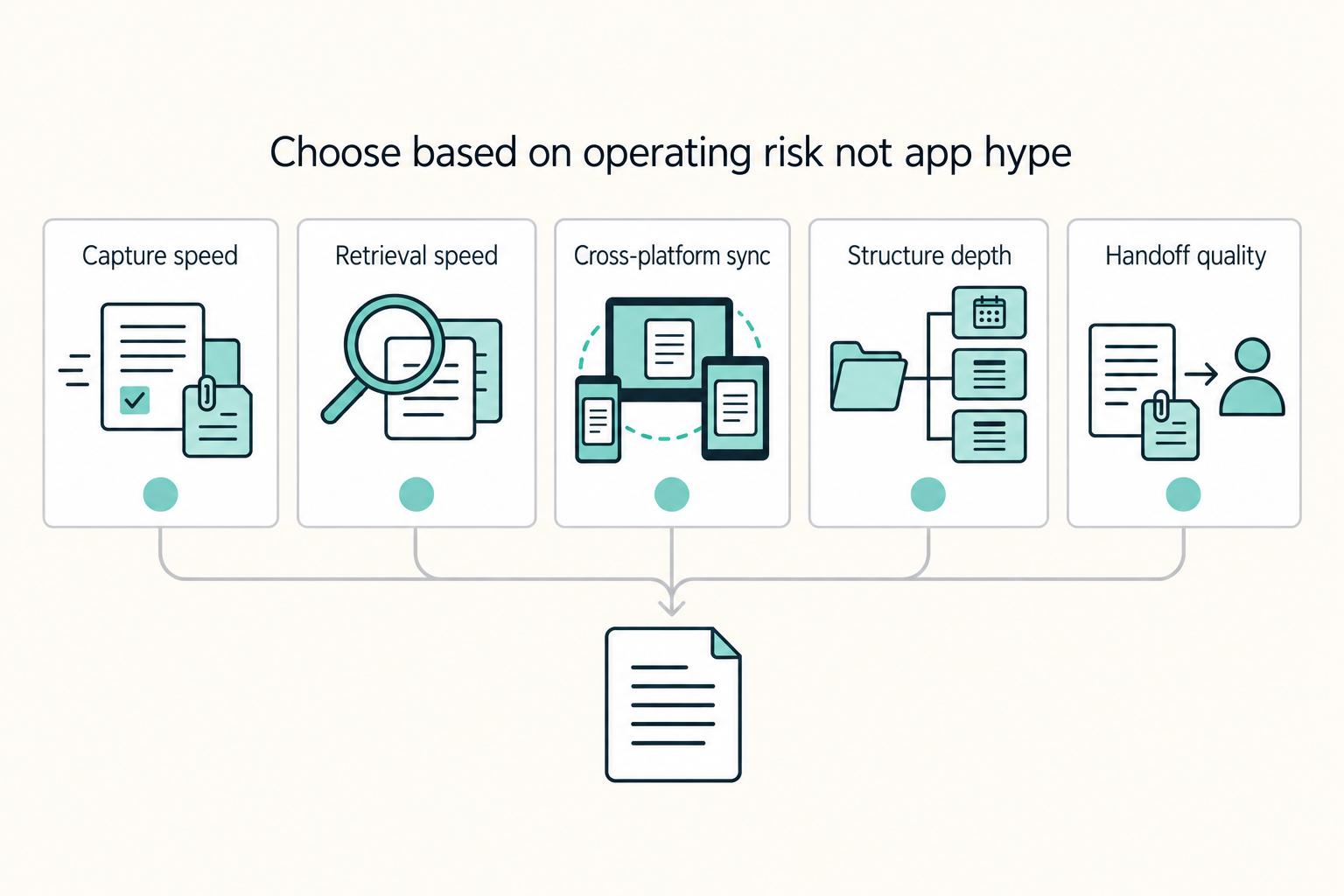
Make this decision in one sitting, then move on. One primary note app, used as the default place for client decisions, follow-ups, and reference notes, does more to cut missed details, messy handoffs, and tool churn than another week of comparing screenshots ever will.

A Guide to Notion for Freelance Business Management
If your workspace feels busy but fragile, you do not need more pages. You need one connected system. Treat your freelance business like a business-of-one and use Notion as the control layer that connects client decisions, delivery, and billing in one place.
How to Use the PARA Method as a Business Operating System
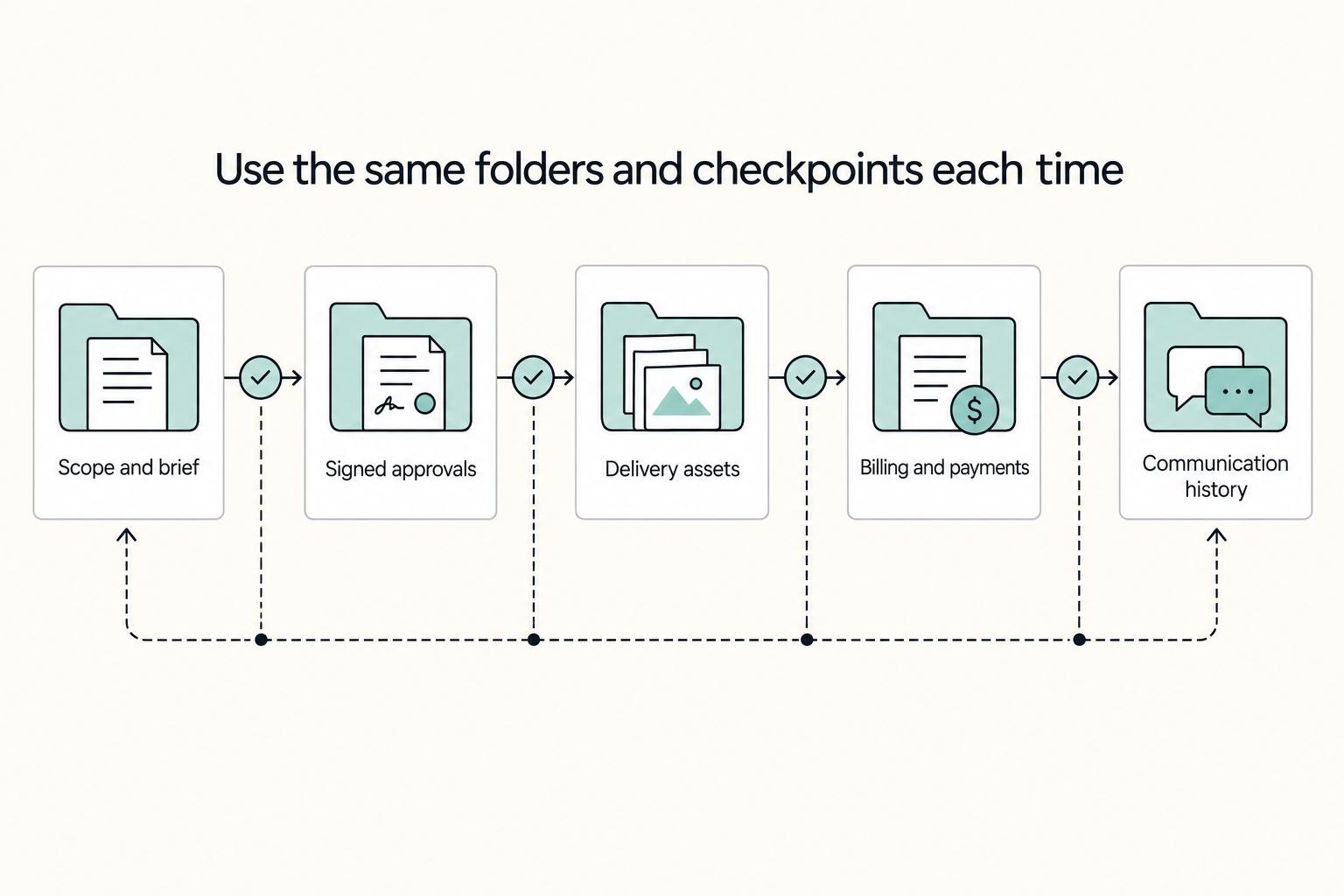
The PARA method works best when you file by action, not by topic. When you are handling client delivery, invoicing, contracts, or compliance tasks, the useful question is not "what is this document?" but "what am I expected to do with it now?"