
Quick Answer
Build your freelance email signature as a working business record, not a design block. Include your name, role, business identity when relevant, core contact details, and one clear next-action link. Keep wording aligned with your invoice and contract identity so finance reviewers do not need clarification. Set one master version, deploy it to each mail client, and test new messages, replies, forwards, and mobile rendering before using it with clients.
Your Freelance Email Signature Is a Business Document - Treat It Like One#
Treat your signature like a working document, not a decorative footer. If you want clearer client verification and fewer avoidable questions, your email block needs to make your identity, your role, and the next action clear at a glance.
A good signature does three jobs in a quick scan. It tells the reader who you are, confirms which business or billing identity they are dealing with, and points them to one sensible next step. They should not have to open your website or dig through an old proposal. If any of those jobs fail, you usually do not get one dramatic error. You get friction that shows up later as back-and-forth.
Step 1. Judge your current signature against three tests. Start with identity clarity, action clarity, and document consistency. Identity clarity means a client can tell who sent the message and what you do without guessing from a nickname or a vague title. Action clarity means there is one obvious route to reply, book, or review, not a cluttered block of competing links. Document consistency means the name and business details in the footer do not drift away from the identity used on your invoice and contract.
Use this decision rule: if the footer cannot be scanned and trusted quickly, it is not finished. A stale phone number, a dead scheduling link, or a signature that shows one name while your invoice shows another does not always cause a visible failure. More often, it creates small pauses, extra questions, and uncertainty.
Why it matters in real workflows#
The signature matters most when your email gets read by people who were not on the original thread. That often happens in forwarded threads and internal reviews.
| Workflow | What the footer should make clear | What happens if it does not |
|---|---|---|
| Forwarded thread | Who the vendor is and how to verify them | Another teammate may need to ask who the vendor is |
| DocuSign contract review | A name that lines up with the agreement | Clarification can be triggered before signing |
| PDF or Word contract flow | A footer that does not add another avoidable question | The process already has more manual steps |
| Invoice review | Contact details or billing identity | The reviewer has to infer details instead of seeing a clear miniature vendor record |
Step 2. Picture the moments when people who were not on the original email end up reading your signature. A project lead might forward your latest email to another teammate with no extra context. If your footer only shows a first name and a portfolio link, the next person may need to ask who the vendor is and how to verify them.
The same thing happens when contracts move around by email. In a common contract flow, a client sends a DocuSign link by email. If the reviewer sees a signature block that does not line up with the name used in the agreement, it can trigger clarification before signing. If the client is still using PDF or Word contracts, the process already has more manual steps, so you do not want your footer adding another avoidable question.
Finance and operations checks can work the same way. Someone reviewing an invoice may search the thread for your last message to confirm contact details or billing identity. In that moment, your footer acts like a miniature vendor record. Keep it plain, current, and consistent enough that the reviewer does not have to infer anything.
Before you build#
Start with one approved source before you touch Gmail or Outlook. If you skip that step, small variations across desktop, webmail, and mobile are common.
Step 3. Prepare the approved source before you touch Gmail or Outlook settings. Use this order so you are not fixing the same block in three places later:
- Confirm the exact legal or business name format you want shown.
- Confirm the role descriptor you actually use now.
- Choose the primary contact route you actively monitor.
- Choose one action link only if it supports client handling.
- Save one master source file as the approved version.
That file matters more than most people think. It gives you one place to update when your role, website, or billing identity changes, instead of leaving slightly different versions across desktop, webmail, and mobile. If you use an HTML version, keep it simple. Signitic specifically recommends table based HTML, inline CSS, and explicit image height and width attributes for better rendering. If you include a logo, keep the overall block restrained and avoid pushing past roughly 650px wide or 500px high.
Verification checkpoint#
A signature is not ready when it looks good in the editor. It is ready when it survives real inboxes, forwarding, and a basic identity check.
Step 4. Test the approved version before rollout. Send test emails to yourself and view them in a desktop client and on mobile. At minimum, check rendering in the environments Signitic calls out most often: mobile, Outlook, and Gmail. Forward one of those messages too, because a signature that looks fine in a new email can break or become unreadable in a forwarded thread.
Then do one last consistency check against your current billing records. Compare the signature name and business wording with the identity on your latest invoice and contract header. If those do not match, fix the source file first and only then deploy it everywhere.
For a step-by-step walkthrough, see How to Write a Follow-Up Email That Closes the Deal.
What Actually Belongs in a Freelance Email Signature?#
Keep your signature short, clear, and usable at a glance. The core set is: full name, specific service title, business name when relevant, email address, one additional contact route, and one website URL.
Step 1. Build the core block around trust and reachability#
Use a simple reading flow: who you are, what you do, and how to reach you. That order is a usability choice, not a legal requirement, and it helps keep the block scannable across inboxes and devices.
For identity lines, use one line when one name is enough, and a two-line stack when clients need both your personal sender name and your business label. If you operate as a sole proprietor, use a DBA, or run an LLC, keep the displayed names consistent with the business identity you use in client-facing documents.
| Field | Include status | Why it helps | Common failure mode | Verification check |
|---|---|---|---|---|
| Full name | Keep | Identifies the sender quickly | Nickname-only identity | Name is easy to read on mobile |
| Service title | Keep | Explains your role immediately | Vague title that says little | Role is clear in one glance |
| Business name | Keep when relevant | Adds business context when applicable | Brand name with no person, or inconsistent naming | Name display matches your active business identity |
| Email address | Keep | Gives a direct fallback contact method | Removed because it seems redundant | Address is visible and usable on mobile |
| One extra contact route (phone or booking link) | Optional | Adds one practical alternative path | Too many alternatives | Only one alternate route is shown and works |
| Website URL | Keep | Gives one destination for proof of work or company info | Broken, stale, or overly long link | Link opens on mobile and desktop |
| Decorative banner, quote, irrelevant social buttons | Remove by default | Reduces clutter | Visual noise and outdated elements | Core lines stay readable without scrolling |
Step 2. Apply a keep/optional/remove filter to every extra item#
Keep a field if it improves trust quickly and is easy to maintain. Mark it optional if it supports a real client action and you will keep it current. Remove it if it duplicates another contact route, adds decoration without function, or is likely to go stale.
As a cleanup rule, cut multiple alternate contact methods, oversized banners, and inactive profile links. Too many colors, fonts, and details reduce scannability, and too many alternatives make contact routing less clear.
Step 3. Deploy one canonical signature, then a lighter reply variant if needed#
Maintain one canonical source block so your details stay consistent. If long threads are common, create a shorter reply version that keeps core identity and primary contact, then removes nonessential extras.
Before rollout, test on desktop and mobile, click each link, and check rendering in at least one other email provider. If an item does not support identity, contact, or a clear next action, remove it. For related business setup guidance, see The 1% Tax Regime for Entrepreneurs in Georgia.
Should You Use Your Personal Name, Business Name, or Both?#
Use the name format that makes your identity clear fast in business email. In most cases, that means putting the name clients should recognize first, then adding a second line only when it removes confusion about who you are or what business context you represent.
Step 1. Choose the format that is easiest to recognize in business email#
A freelancer's signature often sits between personal and company style, so clarity matters more than style preferences. Use line one for primary recognition, and use line two only to add missing context.
| Entity case | Line one | Line two | Use this format when | Main confusion risk |
|---|---|---|---|---|
| Sole proprietor without DBA | Your full personal name | Specific role or service title | Clients work with you as an individual and need immediate sender clarity | A brand-like label without your name makes forwarded emails harder to trust |
| DBA operator | Trade or business name | Your full name plus role | Clients recognize the brand, but still need a clear human contact | Brand-only signatures make "who sent this?" unclear in shared threads |
| LLC or incorporated entity | Company name | Your full name plus role | You want the company context visible first while keeping personal accountability clear | Switching between company-first and personal-only signoffs creates identity drift |
| Marketplace to direct transition | Your current operating name or business brand | Your full name plus role | You are moving relationships off-platform and need a stable direct identity | Old handles or legacy profile names keep resurfacing in client threads |
A second line helps only if it answers one missing question: who is writing, or under what business identity.
Step 2. Keep line order simple and test it in a forwarded thread#
Use the shortest line order that still makes your identity and role obvious. Then send yourself a test email, forward it, and check whether someone new can quickly tell who you are and what you do.
For many solo operators, one identity line plus one role line is enough. For brand-led communication, business name first and personal name plus role second is usually clearer. If you stack too many identity variants or contact routes, clarity drops.
Step 3. Lock one naming standard across all senders and templates#
Set one canonical naming standard in a shared signature template. If assistants or subcontractors ever send on your behalf, this prevents small naming differences from spreading across client threads.
Run a quick cleanup pass so old naming does not come back:
- Update proposal templates.
- Update canned replies and follow-up snippets.
- Update CRM email snippets.
- Update marketplace or platform profiles you still reference.
- Test the signature on mobile and in one forwarded thread.
Related reading: How to Set Up a Professional Voicemail for Your Business Line.
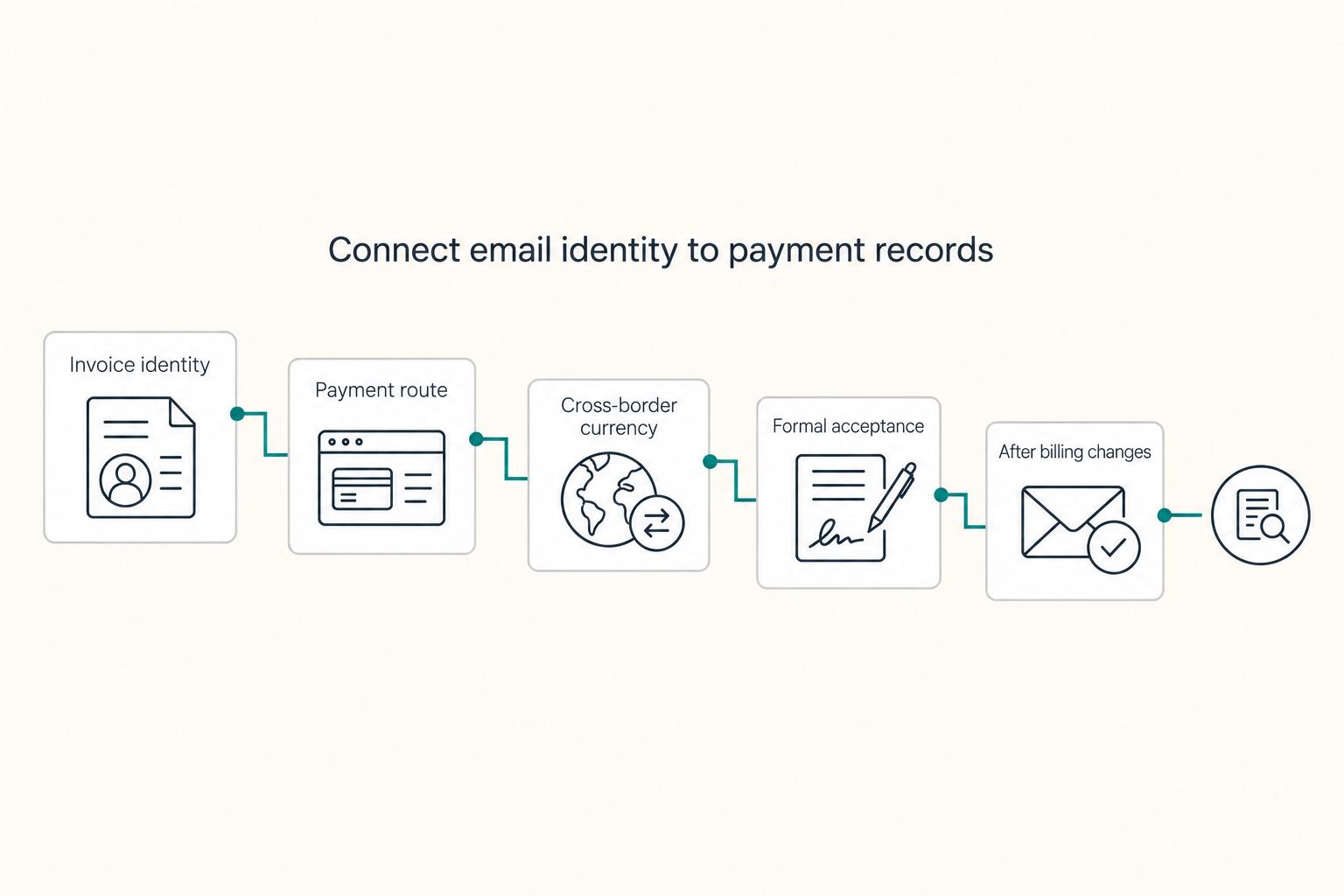
How Does Your Signature Connect to Your Invoicing and Payment Workflow?#
Your signature works best when it supports the same payment story your client sees on the invoice: who is billing, how to pay, and when payment is due.
| Workflow point | What the signature should support | Workflow note |
|---|---|---|
| Invoice identity | Mirror the same core identity details | Start with your invoice as the source document |
| Payment route | Point clients to the primary payment route | Keep full payment instructions on the invoice |
| Cross-border currency expectations | Keep your default billing setup clear | Put exceptions in proposal or invoice notes for that specific deal |
| Formal acceptance | Use an e-signature flow when formal acceptance is needed | Keep due dates specific on invoices |
| After billing changes | Send a test email and run the full path end to end | Confirm the payment page identity and resulting payment record is easy to trace |
Step 1. Anchor your signature to your invoice template. Start with your invoice as the source document. Invoices should include your contact details, and simple invoices with correct information are presented as helping freelancers get paid faster. Then mirror the same core identity details in your signature so clients are not reconciling different versions of your business across email threads.
Step 2. Keep payment instructions clear and limited. Use your signature to point clients to the primary payment route, and keep full payment instructions on the invoice where they are tied to the actual bill. When terms need stronger confirmation, some businesses use signed acknowledgment of invoice receipt or payment terms, especially for Net-30 or Net-60 work.
Step 3. Handle cross-border currency expectations upfront. If you work in multiple currencies, keep your default billing setup clear and keep exceptions in proposal or invoice notes for that specific deal. Avoid turning your signature into a long list of payment exceptions that belongs on the invoice.
Step 4. Preserve proof when terms need acceptance. If formal acceptance is needed, use an e-signature flow that gives you timestamped proof of who signed, when, and from where. Keep due dates specific on invoices, since a calendar date is clearer for clients than a vague term alone.
Step 5. Run a quick failure-mode check after billing changes. Before you send client emails, check for common friction points:
- business name differs between signature and invoice
- payment URL is outdated or inactive
- sender identity looks inconsistent across email, site, and payment page
- payment records do not show up cleanly in your bookkeeping workflow
After any billing-stack update, send a test email and run the full path end to end: open the signature link, confirm the payment page identity, and verify the resulting payment record is easy to trace. Related: The Best Bank Accounts for Freelancers in Canada.
Do You Need a Legal Disclaimer - and What Should It Say?#
You usually do not need a disclaimer on every email. Add one only when it improves clarity for confidentiality, jurisdiction context, or regulated-risk signaling. Your contract and SOW remain the legal source of truth.
Step 1. Define the purpose before you add text. Use a disclaimer as communication hygiene, not legal armor. In practice, it can warn that content is confidential, signal compliance-sensitive context, or state that email discussion alone does not create a binding contract. If you cannot name the specific risk or confusion it prevents, skip it.
| Email situation | Use or skip | Why |
|---|---|---|
| Routine project updates, scheduling, check-ins | Skip | It adds noise without changing decisions or handling |
| Sensitive attachments or private client information | Use | A short confidentiality warning gives a clear handling cue |
| Cross-border communication where jurisdiction context matters | Use selectively | A brief jurisdiction cue can reduce ambiguity, but it does not override contract terms |
| Finance, healthcare, or other regulated communication | Use tailored wording | Generic boilerplate may not match regulatory obligations |
Step 2. Place it last and keep it brief. Put the disclaimer in your signature/footer area, after your name, business identity, contact method, and payment or booking link. Keep it to one or two lines in most cases. If it buries contact or payment actions on mobile, it is too long.
Step 3. Keep one version everywhere. Use the same approved disclaimer in desktop and mobile clients, then test a new email, a reply, and a forward. Confirm wording is consistent and links remain easy to spot. Avoid split versions where desktop shows a legal block and mobile shows nothing.
How to Set Up Your Signature in Gmail, Outlook, and Apple Mail#
Set up one approved signature source first, then deploy it to each client. If you build separately in each app, your details and links will drift.
| Platform | Setup check | Validation |
|---|---|---|
| Gmail web | Open full Settings > Signature and paste the approved version | Confirm defaults for new emails and replies/forwards, the sending account mapping, links, line breaks, and length |
| Outlook on the web | Paste the signature and verify the preview before saving | Validate in real recipient inboxes to catch spacing shifts or image download prompts |
| Outlook Classic | Paste the rendered signature output, not raw HTML, in signature settings | Validate in real recipient inboxes, not just Outlook-to-Outlook |
| Apple Mail | Disable "Always match my default message font" before you paste | Confirm account-level mapping and send a live test for new email, reply, and forward |
| Gmail mobile | Leaving the mobile signature field empty can make it use your web signature | Review real inbox results for desktop new, desktop reply, mobile reply, and a forwarded thread |
Pre-setup checklist (do this once)#
- Create one dated source-of-truth file with:
- your canonical text block * your full signature for new emails * your shorter signature for replies/forwards * your exact live link set
- Lock your image policy:
- use no images, or * use hosted images that are publicly accessible
- Keep formatting light and email-safe:
- prefer inline CSS and simple table-based layout if you use HTML * avoid web-page styling patterns that email clients often change
| Platform | Best format weight | Common rendering failure | Fastest fallback |
|---|---|---|---|
| Gmail | Light HTML or formatted text | HTML/CSS can be rewritten or stripped | Plain text + live links |
| Outlook | Minimal HTML; in Outlook Classic, paste rendered signature output | Word-based rendering can shift spacing/layout | Very light formatting or plain text |
| Apple Mail | Plain text or very light HTML | Direct paste can strip HTML | Disable font matching, then paste a simplified version |
Gmail setup checks#
In Gmail web, go to full Settings and open Signature, then paste your approved version. Before you move on, confirm the outcomes: the right default is selected for new emails and replies/forwards, and the correct signature is mapped to the right sending account. Send a test new email, reply, and forward to verify links, line breaks, and length.
Outlook setup checks#
In Outlook on the web, paste your signature and verify the preview before saving. In Outlook Classic, paste the rendered signature output, not raw HTML, in signature settings. Then validate in real recipient inboxes, not just Outlook-to-Outlook, to catch spacing shifts or image download prompts.
Apple Mail setup checks#
In Apple Mail, disable "Always match my default message font" before you paste your signature. Then confirm account-level mapping and send a live test for new email, reply, and forward.
Mobile consistency check#
Mobile apps can use separate signature settings, so verify what each app is sending. In Gmail mobile, leaving the mobile signature field empty can make it use your web signature. Final check: review real inbox results for desktop new, desktop reply, mobile reply, and a forwarded thread.
You might also find this useful: How to Connect Wise to QuickBooks for Automatic Reconciliation.
Which Signature Tool Should You Use?#
Use the lightest tool that keeps your core signature block stable across the clients you actually send from. Reliability and easy maintenance matter more than visual flair if you want your identity and contact path to stay consistent over time.
Step 1. Start with your real sending environment#
Begin with your primary client mix, not a tool preview: desktop, reply/forward behavior, and mobile. Built-in Gmail and Outlook signatures are fast and free to start, but they are limited, so move to a generator only when you need easier edits, more design control, or a cleaner way to reuse one approved block.
Manual consistency usually breaks once you manage desktop and phone separately. Before you decide on any tool, send a new email and a reply from desktop and mobile, then confirm the same core block still holds.
Step 2. Pick by workflow, not by demo appearance#
Use this as a decision filter, not a beauty contest:
| Tool | Client compatibility | Maintenance effort | Branding flexibility | Rollback ease |
|---|---|---|---|---|
| Built-in Gmail/Outlook | Validate in your live desktop and mobile inboxes | Low to medium | Low to medium | Easy if you keep a saved approved version |
| HubSpot | Validate in your live desktop and mobile inboxes | Medium | Medium | Manageable if you export/save approved output first |
| Canva | Compatibility and upkeep are not established, so test in your real client mix before adopting | Unknown until tested | Design-oriented | Manageable only if you keep a plain approved fallback |
| MySignature | Validate in your live desktop and mobile inboxes | Medium | Medium | Manageable if you archive the approved version |
| mail-signatures.com | Validate in your live desktop and mobile inboxes | Low to medium | Medium when you remove unneeded elements | Manageable if you copy and store the final approved block |
| Raw HTML | Validate in your live desktop and mobile inboxes | High (you own fixes) | High | Strong if your source is versioned and dated |
If your current signature already renders cleanly, do not switch tools just for appearance. Overdesigned layouts are more likely to break after replies, forwards, or mobile sends.
Step 3. Run a pre-switch checklist, then stage upgrades#
Before switching tools, protect rollback first:
- Save your current approved signature in a dated plain-text version and a rendered version.
- Keep one source template with full signature, reply/forward version, approved links, and any disclaimer text.
- Publish only after live tests: desktop new email, desktop reply, mobile reply, forwarded thread.
- Click every link and verify domains, booking links, and image loads.
- Assign one owner for updates, even if that owner is you.
Then upgrade in stages: change the design system or management method first, but keep the core identity structure unchanged (name, role, business name, contact path, website, then optional extras). This lets you improve presentation without creating identity drift across tools.
When Should You Update Your Email Signature?#
Treat your signature as an operating detail, not a redesign project: update it when business details change, and as a working rule, do it before your next client email.
Step 1. Update on event triggers (mandatory)#
If a change affects who you are, how people reach you, or which action they should take, update immediately.
- Identity changes: your name, business name, role title, service positioning, or moving from a personal address to a professional domain email
- Contact and channel changes: phone number, active email, website domain, scheduling link, or primary contact method
- Payment workflow changes: payment link, processor, or payer instruction line you already include in your signature
These are not cosmetic edits. Outdated details can weaken trust, and if someone cannot reach you from your signature, they may not try again.
Step 2. Separate required updates from optional refinements#
Use this decision rule: required updates affect identity, reachability, or next action; optional refinements are visual polish.
| Update type | When to do it | Outcome to verify |
|---|---|---|
| Event-triggered update | Before your next client send after a real business change | Identity and contact details are current, and all signature links open correctly |
| Periodic review | On a cadence you will actually keep | Links are healthy, rendering is clean on mobile/Outlook/Gmail, and your role line still matches your current offer |
Step 3. Run a short periodic review checklist#
Use a quick operational check to catch silent breakage:
- click each link in the signature
- send a test from desktop and mobile
- confirm rendering in mobile, Outlook, and Gmail
- confirm your contact details and role line still reflect your current work
- keep layout size controlled (about 650px max width and 500px max height)
A common miss is updating desktop but leaving an old mobile block active. Another is a stale title or personal email that makes your setup look out of date.
We covered this in detail in How to Create a Business Email Address for Your Freelance Business.
Your 10-Point Signature Audit Checklist#
Treat your signature like a business document, not a decorative footer. Run this in order: identity first, payment path second, rendering third, and legal/link hygiene last.
Identity
- Check that your full name is the first visible line. If a reader cannot identify you without loading images, this fails.
- Check that your title/role is current. If it describes old services, this fails.
- If you show a business name, confirm it is your current payer-facing name. If you see an old variant, old spelling, or legacy domain, this fails.
Payment path
- If you include a payment link, click it from a sent test email. If it does not land on the current live page, this fails.
- Remove conflicting payment instructions. If your signature shows duplicate routes or outdated payment notes, this fails.
Rendering and deliverability
- Send yourself a new email and a reply on desktop and mobile. If line breaks break, key details disappear, or scanability drops, this fails.
- Keep text doing most of the communication. If the block depends on large or multiple images to carry core identity/contact info, this fails.
- Check image weight and keep each image under 50 KB where possible. If assets are oversized, treat it as delivery risk and fix it.
Legal and link hygiene
- If you use a disclaimer, keep it short and clearly relevant. If it hides identity/contact details, this fails.
- Click every link in the sent email, then rerun inbox placement checks after changes. If links break or deliverability drops, this fails.
| Failure type | Risk | What to do |
|---|---|---|
| Wrong sender identity, dead payment link, broken rendering, broken links, oversized images | High risk | Fix now, then retest before sending client emails |
| Minor spacing issues, icon/style polish, slightly outdated wording that does not change meaning | Low risk | Queue for next maintenance pass |
If any high-risk item fails, update the master signature source and redeploy it across all active clients before sending new client emails.
This pairs well with our guide on How to Create a Signature Talk for Your Freelance Expertise.
Build It Once. Keep It Current.#
Treat your signature as a maintained operating asset: keep one editable master version, review it quarterly, and update it any time a real change happens.
- Update the master version first.
Keep a clean, editable source before pasting into mail apps. If a generator gives you heavy HTML, small edits can become hard to manage in simple editors.
- Use clear change triggers, then edit immediately.
- Service change: update your role line and service wording so recipients still know what you do. * Legal name or entity label change: replace the old name everywhere it appears in the signature. * Contact channel change: remove old phone numbers, booking links, or domains, then add the current one. * Payment-flow change: send a test email, click the payment link, and confirm it lands on the current live destination.
- Deploy across every client and device you actually use.
Update each active client (for example, Gmail, Outlook, Apple Mail, and mobile), then send one new email and one reply from each. Check mobile readability, line breaks, and link clicks.
- Set one owner when multiple people send client emails.
If assistants or teammates send outbound messages, assign one person to own edits, rollout, and final checks so stale versions do not linger.
Run the audit checklist above, fix any failures, and retest before your next client send. Need the full breakdown? Read How to Build an Email List for Your Freelance Business.
Frequently Asked Questions
What should a freelancer include first in an email signature?
Start with a clear identity line: your name and role, plus your business name when that helps recipients match you to formal records. After that, include current contact details and your website if it is relevant for client communication. Use a simple test before you keep anything. If a new person joins the thread, can they tell who you are and what you do without opening your site? If not, fix clarity first, then remove clutter like banners, extra phone numbers, old social buttons, or long quote blocks.
Should I show both my personal name and LLC name?
There is no universal rule for personal name vs. business name. Use the format that keeps client recognition and payer-facing records consistent. The practical check is whether your signature, invoice header, and contract signature block point to the same identity without forcing a client to reconcile differences. | Display choice | Use it when | Verify before sending | Avoid | | --- | --- | --- | --- | | Personal name only | Clients know and pay you under that same name | The exact spelling matches your invoice and contract records | Adding a business name later in billing documents without updating the signature | | Business name only | Clients know you by that business name and it appears on your formal records | Your website, email domain, invoice header, and signature use the same name | Hiding the human sender if that confuses procurement or new stakeholders | | Both on two lines | Recognition and billing identity are different but both matter | Line 1 helps the reader recognize you, line 2 matches payer-facing records | Mixing abbreviations, suffixes, or punctuation across email, invoice, and contract |
Is a legal disclaimer required for freelance client email?
If you use one, keep it brief and make sure your core identity and contact details stay easy to scan. If the footer becomes harder to read, keep binding terms in your contract or statement of work instead of relying on signature text.
Should I include a payment link in every signature?
Not always. Include one payment path only when it supports routine client workflow, such as invoice follow-up or a standard pay-now step you actually want clients to use. If you add one, keep it to a single clear route, click it yourself, and confirm it matches the current payer instructions on the invoice.
How often should I test signature links and mobile rendering?
Test right after any change to your identity line, domain, or contact details, then repeat on a cadence you will actually keep. Send test emails and click every link. Check rendering in mobile, Outlook, and Gmail, because those are explicitly called out for cross-client checks. If a more visual signature starts sprawling, keep it within about 650px wide and 500px tall.
Try a related tool
Researched and edited by the Gruv editorial team. Gruv builds cross-border billing, payouts, and finance-operations software for global businesses.
Sources
Includes 3 external sources outside the trusted-domain allowlist.
- academia.edu/122724516/A_Model_to_Measure_the_Impacts_of_...trusted
- academia.edu/5120560/Best_Practicestrusted
- geography.rutgers.edu/component/content/category/55-news-a-events/...trusted
- labor.hawaii.gov/wdc/files/2026/02/FINAL_FIRST_DRAFT_2026_MOD...trusted
- tnstate.edu/careers/images/manual14.pdftrusted
- alinabradford.com/blog/a-freelance-writers-guide-to-dealing-wi...external
- askamanager.org/2023/01/whats-the-weirdest-most-inappropriat...external
- bybrand.io/blog/email-signature-overhaulexternal
Educational content only. Not legal, tax, or financial advice.
Related Posts

Georgia 1% Tax for Entrepreneurs Without Filing Surprises
Treat Georgia's 1% tax path as a compliance question first and a rate discussion second. The goal is a setup you can defend under review, not a shortcut that fails at filing time.
The Best Bank Accounts for Freelancers in Canada
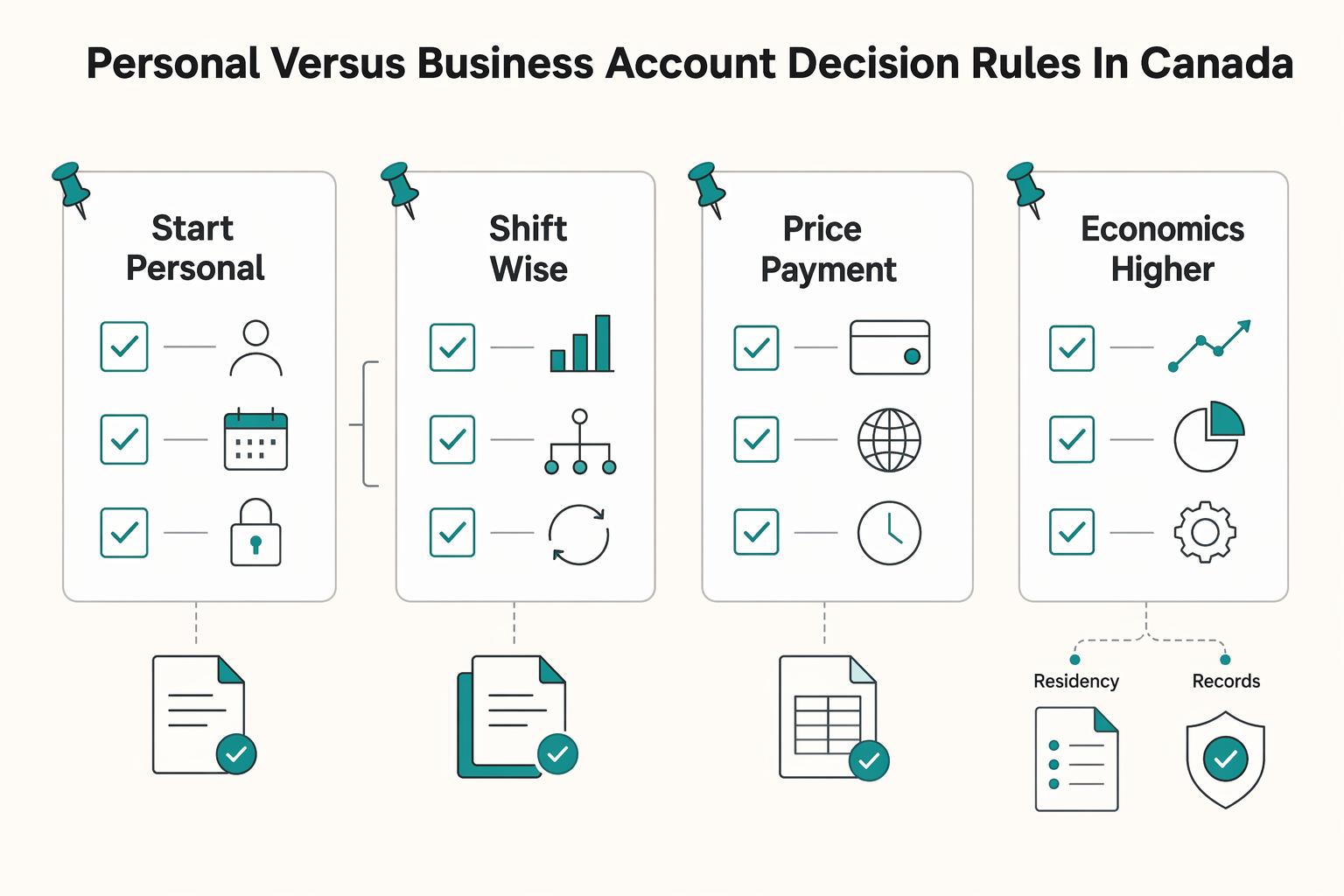
Pick the account setup that protects how you actually get paid, not the one with the lowest headline fee. Predictable deposits, clear limits, and clean records matter more than a cheap monthly number if they help you avoid delays, surprise charges, and month-end cleanup.
How to Connect Wise to QuickBooks for Automatic Reconciliation
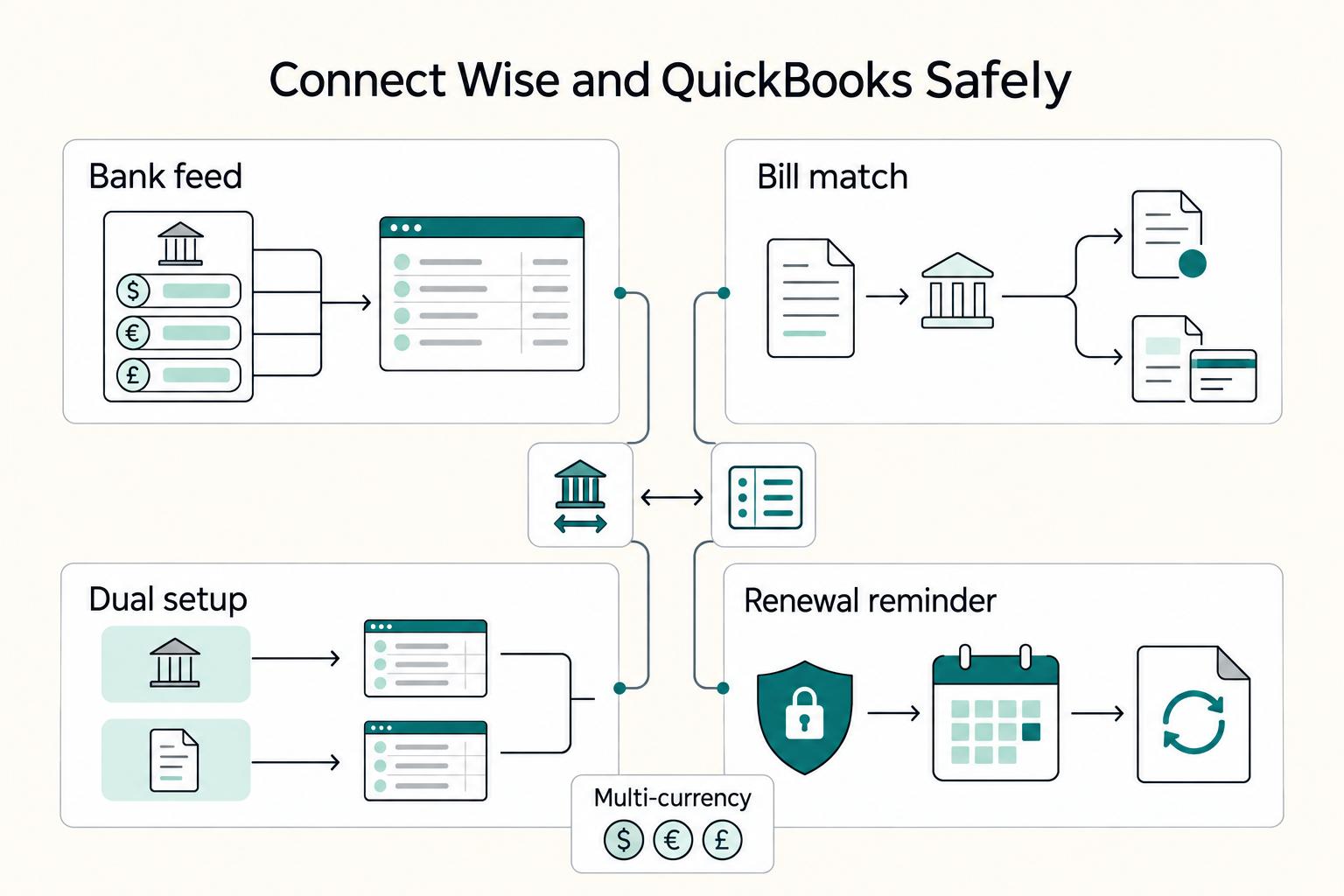
**Use a risk-first Wise to QuickBooks setup to tighten transaction visibility and make reconciliation more predictable.**