
Quick Answer
Create a content database with Status, Owner, dates and draft/live links. Define the brief and review stages, record approval of the exact version, and have the publisher verify it. Share client material through tested permissions, then track the live URL, performance review and separate billing status.
Track each content asset from brief to publication#
If your team is chasing updates across chat, docs, email, and a separate invoice sheet, the issue may be less about effort and more about having no single operating record. Ownership can get fuzzy, approvals can disappear into comments, and it becomes hard to see a clean line from brief to publish to billing.
Give each asset one Notion record with an owner, current stage, approved version, publication evidence and, where relevant, billing reference.
Treat the model below as a practical template to test with your own team.
Define the job first#
Use a shared content database to coordinate the work. Each row opens as a page where the team can keep the brief, draft link, decisions and handoff notes. Your drafting, design, publishing and accounting tools can remain separate.
| Area | Ad hoc setup | Content OS in Notion (example) |
|---|---|---|
| Workflow visibility | Status lives in scattered messages and docs | One record can show stage, owner, and next action |
| Accountability | Ownership changes informally | Each asset can have a named owner and clear handoff point |
| Approval checkpoints | Review happens in email or comments with no clean trail | Approval can be captured as a defined gate before publish |
| Revenue tracking | Billing sits outside delivery records | Each asset can point to the invoice or billing status |
Use this early checkpoint: pick one recent asset and ask whether you can see the brief, current draft, owner, approval state, publish status, and billing reference without opening five tools. If not, you may not need more reminders. You may need a cleaner operating record.
A frequent failure mode is duplicate status updates. A strategist updates a doc, a writer updates a task board, and an account lead replies in email, leaving multiple versions of the truth. For each asset, keep the evidence pack together: brief link, draft link, latest decision, approval note, and invoice reference.
You do not need to replace every tool your team already likes. Keep your drafting, design, and invoicing tools where they work well. The goal is simpler: make Notion the operational source of truth for execution.
Build the content database and its relationships#
Build the structure first: your Content OS should be the single record where each asset shows status, ownership, client context, and publishing timing. When those details live in one place, you cut version confusion and workflow drift across chat, docs, and email.
Create the Content OS database#
Create a database named Content OS or Content. Add a record for one real asset first, then set up the properties below. Notion supports typed properties such as Status, Person, Date, URL and Relation. Database-property guidance explains their setup.
Use these core properties before adding more categories:
| Property | Type | Purpose |
|---|---|---|
| Asset name | Title | Identify the deliverable |
| Status | Status | Track Intake, Drafting, Review, Approved and Published |
| Owner | Person | Name the person responsible for the next handoff |
| Client | Relation to Clients; optional for internal marketing | Keep account context consistent |
| Due date / Publish Date | Date | Separate the next handoff deadline from planned publication |
| Draft link / Live URL | URL | Distinguish work in progress from the published asset |
| Key Stakeholders | Person or agreed contact reference | Identify reviewers; do not use a group of reviewers as a substitute for one owner |
Keep these fields current before adding tags or dashboards. Use Client only when the workflow serves external accounts; internal marketing can relate assets to Campaigns or Products instead.
Link a Clients database#
Create a separate Clients database and relate it to Content OS. This keeps client naming consistent and gives each content record a reliable account link. It also gives you a stable base for filtered client views later.
Standardize the brief template#
Add one reusable brief template inside Content OS so new records start with the same core context. Keep it practical: objective, audience, deliverable, source links, draft link, and approval notes. A standard template reduces setup variance and missing context between contributors.
Open the pilot record and confirm its brief, owner, due date, status and draft are easy to find. Assign one reviewer and one publisher. Then add a board grouped by Status, a calendar using Publish Date, and a My Work view filtered to Owner.
Define production stages and handoff evidence#
Give each status a named owner and an entry/exit checklist. These are team process rules: a Status property or checkbox does not by itself stop an editor from selecting Published, or prevent publication in your CMS.
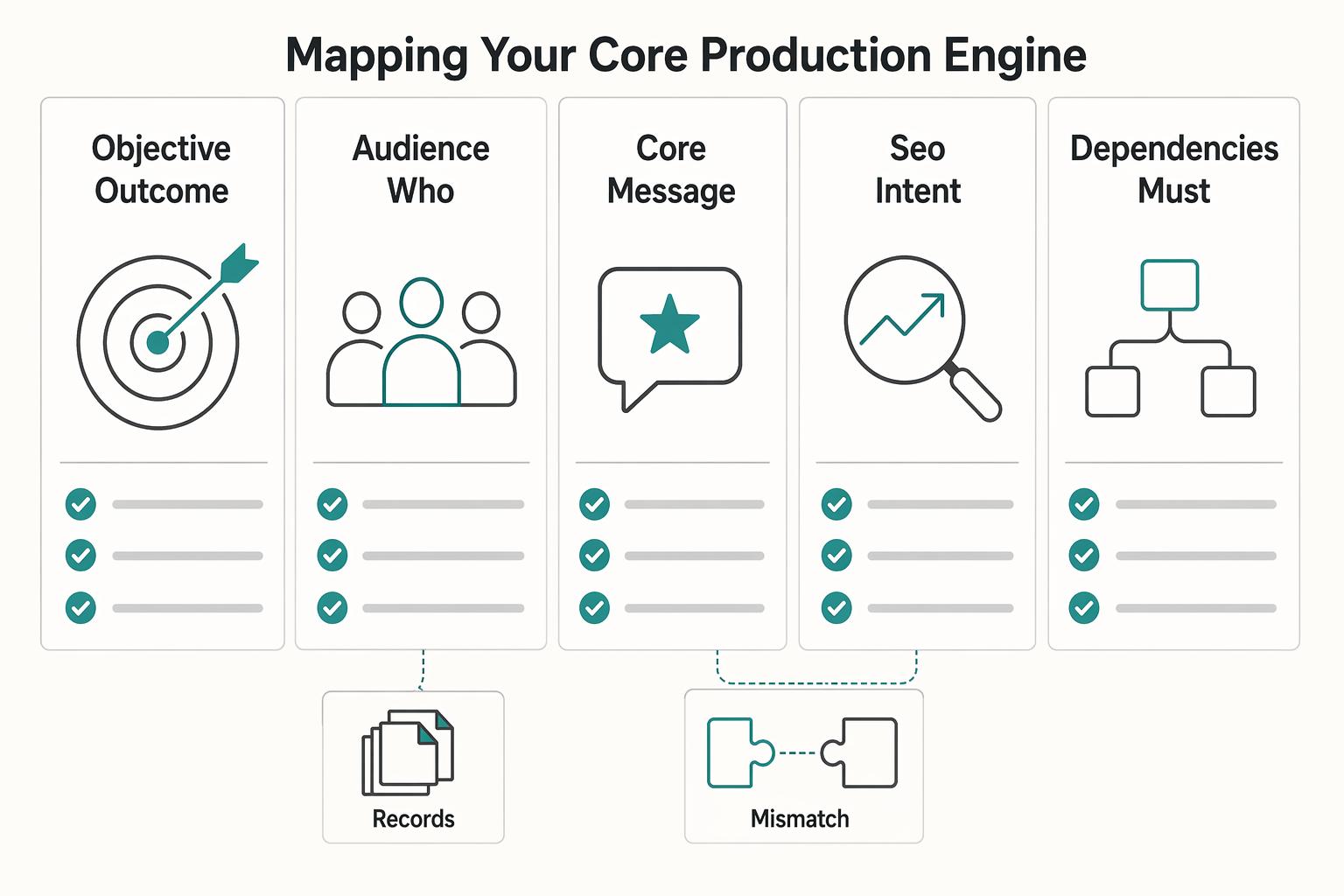
| Brief field | What to capture |
|---|---|
| Objective | what outcome this piece should support |
| Audience | who this piece is for right now |
| Core message | the main takeaway to deliver |
| SEO intent | one primary query plus relevant supporting terms |
| Dependencies | what must arrive from others first |
| Acceptance criteria | what must be true for the piece to be considered done |
Step 1: Define a stage path with gate rules. Keep one clear sequence that your team can enforce: Intake -> Drafting -> Review -> Approved -> Published. This is a practical operating model, not an official Notion standard.
Status stage | Entry condition | Owner | Exit condition |
|---|---|---|---|
Intake | New record exists and brief template is applied | Strategist, account lead, or intake owner | Objective, audience, message, dependencies, and due date are filled |
Drafting | Brief is complete and source links are attached | Writer or creator | Draft link exists and missing info is resolved or clearly flagged |
Review | Draft is ready for editorial or stakeholder review | Editor, client lead, or approver | Feedback is logged in one place and required edits are done |
Approved | Review is complete and no open issues remain | Final approver | Publish date is confirmed and final asset is ready |
Published | Approval is complete and asset is live | Publisher, marketer, or owner | Live URL, publish date, and final notes are saved on the record |
Run a tabletop check with an incomplete brief and missing approval. Confirm the publisher notices and holds the release. If someone can still change the Notion status manually, that is expected unless you have implemented stronger controls; do not confuse a visible label with an enforced publishing block.
Step 2: Use views to make decisions, not just to organize. Each view should answer a different operating question.
| View | Best use | Decision it supports |
|---|---|---|
Kanban grouped by Status | Daily production and handoffs | Where is work stuck, and who owns the next move? |
Calendar based on Publish Date | Editorial calendar and channel timing | Where are gaps, collisions, or deadline risk? |
Filtered My Work | Individual execution | What should I move today? |
Use Kanban for flow, Calendar for timing, and My Work for focus.
Step 3: Use the brief to screen requests. Include the six fields in the brief table, plus the owner and next due date. Before drafting, resolve missing inputs or mark the blocker and assign whoever can supply them.
If intake is harder than drafting, simplify it. Overly nested pages, rigid categories, and intricate tags can slow planning and execution.
Step 4: Add lightweight governance before heavy automation. Pick one feedback channel and enforce it: page comments or a dedicated Feedback Notes property. Mixed channels create missed edits and unclear ownership.
Handle blockers with a Blocked checkbox and short Block Reason. If work must move backward, return it to the earlier Status and log why in the record. You get a usable trail without overcomplicating the system.
You can layer in automation later, including recurring workflow support and external tool integrations, but keep it measured so the workflow stays flexible. The next section adds compliance checkpoints and risk controls.
Record approvals, sensitive review and versions#
The publisher should check the approved version before release. Keep approval evidence in Notion and restrict CMS publishing rights to the people who perform this check. If an integration publishes automatically, implement and test the required checks in that integration.
| Checkpoint | When to use | What to record |
|---|---|---|
Final Client Approval | when an item moves from Approved toward Published | Approval decision, named approver, timestamp, exact version and linked evidence |
Legal Review | for content flagged by the client or team for sensitive review | reviewer assignment, review outcome, and required edits |
Version Log | for version history and filtered checks on Published items | Version, Date, Change Summary, Changed By, and Feedback Artifact |
Use sensitive review only where the content or client requires it. Record the requirement, named reviewer and outcome. A database helps organize the evidence; the responsible reviewer still makes the substantive decision.
Step 1: Record final approval. Add Final Client Approval (Checkbox), Approval Owner, Approval Timestamp, Approved Version and Approval Evidence. For internal content, use Final Approval instead. The publisher checks these against the exact draft before release. A checkbox is an index to the decision, not the decision itself; link the approver’s message or signed record. Material changes after approval return to Review and need fresh approval.
Step 2: Route sensitive items for review. Add a Legal Review stage or review-required flag when needed. Name the reviewer, record the outcome and required changes, and include clearance in the publisher’s checklist. Changing the status in Notion does not replace that review.
Step 3: Keep a version log. Record Version, Date, Change Summary, Changed By and Feedback Artifact for each meaningful revision. Add the approved version to the asset record and create an exceptions view for Published items missing approval evidence. Last edited time is not an approval timestamp: unrelated edits can change it.
| Risk area | With checkpoint | Without checkpoint |
|---|---|---|
| Approval disputes | You can show approver, timestamp, and linked feedback on the record | Approval is split across inboxes/chats and ownership is disputed later |
| Sensitive-topic review | Sensitive items get a named reviewer and clearance check before the publisher releases them | Sensitive items can pass through standard review without an added checkpoint |
| Revision accountability | Version history shows what changed, who changed it, and what feedback triggered it | Teams argue about what was requested, changed, or missed |
Share a client portal with tested access boundaries#
If you want fewer missed updates and less feedback drift, give each client one clear portal view and one clear place to respond.
Step 1: Choose the access model before the view. A client filter organizes a portal; it does not establish who can access the source database. Hidden properties are presentation choices too. For a simple setup, share a separate client page containing only approved client-facing material, with no internal notes or other clients’ records.
Use this quick check before sharing: can a client scan it in 30 seconds and know what needs attention?
| Review mode | Traceability in practice | Turnaround clarity | Scope control |
|---|---|---|---|
| Email thread | Context often fragments across inboxes | Next action can get buried in replies | New requests can mix with approvals |
| Shared doc | Feedback for one asset stays together | Clear when one file is under review | Version drift can appear across multiple docs |
| Read-only portal + one linked feedback artifact | Project status stays centralized, with one linked review trail per item | Each deliverable has a visible review location | Easier to keep requests tied to the current deliverable |
Step 2: Set one canonical feedback path per deliverable. Pick one review location for each asset and store it in a field such as Feedback Link. Then require a simple checkpoint before status moves forward: feedback was received, and requested edits were implemented or explicitly resolved.
Step 3: Verify permissions. Invite named guests with Can view or Can comment as needed. Notion’s Business and Enterprise plans support database page-level rules; those can scope access to assigned records when configured correctly. Broader inherited or direct access still wins. Check parent pages, relations, attachments and source-database access. Notion permissions guidance.
Test the proposed portal using a guest who has no internal access. Confirm they can open the intended deliverable and feedback artifact, and cannot open another client’s record or internal billing notes. A paid template does not establish that boundary. Recheck access when contacts leave or the sharing structure changes.
Closing the Loop: Connecting Content Directly to Cash Flow#
For client work, connect delivery to its billing arrangement. Internal marketing does not need an invoice. Create an Invoices database only if the team benefits from an operational billing index; the accounting system remains the record for issued invoices, credits and actual receipts.
Set up Invoices first, then connect it#
Create Client and Content relations in Invoices, then link assets to the applicable invoice, retainer or milestone record. Several assets can belong to one invoice. Keep the invoice identifier unique and store its accounting-system link. Notion relations and rollups describe linking records and summing numeric fields.
| Field or link | Required now or later | Operations benefit | Common failure it prevents |
|---|---|---|---|
| Invoice ID | Required now | Traceable record per charge | Duplicate or confused invoice records |
Client relation (Invoices -> Clients) | Required now | Client-level filtering and totals | Invoice with no client anchor |
Content relation (Content OS <-> Invoices) | Required now | Direct link from deliverable to billing | Published work with no billing linkage |
| Currency and invoice amount | Required for monetary totals | Keeps each total in a defined currency | Adding unlike currencies or counting one invoice per asset |
| Issue date and due date | Usually required now | Follow-up and aging visibility | Late invoices with no review trigger |
| Collected amount, outstanding balance and receipt reference | Required if reporting cash collected | Handles partial payments and reconciles to accounting | Treating a Paid checkbox or invoiced amount as proof of cash |
Quick check: open one invoice and confirm you can click through to the client and related content item.
Link billing at handoff, not later#
Record Published when the asset is actually live, even if billing remains pending. Track Billing Status separately: Not billable, Covered by retainer, Milestone pending, Ready to invoice, Invoiced or Part-paid/Paid as appropriate. At handoff, identify the billing arrangement and owner; an invoice may be issued later under the agreement.
| Handoff check | Required action |
|---|---|
| Publication | Save the actual live URL and date separately from approval |
| Billing arrangement | Link the invoice, retainer or milestone; mark non-billable internal work |
| Ownership | Assign invoice preparation and collection follow-up |
| Pending billing | Record the contractual trigger and next review date |
| Invoice details | Confirm identifier, client, currency, amount and accounting link |
If an intake form or integration creates records, assign a stable submission identifier and check retries for duplicates. Decide which system owns each field. Before relying on two-way updates, test the actual connector: a create-only handoff should not be treated as a synchronization service. For example, Gravity Wiz’s Notion intake workflow writes form entries into Notion one way; a later edit in Notion does not update the source entry.
Build rollups you can act on#
In Clients, relate directly to Invoices and sum Invoice Amount and Collected Amount separately. Do not roll up the same invoice through each related content asset: that can count it more than once. Separate currencies or use a documented conversion policy. Reconcile receipt amounts and references to the accounting system before calling a total collected cash.
- Unpaid invoices queue for follow-up
- Client work missing a billing arrangement or overdue for its agreed invoice trigger
- Client list sorted by collected value
- Clients where invoiced totals rise while collected totals stay flat
Schedule the post-publication review#
Add Review Date, Primary Metric, Baseline, Result and Next Action. For a search article, review indexing and query impressions first, then qualified visits and conversions on an appropriate timetable. For email or social, choose metrics for that channel. Store the reporting period and analytics link so figures can be checked; record attribution limitations rather than assigning every later sale to one asset.
Pilot one asset through the whole workflow#
Example: an agency drafts a launch article for Client A. Maya owns the draft, Lee reviews it, and the client approves version 3 through the linked review document. The publisher confirms version 3, saves the live URL and actual publication date, and schedules a 30-day review. A later material rewrite returns to Review. The client portal contains only the permitted draft and status information.
The article and two social assets belong to one hypothetical $1,200 invoice. Relate that invoice once to Client A and to all three assets. If accounting records a $500 partial receipt, the client rollup is $1,200 invoiced and $500 collected, with $700 outstanding—not $3,600 invoiced because three assets reference it. Keep the receipt reference and follow up under the agreed terms.
Choose which actions to automate#
| Decision factor | Native Notion | External automation |
|---|---|---|
| Best fit | You want visibility, linked records, and manual control inside one workspace | You need actions to happen across Notion and other tools |
| Setup pattern | Clear records plus filtered views | Trigger from a Notion update into another app |
| Control | High visibility inside your workspace | Broader reach, but more moving parts |
| Maintenance overhead | Lower, especially for small teams | Higher, because you need to watch mapping and sync behavior |
| Use with care when | Your process is still changing weekly | You have stable fields, owners, and handoff rules |
What changes in weekly operations once the system runs#
The workflow is useful when the next responsible person can see what to do and what evidence is missing. Keep approval, publication, client access and billing as separate states so a delay in one does not hide the truth about another.
In weekly operations, four things change:
- Delivery tracking: a published asset has a live URL and date, plus its own next review.
- Approval evidence: the publisher checks the named approver and exact version before release.
- Billing visibility: client work links to an invoice, retainer or pending milestone without confusing fees with cash.
- Client access: permitted material is shared through tested permissions, with internal notes kept separate.
| Operating area | Reactive workflow | System workflow |
|---|---|---|
| Visibility | Status is split across email, notes, and memory | One record shows approval, client view, publish state, and invoice link |
| Accountability | Approval is implied in comments or messages | Final Client Approval is confirmed on the record before publish |
| Decision speed | You pause to reconstruct what happened | You can quickly spot missing approvals, invoice links, or client-view gaps |
Use a weekly review cadence:
- Review assets waiting on an input, approval or performance review; assign the next action and date.
- Check published items missing live URLs or approval evidence, and client work whose billing trigger needs follow-up.
- Review unpaid and part-paid invoices against accounting receipts, then update their follow-up owner.
- Recheck portal access when clients, staff or page structures change.
Keep iterating the system as your services, support model, or tooling changes. Verify any feature or process change before you rely on it.
Frequently Asked Questions
How do you handle approvals cleanly in Notion?
Keep the approver, timestamp, exact approved version and linked decision on the asset record. The publisher checks that evidence before release; a Notion status alone is not an enforced CMS gate. Material draft changes return to Review for renewed approval.
Can you connect Notion to invoicing?
Yes. Notion can link assets to invoice, retainer or milestone records and show billing exceptions. Keep invoice issuance, credits and payment evidence in the accounting system. Use a separate billing status so published work is still recorded accurately while an agreed milestone is pending.
How do you track ROI without turning the database into a finance mess?
Separate delivery economics from marketing performance. Fees less tracked delivery costs can show contribution for client work; billed value is different from collected cash. To assess content performance, define an objective and review metrics such as qualified leads or conversions after publication. Neither invoice totals nor page views alone establish marketing ROI.
Should you start from a template or build your own?
Start with a template if its properties and stages match the job, then remove unused fields. Pilot one asset before importing the backlog. Check sharing permissions and approval evidence yourself; template structure is not proof that either works. For a broader workspace setup, see Notion for freelance business management.
How do you work with editors, VAs, or clients without exposing the whole workspace?
Share selected pages with named guests, or use tested page-level database permissions where your plan supports them. A filtered view or hidden property is not an access boundary. Keep internal notes and other clients’ information outside the shared material, then verify the result with a guest who has no broader workspace access.
What properties matter most in the main content database?
Start with asset name, Status, Owner, due date, Publish Date, Draft Link and Live URL. Add Client for external work and approval/version evidence before publication. Add categorization only when the team uses it to make a weekly decision.
When should you automate, and when should you stop at native setup?
Start with reminders and handoff notifications after the fields and owners are stable. Notion database automations generally require a paid plan and full database access to configure; Free has limited options. Automations cannot trigger other database automations. Test the actual sequence and failure handling before relying on it. A notification is not a publishing permission check. Notion automation guidance.
What is the best check before you call the setup done?
Trace one asset from brief to draft, exact approval, publication and scheduled performance review. For billable work, trace the billing arrangement and actual receipt separately. Then run one missing-approval test and one client-access test before adding more automation.
Try a related tool
Researched and edited by the Gruv editorial team. Gruv builds cross-border billing, payouts, and finance-operations software for global businesses.
Sources
Includes 3 external sources outside the trusted-domain allowlist.
Educational content only. Not legal, tax, or financial advice.
Related Posts

Build a Freelance Content Calendar That Survives Client Work
If your publishing keeps slipping, the problem is often not a lack of ideas. It is that the plan breaks the moment client work shifts. A **freelance content calendar** should give you a usable schedule for what you plan to write, produce, and publish, plus enough structure to decide what moves when the week gets crowded.

How to Build a Sales Pipeline for Your Freelance Business
Before you turn this into a detailed freelance pipeline playbook, pause for a source-quality check. The available evidence here is a [Scribd listing](https://www.scribd.com/document/958783827/The-FP-a-Handbook) for **FP&A Handbook: Financial Planning Guide**, not a verified, fully reviewed operations standard.

A Guide to Notion for Freelance Business Management
If your workspace feels busy but fragile, you do not need more pages. You need one connected system. Treat your freelance business like a business-of-one and use Notion as the control layer that connects client decisions, delivery, and billing in one place.