

Quick Answer
Log in to Wise Business, select your business name and continue to Xero, authorize the intended organisation, then select each currency and its existing or new Xero bank account. Review suggested mappings with Edit and confirm the setup. Each Wise currency connects to one Xero bank account within the organisation. Names must be unique, including names previously used for archived or deleted accounts. Choose the bank-feed schedule and test one inbound and one outbound transaction against the Wise statement. Imported statement lines still need reconciliation. Add optional features only after checking their eligibility and testing the resulting records.
Connect Wise to Xero without reconciliation surprises#
Short answer: To connect Wise to Xero without reconciliation surprises, first confirm you mean Wise rather than ConnectWise, connect the correct Wise Business profile to the correct Xero organisation, document where each active currency should appear in Xero, and test one real transaction before you turn on more features.
Cleanup usually starts earlier than people expect: when Wise gets confused with the PSA route, currency handling is unclear, or too many features are turned on before the base connection is proven.
Use this sequence to keep setup controlled:
- Confirm the product path before changing any settings.
If client money lands in Wise Business, treat it as a business-account-to-Xero setup first. Wise describes that account as its global business account and says it integrates with Xero. If your accounting flow is centered on ConnectWise PSA, that is a different route, where tools like Wise-Sync and the later WisePay brand may apply. Checkpoint: write down the exact product names in your stack and who owns each login. Red flag: if you list both vendors but cannot clearly say which system holds cash, pause before setup.
- Build a small evidence pack before you connect.
Use a minimal test set: one customer payment, one outgoing payment or fee, and the currencies you actively use. For each currency, note where you expect entries to appear in Xero so review is straightforward. Checkpoint: each active currency has one clearly named destination for review. Failure mode: vague or reused account names can make reconciliation review harder.
- Start with the smallest useful scope.
Do not start by enabling everything. Start with the base connection, confirm you are in the intended Xero organization, and trace one real transaction from start to finish before adding more behavior. Checkpoint: save proof of one transaction appearing as expected in both systems. Tradeoff: this takes longer up front, but it reduces cleanup risk later.
- Use third-party connectors only when your workflow requires them.
If your workflow genuinely starts in ConnectWise PSA, use that product’s connector documentation and test invoice lines, tax codes, customer identity and duplicate handling separately. That route does not describe the native Wise Business bank feed.
Use this copy-and-paste checklist before your first live week:
- Confirm whether your path is Wise Business or ConnectWise PSA
- List active currencies and where you expect them to appear in Xero
- Save one real inbound payment and one outbound transaction as test cases
- Connect the base path first and verify you are in the correct Xero organization
- Trace one transaction from start to finish and keep proof screenshots
- Add extra connector behavior only after the base path is stable
For the reconciliation side, see How to Reconcile Bank Statements in Xero.
Confirm the product names before you configure anything#
The first decision is simple: treat Wise and ConnectWise as different products, then choose the path based on where money actually lands.
First, identify the profile that holds cash. If client payments land in Wise Business, start with the native connection. Log in to Wise Business, select your business name and continue to Xero, authorize the intended organisation, then select each currency and its existing or new Xero bank account. Review suggested mappings with Edit and confirm the setup. After setup, use Settings > Accounting integrations to manage the Xero connection.
Before you change anything else, confirm you can log in to the account that holds the funds and reach the Xero connection area.
Next, keep PSA sync separate from native banking sync. If your workflow is centered on ConnectWise PSA, that is a different route, such as Wise-Sync via the Marketplace. It is not the native business-account connection path.
If you find yourself in Wise-Sync troubleshooting or marketplace documentation when your goal is simply to sync account activity to Xero, reset scope and go back to the product that holds the cash.
Use one rule before you configure anything. If funds land in Wise accounts, start with native Wise Connection settings. Move to a PSA-led connector only when your process genuinely needs to be driven from the PSA.
While setting up Wise Connected accounts, map each currency to an existing or new Xero bank account. Keep account names unique in Xero to avoid setup errors. For a related walkthrough, read How to use Wise to pay yourself a 'salary' from your foreign corporation.
Prepare the accounts and evidence you need before setup#
Most setup problems are easier to prevent than unwind. Prepare first so you can verify outcomes quickly and avoid cleanup later.
| Item | What to note | Why |
|---|---|---|
| Wise profile and Xero organization | Write down the precise entity and organization names | Do not connect the wrong tenant by mistake |
| Wise currency accounts and Xero bank accounts | List them side by side and note the date range you want to monitor after setup | Wise lets you choose a sync start date up to 12 months earlier; record it to avoid overlapping manual imports |
| Controlled test | Keep dates, amounts, currencies, and reference IDs in one note | Compare expected versus actual results |
| Fallback import file | OFX, QIF, QBO, QFX, or CSV | Use manual upload if a feed is unavailable |
Start by confirming access to the exact Wise profile and Xero organization you plan to use. Before setup, write down the precise entity and organization names so you do not connect the wrong tenant by mistake. If access is unclear, resolve ownership and login routing first.
List active Wise currencies and Xero bank accounts side by side. Wise lets you set a transaction-sync start date up to 12 months in the past for connected currencies. Record that date and any statement ranges already imported, so a history backfill does not overlap an existing manual import.
Validate workflow assumptions before you go live. Capture the currencies involved and the exact result you expect so you can separate setup issues from feature-scope limits.
Build a small evidence pack for controlled testing. Use one real transaction you can verify end to end, and keep dates, amounts, currencies, and reference IDs in one note so you can compare expected versus actual results.
Keep a fallback statement in a Xero-supported import format such as CSV or OFX; Xero also lists QIF, QBO and QFX. Use the format accepted by your organisation and bank. Review date ranges and duplicates after importing, and reconcile against the original Wise statement. A bank-feed connection lets Xero receive data, not move money; separately enabled payment workflows have their own permissions.
You might also find this useful: A Guide to Xero for Freelancers and Small Businesses.
Pick the right integration path for your operating model#
Choose one primary route before setup. If your workflow is mostly money activity flowing into accounting, a direct Wise Business to Xero route can be a practical starting point, with middleware added only when PSA-driven workflows are required. Extra layers can add flexibility, but they also add support boundaries.
The native connection has distinct data flows. Bank feeds sync Wise statement lines on the schedule you choose; unpaid-bill import, marking bills paid, expenses and document sync have separate scope. Do not assume every feature operates in real time or is available to every customer.
| Path | Best fit | What to verify first | Main tradeoff |
|---|---|---|---|
| Native Wise Business + Xero | Teams where Wise is the money account and Xero is the ledger | Correct Wise profile, correct Xero org, currency/account mapping, expected transaction behavior | Direct-connection scope with fewer handoffs |
| ConnectWise-led middleware | Teams where PSA processes drive invoicing and finance operations | Use product-specific documentation to verify record types, mapping and duplicate handling | Broader orchestration, but another dependency to support |
| Additional automation layer | Only after a proven primary route still has a specific gap | Exact trigger, destination record, duplicate handling, and ownership for failures | More flexibility, but more coordination risk across tools |
Keep the native bank-feed route separate from any PSA-led connector. Record which system creates each invoice, statement line or payment record, and which vendor owns an error at that boundary.
Before rollout, define one creation path and one update path per record type. Loosely connected stacks can create duplicate entries, missed charges, payment-collection delays, extra manual work, and data errors.
Prove the chosen route in a contained test before scaling. Run one inbound and one outbound payment through the bank feed. For eligible optional features, use a separate bill, expense or attachment test and verify the exact record created in Xero.
For a related walkthrough, see Freelance Finance Automation with Zapier for Stripe, QuickBooks, and Wise.
Connect Wise Business to Xero in the base settings#
Keep the first connection narrow: connect the correct Wise Business profile to the correct Xero organisation, then leave extra features off until the base link is verified.
| Stage | Action | Verify |
|---|---|---|
| Connect the intended organisation | Log in to Wise Business, select your business name and continue to Xero, authorize the intended organisation, then select each currency and its existing or new Xero bank account. Review suggested mappings with Edit and confirm the setup. | Names of Wise Business profile and Xero organisation are correct |
| Map currencies | Each Wise currency connects to one Xero bank account within the organisation. Names must be unique, including names previously used for archived or deleted accounts. | Each active currency has the intended destination and unique name |
| Confirm authorization | Check the connected Xero integration in Settings > Accounting integrations | Connected/Manage controls and expected currency mappings are visible |
| Start with bank feeds | Wise offers bank-feed sync every four hours, daily, weekly or monthly. In Accounting integrations, open Xero, then Bank feed > View sync settings and select the frequency and time under Configurations. | Record schedule and starting date; trace statement lines before adding features |
| Review optional eligibility | Check UK bill-import scope, multicurrency requirements and feature availability | A feature is not assumed available merely because the feed connects |
Start in Wise Business. Log in to Wise Business, select your business name and continue to Xero, authorize the intended organisation, then select each currency and its existing or new Xero bank account. Review suggested mappings with Edit and confirm the setup. You can also initiate the integration from Xero.
Before authorizing, confirm the business profile and Xero organisation. Each Wise currency connects to one Xero bank account within the organisation. Names must be unique, including names previously used for archived or deleted accounts.
Finish authorization and confirm the connection actually completed. In Wise, Xero should show as connected and you should see Manage next to Xero.
If the connected Xero integration or management controls are missing, check whether authorization completed for the intended organisation before changing currency mappings.
In Connection settings, enable only core sync first. A practical starting point is to sync bank feeds and leave other features off.
That keeps troubleshooting simpler. If something is wrong, you can isolate whether the problem is authorization, mapping, or a later feature toggle.
Then choose the currencies to sync and review the mapping to Xero. After connection, some currency accounts may already appear. Confirm they are correct before saving.
If a suggested mapping is wrong, use Edit to change or remove it. Also confirm each connected Xero bank account name is unique.
Sync only the Wise currencies shown as available for your profile and supported by your Xero setup. Check the actual currency list and plan before creating accounts; a broad marketing currency count does not establish your integration’s coverage.
Before you move on, confirm three things: the right entities are connected, Wise shows Xero as managed, and connected accounts plus sync controls are visible and correct.
If you want a deeper dive, read How to Connect Wise to QuickBooks for Automatic Reconciliation.
Enable features in the safest order#
Turn features on in stages. Start with the easiest behavior to verify, then move to higher-impact automations only after each check passes. This is not a vendor-mandated sequence. It is a practical way to catch data-flow issues before they spread.
| Phase | Enable | Check |
|---|---|---|
| First | Bank-feed statement lines | Map currencies, set schedule/start date and reconcile a known transaction |
| Next | Eligible bill-payment or expense features | UK bill import and marking-paid flow; multicurrency plan required for marking paid and expenses |
| Last | Document sync, if available | Attachments create draft bills/invoices requiring review and publication |
| For each feature | Expected-versus-actual evidence | Verify the feature’s direction, record type and duplicate handling; advanced settings are unavailable to new customers |
Enable lower-impact sync first. Run one controlled transaction test and confirm it appears in the intended place before you enable anything that changes records across systems.
Check eligibility before enabling payment or expense automation. Importing unpaid Xero bills into Wise is currently available to UK businesses. Bills paid through Wise’s Pay Invoices flow are automatically marked paid in Xero, which requires a Xero plan supporting multicurrency. A bill paid elsewhere must be marked paid in Xero to avoid leaving it available for payment in Wise. Expenses also require a Xero plan that supports multicurrency. Advanced settings are unavailable to new customers; do not plan a rollout around a toggle you cannot access.
Enable document sync last if it is available. Wise’s document-sync guidance describes attached bills/invoices becoming drafts in Xero, awaiting review and publication. Check one attachment end to end and avoid creating a second record for an invoice already entered by another route.
For each feature, log one controlled test with expected versus actual results and evidence. Also confirm each connected app's sync model, because some Xero-connected apps are one-way while others are bidirectional. An app-store listing alone does not guarantee fit for your workflow.
Before you scale automation, tighten invoice consistency so reconciliation stays clean with this free invoice generator.
Map currencies and account names correctly the first time#
Currency mapping is not admin busywork. It is a reconciliation control. If you document how Wise currency activity maps into the Xero accounts you reconcile against, early checks get easier and errors are easier to isolate.
Start with an explicit mapping list. List the Wise currencies you actively use and record the Xero account(s) you intend to reconcile against. Keep the record explicit and standardized, with a unique internal reference for each mapping so you or someone else can verify it quickly later.
This follows a solid reconciliation baseline. Map incoming and outgoing money deliberately, not with broad placeholders.
Use account names that stay clear during review. Clear labels support line-by-line matching and reduce avoidable confusion when accounts are similar.
Automated bank feeds can save time and reduce errors, especially when account purposes are clearly documented.
Validate your mapping in practice before you scale volume. Run a controlled check, confirm transactions land where you expect, and log the result with your reference-number system.
When something does not match, investigate it as part of normal reconciliation flow, especially for missing payments, unexpected fees, and currency conversion differences.
Validate the first week before trusting automation#
A successful connection is only the start. The first week is where you prove whether transactions are actually posting correctly in your books.
Sample real transactions each day from Wise and trace them into Xero. Check amount, currency, date, account, and final ledger impact.
Use a simple pass-or-fail check: each sampled transaction appears once, in the expected account, with no ambiguity. Flag missing entries, duplicates, inconsistent fee treatment, or activity posted to the wrong currency account.
Keep an evidence note for each check, including the transaction reference, supporting screenshot if needed, and the Xero record, so you can compare outcomes across the week.
Check the chosen bank-feed schedule before changing mappings. Wise offers bank-feed sync every four hours, daily, weekly or monthly. In Accounting integrations, open Xero, then Bank feed > View sync settings and select the frequency and time under Configurations. Unpaid-bill visibility is a different flow; do not use its real-time behavior to infer the bank-feed cadence.
If your setup shows sync status details, record what you see and recheck the same transaction after the next refresh signal. If a manual sync control is available in your setup, use it during investigation. If not, treat timing as unresolved until the next expected refresh window.
Practical rule: separate "not synced yet" from "synced wrong" before you reconfigure anything.
Reconcile a mixed sample so you test workflow outcomes, not just feed activity. Include incoming and outgoing records, and review attachment behavior if document import is enabled in your setup.
For payable-side records, confirm the bill content against your own source documents. If you already run stricter AP controls, keep that discipline here, including three-way matching where applicable.
If your workflow is configured to create records in Draft or Approved status, verify status and details directly in Xero before approving anything downstream.
Track exceptions from day one so repeated issues become visible early. Use a simple log like this:
| Field | What to capture |
|---|---|
| Date and reference | When it happened and which transaction or record |
| Expected vs actual | What should have happened and what occurred |
| Root cause | Confirmed cause or current hypothesis |
| Fix | Action taken |
| Owner and recheck | Who owns follow-up and when to verify |
Capture exact error text, the affected currency and account, and one transaction reference. These details help distinguish an authorization, naming, timing or record-creation problem.
If the same exception repeats, pause expansion of that automation path until the cause is fixed.
This pairs well with our guide on How to Use Wise to Pay International Invoices with a US Credit Card.
Fix common failures without creating new ones#
Handle issues as triage first, not as a broad reconfiguration project. Confirm the expected feature, isolate the mapping path, verify the integration route, then escalate with evidence. Avoidable errors can happen when those layers get mixed.
If a paid bill remains unpaid in Xero, identify the actual payment flow. Importing unpaid Xero bills into Wise is currently available to UK businesses. Bills paid through Wise’s Pay Invoices flow are automatically marked paid in Xero, which requires a Xero plan supporting multicurrency. A bill paid elsewhere must be marked paid in Xero to avoid leaving it available for payment in Wise. For a bank-feed-only transaction, reconcile the statement line against the intended bill; importing it is not the same as marking the bill paid.
If the feed looks wrong, run a single-transaction test for each active currency. Check, in order, the currency, the destination account in Xero, and whether the transaction appears once.
Change only the path that fails. Avoid broad remaps or account renames in one pass, or you lose a clean cause-and-effect trail.
Reset scope if you may have followed a ConnectWise guide by mistake. Xero connects with 1,000+ apps, so search results can mix different integration paths.
If your payment flow is Wise Business to Xero, stay on that path. If your workflow starts in ConnectWise or another upstream system, treat it as a separate integration route and use the matching troubleshooting flow.
Before escalating, document the exact integration layer where the issue appears. If a third-party connector is involved, name it and show where data stops. Include:
- app path used (for example: Wise Business flow, Wise-Sync, or a ConnectWise-to-Xero connector)
- one transaction reference and expected result in Xero
- exact error text
- scope of failure (all items or only specific currencies or record types)
Send the responsible vendor the exact message, organisation and currency mapping, transaction reference and selected sync schedule. If a separate PSA connector is involved, include its name and where data stops rather than treating its errors as native Wise feed errors.
If the symptom is still unclear after these checks, pause setting changes and classify the failure by layer first. Related reading: A Deep Dive into Wise's API for Automated Payments.
Add third-party automation only after native stability#
Once the direct flow is stable, add only one external layer at a time. That keeps failures diagnosable and avoids adding tool overhead before the core path is reliable.
First confirm your current workflow is consistently landing where you expect before you add any external automation or PSA-linked connector. If you still cannot quickly tell whether an issue starts in the source system, destination system, or mapping, pause and fix that first.
Add a third-party automation layer only when you can state the exact trigger-action outcome you need and why your current route does not already cover it. Before enabling any connector, verify its own documentation for functionality and region availability.
Use connector catalogs carefully. They can be scoped views, not a full market map. For example, Microsoft's Power Automate connector page explicitly shows only connectors available in Power Automate.
Keep a small evidence pack for the first automation layer:
- exact trigger, action, and expected result
- one test reference
- proof of what ran and what appeared in your destination system
- connector-doc notes on functionality and region availability
Use an additional platform only when your workflow is truly anchored to ConnectWise Manage or PSA processes. ConnectWise is a modular suite, not a single product, and ConnectWise PSA is the system of record for ticketing, projects, and billing. If that system is not driving your workflow, an extra layer can add complexity without a clear benefit.
If vendor trust is part of your decision, validate it directly in the channels you rely on, then roll out one layer at a time.
Build a reusable cashflow control checklist for each new client#
A repeatable client checklist is worth building. The practical sequence is to lock payment terms first, verify current Wise costs for that exact route, then confirm the first live payment matches what you expected before you automate accounting.
Set payment terms and rail before work starts. Put the due date, payment currency, and payment method in writing, then check Wise pricing for that exact route at execution time rather than using old assumptions.
Wise states fees depend on transfer specifics and that you see the fee and exchange-rate breakdown before confirming. If conversion is involved, note Wise's mid-market rate position. If the client will send a USD wire or Swift payment, record the published receiving fee shown for that route, for example 6.11 USD where listed. Save the pricing or preview capture in the client file, because Wise also states fees can change.
Run the same onboarding review every time, and keep it as a short evidence pack.
- invoice terms and agreed payment rail
- Wise transfer preview capture (fee and exchange-rate breakdown)
- route-specific receiving fee assumptions (for example
6.11 USDfor USD wire/Swift where listed) - if cash withdrawal is in scope, check the account’s current local ATM allowance and charges
- first live transaction reference and expected versus actual fee/rate outcome
After the first real payment, compare expected versus actual outcome and update the checklist where anything was unclear. If ATM withdrawals are part of the flow, avoid ATM-side currency conversion when possible, since Wise warns those rates are often unfavorable.
Pair this with basic finance hygiene so payment tracking stays clean: Separating Business and Personal Finances: A Important Step for LLCs.
For higher transfer volumes, inspect the current volume-discount conditions for your account’s country and currency rather than assuming a universal USD threshold. Keep that pricing check separate from the Xero connection test.
For marketplace payment-flow context, see How to use 'Stripe Connect' to build a marketplace.
Set it up once then operate it with weekly control checks#
The low-risk model is straightforward: start with a direct Wise plus Xero path, prove it in a controlled first week, and add extra tooling only when you can name the exact gap. Fewer moving parts, frequent reconciliation, and clear exception handling beat a more complex setup that no one can debug quickly.
- Confirm product intent first.
Verify you mean Wise and not ConnectWise before you authorize anything. This keeps you on the right path from day one.
- Confirm account scope and access.
Make sure you are in the correct Wise Business account and Xero organization, and that you can reach the connection settings you need to review after setup.
- Set up the core feed first.
Set up the bank feed, choose its schedule and start date, then verify the imported statement lines and reconcile them. Feed import is the first layer, not proof that bills or expenses were posted correctly.
- Map connected accounts carefully.
Make each active account mapping explicit and verify transactions land in the intended Xero bank feeds account.
- Enable features one at a time and test each with one known transaction.
Compare expected versus actual results in Xero before expanding scope.
- Run control checks on schedule.
During week one, spot-check daily. After that, move to a weekly exception review. Reconcile often, approve suggested matches, and log the issue, root cause, owner, and fix.
- Use fallback import when the direct connection is the issue.
Use a Wise CSV statement in Xero’s supported import workflow, checking date ranges and duplicates. Direct PDF import is available only for supported banks and organisations; confirm support before relying on it. Keep the original statement and tie the closing balance to the reconciled ledger.
- Add middleware only after the native flow is stable.
Add PSA middleware only for a specific workflow gap. Give each record type one creation path, then test updates, duplicate prevention and failure ownership before widening its scope.
Use this copy-and-paste checklist in your weekly review:
- Confirm Wise vs ConnectWise intent
- Verify Wise Business and Xero access
- Map connected accounts to the right Xero bank feeds accounts
- Enable features in order and test each with one transaction
- Reconcile often and approve suggested matches
- Run a weekly exception review and fix root causes, not symptoms
If your weekly checklist is getting heavy, evaluate whether a single operating model might simplify payment handoffs, such as Merchant of Record for freelancers.
Frequently Asked Questions
Is "connect wise to xero" about Wise or ConnectWise?
This guide covers Wise Business, the money account, and its native Xero integration. ConnectWise PSA and Wise-Sync are separate products; use their documentation only if they are actually part of your workflow.
How do I connect Wise Business to Xero step by step?
Log in to Wise Business, select your business name and continue to Xero, authorize the intended organisation, then select each currency and its existing or new Xero bank account. Review suggested mappings with Edit and confirm the setup. Each Wise currency connects to one Xero bank account within the organisation. Names must be unique, including names previously used for archived or deleted accounts. Select the bank-feed schedule and starting date, then reconcile a known inbound and outbound transaction before enabling optional features.
How often does Wise sync data into Xero?
Wise offers bank-feed sync every four hours, daily, weekly or monthly. In Accounting integrations, open Xero, then Bank feed > View sync settings and select the frequency and time under Configurations. Check the selected schedule before diagnosing a missing statement line.
Why are my Wise currencies not syncing correctly in Xero bank feeds?
Check that the currency is selected in Currency settings and connected to the intended existing or new Xero bank account. Each Wise currency connects to one Xero bank account within the organisation. Names must be unique, including names previously used for archived or deleted accounts. Then confirm the selected sync schedule and start date. Test one transaction before remapping other currencies.
Can every business import bills from Xero into Wise, or are there location limits such as UK availability?
Importing unpaid Xero bills into Wise is currently available to UK businesses. Bills paid through Wise’s Pay Invoices flow are automatically marked paid in Xero, which requires a Xero plan supporting multicurrency. A bill paid elsewhere must be marked paid in Xero to avoid leaving it available for payment in Wise.
Do I need Xero multicurrency for mark-as-paid behavior?
Yes for the Pay Invoices bill-payment flow described by Wise: automatically marking those bills paid requires a Xero plan supporting multicurrency. Expenses have the same plan requirement. Bank-feed connection alone does not establish that the optional workflow is available or configured.
What should I do if I actually meant ConnectWise Manage to Xero?
Treat that as a separate integration path and use product-specific documentation for ConnectWise-to-Xero guidance.
Watch
Connect Wise to Xero Without Reconciliation Surprises
Try a related tool
Researched and edited by the Gruv editorial team. Gruv builds cross-border billing, payouts, and finance-operations software for global businesses.
Sources
Includes 2 external sources outside the trusted-domain allowlist.
Educational content only. Not legal, tax, or financial advice.
Related Posts

How LLC Owners Separate Business and Personal Finances
For an LLC, separating business and personal money is best treated as a weekly habit, not a one-time bank setup. It keeps records cleaner, cuts month-end cleanup, and creates clearer boundaries as the company grows.
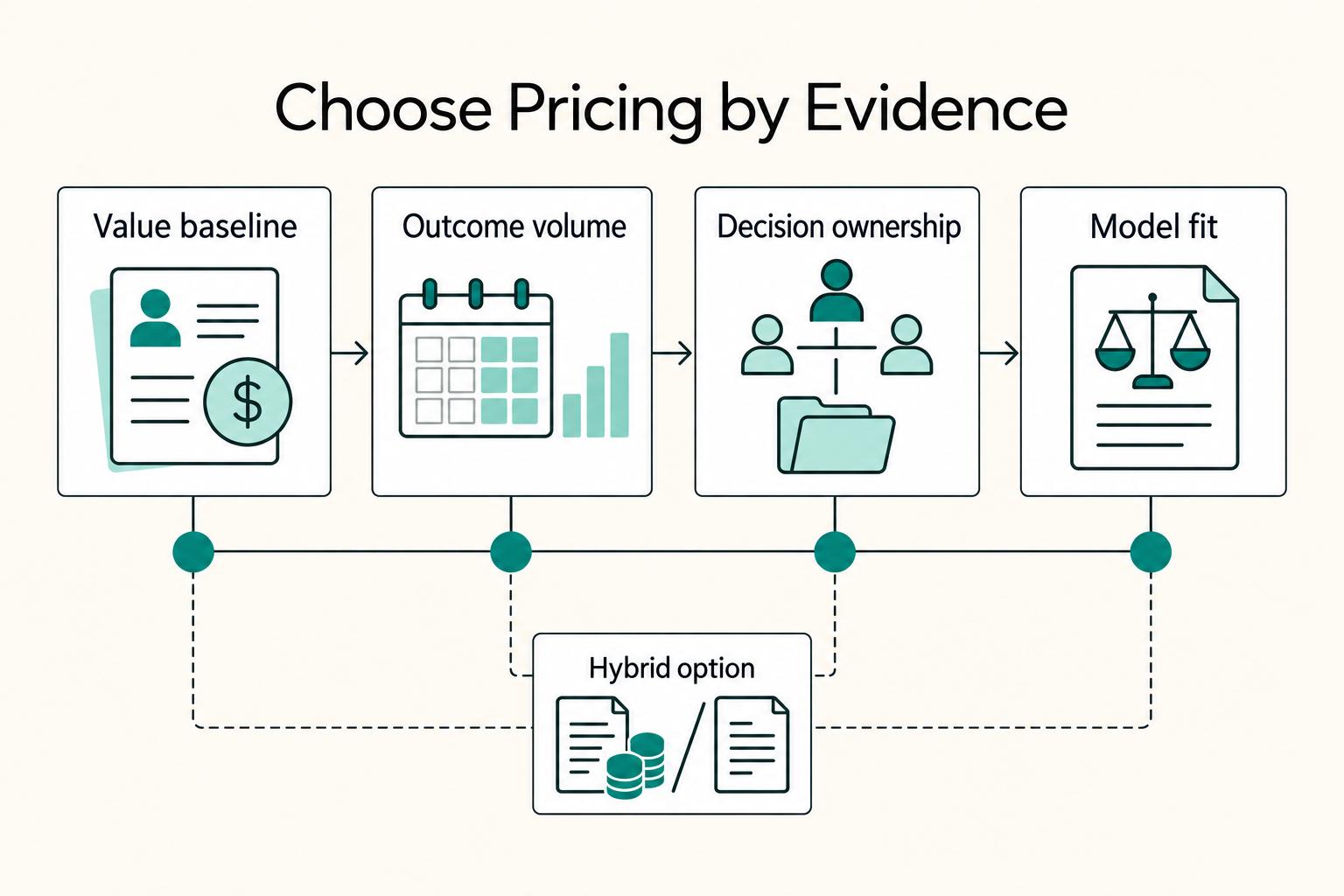
Value-Based Pricing for Freelancers Under Real Payment Risk
Value-based pricing starts with the client’s expected benefit and willingness to pay. It still needs a deliverable, scope and payment agreement you can perform. Use a discovery phase when the benefit or effort is too uncertain to support a defensible quote.

The Freelance Payment Penalty: A Modeled Audit of Platform Fees, FX Spreads, and Payout Delays
The money rarely disappears through a single, easy-to-spot fee. The real loss is stacked. A marketplace takes its commission, a processor adds a charge for international cards, a bank or payment company converts the currency at a spread, a platform holds the funds before release, and a wire sheds a little to intermediaries on the way in. Each layer looks defensible on its own, but the worker feels the combined result as a smaller deposit and a later payday.