

Quick Answer
Freelancers can use Microsoft 365 effectively by choosing the plan that fits their real workweek, then building a simple secure system around it. Start with one business identity, centralize client files in OneDrive, enable MFA before external sharing, and use controlled client spaces and Teams decision records. Automate only repeatable work after the security and collaboration basics are stable.
The First Strategic Choice: Which M365 Plan Builds the Strongest Walls?#
Pick the plan that matches how you actually work. This is an operations decision, not just a subscription decision. The right fit depends on your devices, your travel schedule, your file complexity, and how much client collaboration you handle in a normal week.
There is no universal best option. Microsoft's research points to a simple reality: remote-work outcomes vary by role and by person, and many workers lean toward a hybrid model. For you, that means plan choice should follow the week you actually live, not generic advice about what freelancers are supposed to buy. Those findings describe work patterns, not plan entitlements.
Compare the plans by failure mode, not marketing copy#
The useful question is simple: where does your setup break when a real workweek goes sideways? Use the table below as a buying lens, then verify the current feature list on Microsoft's official plan pages before you decide.
| Decision lens | Business Basic | Business Standard |
|---|---|---|
| App availability | Check whether browser and mobile access cover the work you do most days. Test with a real client file, not a blank demo document. | Check whether the current plan includes the installed apps and device support you rely on. This matters most if your deliverables are heavier or more specialized. |
| Offline continuity | Pressure-test what happens when your connection is weak, unstable, or unavailable. If work stops, that is an operating risk, not a minor inconvenience. | If the current plan supports working through connection problems, this is often a stronger fit for travel-heavy or hybrid work. |
| Collaboration and admin controls | Verify whether the sharing and account controls meet your present client needs. This can be enough when your business is simple and mostly solo. | Verify whether extra control or convenience meaningfully reduces client friction. It matters more when handoffs, revisions, or client expectations are more demanding. |
| Practical fit by work style | Often a starting point if you work mostly online, create lighter deliverables, and want lower complexity while you get set up. | Often a stronger candidate if you move between locations, handle complex files, or need fewer interruptions during client work. |
Verify current plan features before you buy. Microsoft notes that some work trend material may be pre-released and later modified, which is a good reminder to keep a dated feature check in your process.
Choose based on the week you actually live#
Consider Basic first if your work is mostly online, your deliverables are straightforward, and your collaboration pattern is light. If you draft in the browser, send links for review, and rarely work from airports or trains, you may not need more on day one. It can be a practical starting point when your main goal is to centralize core tools without adding complexity too early.
Consider Standard when your week gets disrupted by context switching. If you travel often, split time between home and client sites, or build more complex deliverables, continuity can matter more than staying lean. The risk is not just a preference for desktop software. It is stalled work on weak internet, or avoidable friction when clients expect cleaner collaboration and faster revision cycles.
One caution matters here: a higher plan will not fix weak collaboration habits by itself. Microsoft's research also points to collaboration problems and social isolation as real remote-work failure modes, and remote flexibility can blur work-life boundaries in difficult ways. Before you upgrade expecting smoother collaboration, test your actual handoff process with one live client: sharing, comments, revisions, permissions, and retrieval a week later.
Upgrade when the cost of staying put becomes visible#
Upgrade when the limits of your current setup start costing you time or creating client friction. In practice, that usually shows up in a few repeatable ways:
- You lose billable time because poor connectivity interrupts writing, editing, or review work.
- Your files are becoming complex enough that your current editing experience slows you down.
- Clients expect smoother coauthoring, cleaner version control, or faster handoffs than your current setup comfortably supports.
- Your work week is increasingly hybrid: home, coworking, travel, client office.
A practical sequence works well here. Start with Basic if your work is simple and mostly online. Validate that choice with one real week using actual client files and at least one low-connectivity scenario. If that test exposes continuity or collaboration pain, re-check the current Standard feature page and upgrade before you start layering on the security controls in the next section.
If you want a deeper dive, read Value-Based Pricing: A Freelancer's Guide.
Pillar 1: Setting Up Business Identity, Central Files, and MFA#
Keep your first setup simple: use one business identity for client communication, one central file location, and MFA before external sharing.
Set up your business identity first#
Use a custom-domain business address for client work, and stop routing client communication through personal inboxes. Keep proposals, contracts, updates, and file-share notices in the same business account so your records stay reviewable and easier to manage.
Treat account hygiene as part of day-one setup. Use strong unique credentials, confirm recovery options are current, and check sign-in activity on a regular cadence. Do a quick cutover test: send a message to your business address, confirm it lands where expected, and confirm you can still access recovery settings without friction.
If you need help with this step, use How to Create a Business Email Address for Your Freelance Business.
Centralize files before clients touch them#
Make OneDrive your single working location for client files, then enforce one repeatable structure. The goal is to reduce version confusion and accidental sharing caused by scattered storage habits.
Pick one naming pattern and keep it consistent, for example ClientName_Project_YYYY-MM-DD_V01. Use one top-level folder per client with fixed subfolders, such as contracts, working files, final deliverables, and admin, and review client-folder permissions before each external share.
Decide on one sync habit and stick to it across devices. Before onboarding clients, run a quick recovery drill: create a test file, sync on a second device, edit it, delete it, and verify your restore path so recovery is familiar before you need it.
Make MFA your anchor control#
Enable MFA first, then build the rest of your account baseline around it. In 2026, larger organizations increasingly treat controls like SSO/SAML, MFA, RBAC, audit logs, retention controls, and eDiscovery-style capabilities as baseline expectations, even if a very small operation may phase some controls in over time.
| Setup item | What to confirm |
|---|---|
| Business email identity | Active and client communication is no longer split with personal inboxes. |
| Recovery options and sign-in activity | Recovery options are current and sign-in activity is being reviewed. |
| Active client files | Centralized in business storage. |
| File and folder names | Follow one repeatable convention. |
| Client-folder permissions | Reviewed before external sharing. |
| Sync and recovery drill | Completed across devices. |
| MFA | Enabled on the business account. |
| Sessions and devices | Untrusted or outdated sessions/devices have been signed out or removed. |
Choose an MFA method you will actually use consistently. Pair that with session discipline: sign out of shared devices, remove old sessions or devices you do not recognize, and review account activity after major account changes. If Conditional Access or device-management controls are available in your setup, verify that first and apply them deliberately.
Use this minimum secure setup checklist before you move to client-facing collaboration:
- Business email identity is active and client communication is no longer split with personal inboxes
- Recovery options are current and sign-in activity is being reviewed
- Active client files are centralized in business storage
- File and folder names follow one repeatable convention
- Client-folder permissions are reviewed before external sharing
- A sync and recovery drill has been completed across devices
- MFA is enabled on the business account
- Untrusted or outdated sessions/devices have been signed out or removed
Related: How to Create a Professional Email Signature That Gets Results.
Pillar 2: Forging an Auditable, Secure Client Experience#
Once your account, file location, and MFA baseline are set, the next risk is client collaboration. Your goal is straightforward: keep client files in one controlled place and keep decisions in one consistent record so you can reconstruct what happened without chasing inbox fragments.
An auditable workflow means you can collect, document, and review project activity against your own standards and client requirements. If approvals, scope changes, and deadlines are split across attachments, forwards, and side messages, your record is harder to defend.
Build a per-client portal with least-privilege access#
Set up one dedicated SharePoint space per client and keep only client-shareable project material there. Keep private notes, internal drafts, and unrelated client assets outside that space.
| Access step | Requirement |
|---|---|
| Shareable materials | Keep only client-shareable project material in the dedicated SharePoint space, and keep private notes, internal drafts, and unrelated client assets outside that space. |
| Permission scope | Grant access only to people who currently need it, at the minimum level needed for their role. |
| External-user test | Before the first invite, use a secondary account to test what an external user can actually see. |
| Sharing gate | Define who can invite outsiders, what sharing approach you allow, how often access is reviewed, and what happens at project close. |
| Offboarding | Remove access that is no longer needed and log what was revoked and when. |
| Guidance freshness | Archived, read-only material is a warning that operational guidance may be outdated. |
Grant access only to people who currently need it, at the minimum level needed for their role. Over-permissive roles and misconfiguration are known cloud data risks, so treat permissions as a risk control, not a convenience setting.
Before the first invite, test what an external user can actually see by using a secondary account. If that test account can see beyond the intended client area, fix it before go-live.
Use a short onboarding gate for external sharing before anything goes live. Define who can invite outsiders, what sharing approach you allow, how often access is reviewed, and what happens at project close.
At offboarding, remove access that is no longer needed and log what was revoked and when. Leaving finished-project access in place is still unnecessary exposure.
Also sanity-check the freshness of setup guidance before copying it. Archived, read-only material is a warning that operational guidance may be outdated.
Make Teams the record of decisions#
Use Teams as your single decision record, not as a second copy of project files. Keep files in the client portal, and keep approvals, changes, and final calls in one agreed Teams project space.
If a key decision arrives by email, summarize it in that Teams record so the project history stays complete. The objective is simple: avoid split records and make it clear who approved what, when, and against which file version.
| Criteria | Email attachments | SharePoint client portal |
|---|---|---|
| Traceability | Files and comments spread across inboxes and forwarded threads, which is harder to reconstruct later. | Files stay in one client area, which is easier to review when decisions are also kept in one project record. |
| Version control | New attachments often create parallel copies with unclear ownership. | One agreed file location reduces duplicate copies when you avoid sending fresh attachments. |
| Access lifecycle | Sent copies can persist outside your direct control. | Access stays tied to the client space and can be reviewed or removed, based on your current verified settings. |
| Dispute readiness | Approvals are often isolated in reply chains with missing context. | Stronger when final files and decision notes stay together in one client workspace. |
Before you invite a client, run this gate:
- The portal contains only that client's shareable material.
- External access matches current participants only.
- Sharing rules are documented, with any unverified control details left out until they are confirmed.
- A test guest account sees only the intended client area.
- Teams has one agreed location for approvals and key decisions.
- Your end-of-project revoke and archive step is written down.
Once this checklist is repeatable, you can automate it in your next operations pass. You might also find this useful: A Guide to Using Google Workspace for Your Freelance Business.
Pillar 3: Automating Your Operations to Eliminate "Admin Tax"#
Once client collaboration is secure, automate only the repeatable work first. Start with scheduling, onboarding, and project setup, where inputs are consistent and results are easy to check.
| Tool | Primary use | Validation step |
|---|---|---|
| Bookings | Controlled intake point for service types, availability windows, buffer rules, calendar sync behavior, and client-facing expectations. | Run a live test from a separate email address and confirm events, blocked time, and confirmation text behave as expected. |
| Microsoft Lists | Trigger source for onboarding decisions, with one list item representing one client or engagement and required states separating early leads from approved work. | Validate with a dummy record before going live. |
| Power Automate | Run actions only after the required conditions in Lists are met. | Keep a simple test trail: list item, flow run history, and resulting workspace outputs. |
| Planner templates | Standardize delivery with phases, ownership, dependencies, and review checkpoints. | Decide in advance when to clone the standard template and when to customize for unusual engagements. |
Use Bookings as a controlled intake point#
Treat Bookings as your intake filter, not a catch-all calendar page. Define service types, availability windows, buffer rules, calendar sync behavior, and client-facing expectations based on your real process, then verify the current capabilities for your setup.
Before sharing your booking link, run a live test from a separate email address. Confirm that events land on the intended calendar, blocked time behaves as expected, and confirmation text matches what you actually deliver. If any part is unclear, tighten the wording before publishing.
Build onboarding from one source of truth#
Use Microsoft Lists as the trigger source for onboarding decisions. One list item should represent one client or engagement, with clear required states that separate early leads from approved work.
Then map Power Automate to those states so actions run only after your required conditions are met. For downstream steps in OneDrive and Teams, use a conditional approach: define the intended actions, then verify the current capabilities for your plan, tenant, and connectors.
Validate with a dummy record before going live. Keep a simple test trail: list item, flow run history, and resulting workspace outputs.
Template the work, not the exceptions#
Use Planner templates to standardize delivery, not to force every project into the same shape. Build your baseline template with phases, ownership, dependencies, and review checkpoints that match how you actually work.
Decide in advance when to clone the standard template and when to customize for unusual engagements. Write that rule down so your process stays consistent as volume grows.
Start small so reliability stays high#
Use light governance from day one:
- Set naming standards for lists, flows, and plans.
- Add basic error handling and notifications in each flow.
- Keep a manual fallback path when automation fails.
- Review active flows on a recurring schedule.
Activation checklist#
- Launch one scheduling automation in Bookings with tested client-facing instructions.
- Launch one onboarding automation from Lists with documented required states and one verified downstream action.
- Launch one Planner project template with phases, owners, dependencies, and review checkpoints.
- Run one real project through all three before scaling further.
We covered this in detail in A Guide to Notion for Freelance Business Management.
Your Business Isn't a Side Hustle - Your Tools Shouldn't Be Either#
Run Microsoft 365 as one connected system, not a pile of separate apps, if you want your business to feel trustworthy and consistent to clients. In practice, that means standardizing how you handle email, files, communication, and follow-up work every day.
Use your branded Outlook address for client communication, not a personal inbox. Keep working files in OneDrive so the latest version stays available across devices and remains accessible if hardware fails. Keep project communication in one agreed place, such as Microsoft Teams, instead of spreading updates across personal email, texts, and attachments. Track tasks in Planner or To Do so reminders and progress are visible.
| Area | Ad hoc setup | Business-grade setup |
|---|---|---|
| Personal inbox with mixed traffic | Branded Outlook account for all client communication | |
| Files | Local folders and attachment-heavy sharing | OneDrive as the primary file location and current-version source |
| Communication | Updates split across multiple apps and threads | One agreed channel for project communication |
| Follow-up | Memory and scattered notes | Task lists, reminders, and progress tracking in one place |
Before you take on higher-stakes work, confirm your baseline: enable multi-factor authentication, send a test message from your business address, and verify a OneDrive file syncs correctly on another device. Then lock in your client-facing workflow: where email starts, where files live, where conversations happen, and how follow-ups are tracked. That is what makes your operations cleaner and your reliability easier for clients to trust.
For a step-by-step walkthrough, see A Guide to Form 1099-K for Freelancers Using Payment Apps.
Frequently Asked Questions
Is Microsoft 365 secure enough for confidential client work?
It can be, but the result depends on your configuration and discipline. Review security settings on every account, then check sharing defaults, mailbox setup, and file permissions before you put live client data inside the platform. Before relying on any advanced control, verify current availability for your region and tenant.
How can I create a secure client portal with Microsoft 365?
For many solo businesses, the practical approach is a dedicated client space with controlled access instead of sending files as attachments. Enable your business account first, configure the client folder or site structure next, then test with a non-client address to confirm the invited person sees only what they should and that old links can be revoked when the project ends. Avoid reusing broad share links from your own working area.
Which Microsoft 365 plan is best for a solo consultant needing high security?
A practical starting point is Business Standard, which Microsoft describes as the most popular and recommended plan for most businesses. Choose it if you want desktop and web apps, a custom-domain mailbox, cloud storage, Teams meetings, and installs across your main devices. Move to Business Premium if client requirements are stricter or you need tighter device control. If you already own Office licenses and mostly need business email and Teams, Business Basic may be enough.
Does Microsoft 365 help freelancers with data compliance?
Yes, as a toolset, not as a guarantee. Microsoft provides platform controls, but you still own your retention choices, access reviews, client consent handling, deletion process, and file-sharing habits. Map practical controls to your work, including who can access what, how long files stay, how you revoke access, what goes in email versus shared storage, and what records you keep.
Can I run my entire freelance business on Microsoft 365?
You can run much of the operational core there, including professional email, meetings, file storage, and collaboration. You will still typically need specialized tools for accounting, tax, payments, contracts, e-signatures, or a deeper CRM, depending on your business model. Validate your account and subscription setup early, because some users coming from personal subscriptions have reported Teams-related limitations.
Try a related tool
Researched and edited by the Gruv editorial team. Gruv builds cross-border billing, payouts, and finance-operations software for global businesses.
Sources
Includes 4 external sources outside the trusted-domain allowlist.
- govinfo.gov/content/pkg/CHRG-110hhrg39604/html/CHRG-110h...trusted
- oecd.org/content/dam/oecd/en/publications/reports/201...trusted
- openknowledge.worldbank.org/bitstreams/c076a58c-4c33-4f12-a6a4-2652e863c...trusted
- usmd.edu/regents/agendas/20220510-EPSL-PublicSession.pdftrusted
- brentozar.com/archive/2010/02/top-10-reasons-why-access-st...external
- clark3820.rssing.com/chan-77198630/article350.htmlexternal
- codelattice.com/blog/microsoft-office-365-for-freelancers-ti...external
- freelancermap.com/blog/podcast-episode-13-nuri-demirci-lopezexternal
Educational content only. Not legal, tax, or financial advice.
Related Posts
Value-Based Pricing for Freelancers Under Real Payment Risk
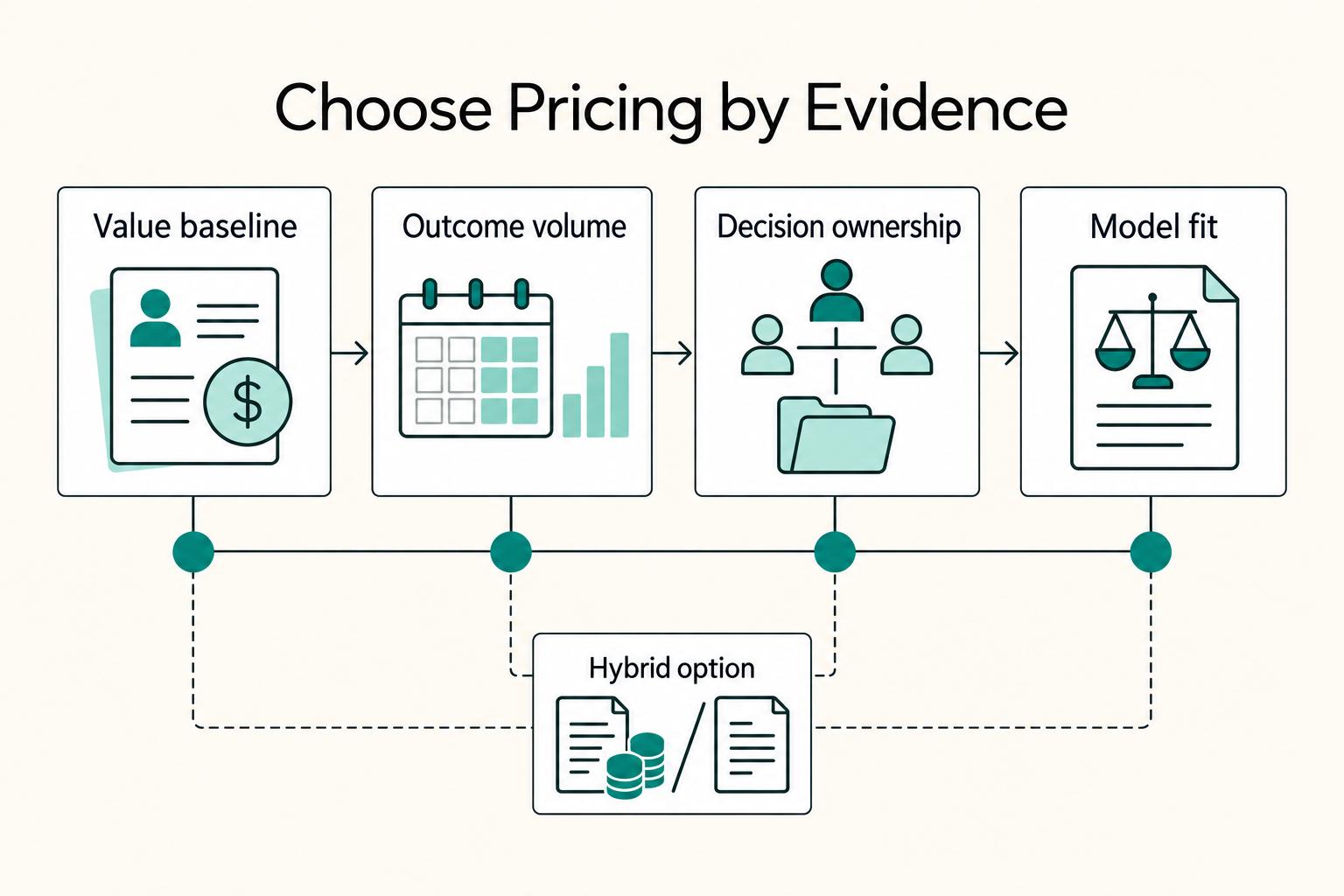
Value-based pricing works when you and the client can name the business result before kickoff and agree on how progress will be judged. If that link is weak, use a tighter model first. This is not about defending one pricing philosophy over another. It is about avoiding surprises by keeping pricing, scope, delivery, and payment aligned from day one.
How to Create a Professional Freelance Email Signature
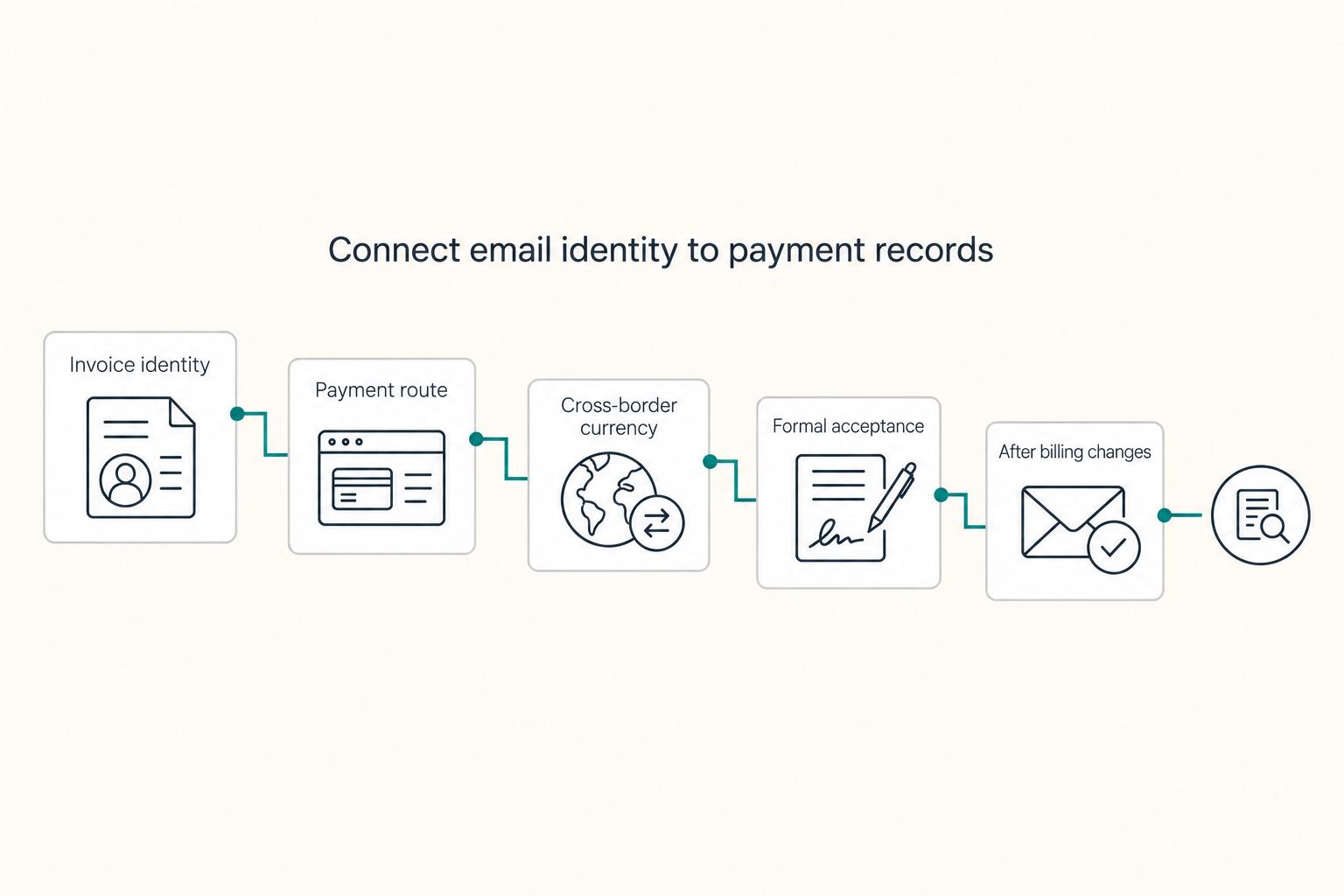
Treat your signature like a working document, not a decorative footer. If you want clearer client verification and fewer avoidable questions, your email block needs to make your identity, your role, and the next action clear at a glance.

How to Create a Business Email Address for Your Freelance Business
A business email is not a logo choice. It is the identity layer most clients, vendors, and software tools treat as the real you.