

Quick Answer
Start by creating a one-page continuity baseline for your email, storage, invoicing, devices, and backup contact path, then run a hard readiness gate before sensitive work. Mark controls as Ready, Blocked, or Exception logged so unclear items do not slip through. For travel, keep high-risk tasks off untrusted networks and pause if VPN coverage drops. If something looks wrong, move to your incident sequence with a named lead and live log. Before adopting payout tools, confirm audit history, exception records, and access controls in the UI or exports.
Cybersecurity for freelancers starts with business continuity#
If you want reliable delivery, start with continuity, not tools. In practice, that means protecting the accounts, devices, files, and payment paths you need to deliver work, communicate with clients, and recover without making the disruption worse. Incidents often hit operations before they look like an IT problem.
- An email lockout can stall approvals and file handoff before a deadline.
- A compromised laptop can become unusable, or leave files encrypted or deleted.
- A fake payment-change email can disrupt cash flow and create client-facing confusion.
Continuity planning lowers the impact. It does not guarantee you will never have an incident.
Build a one-page continuity baseline document#
Keep one short document you can actually use under pressure. This is your minimum baseline, and it should be specific enough to help you act fast.
- Critical accounts: services tied to delivery, billing, approvals, storage, and client communication.
- Device and file map: every device used for paid work and where active client files live or sync.
- Response owner: who makes first decisions, usually you, but write it down.
- Communication path: one backup contact method if normal email, chat, or document tools are unavailable.
This is the solo-business version of a business impact assessment and an incident response plan. Identify the assets that matter most, assign responsibility, and define an alternate communication channel if core tools are inaccessible.
Quick check: can you use that page to decide, within one minute, what to lock, what to disconnect, and who to contact first? If not, it is still too vague.
Prioritize by delivery impact, not technical neatness#
Rank assets with one rule: if losing it for a day stops delivery, client communication, or cash collection, it is top priority. For many freelancers, that usually means email, cloud storage, your main work device, invoicing or payment access, and client portals.
That order lines up with current attack pressure. Phishing and spoofing remained a top complaint category in 2024, and credential abuse plus vulnerability exploitation remained leading initial attack vectors in the 2025 DBIR.
Set one incident rule now. If you suspect malware on a work device, disconnect it from all network connections immediately, whether wired, wireless, or mobile. Then pause work that depends on that device, any shared storage it touched, and any credentials used on it until basic checks are complete.
Define what stops when something looks wrong#
Set pause rules before stress takes over. Keep them simple enough to follow under pressure.
| If this happens | Immediate rule |
|---|---|
| Email access is in doubt | Pause payment changes, approval requests, and sensitive file transfers until access is verified. |
| A device is compromised | Stop client work on that endpoint and do not reconnect it just to grab one file. |
| Bank details or payment instructions change by email alone | Treat it as a business email compromise check, not routine admin. |
Use this rule for the rest of the guide: protect identity, trust only verified devices, use a known communication path, and make an explicit stop-or-go decision before work resumes. The sections that follow on access, devices, networks, and incident handling all build on that.
Build the right mental model before you buy tools#
Buy for interruption risk before features. Map what can stop delivery, decide who acts first, and then choose tools that reduce that specific failure.
Security tools can feel reassuring during setup, but incidents test whether you can still deliver and recover access under pressure. Tools should support decisions, not replace them.
Use threat labels that match work interruption#
Use four working labels on your first pass. They are there to speed up decisions when work is on the line, not to create perfect classifications.
- Credential theft: account access is lost or taken over.
- Phishing attempts: deceptive messages try to trigger unsafe actions.
- Data exposure: client files or sensitive work are shared where they should not be.
- Ransomware disruption: malware can lock files or devices, sometimes until payment is demanded. If active files are locked, delivery can stop.
Follow a pre-purchase decision flow#
Before you start comparing pricing pages, build a short asset map. For each item, add three fields: owner, first action if something looks wrong, and what client work stops first if this fails.
- Map assets: email, storage, invoicing, payment access, client portals, main device, and shared file locations.
- Name the owner: write who is responsible, even if it is only you.
- Write one first action: lock account access, disconnect a device, or pause sensitive requests.
- Rank by delivery impact: ask, "If this fails today, what client work stops first?"
If you cannot find the owner and first response step quickly for a critical asset, your map is not ready to guide tool decisions.
Compare tool categories by interruption value#
Use categories to judge interruption value, not to build a bigger shopping list.
| Tool category | Main risk coverage | Operational friction (estimate) | Evidence you can show clients |
|---|---|---|---|
| Sign-in and account access controls | Credential theft, phishing-related account misuse | Estimate after setup and first month of use | Named account ownership, documented sign-in process for critical services |
| Device protection and maintenance controls | Malware disruption and device-level compromise | Estimate based on device count and maintenance load | Device inventory, update records, protection status |
| Backup and restore capability | Recovery when files or devices become inaccessible | Estimate based on restore-check cadence | Backup location, last review date, restore check notes |
| Secure file sharing and access controls | Data exposure from oversharing or wrong-channel transfers | Estimate based on client workflow | Approved sharing method, access settings, file owner record |
Prioritize the category tied to the failure most likely to stop delivery first.
Separate prevention from recovery#
Do not let preventive controls create false confidence. Keep two short outputs: a prevention checklist and a recovery note. Your prevention checklist should define who can access what, trusted work devices, and approved sharing methods. Your recovery note should define how you regain access, restore files, and communicate with clients if an attack interrupts operations.
That split matters because prevention lowers exposure, but it does not restore locked files or recover access on its own. This pairs well with our guide on GDPR Compliance Checklist for Freelancers Working With EU Clients.
Complete your one-afternoon baseline setup#
Set a minimum security baseline before sensitive client work starts. Verify the core controls, and treat anything unclear as unresolved until it is confirmed or logged with an owner and next step. This is a fast starting baseline, not proof you are fully secure. The goal is to cut obvious interruption risk quickly, then maintain it.
Check the baseline in five passes#
Work top to bottom and record the result as you go.
- Asset inventory
List every work laptop, phone, tablet, external drive, cloud storage location, email account, invoicing tool, client portal, and file location used for paid work. If it can store or process client data, include it. Remove or remediate unauthorized or unmanaged assets before you proceed.
- Account control
Inventory the accounts that control delivery, approvals, billing, and file access. Include user, administrator, and service accounts. For each account, record the owner, access scope, recovery method, and MFA status. Validate that active accounts are still authorized on a recurring schedule, at least quarterly, and verify MFA is active on accounts that support it.
- Endpoint readiness
Confirm which devices still have client access, including your primary work device and any device used for sign-in or recovery. If you cannot confirm device access, treat that as an access-control issue, not a minor admin gap.
- Patch status
Check OS, browser, office apps, plugins, and remote access or file-sharing tools. Install updates quickly, since patches address security vulnerabilities and outdated software is a major exposure. If priorities conflict, use CISA's KEV Catalog to triage urgent updates for critical systems.
- Ownership for unresolved gaps
Every open item needs an owner, blocker, next action, and recheck point. Avoid vague statuses like "pending."
Use a hard readiness gate#
Before new client work begins, use these internal status labels for each control:
| Status | Definition |
|---|---|
| Ready | Control is active, verified, and documented. |
| Blocked | Control is missing or failed verification, and affects email, storage, invoicing, admin access, or your main work device. Sensitive work does not start. |
| Exception logged | Control is incomplete, but owner, blocker, next action, and recheck point are documented, and the gap does not currently expose sensitive client work. |
If a control is unclear, mark it Blocked until it is verified.
Track gaps from day one#
Use a compact tracker that forces ownership and follow-up:
| Control | Owner | Status | Blocker | Next action | Recheck point |
|---|---|---|---|---|---|
| Email MFA | You | Ready | None | Quarterly account review | YYYY-MM-DD |
| Invoicing admin account | You | Blocked | Recovery phone not updated | Update recovery method, then enable MFA | YYYY-MM-DD |
| Old tablet with file sync app | You | Exception logged | Need to confirm if client files remain | Check access, remove or remediate if still synced | YYYY-MM-DD |
This baseline helps reduce common delivery risks such as unmanaged assets, unauthorized active accounts, missing MFA, and unpatched systems. It does not eliminate all risk.
Before sensitive work starts, escalate if any of these are still unresolved: missing MFA on email or storage, an unpatched primary work device, an unknown owner for a critical account, or no assigned responsibility for breach investigation and internal reporting. If you process UK personal data, some breaches may require reporting within 72 hours where feasible.
Lock down accounts and access before client work starts#
Before you touch any client system, secure your core business accounts and enable MFA. Independent professionals are often easier targets, so this is a business requirement, not an optional extra. Start with the systems your work depends on first: your laptop, email, and cloud storage.
If access is unclear or overly broad, tighten it before kickoff so responsibility is clear. Loose access makes mistakes harder to contain, and one error can create real delivery and cost damage when there is no internal security team.
Pick sign-in methods you can actually operate#
MFA is the baseline. Pick a sign-in method you can use consistently, and test a real sign-in on your highest-impact accounts before work starts.
If you need help choosing a tool, start with a password manager to keep account access organized.
Keep client-system access explicit and minimal#
Because freelancers usually manage security on their own, keep client-system access narrow and practical from day one. Grant only the access you need for active work, and remove it when it is no longer needed.
That turns "I think access is controlled" into something you can verify quickly. We covered related boundary-setting in Important Conversations for Freelancers Who Need Clear Client Boundaries.
Harden every device you use for paid work#
After account security, device integrity is your next gate. If a laptop, phone, or tablet fails a basic readiness check, keep it out of client work until it is fixed and revalidated.
Use this baseline before paid work starts:
- Laptops: use trusted update sources, keep OS and apps current, keep antivirus or antimalware active and updated, turn on device encryption, require screen lock, and do daily work from a standard user account, not admin.
- Phones and tablets: install apps and updates only from trusted sources, keep OS and apps patched, turn on device encryption and screen lock, and keep available malware protections current.
- If auto-updates are not available: run a monthly manual patch check from the vendor.
Then run this readiness check before touching client systems:
- Confirm updates and apps come from trusted sources only.
- Confirm OS, browser, and work apps are current, and malware protection is active and updated.
- Confirm encryption is enabled and screen lock works reliably.
- On laptops, confirm your daily session is a standard user account.
- If any check fails, stop. Remove that device from client access, sync, and file handling until corrected.
| Control area | Managed device | Unmanaged or BYOD device |
|---|---|---|
| Security settings | Can be enforced through MDM | Unless you consent to full-device management, you must verify and maintain settings yourself |
| App installs | Usually restricted or approved centrally | Higher risk of unapproved installs and configuration drift |
| Compliance evidence | Can be easier to show via management tooling | Keep your own evidence, for example, a readiness log |
| Ownership boundary | Organization control is usually clearer | The device is yours, but work data and resources are not, so separation matters more |
Treat unusual behavior as an integrity warning, not an annoyance. If a device runs unusually slow, opens pages you did not click, or shows persistent pop-ups, quarantine it immediately.
Use this compromise mini playbook:
- Recognize: flag integrity warnings early and pause sensitive tasks.
- Contain: isolate the affected device from the network. If you cannot disconnect it, power it down to limit spread.
- Validate before re-entry: require malware cleanup confirmation, current updates, and restore from a last known good backup if needed, then rerun the full readiness check.
- Communicate delay risk: tell the client you paused work because of a security issue on one device and will resume after validation, without sharing unnecessary technical detail.
Need the full breakdown? Read Microsoft 365 for Freelancers Who Need Client-Ready Operations.
Set network rules you can follow while traveling#
Use one rule you can still follow under deadline pressure: do sensitive work only on a connection you trust. Treat public Wi-Fi as higher risk by default, and either turn on your protections before sign-in or wait.
That is a practical rule, not paranoia. Freelancers work from hotels, airports, coffee shops, and home networks that often have no centralized oversight, and open networks can expose you to interception or fake hotspots. One rushed login can expose sensitive information and damage client trust.
Pre-connection checks (before any sign-in)#
Before you open email, storage, billing, or client systems, do three checks:
- Confirm the exact network name with staff instead of joining a familiar-looking SSID.
- Turn off auto-join so you do not reconnect to a lookalike network.
- Start your VPN, confirm your firewall is on, and keep normal MFA and password discipline.
A VPN and firewall lower risk on weaker networks, but they do not fix phishing, credential theft, or risky behavior in unapproved tools.
Match the task to the connection#
Use this conservative operating rule when traveling:
| Connection rule | Tasks |
|---|---|
| Trusted connection only | Tasks involving client data, account permissions, money movement, contracts, or account recovery. |
| Public Wi-Fi only after protections are active | Lower-sensitivity updates that do not involve client data or privileged access. |
| Safe to defer or do offline | Non-confidential drafting, outlining, and local prep work. |
If a task touches money, permissions, or client data, wait for a trusted connection or switch to your own hotspot.
Compare travel VPN options the same way#
The useful question is not which option looks best on paper, but whether it stays reliable when your connection changes.
| Option type | Stability across network changes | Full-device coverage | Kill-switch behavior | Daily usability |
|---|---|---|---|---|
| Commercial VPN app | Test moving between Wi-Fi and hotspot on your real devices | Verify whether your work traffic routes through it on laptop and phone | Test what happens if the tunnel drops | Check whether you can keep it on all day without workflow breaks |
| Client-provided VPN | Test with required client tools while roaming | Verify whether coverage is app-specific or device-wide | Confirm expected behavior during disconnects | Check whether it fits both required client access and day-to-day work |
| Private access to your own resources | Test reconnect behavior across network changes | Verify what traffic it covers by design | Confirm drop behavior before travel | Check whether it matches a workflow centered on your own environment |
A common failure is assuming the icon still means protected after the connection changes. Test once before a trip and write down what you observed.
Keep a short travel rule set you can follow under pressure#
Keep the rule set short enough to follow while traveling and under deadline pressure.
- Connection order: trusted Wi-Fi, then your hotspot, then public Wi-Fi only with VPN and firewall active.
- Hard-stop tasks: anything involving client data, account permissions, money movement, contracts, or recovery steps.
- If protection drops: pause immediately, stop sync if needed, switch networks, reconnect protections, then resume.
- Tool rule: use approved tools only. Do not use ad hoc file-sharing or messaging shortcuts.
Most successful attacks exploit basic gaps and human error, so the simpler this page is, the more likely you are to use it.
Create a client data handling standard you can defend#
Use one operating standard on every project: store, share, access, and retire client data in ways you can explain and verify under pressure. Keep your baseline controls consistent: use secure collaboration platforms, a password manager, and a VPN on untrusted networks; use named access on core systems; and avoid plain-text handling of sensitive client data.
Store it as if loss is possible#
Treat every device, network, and app as a possible entry point before you handle client data. Store files only in approved locations. On open Wi-Fi, assume interception or fake hotspots are possible until the network is verified and your VPN is active. Use encrypted storage and secure transfer settings, and do not leave sensitive material in plain text in email drafts, chat threads, notes apps, or task comments.
This is practical risk control, not theory. An unencrypted lost device can expose client folders and email, and malware can expose data while stopping delivery. Before the first upload on each project, confirm where the working copy lives, where backups go, and whether sync is pushing copies into personal folders or old tools. If you cannot name the storage location and access owner, do not put client data there yet.
Share it with a fixed handoff template#
Rushed transfers and speed-driven tool choices are where controls often break down. Use one handoff template every time you send or receive sensitive files, and keep these hard-stop gates in it:
- Approved channel: name the exact portal, secure workspace, or other approved secure flow for this project, and avoid unapproved file-sharing or messaging tools.
- Named owner: assign one person to upload, set permissions, and complete cleanup.
- Retention rule: if the client agreement sets a retention expectation, record how long the recipient is expected to keep this file category.
- Deletion trigger: define the event that starts removal, for example, project close or final replacement.
- Pre-send permission check: confirm who can view, edit, download, and reshare before sending.
If permissions are unclear, stop and resolve them before transfer.
| Transfer method | Access revocation: what to verify | Audit trail quality: what to verify | Mis-send risk: what to verify | Day-to-day friction: what to verify |
|---|---|---|---|---|
| Client portal | Can you remove access quickly after upload? | Can you view or export upload and user activity records? | Are users limited to named logins instead of loose files? | Is it already part of the client workflow? |
| Secure link workspace | Can you expire links or remove workspace access? | Can you see views, downloads, and edits? | Can links be forwarded outside intended recipients? | How many extra steps are required per transfer? |
| Encrypted email flow | What controls exist after send, recall, expiry, or none? | What records are available beyond sent mail logs? | How do you prevent address auto-complete or forwarding errors? | Do both sides already operate reliably in this flow? |
Access it on a named, minimum basis#
Give access only where it is required to do the work. Use named accounts, avoid shared logins, and enable MFA or 2FA where your tools support it, starting with email, cloud storage, client portals, billing, and admin systems tied to delivery.
Review access at kickoff, scope changes, and project close. Add clear ownership to your agreement or kickoff memo: who sets storage, who approves transfer channels, and where suspected unauthorized access is reported first. For timing language, keep the notification or reporting window pending until it is verified against the current agreement, client instructions, legal sources, or official records before use.
Retire it on a written trigger and keep proof#
Do not leave deletion as a vague later task. Tie retirement to a written trigger in closeout and document any agreed retention rule.
Keep a lightweight evidence pack so you can answer assurance requests without rebuilding the record. Capture the approved storage location, named access owners, current share-setting proof, MFA enabled status on core accounts, backup confirmation, handoff proof for the approved channel, and dated access-change notes.
Refresh that pack at four points: kickoff, any material access or tool change, project close, and your regular security review. That makes it much easier to answer the usual questions about who had access, what changed, and when data was removed.
Prepare for incidents before you need panic decisions#
When an incident starts, use the same first sequence every time. Open your written incident response plan, confirm the Incident Manager, switch to prearranged contacts and channels, and start a live log with knowns, unknowns, actions, and the next update time. That reduces guesswork under stress and keeps client updates clearer.
Follow one first sequence every time#
Do not rely on memory when something looks wrong. Your plan should be the starting point, and it should still be reachable if your normal email, chat, or document tools are unavailable.
Before you need it, verify two basics: you can open the plan through a backup route, and you can reach key contacts through an alternate channel. Do not keep your only plan copy and contact list inside the same account you might lose access to.
Keep the incident log plain and current. Record what you know, what you do not know yet, who owns each action, what has been communicated, and when the next update is due.
Name backups before anything breaks#
If you work solo, decide in advance who will act as Incident Manager. Even so, you still need backup coverage across support functions, not one person trying to carry every role.
Map each function to named fallback options now: technical response, legal or compliance input, client communications, and insurer contact. For each, keep at least 2 contact methods and 2+ people or group details so unavailability does not stall response.
If you carry cyber insurance, include the exact insurer contact route in the plan.
Use a simple incident matrix#
Keep the branching logic short enough to use under pressure.
| Incident type | Trigger conditions | Lead owner | Communication responsibility | Escalation trigger |
|---|---|---|---|---|
| Suspected account compromise | Signs that account control or access integrity is uncertain | Incident Manager with technical responder | You or your named communications backup notify affected clients or partners if delivery or access may be affected | Escalate if account control cannot be confirmed promptly or client data may be exposed |
| Lost or stolen work device | Loss or theft of a work device used for client work | Incident Manager | You notify affected clients after confirming likely impact and containment steps | Escalate if potential data exposure is unclear or access cannot be contained quickly |
| Malware or ransomware signs | Indicators that malware or ransomware may be affecting work systems or files | Incident Manager with technical responder | Communications lead sends short updates with knowns, unknowns, and next update time | Escalate if impact may extend beyond one system or the recovery path is uncertain |
| Possible personal data breach | Destruction, loss, alteration, unauthorized disclosure of, or unauthorized access to personal data | Incident Manager with legal or compliance contact | Communications lead coordinates client and regulator communications with legal or compliance input | Escalate immediately if UK GDPR-covered personal data may be involved, scope is unclear, or reporting duties may apply |
For that last path, act carefully: if UK GDPR applies and the breach is reportable, notification to the ICO must be made within 72 hours of awareness, where feasible. Even when notification is not required, keep a breach record.
Do not resume client delivery on hope#
Resume delivery only after explicit re-entry checks pass. Confirm affected systems and access are contained, responsibilities are clear, and client communication is stable before moving back to normal delivery.
If forensics or law enforcement is involved, use their advice to decide when normal operations can reasonably resume.
After the incident, run a short post-incident review and feed the findings into your response plan and wider operations. Capture what happened, what slowed response, and where contacts or escalation paths failed. Keep the incident record, update the plan, and review it at least quarterly so contacts, backups, and escalation rules stay current.
Run a weekly 30-minute security maintenance cadence#
A short, fixed routine beats occasional deep cleanup. Keep one weekly security block on your calendar, run it in the same order every time, and use a shorter fallback session when the week gets crowded. This helps you catch urgent issues early and stay in maintenance mode when possible.
Keep the weekly order fixed#
Run this sequence in order so the highest-risk items are handled first:
- Alerts first. Review security emails, device alerts, admin notifications, and vendor notices you rely on. If a product you use appears in the CISA Known Exploited Vulnerability (KEV) catalog, treat it as priority work and address it immediately.
- Patching second. Check whether system, browser, app, and plugin updates are available, applied, and fully completed after restart when required.
- Access follow-ups third. Close known access-related tasks and document anything that needs escalation.
- Log update last. Record what you checked, what changed, and what is still open.
If you cannot complete the full session, run a minimum viable session: triage alerts, handle urgent patches, record deferrals, and schedule a catch-up block immediately. A shorter session is fine. Skipping the week is the real risk.
Know when maintenance becomes incident response#
Switch from routine maintenance to your incident workflow when the work requires incident-handling actions such as verification, evidence analysis, response prioritization, or damage limitation. Use clear triggers: an urgent finding you cannot explain, a KEV exposure in your stack, unknown internet-exposed services, or uncertainty about the impact to client data or core delivery systems.
| Cadence | Objective | Inputs | Expected output |
|---|---|---|---|
| Weekly | Catch urgent issues early | Alerts, patch status, prior log notes | Triage decisions, updates applied, open items with owners |
| Monthly | Keep update and recovery hygiene current | Automated patching status, backup verification, unresolved items | Update coverage check, backup check note, aged items escalated |
| Quarterly | Reassess exposure in more depth | Vulnerability scan results, recurring findings, risk review | Prioritized remediation plan and documented risk decisions |
Keep your maintenance log reusable for both operations and client assurance. Use a consistent evidence format: date and time, what you checked, what changed, what is still open, likely impact scope, and owner of next action.
Know when DIY ends and expert support is the better decision#
DIY can stop being the right answer when you cannot verify what happened, the same incident pattern keeps returning, or security work starts blocking delivery. At that point, outside help is not overkill. It is a practical way to improve decision quality and regain capacity.
This is also the point where weekly maintenance becomes incident handling. A cyber incident includes unauthorized or attempted access to your systems. If incidents are recurring, unclear, or already affecting delivery, ask less "Can I do this myself?" and more "Can I prove my decisions are sound?"
Use trigger rules that match your operating reality#
Do not wait for a universal incident count. Escalate when one or more of these are true:
- Incidents recur after controls were tightened. If the same failure type returns after a fix, treat root cause, scope, or monitoring as unresolved.
- You have verification gaps. If you cannot confirm that alerts are being reviewed or that your incident plan has been exercised, your confidence is ahead of your evidence.
- Control complexity exceeds owner-only capacity. If access reviews, endpoint checks, integrations, and data-handling checks no longer fit into a reliable owner workflow, escalate.
- Client assurance needs outpace your proof. If you cannot provide the evidence clients or external parties need, targeted expert help is justified.
- Security work is displacing delivery. Use your own threshold: if incident follow-up consumes more than
[your preset limit]of your week or blocks shipping for[your preset limit], bring in help.
Pick the support model that fits the problem#
Choose the support model by the problem you need solved, not by how serious the label sounds.
| Model | Response speed | Evidence quality | Operational burden on you | Fit for growing client obligations |
|---|---|---|---|---|
| DIY | Varies with your availability and preparation | Uneven unless your evidence and impact records are already strong | Highest: you investigate, decide, document, and remediate | Best for contained issues you can verify yourself |
| Targeted external support | Can improve once a defined engagement starts | Stronger when deliverables include scope, technical impact, mitigations, business impact, and an impact assessment | Medium: you still coordinate access, decisions, and remediation | Best when a live incident, validation gap, or contract demand exceeds your confidence |
| Ongoing managed support | Can improve detection and triage when continuous monitoring is included | More consistent over time when monitoring, detection, and investigation are in scope | Lower day to day, but you still review outputs and act | Best when recurring risk and client obligations justify continuous support |
If you need live incident help in the UK, an NCSC-assured Cyber Incident Response provider can be a credible option. You still need to do your own due diligence on reputation, experience, and fit.
Set vendor terms before work starts#
Before access is granted, agree these points in writing:
- exact scope boundaries: accounts, devices, cloud services, and explicit exclusions
- required closeout deliverables, not just summary slides
- remediation format: prioritized findings mapped to assets and owners
- retest expectations: whether retesting is included and what success evidence looks like
- communication cadence: who gets updates, in what format, and how often
Treat vague output as a red flag. Ask for findings you can act on: what happened, affected assets, technical impact, mitigation actions, business impact, and open verification items. If UK reporting duties might apply, make sure the output supports a fast decision on notification timelines, including the 72-hour window where relevant.
Outside experts can improve your decisions, but you still own the outcome. Use a simple handoff model: turn every external finding into an internal tracked action with an owner, due date, status, verification step, and evidence link. Related reading: The Best Antivirus and Malware Protection for Freelancers.
Choose payment and operations tools that reduce security exposure#
Choose invoicing, payout, and ops tools for verifiable control, not setup speed alone. When you work remotely, each extra app expands your attack surface, and you often do not have centralized oversight to catch bad changes early.
Use one standard: verify before trust. If a provider cannot clearly show how approvals, edits, exceptions, and access are recorded, treat that as active risk. Fast onboarding does not help if you cannot later prove who changed payout details, who approved a refund, or why a transaction failed.
Verify before trust#
Do not rely on feature pages alone. Run an acceptance check in a trial account, sandbox, or low-risk live setup before routing meaningful money or client data through a platform. Test realistic scenarios and confirm what evidence is visible in the UI, exports, or vendor docs.
Focus on these five checks:
| Control area | What to verify | Proof in UI, export, or docs | Unresolved risk if missing | Temporary safeguard | Go or no-go status |
|---|---|---|---|---|---|
| Audit trail | Can you see who did what, when, and what changed? | Timestamped activity history, actor name, before and after values, exportable log | Disputes or unauthorized changes are harder to investigate reliably | Keep an off-platform approval record; limit use to low-risk transactions | Go only if change history is clear enough for later review |
| High-risk actions | Are bank-detail changes, role changes, and payout edits controlled? | MFA prompts, approval steps, admin settings, help docs | Unauthorized access or payout changes may be harder to detect | Require manual dual review outside the tool for critical changes | No-go for primary use if high-risk controls are weak or unclear |
| Exception handling | Can you review failed payouts, reversals, retries, and manual overrides? | Status history, reason codes, event timeline, downloadable records | Exception handling becomes harder; reconciliation can slow down | Keep a separate issue log tied to transaction IDs | Conditional if exception history is partial |
| Support access | Who can view tickets, attachments, and account context? | Role settings, privacy docs, support permissions, masking options | Sensitive data can spread through support channels | Share reference IDs and masked details in tickets | No-go if support boundaries are opaque and sensitive data is required |
| Export reviewability | Can you independently review and retain usable records? | CSV, PDF, or log exports with stable fields and timestamps | Incident review is harder and vendor dependence increases | Export regularly and store clean local records | Go if exports support independent review |
Practical checkpoint: create one invoice, change one noncritical setting, trigger one exception if supported, and open one support ticket with dummy or masked info. Save screenshots and sample exports. If the evidence exists only in marketing copy, mark it unverified.
Minimize data in daily ops#
Keep sensitive data out of tickets, notes, comments, and exports unless it is strictly required. That includes full bank details, identity-document images, unnecessary client personal data, and any detail that could let someone act on an account if exposed.
Keep access narrow: only the people who reconcile payments, approve changes, or resolve the specific issue should have it. Pasting full context into support tickets to move faster can create extra copies of sensitive data across inboxes, vendor systems, and exported reports.
When vendor collaboration is necessary, start with transaction IDs, invoice numbers, and masked values. If a sensitive field must be shared, send only that field through your approved secure channel and keep it out of the general support thread.
Record the decision and keep a fallback#
For each platform, keep a short decision record with:
- tested scenarios
- open questions
- mitigation owner
- review trigger
Use review triggers like feature rollouts, payout issues, role changes, or any control that remains conditional instead of verified. If vendor answers stay incomplete, do not move the tool into a primary billing or payout role. Keep it in lower-risk use, add temporary manual checks, or choose another provider. If replacement is hard and the risk is material, get a point-in-time external review before trusting it for core operations.
Before you lock in a provider, run one side-by-side control check using this payment fee comparison tool.
Make cybersecurity a visible part of how you run your business#
Make security part of delivery operations, not a side task. When checks are visible, repeatable, and documented, you can respond faster to suspected malware, credential compromise, or ransomware during client work.
Keep ownership explicit. If you work solo, treat yourself as the owner for each control unless you formally assign part of it. If anyone else can access an account, file area, or admin setting, document what they can access and who approves changes.
Use this operating checklist during normal work:
- Access rules, owner: you. Enable MFA on email, storage, invoicing, and admin accounts.
- Device readiness, owner: you. Enable automatic updates for your system, apps, and third-party software.
- Network use, owner: you. Treat public Wi-Fi as higher risk, and avoid sensitive client work on it when possible.
- Incident escalation, owner: incident lead. Keep an incident response plan, assign one incident lead, and define escalation triggers, first containment actions, and who must be notified if client data may be affected.
- Log upkeep, owner: you. Maintain a dated log of what you checked, what changed, and key activity details: who accessed what, when, and from where. Review and update your incident plan quarterly so it stays usable as your business changes.
Close each cycle the same way: review your log, identify repeated control failures, pick one corrective action, and carry it into the next cycle. If account-control issues keep recurring, fix that first with a cleanup pass. If that is your current gap, read The Best Password Managers for Freelancers and Teams next.
If you want help mapping this security checklist to your real invoicing and payout flow, talk to Gruv.
Frequently Asked Questions
What are the top cybersecurity risks for freelancers?
Focus first on risks that can interrupt delivery: weak or reused passwords, phishing, compromised accounts, and lost files. Freelancers often handle sensitive business information across inboxes, websites, file sharing, and other client systems, and smaller operations may be targeted because they are seen as less defended. Write a simple risk log with three fields for each item: account or asset, likely failure, and delivery impact.
What should I set up first if I only have one afternoon?
Start with accounts that could expose client data or lock you out of work, then replace weak credentials first. Use a longer passphrase or a varied password with at least fourteen characters, and store it in a password manager instead of reusing old credentials. If time runs out, document which accounts are still unchanged so you can finish in priority order. | Situation | Recommended response | What to document next | |---|---|---| | You only have public Wi-Fi and need to send sensitive client material | Delay the sensitive task or switch to a connection you trust | delayed task, delivery impact, retry plan | | You get an unexpected login or file-sharing email | Verify through a separate channel before clicking anything | sender, request, verification result | | You find a weak or reused password on a client-facing account | Replace it with a longer passphrase or fourteen-character varied password and store it in a password manager | account changed, date, remaining shared logins |
Is public Wi-Fi ever safe enough for client work?
Treat public Wi-Fi as higher risk and move sensitive work to a connection you trust when possible. Public network exposure can increase incident risk, so if you are unsure whether a task is sensitive, postpone it and log what was delayed so you can complete it on a safer connection.
Do freelancers really need both a VPN and MFA?
Use layered controls, not a single-tool mindset. Phishing and compromised accounts can still disrupt delivery when one layer fails, so your setup should not depend on one control alone. Document the accounts where you currently rely on only one line of defense and review those first.
What should I do immediately after clicking a phishing link?
Stop work on that task and switch to incident mode. Phishing is a common path to account compromise, and continuing normal work can raise the risk of wider delivery or client-data impact. Record the time, device, account, and action you took, then escalate quickly if client data may be affected.
How often should I update and review my security controls?
Set a review cadence you can keep, and add an extra review after risk-changing events like new client access or account changes. Human error remains a major breach driver, so routine checks help reduce avoidable mistakes. Log each review with date, checks completed, changes made, and unresolved follow-ups.
When should a freelancer pay for outside security help?
Consider outside help when incident patterns repeat, when a client asks for assurance you cannot evidence clearly, or when a control gap stays unresolved after your own review. Outside review may help you close gaps before they disrupt delivery. Share a focused evidence pack: incident notes, screenshots, affected accounts, current controls, and the open questions you still cannot answer.
Try a related tool
Researched and edited by the Gruv editorial team. Gruv builds cross-border billing, payouts, and finance-operations software for global businesses.
Sources
- cisa.gov/resources-tools/training/how-protect-data-st...trusted
- cisa.gov/sites/default/files/publications/Incident-Re...trusted
- consumer.ftc.gov/system/files/attachments/understanding-nist-...trusted
- fbi.gov/news/press-releases/fbi-releases-annual-inte...trusted
- fbi.gov/how-we-can-help-you/scams-and-safety/common-...trusted
- ftc.gov/business-guidance/small-businesses/cybersecu...trusted
- ncsc.gov.uk/collection/small-business-guidance--response...trusted
- nicybersecuritycentre.gov.uk/how-secure-your-devicestrusted
Educational content only. Not legal, tax, or financial advice.
Related Posts
Canada Digital Nomad Visa Planning for Visitor Status and Work Permits
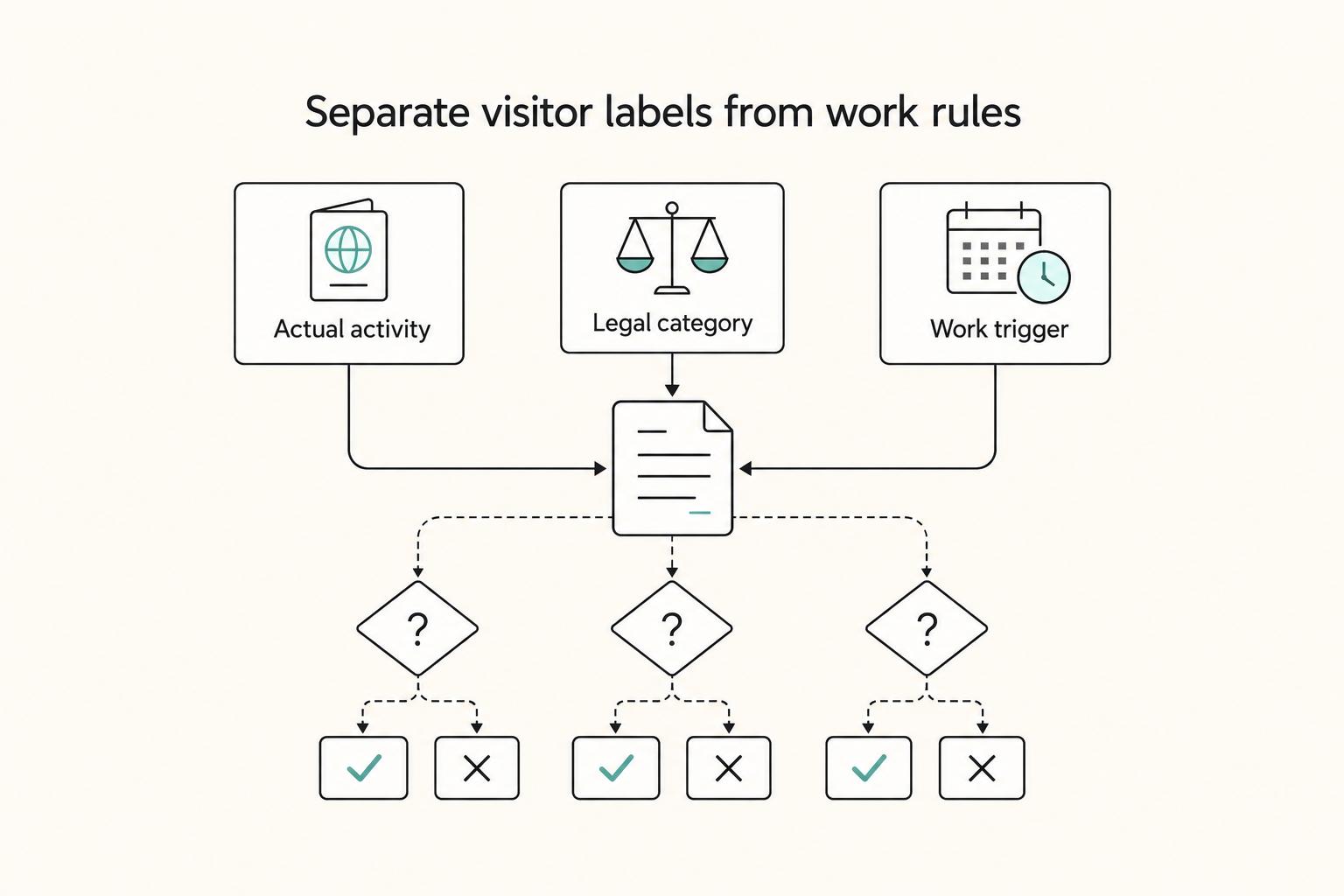
The phrase `canada digital nomad visa` is useful for search, but misleading if you treat it like a legal category. It is shorthand for existing Canadian status options, mainly visitor status and work permit rules, not a standalone visa stream with its own fixed process. That difference is not just technical. It changes how you should plan the trip, describe your purpose at entry, and organize your records before you leave.

The Best Password Managers for Freelancers and Teams
A client asks for an urgent file, you open their portal, and the login fails. Ten minutes later your invoicing app wants a reset too. That is why your password setup is a business risk, not just a nuisance. Weak credential habits can turn one mistake into wider account access problems, then into delivery delays and cleanup work.
How to Maintain a Healthy Routine While Traveling
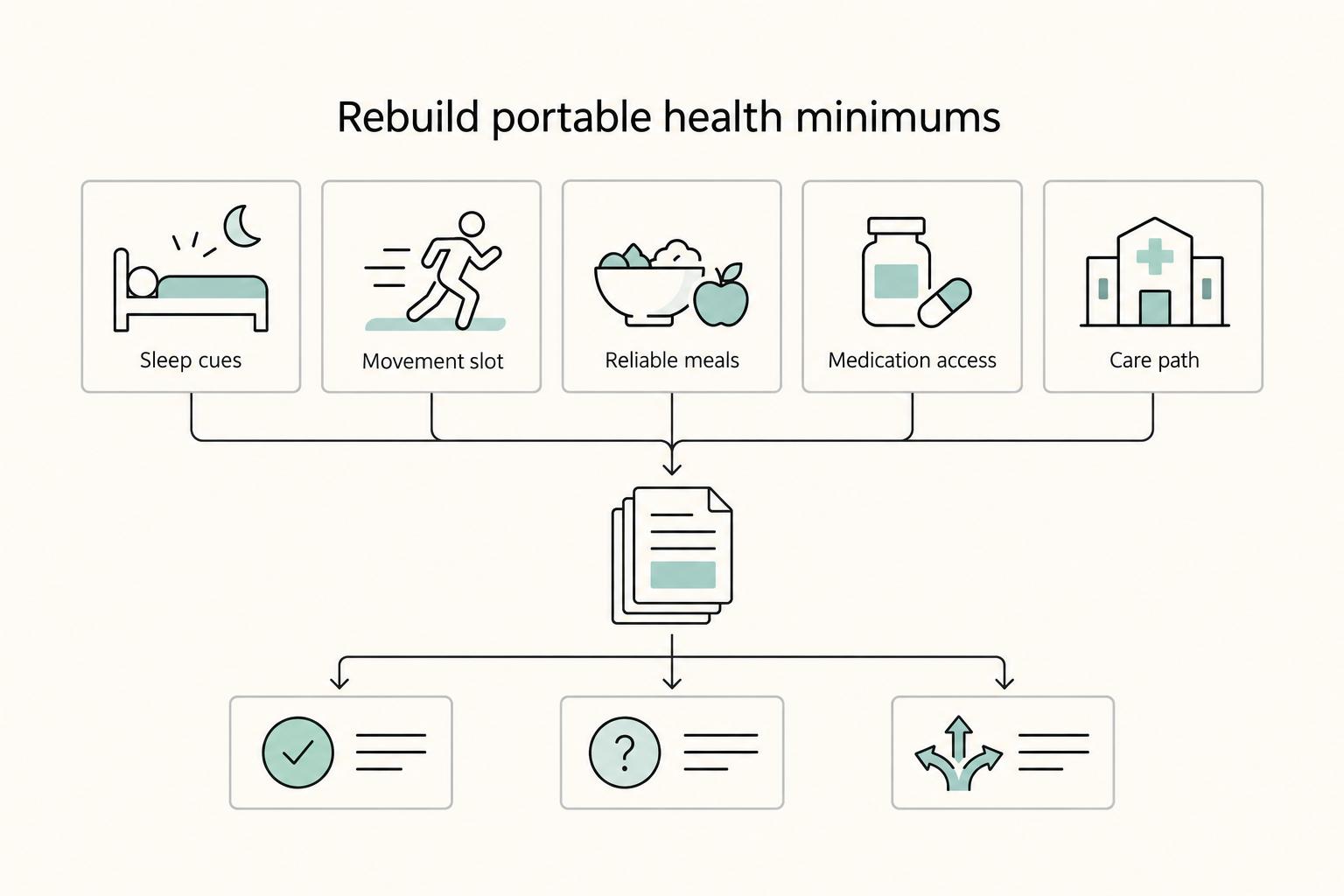
Your routine usually breaks during travel because your defaults disappear, not because your discipline disappears. You lose familiar sleep cues, meal access, movement timing, medication handling, and care logistics at the same time, while your schedule gets less predictable.