
Quick Answer
An ergonomic remote work setup is best built by first separating your screen from your keyboard: start with a laptop stand plus an external keyboard and mouse, then dial in measurable targets (screen at eye level, arm’s-length distance, elbows/hips/knees around 90 degrees, feet supported). Upgrade in modules only after you’ve removed the main constraint, and keep receipts plus a simple asset list so purchases stay defensible and easy to manage.
Your ergonomic remote work setup: fewer aches, fewer operational surprises#
Treat your ergonomic remote work setup as operating infrastructure, not a comfort splurge. When posture breaks down, delivery quality and scheduling usually break down right after. Start by setting a baseline that protects your body and your business before you compare products.
A durable setup does two jobs at once. First, it lowers injury-risk exposure during long screen blocks by making neutral posture easier to hold. Second, it gives you a repeatable purchase process with clean records, so upgrades, returns, and replacements do not become administrative noise.
The mistake most people make is buying in the wrong order. They spend on premium gear before fixing the screen-input conflict that causes daily compensation. This guide keeps you out of that trap by focusing on measurable geometry, clear prioritization, and simple operating habits.
Before you buy anything, define success for week one. You want fewer posture corrections, less end-of-day fatigue, and faster setup resets. That outcome-focused lens keeps spending tied to real operating gains.
A practical way to stay honest is to set a short week-one scorecard. Track a few signals at the end of each workday: how often you had to manually fix your posture, whether fatigue showed up earlier than expected, and how long it took to reset your desk after breaks or meetings. If those signals improve, your setup is moving in the right direction.
You're buying reliability, not "nice-to-have comfort"#
Neck tightness, wrist irritation, and low-back fatigue are not only comfort issues. They are reliability issues. If your body starts compensating by midday, your attention degrades, meetings get harder, and deep-work blocks shorten. The point of ergonomic setup work is not perfection. The point is to spend more of the week in neutral posture so strain stays lower and output stays consistent.
Use these measurement-based targets as practical defaults:
| Target | What good looks like | Fast self-check |
|---|---|---|
| Neutral neck posture (screen height) | Top of screen at about eye level, or slightly lower if you wear bifocals | Sit tall and look straight ahead. Adjust monitor or stand until your chin stops dropping |
| Screen distance | About arm's length (18 to 30 inches) | Extend one arm. Fingertips should roughly reach the screen |
| Neutral seated posture | Neck straight, shoulders down, elbows at a right angle, wrists straight | Type for 30 seconds. If wrists bend up or you reach forward, change height or add external gear |
| Hip and knee angles | About 90 degrees at hips and knees | Feet flat on floor or supported by a stable footrest |
One useful mindset: these targets are operating thresholds, not design aesthetics. If you can hit them reliably in your real work location, you are already ahead of most desk setups.
To make the targets stick, run one quick check at the start of your first deep-work block and another before your last call. If the second check fails, note what drifted. Most people see the same drift pattern repeatedly, such as keyboard creep, monitor drift, or chair height changes after someone else uses the space. Once you know your repeat failure mode, fixing it becomes fast and boring.
The framework-first build: baseline, then modules (without wasted spend)#
Buying by category sounds efficient, but it usually creates mismatches. Buying by constraint is faster and cheaper. Fix the first limiter, verify it, then move to the next one.
Use this sequence:
- Quick self-assessment (a few minutes): take one side photo and one front photo while you are actually working. Compare them to the target table above. Circle the first obvious blocker. In practice this is often screen height, chair height, or desk-input height.
- Minimum Viable Ergonomic Setup (baseline): laptop stand + external keyboard + external mouse, then tune chair/foot support so elbows sit around 90 degrees and feet are supported. External input devices are not optional in this baseline because they let you raise the screen without forcing your hands too high.
- Upgrade in modules: add Core, then Support, then Capacity, then Mobility only when your current setup shows a clear limit. This keeps spending tied to an observed problem instead of trend-driven upgrades.
If mobility is your recurring blocker, start with a stable foldable stand and then decide if a second display earns its bag space. This can help with that decision: The Best Portable Monitors for Digital Nomads.
Once geometry works, lock in basic controls on day one. Save receipts and use one recordkeeping approach that clearly shows income and expenses. The IRS allows any system that does that clearly. Apply the same discipline to home-office equipment now, and future-you avoids the usual receipt hunt and replacement confusion later. If you want a practical next action, browse Gruv tools.
Do not skip the verification step after each change. Work through normal sessions with the new setup, then check whether your original blocker actually improved. If it did not, the issue may be placement, not product quality. Reposition first, return second, and only upgrade further after you confirm the root cause.
Selection criteria (and who this list is for / not for) + the fast comparison table#
Use this list if you want a workstation that stays stable under real workload, not one that only looks good in photos. You are optimizing for repeatable geometry, durable components, and purchasing decisions you can defend.
This framing matters because "best product" questions are usually underspecified. Without constraints, people buy features they will not use and miss the adjustment ranges they actually need.
A good shortlisting rule is simple: if you cannot explain what problem a product solves in your own setup, it is not shortlisted yet. This removes most impulse buys before checkout and keeps your comparison table focused on real constraints.
Who this list is for (and not for)#
This is for independent professionals who spend long recurring blocks at a desk and want improvements that carry into delivery quality. You care about comfort, but you also care about fewer replacement cycles, lower return friction, and cleaner records when tax time arrives.
It is especially useful if your workday mixes deep work and meetings. Those schedules expose geometry problems quickly because posture shifts between typing, reading, and camera-facing conversation.
This list is not for:
- People looking for one universal best chair without considering desk height, monitor size, room constraints, and budget.
- Anyone needing diagnosis or treatment plans. Ergonomics guidance can set workstation standards, but medical care belongs with a clinician.
If your work pattern changes by season, client load, or travel frequency, revisit your choices against your current week, not your ideal week. Gear that worked during a stable month can become the wrong fit when your calendar flips to call-heavy days.
Non-negotiable geometry targets (plain language)#
OSHA describes neutral posture as a comfortable working posture with joints naturally aligned, and links neutral positioning with lower stress and strain. Start here and keep these targets visible while you shop.
- Screen height: top of screen at or just below eye level so you can read without neck flexion.
- Screen distance: roughly arm's length. One practical guide range is 18 to 30 inches.
- Arms: elbows around 90 degrees, shoulders relaxed, wrists close to straight.
- Lower body: hips and knees around 90 degrees. Feet flat or supported by a stable footrest.
Use these filters before every purchase, especially for standing desks and monitor arms:
- Adjustability range: can you set height, depth, and tilt to hit targets, not just approach them?
- Stability at working height: do reviews report wobble at the heights you will actually use?
- Primary zone fit: can keyboard and mouse stay centered in front of you without hanging off the desk edge?
- Return and warranty friction: check return window and warranty terms before checkout, especially on big boxes and mounting hardware.
These filters look basic, but they prevent most expensive misses. People often compare finishes and accessories while skipping adjustment range and return terms, then discover the mismatch after assembly.
When your shortlist is still crowded, run a quick elimination pass. Remove anything that cannot reach your target range, anything with recurring wobble at working height, and anything with unclear return terms. What remains is usually small enough for an honest comparison.
| Kit level (our operating tiers) | Best for | What you buy (modules) | What it addresses | Typical regret it avoids |
|---|---|---|---|---|
| MVES (Minimum Viable) | Laptop users making first upgrades | Laptop stand (riser) + external keyboard + external mouse | Fixes the core laptop conflict between screen and keying position | Buying a premium chair while still craning at a low laptop screen |
| Upgrade kit | Call-heavy workdays | MVES + external monitor + headset (for frequent phone use) | Reduces neck bend and shoulder phone-cradling | Feeling fine on deep-work days but breaking posture on call days |
| Sit-all-day pro kit | Long focus sessions | Upgrade kit + adjustable chair + monitor arm | Holds screen placement with less daily fiddling | Replacing low-end seating repeatedly |
| Alternating kit | People who will actually switch positions | Pro kit + sit-stand desk | Adds posture variation without losing screen/input alignment | Buying a standing desk and rarely using it |
A quick way to use the table: choose the row you can deploy in seven days, not the row you might use in six months. Installed and used beats ideal and delayed.
Before final purchase, run a compatibility check across your selected row. Confirm cable paths, power outlet access, desk depth, and where your keyboard and mouse will sit once everything is assembled. This catches practical conflicts that product specs do not always reveal.
Can you be ergonomic using only a laptop?#
Not for sustained desk work. A laptop physically ties screen and keyboard together, so you usually solve one issue by creating another: low screen and neck flexion, or elevated keyboard and shoulder tension.
UC Berkeley and Colorado Mesa University describe this same conflict directly. NC State EHS goes further and treats laptop-only use as incompatible with fully neutral posture. For planning purposes, consider laptop-only a temporary mode, not your full-time baseline.
That does not mean laptop work is impossible. It means laptop-only geometry has a hard ceiling. If your work includes long writing, spreadsheet, design, coding, or meeting blocks, separate screen position from input position first.
If you are forced into laptop-only mode for part of the week, treat those days as exception days and reduce continuous duration where possible. The goal is not to panic over occasional constraints. The goal is to prevent temporary constraints from becoming your default operating pattern.
Minimum bill of materials (priority order you can actually follow)#
Do not start with expensive furniture while screen and inputs are still fighting each other. Fix the high-frequency constraint first.
- Laptop stand (laptop riser): raise the screen toward eye level.
- External keyboard: place your hands where shoulders can stay relaxed and elbows can stay near your sides.
- External mouse: move pointing work off the trackpad so wrist and forearm position are more repeatable.
Texas Tech EHS guidance supports this order: raise the laptop toward eye level and use separate input devices when possible. University of Oregon guidance also targets relaxed shoulders, elbows around 90 to 100 degrees, and straight wrists.
If you stay mobile, only add a portable monitor after baseline geometry is consistent. A second screen can help, but it should not replace core alignment: The Best Portable Monitors for Digital Nomads.
| What you're fixing | Laptop-only failure mode | Minimum gear | 60-second check |
|---|---|---|---|
| Screen height | Screen sits too low | Laptop stand | Top of screen near eye level |
| Screen distance | Screen creeps too close | Stand plus desk repositioning | About arm's length (18 to 30 inches in one guide, 20 to 40 inches in another) |
| Neutral arms and wrists | Wrists bend and elbows drift forward | External keyboard + external mouse | Elbows around 90 to 100 degrees, wrists close to straight |
Execution tip: buy and deploy in this order, but verify in reverse. First confirm wrists and shoulders, then confirm screen distance, then confirm screen height. If your upper body still compensates, adjust placement before adding more equipment.
If you cannot hit perfect geometry (tiny desk or travel)#
When space is constrained, sequence matters more than perfection:
- First: raise the screen with any stable riser.
- Second: add an external mouse to reduce trackpad strain.
- Third: add an external keyboard so elbows can stay closer to your sides.
- Fourth: tune chair height, back support, and foot support for stability.
This order keeps the biggest risk reductions available even when desk depth, room layout, or travel context is fixed.
In temporary spaces, decide your acceptable compromise before you start work. For example, if distance and height cannot both be perfect, keep input posture neutral and protect neck angle as much as possible. Making that decision once is better than improvising all day.
The best ergonomic gear for your setup (by module): Core, Support, Capacity, Mobility#
Buy by module, not by hype category. Every purchase should remove a compensation pattern you can describe, test, and keep solved.
If you cannot name the exact constraint a product fixes, pause the purchase.
A useful discipline is to write a short sentence before checkout: This item fixes ___ by allowing ___. If you cannot fill that sentence clearly, delay the purchase. This keeps your setup lean and your decisions evidence-based.
Module 1: Core Alignment (highest ROI)#
Start here because these three items address the most common posture failures in laptop-centric work.
- Laptop riser (laptop stand): raise the screen so the top sits at or just below eye level. Pair with external inputs so your hands do not rise with the screen.
- External keyboard (standard or split): useful when typing volume is high or forearm fatigue appears during longer sessions. Decoupling keyboard from screen makes relaxed shoulders and elbows-at-sides easier to maintain.
- External mouse (consider vertical): useful when trackpad use is heavy or spreadsheet/navigation tasks dominate. A CDC evaluation found vertical mice can reduce wrist deviation and forearm pronation for some users, so test with your real tasks before committing.
Common operator scenarios:
- You alternate between a kitchen table and a compact desk. A foldable stand plus external inputs preserves geometry across both locations.
- You draft proposals, edit docs, and answer email for hours. A full-size keyboard gives consistent key spacing and reduces cramped hand posture.
- You spend afternoons in sheets or dashboards. A dedicated mouse keeps pointing work in a repeatable zone rather than constant trackpad reach.
The practical checkpoint after Core: you can work a full session without constantly lifting shoulders, collapsing your neck, or overreaching your wrist.
If budget is constrained, spend on the items you touch constantly before buying decorative add-ons. Stable screen placement and neutral input position usually deliver higher daily return than accessories.
Modules 2 to 4: Support, Capacity, Mobility (add as needed)#
After Core Alignment is reliable, add the next module that removes your current bottleneck.
| Module | Gear | Best for | Non-negotiable spec or setup target |
|---|---|---|---|
| Support | Ergonomic chair | Longer seated sessions | Real adjustability matters. GSA treats a fully adjustable chair as a must if you can only change one thing. |
| Support | Footrest | Feet not flat on floor | Target is feet flat on floor or supported by a stable footrest. |
| Capacity | External monitor | Better head and neck positioning | Keep monitor directly in front of you, at least 20 inches away. Set height so you read without neck tilt. |
| Capacity | Monitor arm (VESA mount) | Small desks and frequent repositioning | Confirm VESA compatibility and arm weight capacity before purchase. |
| Capacity | Sit-stand desk (standing desk) | People who will alternate posture | Yale EHS advises not sitting all day and switching between sitting and standing. |
| Mobility | Portable monitor | Hybrid or travel work | Apply the same monitor rules: in front of you and at least 20 inches away when possible. |
| Mobility | Headset + cable management | Meeting-heavy schedules and cleaner desk reset | Headset reduces shoulder cradling; cable control reduces daily setup friction. |
| Mobility | Document holder | Contracts, briefs, printed notes | Keep holder at similar height and distance to your main monitor. |
Choose one module at a time, deploy it, and verify with your own session quality. That discipline prevents cluttered desks full of gear that never solved the original problem.
If you also need to refresh your primary machine, this companion guide can help: our 2026 laptop guide for digital nomads.
A clean trigger for each module keeps spending disciplined:
- Add Support when lower-body stability breaks before your work block ends.
- Add Capacity when screen placement or task switching keeps forcing neck compensation.
- Add Mobility when your setup quality drops sharply outside your home base.
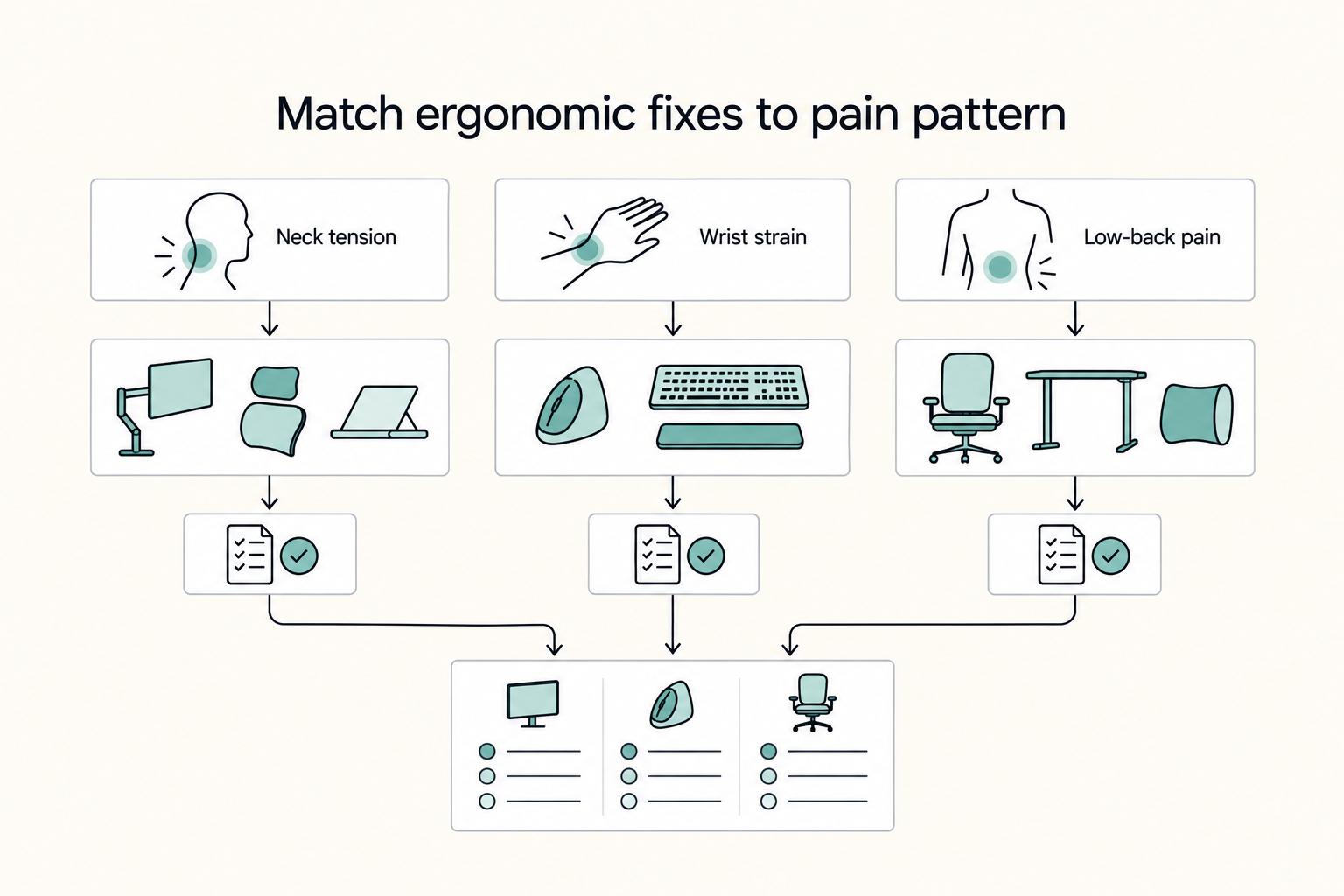
Which gear should you buy first if you have neck pain, wrist pain, or low-back pain?#
Buy the first item that removes the posture compensation you repeat most. Symptom location is useful, but compensation pattern is the real clue. Match pattern to first fix, then stabilize around it.
Do not diagnose from one bad day. Look for the pattern that appears across multiple normal days, then act on that pattern. Consistency is what makes the first purchase decision reliable.
Decision tree (pain → first fix)#
Use this table as a buy-next map:
| If you feel this most | Most likely compensation pattern | Buy first (primary fix) | Then add (to stabilize) | Setup target you can measure |
|---|---|---|---|---|
| Neck or upper-back tension | Head drifts forward, eyes point down | Laptop riser or other stable way to raise screen | External keyboard + external mouse | Top of screen near eye level, monitor directly in front, at least 20 inches away. Typical useful range for many people is 15 to 30 inches. |
| Wrist or forearm pain | Wrists bend up or sideways to reach keys/trackpad | External keyboard and/or external mouse that allow straighter wrist position | Align chair and desk/input height | Keep wrists close to neutral, shoulders relaxed, elbows near body around 90 degrees. |
| Low-back pain | Perching, slouching, feet tucked or dangling | Adjustable chair with supportive back | Footrest if feet are not flat | Feet stable on floor or footrest; back support helps hold neutral seated posture. |
How to apply the table without overthinking:
- Pick the row that matches your dominant end-of-day pattern.
- Install only the primary fix first.
- Work in it for several sessions.
- Add the stabilizer only if the primary fix is hard to sustain.
This keeps cause and effect clear and stops you from making five changes at once.
If two rows feel equally true, start with the one that affects your longest daily task block. Solve the highest-exposure block first, then retest. You will usually see the second issue improve once the first compensation pattern drops.
The "camera vs posture" trap (especially on calls)#
Meeting-heavy schedules often expose a hidden tradeoff: people optimize camera angle by lifting the whole laptop, then type with raised shoulders and bent wrists for hours.
A better pattern is camera at eye level and inputs at elbow height. Logitech guidance connects external webcam placement on top of an external screen with reduced neck and shoulder strain, which aligns with what most call-heavy operators report.
Two constraints worth handling early:
- Fixed high desk: stabilize lower body first with chair plus footrest, then position keyboard and mouse so shoulders stay relaxed.
- Shallow desk depth: avoid solving with an oversized display that forces forward lean. Prioritize control of placement so screen stays centered, directly in front, and at workable distance.
Reliable sequencing is still the same: screen height first, external inputs second, chair/foot support third, then larger upgrades such as monitor arm or sit-stand desk.
On heavy call days, run a quick pre-call check: camera at eye level, keyboard centered, mouse close, shoulders down. Repeat after later calls, because that is where drift usually appears.
How do you set up an ergonomic desk in a small space-or on the road?#
Constrained spaces reward repeatability. You need a layout you can recreate quickly, a compact kit that solves the main geometry issues, and call habits that do not create posture debt.
You are not trying to replicate a perfect office in every location. You are trying to preserve the few setup conditions that keep compensation low across real work blocks.
1) Use the primary/secondary zone layout (steal this from workplace design thinking)#
Think of your desk as an operating surface. PeopleSpace guidance centers keyboard and mouse in the primary work zone with monitors. NASA applies the same principle in a different context: keep high-frequency devices inside the primary zone to limit reach.
Use this practical layout:
- Primary zone (elbow to hand distance): keyboard, mouse, and the device you touch most.
- Secondary zone (within arm's reach): charger, docking hub, water, notes, and lower-frequency tools.
This is not cosmetic. Reach reduction matters because repeated long reaches usually add trunk rotation, shoulder elevation, or neck drift. Small posture leaks repeated all week are what create fatigue accumulation.
If your desk doubles as dining or shared space, this zone model also speeds reset. You can clear and rebuild quickly without guessing placement every morning.
A useful rule is easy-reach access. If you need to lean or rotate your trunk to touch something you use constantly, that item is in the wrong zone.
2) Keep predictable screen geometry on a shallow desk#
Shallow desks force tradeoffs fast, so protect two non-negotiables first: top of screen near eye level and roughly arm's-length distance. HSE guidance pairs these same targets.
Use stable placement moves instead of ad-hoc stacking:
- Clear rear desk edge so monitor base or stand can sit farther back.
- If you use a monitor arm, define one home position and mark it for fast reset.
- Keep keyboard and mouse pulled toward you so you are not trading screen distance for input overreach.
- Recheck camera framing after placement changes so you do not undo posture gains on call days.
The goal is predictable geometry under real constraints, not maximal hardware.
If you share the desk, capture a quick photo of your home position. A visual reset reference is faster than remeasuring from scratch and reduces day-to-day variance.
3) Travel or hybrid "packable MVES" (Minimum Viable Ergonomic Setup)#
Travel setups fail when bags are full of low-impact accessories and missing core alignment tools. Keep your packable baseline focused on high-return items.
| Packable item | Why it earns space | Fast check |
|---|---|---|
| Slim laptop stand (laptop riser) | Raises screen toward eye level in temporary spaces | Top of screen sits around eye level |
| Compact external keyboard | Lets elbows stay near 90 degrees while typing | Forearms roughly parallel to floor |
| Travel external mouse | Keeps pointing work in primary zone | Mouse stays within elbow-to-hand distance |
| Portable monitor (optional) | Adds workspace when task load justifies it | Main screen remains around arm's-length distance |
Herman Miller guidance supports this logic: improve screen position with a stand, then type on external input devices. The combination is still the highest ergonomic return per cubic inch in a travel bag.
If your workflow needs dual screens in hotels or coworking spaces, this guide can help with product selection: The Best Portable Monitors for Digital Nomads.
Pack and unpack in a fixed order so setup quality survives travel fatigue. Put stand first, keyboard second, mouse third, then adjust chair and screen distance. Consistent order protects consistency when your environment changes daily.
4) Video calls without posture debt#
Call quality and posture quality can coexist if you separate camera height from typing height.
Two stable patterns:
- Laptop on stand as camera, with external keyboard and mouse placed at elbow height.
- External webcam mounted on monitor, with monitor top near eye level and inputs centered in front of you.
A simple check after every call block: shoulders still down, wrists still neutral, screen still centered. If any of those drifted, reset before the next block.
If you present often, keep one call-ready layout and one deep-work layout that use the same keyboard and mouse location. Fewer moving parts means fewer alignment errors between meetings.
5) Constraint-based defaults for shared spaces#
Shared rooms and multipurpose tables reward fast setup, not perfect permanence.
- Choose gear that folds flat and deploys quickly.
- Mark repeat positions where possible, such as chair notch, monitor-arm home point, and keyboard location.
- Keep your zone layout consistent even when the room function changes.
- Store your core kit together so rebuild is a single motion, not a scavenger hunt.
Consistency is the win. Perfect geometry every day is great, but repeatable geometry across changing spaces is what protects real workloads.
When conditions are rough, keep your priority order visible: screen height, input position, lower-body support. That sequence prevents low-value tweaks from stealing time while high-impact fixes remain undone.
Make your ergonomic gear purchases audit-ready (yes, even as a solo operator)#
When a workstation purchase supports business work, treat it like business equipment from day one. Good records reduce tax friction, speed returns, and make warranty claims easier.
Operationally, this is the same principle as setup geometry: decide your standard once, then execute it the same way every time. Repeatability saves time under pressure.
1) Gear is equipment, not "random shopping"#
IRS guidance is straightforward: keep records that support what you claim. Supporting documents include invoices, receipts, and payment evidence.
For higher-cost items such as a sit-stand desk or ergonomic chair, create a simple capture habit at purchase time:
- Invoice or receipt (PDF or photo)
- Proof of payment (for example, canceled check or payment confirmation)
- Delivery confirmation (email receipt or tracking screenshot)
- One-line business purpose note (example: home office equipment for client work and calls)
Pick a threshold that triggers full capture and apply it consistently. The exact number is less important than repeatable behavior.
This is also a quality-control move. When every purchase gets documented the same way, it is easier to compare return windows, warranty periods, and replacement history later.
To keep this low effort, use a single folder structure and a consistent file naming pattern for every purchase. Consistent naming turns future searches into seconds instead of a long inbox hunt.
2) Asset register lite (fast, boring, powerful)#
A lightweight asset register is enough for most solo operators. IRS descriptions of business assets include machinery and furniture owned and used in the business, which maps directly to common desk equipment.
An asset register is simply a structured list you can hand to an accountant, or to yourself six quarters later, without detective work.
Use fields you see in common inventory templates:
| Field | What to record | Example (ergonomic gear) |
|---|---|---|
| Purchase date + vendor | When and where you bought it | 2026-02-10, Vendor X |
| Amount | Total paid | $___ |
| Return window end | Last date for return | YYYY-MM-DD |
| Warranty end date | Expiry date | YYYY-MM-DD |
| Model + identifier | Model, serial, or internal tag | Monitor arm model, portable monitor serial |
Track identifiers carefully for monitor arms and portable monitors. Those details often decide whether a support ticket is solved quickly or bounced between teams.
Set a 10-minute monthly review on this register. Confirm what is still in use, what is nearing warranty end, and what should be replaced before failure creates downtime.
3) Returns + warranty friction control (before you click buy) Read return and warranty pages before checkout, then log two lines in your notes: Restocking fee? and Who pays return shipping? You are not being paranoid. You are reducing predictable friction.
4) Standardize now so you scale later Write one short home-office standard, for example: MVES = laptop riser + external keyboard + external mouse. If you reimburse a contractor later, approvals become a yes/no check against a standard rather than a long debate.
5) Gruv-aligned ops note: keep payments traceable When you pay vendors for gear, coworking, or related office costs, keep each payment linked to the receipt. That reduces reconciliation work and keeps deductions easier to support, especially since IRS assessment timing is generally framed around a 3-year period from filing in many cases.
If you ever need to defend a decision, your register plus documents should answer a few fast questions: what you bought, why it supported work, and where proof lives. If those answers are obvious, audit stress drops sharply.
The 15-minute setup checklist + weekly self-audit (the part everyone skips)#
Most gains are lost through drift, not bad intentions. Buy the gear once, then preserve the geometry with a short calibration routine and a weekly reset.
Treat this section as maintenance, not motivation. The body adapts quickly to bad defaults, so your setup process has to be easier than your bad habits.
1) 15-minute setup checklist (do this once, then capture your "known-good" settings)#
Run this once per primary workspace. After setup, optional reference photos of chair settings, desk height, and monitor position make rebuilds fast after travel or room changes.
| Zone | Target | Tools that make it easier |
|---|---|---|
| Screen | Top at eye level or slightly below. Distance around arm's length. | Laptop stand, external monitor, monitor arm |
| Inputs | Keyboard at or slightly below elbow height. Mouse close. Wrists straight, shoulders relaxed. | External keyboard, external mouse |
| Chair | Seat height and back support let you stay neutral. Add foot support if needed. | Ergonomic chair, optional footrest |
Use this order to avoid rework:
- Screen first: set height and distance before touching chair controls.
- Inputs second: center keyboard to your body, keep mouse tight to keyboard, confirm elbows stay near 90 degrees.
- Chair last: set height and support to preserve what you already fixed.
Final pass takes one minute: look straight ahead, type for 30 seconds, and check whether shoulders, wrists, and feet still match the targets.
Capture a short setup note after this pass. Write down your preferred chair notch, screen distance cue, and keyboard position cue. That note becomes your reset script when your desk gets disturbed.
2) Weekly self-audit + micro-break operating routine (behavior layer)#
Assume your setup will drift. Monitors sink lower, keyboards slide off-center, and stands get borrowed for travel. A short weekly audit keeps your baseline intact.
Weekly reset checklist:
- Re-center screen directly in front of you.
- Re-check screen height and distance.
- Re-align keyboard and mouse inside the primary zone.
- Confirm shoulders stay relaxed and wrists stay close to neutral.
- Reset cable paths so placement does not shift every morning.
Keep a two-line weekly log with date plus the one drift you corrected. After a few weeks, patterns become obvious and root causes are easier to fix.
Then protect focus blocks with short breaks you will actually do. Stanford EHS suggests microbreaks of 30 to 60 seconds every 20 minutes. Pair that with the 20/20/20 eye rule: every 20 minutes, look 20 feet away for 20 seconds.
If you use a sit-stand desk, schedule standing blocks only if calendar structure is what makes the behavior stick. If travel is frequent, keep your compact baseline kit ready and your reference photos current. For mobile-screen options, see The Best Portable Monitors for Digital Nomads.
If your weekly log keeps showing the same issue, solve the cause instead of repeating the correction. For example, if the monitor keeps drifting, mark the mount position. If keyboard creep repeats, adjust mat or cable slack.
The confident default: build MVES first, then upgrade in modules (and keep the paper trail)#
If you want one dependable default, separate screen height from keyboard height first. Build MVES, verify it, then add only the module that removes your next bottleneck. Document purchases as you go so your setup is both physically and operationally sound.
When choices feel noisy, return to this default. It works because it handles the highest-impact conflict first and keeps later upgrades tied to observed limits.
1) Core Alignment Module (your MVES): laptop riser + external keyboard + external mouse#
Name this baseline and install it before anything else. For extended laptop work, the durable answer remains the same: raise the screen and separate inputs.
- Laptop stand: brings screen height toward eye level so head-down posture is less likely.
- External keyboard + mouse: keep hands in a more neutral zone while the screen stays elevated.
- Fast verification: top of screen near eye level, screen around arm's length away, elbows near 90 degrees, feet supported.
This module wins because it removes the laptop's core geometric conflict without requiring a full office redesign.
Keep this module portable when possible. A baseline you can replicate across locations protects more work hours than a perfect setup you can only use in one room.
2) Upgrade modules (choose the next bottleneck) + 3) Keep the paper trail#
After MVES is stable, pick upgrades by observed bottleneck, not desk aesthetics.
| Module | Add-ons | What it fixes | Done test |
|---|---|---|---|
| Support | Ergonomic chair, footrest | End-of-day back fatigue and unstable lower body | Feet feel supported, shoulders stay relaxed while typing |
| Capacity | External monitor, monitor arm, standing desk | Screen placement control and posture variation | Primary screen sits at comfortable eye level, posture changes are intentional |
| Mobility | Portable monitor, packable baseline kit | Travel and hybrid consistency | You can rebuild baseline setup quickly in temporary spaces |
Keep supporting documents tied to each item: payee, amount, proof of payment, date incurred, and item description. Maintain a simple asset list with serials, vendor, purchase date, and warranty expiry so returns and claims are straightforward.
For week one, install MVES, capture one known-good photo set, and document every purchase in one sheet. Then revisit your first bottleneck after two weeks and confirm the fix still holds.
If your team also wants cleaner payment and reconciliation operations, Gruv modules can support that where available. For country- or program-specific support, talk to Gruv.
Frequently Asked Questions
What is an ergonomic remote work setup?
An ergonomic remote work setup is how you arrange and use your workstation to help keep you safe from injury. The Hartford puts it plainly: “Known as ergonomics, how you arrange and use your workstation plays an important part in keeping you safe from injury.” In practice, you’re aiming for a neutral posture you can sustain-then arranging your screen, chair, and input devices to make that easier to repeat.
Can I be ergonomic using only a laptop?
You can get closer, but a laptop alone creates a built-in constraint. Cornell’s ergonomics guidance states that “the design of laptops violates a basic ergonomic requirement for a computer, namely that the keyboard and screen are separated.” A safe default is to lift the laptop screen to eye level, then add an external keyboard and mouse for extended work. That helps reduce the head-down posture while keeping typing workable.
Where should my monitor be positioned?
Put the monitor directly in front of you and at least 20 inches away (OSHA). For neck posture, Oregon OSHA’s workstation checklist asks: “Is the top of the screen at or below eye level so that it can be read without bending the neck?” Use that as your on-the-spot test. If you catch yourself craning forward, re-center the screen, and adjust the distance and height.
What is the correct desk height for typing?
Set typing height so your input devices sit at elbow height (UC Berkeley guidance for alternative workstations). That usually means adjusting your setup so you’re not reaching up or out to use your keyboard and mouse-keep them positioned so your arms can stay comfortably close to your body.
Do I need a footrest?
Use a footrest if your feet do not land flat on the floor. The University of Minnesota guidance: “Your feet should be flat on the floor or footrest, and your knees should be bent at 90 degrees.” Treat a footrest as a support tool. If it helps you keep knees near 90 degrees and prevents dangling feet, it’s doing its job.
Is a standing desk worth it for remote work?
A sit-stand desk earns its keep when it helps you alternate between sitting and standing (CCOHS definition) and “easily shift between seated and standing work tasks” (CDC/NIOSH). Do not buy one expecting automatic health benefits. UCLA Health notes field studies where “users only stand for very short-periods (15 minutes or less total per day).” If you don’t expect to switch positions regularly, it may make sense to prioritize dialing in your seated setup first.
What’s the biggest ergonomic mistake remote workers make?
There is no single universal biggest mistake. A common problem looks like using makeshift spaces as daily workstations, like “dining room tables, bedroom corners, and makeshift spaces” turned into permanent offices. The fix is to set up one consistent workstation you can return to and adjust as needed.
Try a related tool
Researched and edited by the Gruv editorial team. Gruv builds cross-border billing, payouts, and finance-operations software for global businesses.
Sources
Educational content only. Not legal, tax, or financial advice.
Related Posts
The Best Laptops for Digital Nomads in 2026
If you want smoother travel days and fewer support headaches, start with proven laptop families instead of whatever is newest. For most people working remotely, the right machine is a light, dependable one that handles documents, calls, research, and browser-heavy work without fuss. Move up only when your week regularly includes sustained CPU or GPU load such as long exports or local builds.

The Best Portable Monitors for Digital Nomads
**This isn't a trophy hunt. You're buying a portable monitor for travel the same way you buy any business tool: for predictable outcomes, not hype.** Portable monitors are lightweight and compact for on-the-go use. A second screen can add "an extra dimension to your work or play"-but only if it behaves the way you need it to in a café *and* at your home desk.

Section 44ADA for Freelancers in India Who Need a Defensible Filing Path
For a globally mobile freelancer, a safer tax move is the one you can defend six months later, not the one that feels fastest this week. Start with classification under `PGBP`, test whether `Section 44ADA` actually fits your facts, then file with records that support every major number you report.