
Quick Answer
Use Figma as a presentation system, not a one-off slide tool. Build a brand kit with color roles, text styles, components, variants, and a guardrails page, then assemble each deck from a base template and approved blocks. Customize the message last, verify key details before delivery, and keep one canonical review file to prevent version drift.
As a solo professional, your most valuable assets are your expertise and your time. Too much of that time gets burned on a high-stakes, low-return scramble to build presentations. You hunt for old decks, copy slides, update stats by hand, and hope the final result still looks consistent under pressure. That ad hoc process is not just inefficient. It weakens your brand and creates avoidable risk.
The better move is to stop treating slides as one-off deliverables and start treating them as a system. Used that way, Figma becomes less of a design tool and more of a central place for business development assets. It gives you a scalable, lower-risk setup that lets you assemble tailored presentations quickly without losing control. That is how you reclaim time, keep your brand consistent, and show up with more authority.
Part 1: Your Foundation - A Brand Kit Built for Reuse#
If you skip the foundation, every slide you make later is harder to trust and harder to reuse. Start by building a small brand system inside Figma, not a pile of polished sample slides. For presentations, the backbone is simple: tokens or variables for the basics, named text and color styles, reusable components, and a short page that explains the rules.
The useful mental shift is that your brand kit is not just a sticker sheet. One design-system source makes that point directly by framing the work as broader than a UI kit, component library, or brand book. In practice, that means your file should include both the assets and clear guidance for using them.
Set up your foundations in a usable order#
The long-form Figma design-system source starts with design token setup at 0:49, then treats text styles as a separate build step at 1:05:51. That sequence is worth copying. Make your core decisions once, then attach them to the slides you plan to reuse. Work through the setup in this order:
| Step | Focus | Grounded detail |
|---|---|---|
| 1 | Create color roles first | Use names like Brand/Primary, Text/Default, Surface/Subtle, or Data/01 instead of appearance-only labels. |
| 2 | Build text styles around slide jobs | Examples include Display/Cover, Heading/Section, Heading/Slide, Body/Base, and Caption/Fine Print. |
| 3 | Agree on naming conventions | One pattern example: Slide/Title, Slide/Two Column, Chart/Bar, Callout/Stat. |
| 4 | Write usage rules on-page | Document when to use accent color, which text style is reserved for cover slides, and when icons are allowed. |
- Create your color roles first. Do not name colors only by appearance. Names like
Brand/Primary,Text/Default,Surface/Subtle, orData/01are easier to maintain than purely visual labels when your goal is reusable presentation work. - Build text styles around slide jobs. Good examples are
Display/Cover,Heading/Section,Heading/Slide,Body/Base, andCaption/Fine Print. If a text style does not map to a real use case, you probably do not need it. - Agree on naming conventions before components multiply. Pick one pattern and stick to it. For example, use
Slide/Title,Slide/Two Column,Chart/Bar,Callout/Stat. - Write usage rules on-page. One sentence per rule is enough: when to use accent color, which text style is reserved for cover slides, and when icons are allowed.
Your first checkpoint is not visual polish. It is update behavior. Duplicate a test slide, change one color style or text style, and confirm the duplicate updates the way you expect.
Build components that guide edits instead of inviting them#
Once your styles are stable, build master components for the layouts you actually repeat: title slide, section divider, single insight, two-column content, quote, case study, pricing, and contact. Keep shared structure consistent where it matters, and decide up front which parts are meant for reuse versus per-slide edits.
This is where variants help. The source explicitly includes component variants as a build step, and that matters because one component family can cover related slide types without turning into a pile of one-off clones. A testimonial card, for example, can have variants with photo, without photo, or with logo only while still sharing the same base structure.
A common failure mode is behavioral: someone detaches an instance, pastes in a random icon, or manually tweaks text sizing to make a slide fit. Poor icon choices are already a known clarity risk, and in decks they can confuse the audience instead of helping them scan.
| Layer | What it controls | Best use | If you skip it |
|---|---|---|---|
| Text and color styles | Typography hierarchy and color roles | Global consistency across many slides | Local overrides creep in fast |
| Components and variants | Reusable layouts with approved options | Repeatable slide structures without cloning | You end up duplicating and drifting |
| Guardrails page and published library | Rules, examples, and shared access | Solo discipline plus collaborator onboarding | People improvise from memory |
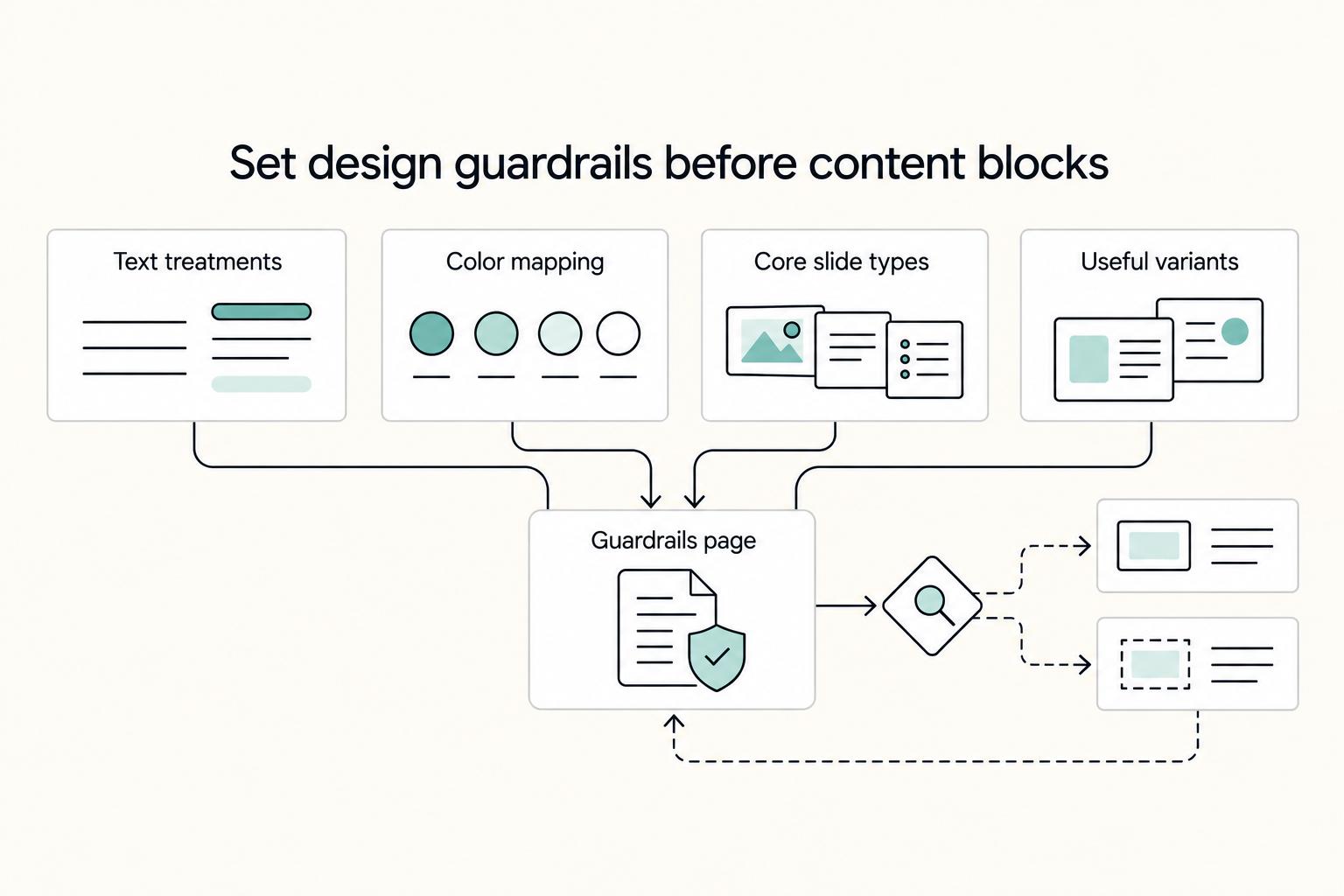
Add guardrails before you build content blocks#
Before you start building content-heavy blocks, lock in the rules people will need to follow. Keep one page in the file for governance. Document core usage rules, key examples, and a short handoff note so collaborators know how to edit safely and when to request a new variant.
If others will use the deck assets, the publish and subscribe step matters too. The source treats that as a formal stage at 3:30:19, which is a good reminder that handoff belongs in the foundation, not in cleanup.
Before you move on, do a quick readiness check. You are ready for modular content blocks when you can answer yes to these questions:
- Are all recurring text treatments tied to text styles?
- Are color choices mapped to roles?
- Do your core slide types exist as components?
- Do variants cover your most common layout differences?
- Does your guardrails page tell another person how to stay on-brand without asking you first?
If you want a deeper dive, read Value-Based Pricing: A Freelancer's Guide.
Part 2: Your Workflow - The Modular Deck Engine#
Once your kit is stable, build each client deck with the same assembly workflow: start from a base template, pull approved blocks, then tailor message-level content.
Assemble each deck in three moves#
A repeatable process is more reliable than a huge slide library. Use this sequence every time:
| Move | Action | Grounded detail |
|---|---|---|
| 1 | Start from the closest base template | Choose the template that matches the job and keep the core structure intact. |
| 2 | Assemble from approved blocks | Pull timelines, team sections, testimonials, pricing layouts, and case summaries from the maintained library, not old client decks. |
| 3 | Customize the message last | Update headlines, proof points, and client-specific details before considering layout changes. |
- Start from the closest base template. Choose the template that matches the job, then keep the core structure intact so brand decisions stay consistent.
- Assemble from approved blocks. Pull reusable modules like timelines, team sections, testimonials, pricing layouts, and case summaries from your maintained library, not from old client decks.
- Customize the message last. Update headlines, proof points, and client-specific details before you consider layout changes.
This keeps your file tied to a source of truth and reduces drift from one-off edits.
Keep variants useful, and split when structure diverges#
Use variants when the same component needs a small set of controlled options. Create a new component when the content structure or editing behavior changes enough that one component becomes hard to maintain. If a component starts accumulating exceptions, treat that as a signal to split it.
Before adding any block to your production library, test it with realistic content changes so it remains reusable in real client work.
| Criteria | Ad hoc slide building | Modular deck assembly |
|---|---|---|
| Maintenance effort | Repeated fixes in multiple files | Changes are easier to manage from a maintained library |
| Error risk | More copy-paste drift and local overrides | Fewer inconsistencies when teams reuse approved blocks |
| Collaboration readiness | Harder to see what is safe to edit | Clearer editing boundaries around shared components |
| Revision speed | Layout gets reopened on many requests | More revisions stay focused on message updates |
Protect the production file and review path#
Use a lightweight operating standard for file hygiene: keep foundations, blocks, templates, active work, and archive areas clearly separated, and keep production-ready work distinct from in-progress edits. If you collaborate, branching helps separate work in progress from production-ready designs.
Figma also supports real-time co-editing, comments in files and prototypes, and a review/approval structure to track decisions. Keep that review step explicit so feedback stays in context.
Plugins and apps are useful when their role is clear: plugins extend capabilities, and apps connect Figma to other products. For data-linked slides, use integration workflows where appropriate; for drafting, use simpler fill workflows. Before delivery, verify critical names, numbers, and dates, clear unresolved comments, and present from the approved file. For more on tooling, see The Best Tools for Creating Professional Presentations.
Part 3: Your Impact - Delivering with Authority#
Once your deck is modular, delivery is mostly about audience comprehension. Reveal content in sequence when pacing helps people follow your logic, and keep full slides visible when comparison or discussion needs full context.
Your opening minute sets the tone for everything that follows. Treat the first 60 seconds as working time: frame the problem statement, use an intellectual hook if it fits your style, and state the decision or next step you want from the room. Keep it essentials-first so people can orient quickly instead of decoding a dense opener.
Use motion to control pace, not to decorate#
Use motion when it prevents read-ahead and keeps attention on the point you are explaining now. A step-by-step recommendation, phased roadmap, or before-and-after explanation often benefits from simple reveals.
Keep slides static when the room needs to scan the whole picture at once, challenge assumptions, or compare options side by side. If a slide becomes harder to discuss because of interaction, simplify it. Subtle motion is enough to direct attention; heavy animation usually adds friction.
Before the meeting, run the deck once in presentation mode without narration. If meaning disappears without your voice, the slide is carrying too much hidden logic.
Build interactions around likely questions#
Use interactions to answer predictable questions, not to show tool complexity.
| Interaction type | Presenter intent | Audience outcome | Keep static when |
|---|---|---|---|
| Sequential reveal | Pace a recommendation or process step by step | Better focus on one point at a time | People need immediate full-context comparison |
| Scenario toggle | Compare options like scope levels or implementation paths | Faster tradeoff discussion | The decision depends on seeing all options together |
| Detail-on-demand panel | Open proof, assumptions, or implementation detail only when asked | Cleaner core narrative with backup ready | The detail is required for baseline understanding |
| Clickable path selection | Jump to the most relevant section for this audience | Less dead time, more relevant discussion | A linear walkthrough is already the clearest route |
Quick rule: if an interaction does not map to a recurring live question, make it static.
Deliver and share without version drift#
Use a consistent delivery workflow so quality holds under pressure.
| Stage | Actions |
|---|---|
| Pre-call check | Practice the opening, check notes, and click through every interaction. |
| Live plan | Define your default path, backup slides, and likely jump points for questions. |
| Post-call handoff | Send one canonical review path, clearly labeled with version/date context, and include linked supporting material. |
- Pre-call check: practice the opening, check notes, and click through every interaction.
- Live plan: define your default path, backup slides, and likely jump points for questions.
- Post-call handoff: send one canonical review path, clearly labeled with version/date context, and include linked supporting material (for example, assumptions, scope notes, or case examples) so stakeholders can review without guesswork.
For interactive leave-behinds, governance is simple: avoid competing copies, keep one current reference, and make ownership clear. That protects narrative clarity the same way good slide structure does.
Quality checkpoint:
- Narrative flow: opening, problem statement, and call to action are easy to follow.
- Interaction usability: each click has a purpose; core meaning is never hidden.
- Handoff experience: stakeholders receive one clear path with enough context to act.
You might also find this useful: The Best Tools for Creative Collaboration with Remote Teams.
Conclusion: From Design Tool to Business System#
If you want Figma for presentations to keep paying off after a single client deck, treat it as a repeatable business asset, not a one-off slide session. The real gain is operational: clearer design decisions, steadier brand signals, and fewer layout misses in the decks where first impressions matter. That matters because 47% of presenters say slide design is a challenge.
The payoff shows up in repeat work, not just big launches. When your logos, colors, and messaging live in one place, visual consistency is easier to maintain. You can spend more time on the parts that move the story forward: the problem slide, the proof, and the close. Consistency is practical too. Your proposal and pitch deck should look and sound like they came from the same business.
Risk reduction comes from making the important checks repeatable. Before you present, verify that the opening problem slide clearly states the problem and includes data points that show the pain is real. If credibility is likely to be challenged, add a dedicated quotes slide with testimonials or press mentions. A common failure mode is assuming strong content can survive weak layout. It often cannot. Another is overusing bold type and color until the deck loses its polished feel.
In practice, the shift is simple: keep a stable brand kit, reuse slide structures that already work, and run a consistent review checklist. That helps most when you create the same kinds of high-stakes decks repeatedly. It does not remove judgment. You still have to decide what story to tell, what to cut, and how to cover the essentials without overloading the room.
Use this quick readiness check:
- Can you start a new deck from a current problem slide instead of a blank page?
- Are your brand elements and core messaging unified in one place?
- Do stakeholders have one current version of the deck to review?
For a step-by-step walkthrough, see Best Figma Plugins for Reliable Client Design Work.
Frequently Asked Questions
Is Figma better than PowerPoint for business proposals?
Not across the board. Figma is useful when you need presenter notes in a separate audience view or live interaction with the deck. Audience interaction requires at least can view access, and clickable prototypes also require can view access to the prototype file. If your workflow is mostly static slides, the right tool depends on your team and client needs.
How do you create a reusable presentation template in Figma?
Use your team's template standards because the presenting documentation does not define a single template-governance workflow. Keep ownership and permissions clear so the working file stays consistent. In practice, build on a stable brand kit, reusable components, variants, and guardrails.
What plugins should you use for presentations?
No specific plugins are recommended here. Use plugins when their role is clear and review outputs carefully before sharing. For data-linked slides, use integration workflows where appropriate, and for drafting, use simpler fill workflows.
Should you animate slides?
Animate only when motion helps the audience follow the point you are explaining now. Use simple reveals for step-by-step recommendations, phased roadmaps, or before-and-after explanations, and keep slides static when people need full-context comparison. Also plan for offline mode, where embedded prototypes and YouTube videos are not interactive.
What is the cleanest way to present or share the deck?
For live delivery, use Present + Notes when you need speaker notes and a separate audience view. If you might lose connection, make the deck available offline and wait until it is marked available to present while offline. For audience interaction, viewers need at least can view access, and clickable prototypes also require can view access to the prototype file.
How do you keep collaboration from getting messy?
Set access intentionally before rehearsal. Anyone opening presenter view needs at least can view access, and each presenter needs at least can view access as well. Audience members also need at least can view to interact with live elements, and clickable prototypes require can view on both the deck and the prototype file.
Try a related tool
Researched and edited by the Gruv editorial team. Gruv builds cross-border billing, payouts, and finance-operations software for global businesses.
Sources
Includes 7 external sources outside the trusted-domain allowlist.
- sec.gov/Archives/edgar/data/1579878/0001628280250353...trusted
- athleticsnyc.com/news/software-spotlight-figmaexternal
- bunindmitry.medium.com/best-free-icon-packs-for-design-and-developm...external
- carletondesign.com/blogexternal
- figma.com/resource-library/pitch-deck-examplesexternal
- figma.com/community/presentationsexternal
- help.figma.com/hc/en-us/articles/24338209202327-Present-a-s...external
- instagram.com/reel/DV1EMSniXtUexternal
Educational content only. Not legal, tax, or financial advice.
Related Posts
Value-Based Pricing for Freelancers Under Real Payment Risk
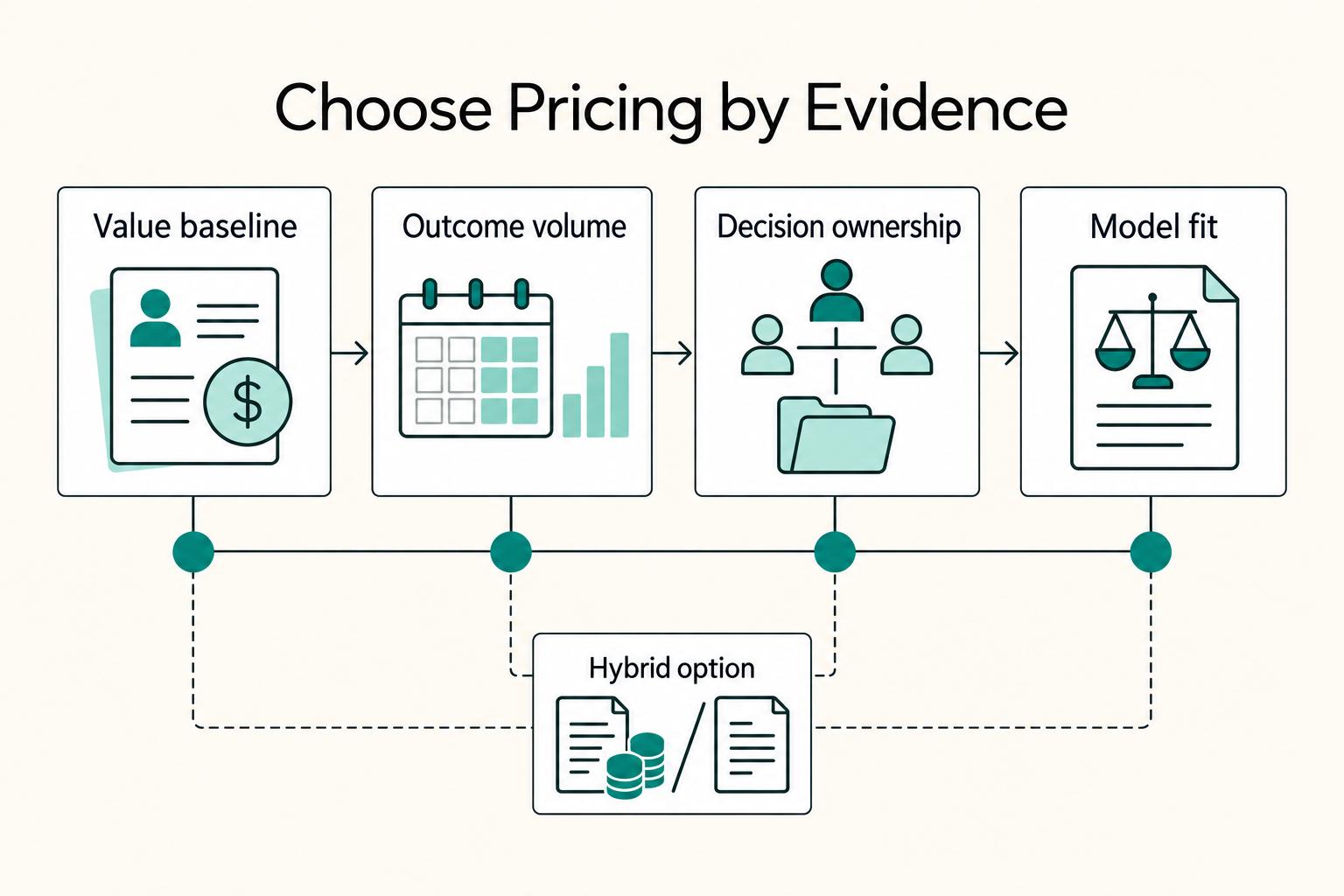
Value-based pricing works when you and the client can name the business result before kickoff and agree on how progress will be judged. If that link is weak, use a tighter model first. This is not about defending one pricing philosophy over another. It is about avoiding surprises by keeping pricing, scope, delivery, and payment aligned from day one.
The Best Tools for Creating Professional Presentations
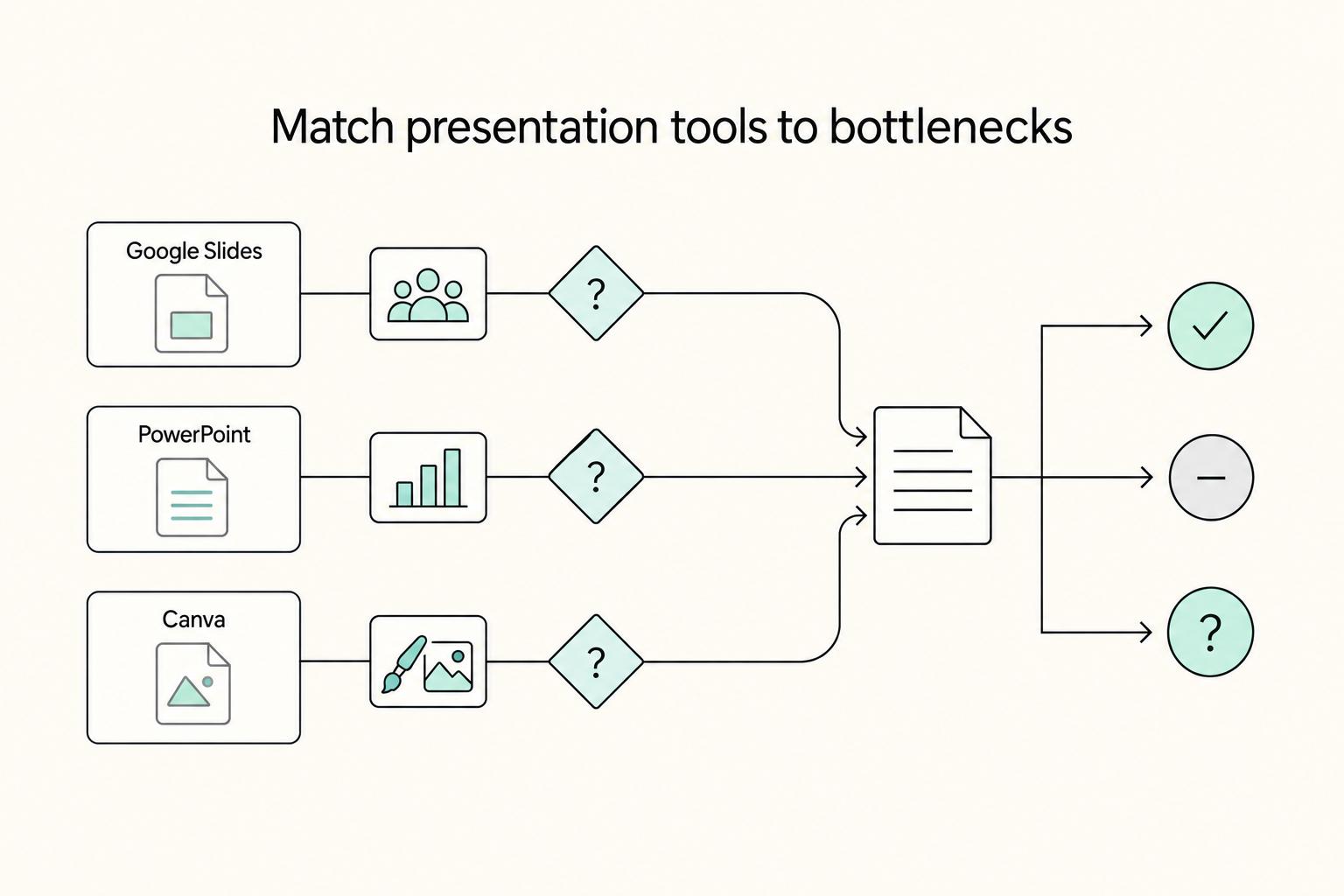
Use a 2025-2026 validation sweep each quarter: confirm one monthly software baseline ($15/month), one collaboration baseline ($30/month), and one premium workflow baseline ($60/month) before changing client-facing tool commitments.
The Best Tools for Creative Collaboration with Remote Teams
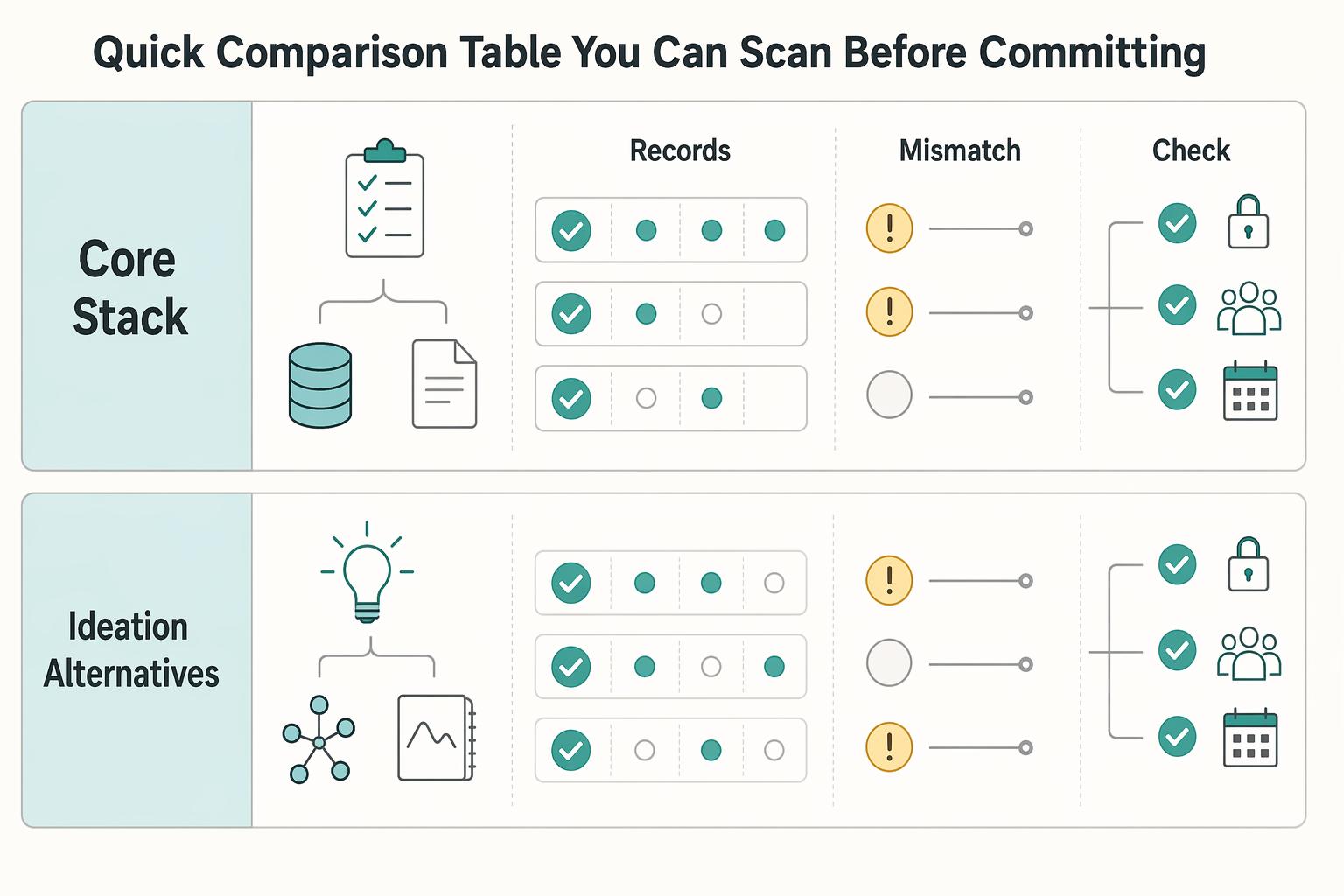
As the CEO of your business-of-one, you're not here for vibes; you're here for a repeatable system you can run.